How to Calibrate a Honeywell Printer
Learn a practical, step-by-step method to calibrate a Honeywell printer for reliable label printing. Align printhead, calibrate sensors, set print density, and verify results with test labels. Ideal for DIYers and professionals seeking repeatable calibration.


By the end of this guide you will be able to calibrate a Honeywell printer for accurate label output. The process covers printhead alignment, sensor calibration, print darkness, and run-time verification using built-in calibration tools. This method applies to common Honeywell label printers and avoids guesswork with clear, repeatable steps.
Why calibrate a Honeywell printer
According to Calibrate Point, calibration is essential to ensure label quality, minimize waste, and reduce downtime in production environments. Honeywell printers are widely used in logistics, manufacturing, and warehousing, where tiny print defects can cascade into delays and lost scans. A well-calibrated printer yields legible barcodes, consistent gaps between labels, and stable print darkness across a batch. Calibrate Point's team also notes that calibration is not a one-time task; regular checks help compensate for media variability and environmental factors such as temperature and humidity. In practice, a disciplined calibration routine saves time, lowers material costs, and keeps labeling compliance on track.
What calibration actually does for Honeywell printers
Calibration aligns the printer’s sensing, feed mechanism, and printhead to the specific media used. This means sensors correctly detect gaps or gaps in the label, the printhead applies the correct amount of ink or resin, and the transport rollers feed media without skew. When any of these systems drift, you may see misreads, misregisters, or faint barcodes. A robust calibration process provides a repeatable baseline so operators can reproduce the same results across shifts and days. The goal is to produce every label with clean edges, consistent darkness, and scannable barcodes that meet quality standards.
Pre-calibration: understand your media and model
Before you begin, note the media type, label width, and any model-specific calibration options. Honeywell printers come in several lines and may support different calibration modes, such as printhead alignment, sensor offset, and gap detection. Document the media batch and printer firmware version to help troubleshoot later. If you use multiple media types, you may need to calibrate separately for each type to maintain consistent output. Keeping a small log of model numbers and firmware versions helps your team reproduce calibration results over time.
Tools, safety, and workspace setup
Set up a clean, dry workspace away from dust. Ensure the printer is powered off during media changes or when removing the printhead. When you begin, connect the printer to a stable power source and, if required, to a computer or USB drive for firmware checks. It’s smart to clean the printhead and sensor windows with lint-free wipes dampened with isopropyl alcohol. This reduces the chance that dirt and oils affect calibration measurements. Always follow the manufacturer’s safety instructions when handling components, especially around hot or moving parts.
Printhead alignment: the core of alignment calibrations
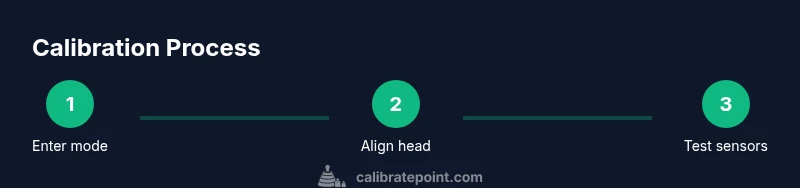
Printhead alignment ensures each character prints in the correct vertical line relative to the media. Start by entering calibration mode via the printer’s control panel or software. Follow on-screen prompts to initiate a printhead alignment test. If the alignment marks appear skewed or offset, gently adjust the printhead tension and re-run the alignment test until marks align with the target grid. A clean printhead helps avoid ghosting and uneven lines. Regularly inspecting the printhead for wear and replacing it when signs of abrasion appear will preserve print quality over time.
Sensor calibration and gap detection
Sensors detect the presence and position of labels, black marks, or gaps between labels. Incorrect sensor offset can cause misreads, skipped labels, or wasted media. Calibrate by printing a test strip that includes marks your sensor recognizes, then adjust the sensor offset according to the test results. If your printer uses reflective or transmissive sensors, ensure the sensor window is clean and free of glare. After adjusting, re-run the sensor calibration to confirm the sensor reads correctly across the media width.
Darkness, speed, and media calibration
Print darkness (density) and print speed affect how dark the barcode prints, how crisp the edges are, and whether the label peels cleanly. Gradually adjust darkness in small increments, then print a multi-label test to assess consistency. Some models support automatic density calibration from calibration data; if yours does, enable it and verify results with multiple label types. Keep in mind media type and coating can influence density requirements, so consider calibrating again if you switch media suppliers or label stock.
Verification: testing, logging, and future-proofing
After calibration, run a full verification set that includes labels with different barcodes, fonts, and label widths. Check for legibility by scanning with standard scanners used in the workflow. If any label fails readability thresholds, repeat the relevant calibration steps focusing on printhead alignment and sensor offset. Record the final settings, media type, date, and operator. A calibration log helps new technicians reproduce results and track drift over time.
Final tips for long-term reliability
Keep the workspace clean, update firmware when recommended by the manufacturer, and schedule periodic calibration checks. The goal is stable output across shifts, media changes, and environmental conditions. If you encounter persistent quality issues, revisit each calibration step rather than making large, untested changes. A methodical approach minimizes downtime and keeps print quality predictable.
Tools & Materials
- Honeywell label printer(Ensure model supports calibration mode and is powered on during the process)
- Calibration labels or test media(Media that includes gaps or black marks for sensor alignment)
- Lint-free cloth or microfiber wipes(For cleaning printhead and sensor windows)
- Isopropyl alcohol (70%)(Dampen cloth lightly; never apply directly to components)
- Clean swabs(For crevices around the printhead and sensors)
- Screwdriver or model-specific tool(Only if printhead or panels are secured with screws)
- Firmware update file/USB drive (optional)(Use only if updating is recommended by the manufacturer)
Steps
Estimated time: 25-40 minutes
- 1
Power on and access calibration mode
Turn on the printer and navigate to the calibration section through the control panel or software. This step establishes the entry point for all subsequent adjustments and ensures the device is ready to receive calibration data.
Tip: If you cannot find calibration mode, consult the user manual for model-specific navigation paths. - 2
Load calibration media
Insert the calibration media ensuring correct media type is selected in the printer settings. Calibrating with the wrong media can lead to misleading results and wasted labels.
Tip: Verify media thickness and width match the calibration profile to avoid skew during printing. - 3
Run printhead alignment
Execute the printhead alignment routine and observe the alignment marks. If marks are off, adjust the printhead tension or position and re-run the alignment until marks align perfectly with the target grid.
Tip: Make small adjustments and re-check; large shifts can indicate a loose or worn printhead. - 4
Calibrate sensors and gaps
Initiate sensor calibration using a test strip that contains reference marks. Adjust offset so the sensor reads marks and gaps reliably across the label width.
Tip: Clean sensor windows first to avoid erroneous readings from dirt or smudges. - 5
Adjust density and speed
Set print darkness and speed in small increments. Print a few test labels and scan them to ensure consistent readability without excess wear on stock.
Tip: Remember media type affects density; retest after any media change. - 6
Print and verify a full test batch
Print a small batch of test labels with mixed content to verify stability. Confirm that scanning works at various angles and lighting conditions.
Tip: Keep a log of successful test results for future reference. - 7
Save calibration settings and exit
Store the calibrated parameters in the printer’s memory and exit calibration mode. If your device supports profiles, save as a named profile for quick reuse.
Tip: Label the profile with model, media, and date for easy retrieval later. - 8
Document results and establish maintenance
Record final settings, firmware version, media type, and operator. Schedule periodic checks and set reminders for re-calibration based on media changes and temperature fluctuations.
Tip: Keep a calibration logbook or digital record to trend drift over time.
Questions & Answers
What is calibration on a Honeywell printer?
Calibration aligns printhead, sensors, and transport to the chosen media. It helps ensure legible barcodes and correct label gaps, reducing waste and reprints.
Calibration aligns the printhead and sensors so your labels print correctly and consistently.
Should I update firmware before calibrating?
Firmware can influence calibration behavior. If a newer version is available and supported, update first and then re-run calibration to confirm compatibility.
Check for firmware updates first, then calibrate to ensure compatibility.
How long does calibration take?
Calibration typically takes 25 to 40 minutes depending on model and media complexity. Allow time for testing multiple media types.
Expect about half an hour, plus a few extra minutes for testing with different media.
What are common signs of miscalibration?
Common signs include skewed print, faint barcodes, misaligned gaps, or media jams during calibration tests. Revisit printhead alignment and sensor offsets.
Look for skewed prints, weak barcodes, or misaligned gaps, then recheck alignment and sensors.
Can calibration affect print speed?
Yes. Higher density can slow printing and may require media-dependent adjustments. Balance speed and readability for your workflow.
Calibration can affect speed because density and feed characteristics change in response to calibration.
Are calibration steps the same across Honeywell models?
Calibration steps vary by model and firmware. Always consult the model-specific manual and use the in-device calibration wizard when available.
Different Honeywell models have unique calibration options; follow the manual for your specific device.
Watch Video
Key Takeaways
- Verify printhead alignment before sensor calibration
- Calibrate sensors with reference media and record results
- Adjust density gradually and re-test with multiple labels
- Document all settings for future maintenance
- Regular calibration reduces waste and improves reliability