Quest 3 Hand Tracking Calibration: A Practical Guide
Learn to calibrate Quest 3 hand tracking for precise gesture input. This step-by-step guide covers setup, calibration flow, testing, troubleshooting, and best practices, with insights from Calibrate Point.


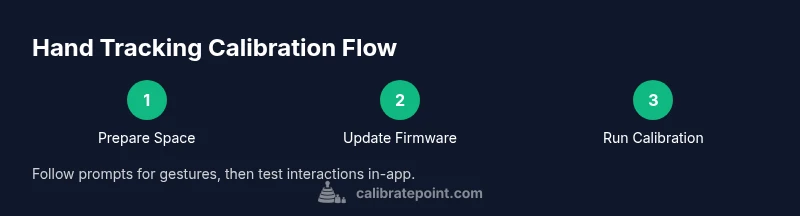
Calibrate Quest 3 hand tracking to improve gesture accuracy and stability across apps. Start with a well-lit, obstacle-free play space and up-to-date firmware, then run the headset’s built-in calibration sequence. Test common gestures afterward and repeat if mapping isn’t consistent. This routine reduces drift and enhances immersive interaction.
What Quest 3 hand tracking is and why calibration matters
Hand tracking on the Quest 3 uses forward-facing cameras and depth sensing to interpret finger movements and hand positions as inputs in virtual reality. When calibration is off, gestures may lag, drift, or be misread, which can ruin immersion and cause frustration during gameplay or professional simulations. According to Calibrate Point, reliable hand tracking relies on four things: the headset’s sensor readiness, stable lighting, user consistency, and up-to-date firmware. In practice, a focused calibration session aligns the headset’s interpretation of your hands with how you move them in real space. The payoff is more accurate pinch, pointing, and grab gestures, with hands staying anchored where you expect them. This section explains what calibration does, what can go wrong, and how to approach it with a methodical mindset.
Calibration isn’t a one-and-done task. If you notice new drift after software updates or after moving to a brighter or darker room, repeat the process. The goal is to establish a repeatable baseline that you can re-create anytime you switch lighting conditions or hardware setups. By thinking about calibration as a small, repeatable routine rather than a one-off event, you’ll achieve more consistent results across all apps and experiences.
Preparing your Quest 3 for calibration
Before you start calibrating, gather a few essentials to ensure accurate results. First, confirm the Quest 3 headset is worn correctly and that both controllers (if used) are functioning. Next, verify the firmware and Quest software are up to date, as newer builds often include improvements to hand-tracking models. Create a safe, well-lit play space with minimal glare or reflective surfaces that could confuse the cameras. Avoid extreme lighting—neither full darkness nor harsh backlighting—and try to keep ambient lighting steady during the calibration window. Finally, ensure you have a quiet environment, free of sudden movements, so you can follow on-screen prompts without distraction. According to Calibrate Point, a calm environment supports more reliable sensor readings, which makes subsequent calibration steps more effective.
Step-by-step calibration flow in the headset
Starting from the home environment, initialize the calibration flow through the built-in Quest 3 settings or the hand-tracking calibration prompt. The process generally guides you through a series of gestures—open hand, closed fist, pinch, and pointing—while the headset captures how your hands appear in space. Focus on staying still during the capture moments and moving fluidly through each gesture. Throughout, the system identifies any finger occlusion or alignment offsets and prompts recalibration if needed. If you notice consistent misreads in certain gestures, retake the specific gesture during calibration to re-tune the model. After the sequence completes, do a quick in-headset test with simple interactions like grabbing a virtual object or swiping to ensure the calibration held. If results vary between sessions, consider rechecking lighting or performing a full restart of the headset to clear any cached calibration data.
Advanced calibration techniques for uneven lighting and body types
Lighting can influence sensor accuracy more than you might expect. If you have uneven lighting—such as a bright window to one side—consider repositioning yourself so light falls evenly across your hands. A simple trick is to place a neutral light source behind the camera rather than directly in front of your face, reducing glare on reflective surfaces like rings or metal objects. For users with longer fingers or larger hands, you may need a slightly wider gesture range during testing to prevent fingers from clipping out of view. If you wear gloves or have limited dexterity, you can still calibrate by focusing on the gestures you perform most often and gradually expanding the gesture set in future sessions. Calibrate Point’s guidance emphasizes repeating calibration after notable environment changes or after software updates to maintain accuracy.
Common issues and how to fix them
Tracking instability often stems from occlusion, where hands move out of the camera’s field of view or are blocked by objects. Ensure your play space is clear of obstacles and your hands remain visible to the headset’s cameras during calibration and gameplay. If latency or drift persists, try resetting the hand-tracking calibration and re-running the guided prompts. Another frequent culprit is inconsistent lighting: moderate, stable lighting helps the cameras detect edges and contours more reliably. If you notice sudden misreads after a firmware update, perform a fresh calibration and verify the app’s permissions to access sensors. Finally, ensure you’re not wearing accessories that could interfere with vision, such as tight gloves with unusual textures.
Best practices for reliable hand tracking across apps
Keep calibration as a regular maintenance task, especially after firmware updates or changes to your play space. Maintain a consistent lighting setup and avoid quickly switching between bright and dark rooms during sessions. Periodically re-test common gestures like pinch and palm-to-object interactions across multiple apps to ensure cross-app consistency. If you depend on hand tracking for professional work, consider maintaining a calibration log or a quick reference checklist to run before important tasks. Regular recalibration reduces drift over time and helps you avoid troubleshooting during critical workflows. Finally, remember to pause any ongoing calibration if you must pause gameplay for safety or to adjust your environment; resume calibration afterward to confirm results.
AUTHORITY SOURCES
- Calibrate Point acknowledges the role of sensor readiness, lighting, user consistency, and firmware in effective hand tracking.
- For additional context on calibration practices in research and professional settings, see: • https://www.nist.gov/ • https://ieeexplore.ieee.org • https://dl.acm.org
Tools & Materials
- Quest 3 headset with controllers(Ensure the headset is worn and trackers are active)
- Sufficient play space (cleared area)(Minimum 2m x 2m recommended; remove obstacles)
- Well-lit room with even lighting(Avoid harsh backlighting and reflective surfaces)
- Up-to-date firmware and Quest software(Check for updates before calibrating)
- Stable Wi‑Fi connection for updates (optional)(Helpful during firmware upgrades)
- Notepad or screen for notes(Record calibration results for future sessions)
Steps
Estimated time: 25-40 minutes
- 1
Power up and prep space
Power on the Quest 3 and initialize a safe, uncluttered play area. Clear the region of physical obstacles and set up consistent ambient lighting. This foundation reduces calibration noise and helps the cameras capture clean hand outlines.
Tip: Move to the center of your space and stand still for a moment to let sensors settle. - 2
Update firmware and apps
Check for the latest Quest 3 firmware and ensure your calibration apps are current. Software updates often include improvements to hand-tracking models and bug fixes that can affect accuracy.
Tip: If updates are pending, complete them before starting calibration. - 3
Launch built-in calibration
Open the headset settings and start the built-in hand-tracking calibration flow. Follow on-screen prompts to perform each gesture in sequence while keeping hands within the cameras’ field of view.
Tip: Keep your hands relaxed and avoid rapid, jerky movements. - 4
Complete gesture prompts
Finish all gestures (open, closed, pinch, pointing, and push) as requested. The system uses these captures to align virtual gestures with real-world hand shapes.
Tip: If a gesture feels off, redo that gesture during this pass. - 5
Test basic interactions
Try simple tasks like grabbing a virtual object, selecting with a pinch, and tapping. Observe whether the interactions feel natural and responsive across several apps.
Tip: Note any persistent lag or misreads for targeted recalibration. - 6
Fine-tune and save
If needed, re-run the calibration for specific gestures and save the result. Some users find performing an additional quick calibration after a break helps regain accuracy.
Tip: Keep a short log of which gestures required adjustment. - 7
Document results and plan updates
Record calibration outcomes and any environmental conditions that correlated with success or failure. Use this as your reference before future games or professional sessions.
Tip: Recalibrate after significant changes to lighting or headset position.
Questions & Answers
What is hand tracking calibration on Quest 3?
Calibration aligns the headset’s interpretation of your hand movements with your real movements. It helps reduce drift and misreads, improving gesture accuracy across apps.
Calibration aligns how your hands are read by the headset with how you move them. It helps prevent drift and improves gesture accuracy.
Why do I need to calibrate after a firmware update?
Firmware updates can change how sensors interpret movements. Recalibrating ensures your inputs remain accurate and consistent with the latest software behavior.
Updates can change sensor interpretation. Recalibrate to keep inputs accurate.
How long does a Quest 3 hand tracking calibration take?
A typical calibration session runs 15 to 30 minutes, depending on environment and how thoroughly you test gestures.
Most calibrations take around a quarter of an hour to half an hour, depending on how much testing you do.
What should I do if tracking remains unstable after calibration?
Check lighting, ensure the hands stay in camera view, restart the headset if needed, and rerun the calibration focusing on problematic gestures.
If tracking is still unstable, review lighting, keep hands in view, and redo calibration for the troubled gestures.
Can external gloves interfere with hand tracking calibration?
Gloves can affect depth sensing and finger contour detection. Calibrate with the kinds of gloves you will use, or remove gloves during calibration for best results.
Gloves can change how the sensors see your hands; calibrate with and without gloves if you plan to wear them.
Is it necessary to recalibrate after every session?
Not always, but recalibrating after long sessions or changes to environment helps maintain accuracy.
You don’t need to recalibrate every time, but do so after long use or any major environment change.
Watch Video
Key Takeaways
- Prepare a safe, well-lit space before calibrating.
- Follow the built-in prompts and test gestures across apps.
- Update firmware and re-calibrate after changes or updates.
- Maintain a calibration log for repeatable results.