Best Way to Calibrate HDR Monitor: A Practical Guide
Learn the best way to calibrate HDR monitor for accurate color, brightness, and contrast. This practical, step-by-step guide covers tools, targets, and pro tips from Calibrate Point to help you achieve consistent HDR results.


The best way to calibrate HDR monitor is to use a hardware colorimeter or spectrophotometer with HDR-aware software, profile grayscale and color accuracy, and lock in repeatable targets. Start from the monitor’s native brightness, set a stable white point, and use HDR test patterns to verify results. Maintain a documented workflow for reliable results across sessions.
Why HDR monitor calibration matters
In the era of HDR content, accurate calibration is essential for professionals and enthusiasts alike. An HDR-capable display can reveal bright highlights and deep shadows, but without proper calibration, edits, grading, and viewing will drift from reference values. According to Calibrate Point, achieving consistent HDR calibration starts with a rigorous, documented workflow. The Calibrate Point team found that many errors originate from relying on factory defaults or generic sRGB targets when HDR is active. The goal is a repeatable, auditable process that accounts for hardware capabilities (peak brightness, local dimming, tone-mapping behavior), software targets (grayscale, gamma, color space), and ambient lighting. A well-executed calibration preserves highlight/shadow detail while keeping colors natural across scenes. Readers will learn to design a practical HDR calibration routine that applies to daily workflows and longer projects. Calibrating isn’t a single tweak; it’s a disciplined procedure that yields predictable results over time and across content.
Key concepts for HDR calibration
HDR calibration rests on core concepts that shape image quality. The EOTF (electro-optical transfer function) defines how digital values map to brightness in HDR content, ensuring midtones look natural and highlights don’t clip prematurely. Color management relies on defined color gamuts and a stable white point (commonly tied to standard references like D65). Gamma describes the contrast curve applied to grayscale steps; a calibrated gamma maintains detail in shadows and highlights. The aim is to align the monitor’s native output with the HDR timeline used by content creators while ensuring consistent tone-mapping behavior. When calibrating HDR, you adjust more than brightness; you harmonize color accuracy, tonal response, and luminance targets across the display pipeline. This section builds the foundation for practical steps that follow, clarifying what each setting accomplishes and why it matters for real-world results.
Step-by-step calibration workflow overview
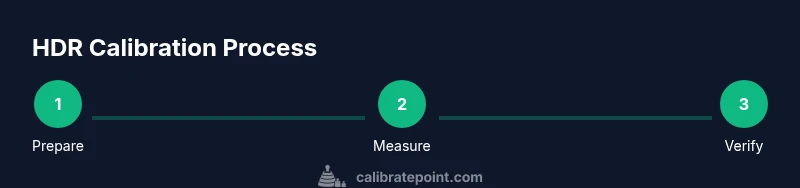
Calibration can be understood in three phases: preparation, measurement, and verification. In preparation, you create the proper environment, connect the measurement tool, and configure software for HDR workflows. In measurement, you generate test patterns, profile grayscale, color, and tone-mapping, and store results. In verification, you compare the calibrated display against reference patterns, adjust if necessary, and document the final state. This overview gives you a mental map before diving into the detailed steps. A repeatable workflow lets you compare successive calibrations and observe how ambient light or hardware changes affect results. The following steps provide the exact actions, targets, and caveats needed to execute this workflow with reliability, including recommended test content and validation checks.
Tools, targets, and patterns
Having the right toolkit is essential for HDR calibration. A colorimeter or spectrophotometer provides objective measurements of luminance and chromaticity. Calibration software with HDR support guides grayscale, gamma, and color-space targets, and should offer tone-mapping controls aligned with HDR standards. A robust test-pattern library—grayscale ramps, color checkers, and HDR content with a wide luminance range—lets you verify results across content types. You’ll also want a stable connection (HDMI 2.0 or DisplayPort) and a GPU/OS setup that won’t override the calibration. Optional but helpful: an ambient light meter to quantify room lighting and a reference display for cross-checking results. This block gives you a concrete toolkit and concrete targets to aim for during measurement.
Common pitfalls and how to avoid them
Common mistakes include relying on on-screen brightness sliders alone or calibrating only SDR targets for HDR displays. Another pitfall is not disabling dynamic contrast, local dimming, or other panel-specific features during calibration, as these can mask the true tone response. Avoid using auto color settings in both monitor menus and OS-level controls until after you save a calibration profile. Always calibrate under realistic lighting and re-check results if room lighting changes. Finally, keep a detailed record of settings and results so you can reproduce the workflow in future sessions. With careful setup and discipline, you minimize rework and maintain stability over time.
Room lighting and viewing conditions
Ambient lighting significantly impacts HDR perception. A dim, neutral environment reduces glare and stabilizes test pattern measurements. Avoid direct reflections on the screen and maintain a consistent viewing distance that matches how content is consumed. If available, use a calibrated light meter to estimate room luminance and adjust the monitor brightness to a comfortable, repeatable level. Consistent lighting is as important as the calibration steps themselves for long-term stability.
Authority and references
To support these recommendations, consult authoritative sources with HDR color management guidance. For standards and measurement references, see resources from NIST and SMPTE, which provide foundational guidance on color science and display performance. ITU materials also offer HDR and display considerations within their standardization work. These sources help frame best practices and provide a reliable baseline for calibrations performed in professional and research contexts. See the references below for further reading:
- https://www.nist.gov
- https://www.itu.int
- https://www.smpte.org
Tools & Materials
- Colorimeter or spectrophotometer(Essential for measuring luminance and chromaticity; choose with HDR-capable sensor.)
- HDR-capable calibration software(Must support HDR targets, tone-mapping controls, and color validation.)
- Display cables (HDMI 2.0/DP 1.4)(Stable data connection to avoid drift during profiling.)
- Calibrated test patterns and HDR content(Includes grayscale ramps, color checkers, and HDR clips.)
- Ambient light meter (optional)(Quantifies room lighting to improve repeatability.)
- Reference display or color-managed workflow guide(Cross-checks for consistency across devices.)
- Computer with color management software(Run software, store profiles, and generate reports.)
- Calibration target documentation(Log targets, results, and timestamps for traceability.)
Steps
Estimated time: 60-90 minutes
- 1
Prepare the workspace
Set up a dim, controlled environment and ensure the display is warmed up. Position yourself at a typical viewing distance and disable any distracting reflections. This step creates a stable baseline for accurate measurements.
Tip: Close curtains or blinds to minimize ambient light and glare. - 2
Install calibration software
Install your HDR-capable calibration tool and verify that HDR mode is enabled in the OS and GPU control panel. Confirm the software recognizes the connected colorimeter.
Tip: Run a quick diagnostic check to ensure the device reads color patches correctly. - 3
Connect the colorimeter
Physically connect the colorimeter and launch measurement mode in the software. Ensure the sensor rests naturally on a neutral test surface to avoid measurement bias.
Tip: Keep the sensor steady during scans; even minor movement shifts results. - 4
Record baseline brightness and white point
Measure the monitor’s current peak brightness in HDR mode and establish a reference white point. Do not adjust brightness mid-measurement.
Tip: Note the current settings so you can compare before/after calibrations. - 5
Calibrate grayscale and gamma
Profile grayscale steps and align gamma with the target curve suited for HDR. Verify that midtones render naturally without clipping or banding.
Tip: Use a standard gamma reference and keep steps evenly spaced. - 6
Calibrate color gamut and HDR tone-mapping
Profile primary colors and ensure the display renders colors within the intended gamut. Calibrate tone-mapping so that highlights and shadows maintain detail without crushing.
Tip: Match color space to your content pipeline (e.g., BT.2020 vs BT.709) when relevant. - 7
Verify with HDR test patterns
Run HDR test patterns and real content to validate color accuracy, luminance boundaries, and uniformity. Adjust if any pattern reveals inconsistencies.
Tip: Cross-check with both bright and dark content for balance. - 8
Save profile and document results
Store the calibration profile on the monitor and in the software, and export a report with all targets and results.
Tip: Keep timestamped documentation for future recalibration. - 9
Re-check after ambient changes
If room lighting or content usage changes, re-check calibration and update profiles as needed.
Tip: Establish a routine to re-validate quarterly or after hardware changes.
Questions & Answers
What is HDR monitor calibration, and why is it important?
HDR calibration aligns your monitor’s tonal response, color gamut, and brightness with HDR content so that details are preserved and colors appear accurate. It reduces color drift and ensures consistency across sessions.
HDR calibration aligns brightness and color so HDR content looks correct and consistent across viewing sessions.
Do I need a hardware colorimeter to calibrate HDR?
A colorimeter or spectrophotometer provides objective measurements that guide precise adjustments. Manual tweaks can help early on, but hardware measurement improves accuracy and repeatability for HDR workflows.
Having a colorimeter helps you measure exactly what’s on the screen and keeps results consistent.
Can HDR calibration be done with built-in monitor menus alone?
Monitors’ built-in menus can adjust some appearance settings, but true HDR calibration requires measurement and profiling to ensure accurate luminance and color across the HDR range.
Screens alone won’t reliably calibrate HDR; you’ll need measurement tools and software.
How often should HDR calibration be repeated?
Recalibrate when ambient lighting, hardware, or content pipelines change. For many users, a quarterly check or post-hardware change recalibration keeps results stable.
Calibrate when your setup changes or on a regular schedule to prevent drift.
Should calibration be done in HDR mode or SDR mode?
Calibrate in HDR mode if you work with HDR content; baseline calibration in SDR can help verify tonal mapping, but align targets to HDR workflows for consistency.
Calibrate in HDR mode for HDR work and keep a consistent workflow.
Is calibration software necessary for HDR work?
Software provides standardized targets, guides the workflow, and stores profiles. It’s highly recommended for repeatability, though some basic steps can be done without it.
Yes, software helps apply reliable profiles and track improvements over time.
Can I transfer calibration data between monitors?
Calibration data is device-specific. You typically calibrate each display individually and maintain separate profiles for each monitor.
Profiles don’t transfer cleanly between different displays; recalibration is usually required for each one.
Watch Video
Key Takeaways
- Use a hardware calibrator for HDR accuracy
- Calibrate grayscale, gamma, and color space in a repeatable workflow
- Verify with HDR test patterns and document results
- Control ambient lighting during calibration