Calibrate HDR on Windows 11: A Practical Step-by-Step Guide
Learn how to calibrate HDR on Windows 11 with a colorimeter, adjust brightness and color, and verify results using test patterns. Practical, vendor-neutral guidance from Calibrate Point.


Calibrating HDR on Windows 11 ensures accurate brightness, color, and contrast for HDR content. This guide walks you through enabling HDR, choosing calibration targets, using a colorimeter, and applying a repeatable workflow. Follow the steps to achieve reliable, repeatable results.
What HDR calibration on Windows 11 achieves and why it matters
HDR (high dynamic range) expands brightness, contrast, and color gamut beyond standard displays. For Windows 11 workflows, calibration ensures your monitor renders HDR content faithfully, avoiding oversaturated blues, crushed shadows, or gray whites. According to Calibrate Point, HDR calibration on Windows 11 should be treated as a measured workflow that uses precise instrumentation and verified test patterns. A properly calibrated setup improves grayscale accuracy, stabilizes gamma curves, and ensures consistency across content types such as video, games, and UI. This section lays the foundation by explaining the why and what of HDR calibration on Windows 11, including the roles of brightness targets, color space, and target white points. The goal is to establish a baseline so you can confidently interpret subsequent measurements and adjustments.
As you proceed, remember that HDR calibration is not a one-off adjustment. It’s an iterative process where each measurement informs a small correction to the display’s color profile. A calibrated system also rests on a controlled environment: minimal ambient light, calibrated room brightness, and consistent viewing distance. Calibrate Point’s guidance emphasizes repeatable workflows, so you can replicate results across sessions and different displays when necessary.
HDR vs SDR: Key concepts to understand for Windows 11 HDR workflows
In HDR you discuss more than brightness; you manage color gamut (the range of colors a display can show) and gamma (the brightness response curve). Windows 11 presents HDR with distinct modes depending on GPU and display capabilities. A typical HDR workflow targets a stable white point (often around D65), a DCI-P3 or Rec. 2020 color gamut, and a 10-bit color depth where feasible. Understanding the difference between SDR and HDR content helps you configure the right presets for different media. The reader should become comfortable with the terms: gamma, peak brightness, black level, color primaries, and native white point. This context helps when selecting test patterns and interpreting measurement data during calibration.
Preparing your hardware and software for HDR calibration on Windows 11
Before calibration, confirm your hardware supports HDR across the full pipeline: GPU, display, and cables. Use a monitor with true HDR capability, a capable GPU, and a connection that supports the necessary bandwidth (DisplayPort 1.4 or HDMI 2.1 where available). Install calibration software and ensure the latest graphics drivers are active. Create a backup of any existing ICC profiles, because you will overwrite or augment them with new HDR-oriented profiles. If you’re using a colorimeter or spectrophotometer, ensure its drivers are up to date and that it’s compatible with your calibration software. In this stage, set up a dim room to minimize glare and ensure consistency during measurements.
From a workflow perspective, you want to establish a repeatable test pattern routine, a safe ambient-light level, and a clearly defined target gamut. This provides a stable baseline for the rest of the calibration steps and helps avoid drift caused by environmental changes or display aging.
Windows 11 HDR and color-management settings you should adjust first
Windows 11 exposes HDR controls at several levels: system-wide display HDR, per-app HDR, and color-management settings. Start by enabling HDR in the OS for your display, and if you have the option, configure Auto HDR for SDR content to improve perceived brightness in non-HDR games or apps. Then, use the color-management tools to set an appropriate ICC profile as the default for your monitor. Be mindful that the built-in Windows controls alone won’t deliver precise HDR calibration; they’re the starting point. Pair these settings with calibration measurements to produce accurate color, better grayscale tracking, and consistent gamma behavior. Finally, document your chosen settings and keep a log of changes to reproduce results later.
The aim here is to establish the baseline environment and settings so that subsequent measurements reflect the changes you implement with hardware and software tools.
Using a colorimeter to drive HDR calibration on Windows 11
A colorimeter provides objective measurements of luminance, color accuracy, and grayscale performance. Connect the sensor to your PC and launch your calibration software. Begin with a warm-up period for the display, then take a series of measurements at the target brightness (e.g., 1200–1000 nits if your display can achieve it) and the color targets you're using (e.g., DCI-P3 or Rec. 2020). Use these measurements to build a correction curve and generate an ICC profile that the system can apply. Store the resulting profile in a known location and set it as the default monitor profile in Windows.
If your colorimeter software supports it, run a secondary pass to verify grayscale and gamma consistency across multiple test patches. Document deviations and adjust the calibration curve accordingly. This step forms the core of HDR calibration: measurements drive the corrections that yield accurate color and brightness interpretation.
Validation and fine-tuning after the initial calibration
After applying the new profile, re-check key metrics: white point accuracy, grayscale ramp, and gamma consistency. Compare the measured luminance against your target values and adjust if necessary. If you notice color shifts, consider swapping test patterns or re-running the measurement with different ambient lighting conditions to isolate environmental effects. The goal is a repeatable, robust result that holds across typical HDR content and various light conditions. Finally, save a documented profile and create a backup copy that you can restore if you see drift over time. The process is iterative by design, and small adjustments can yield meaningful improvements in perceived HDR quality.
Tools & Materials
- HDR-capable monitor(Display supports HDR peak brightness and wide color gamut.)
- Windows PC with Windows 11(Ensure OS is up to date.)
- Colorimeter or spectrophotometer(Required for objective HDR measurements.)
- Calibration software(Software capable of color profiling and ICC export.)
- Display cables (DisplayPort 1.4 or HDMI 2.1 or higher)(High bandwidth connectors to support HDR metadata.)
- Test pattern disk or digital test patterns(Used to validate color ramps and grayscale steps.)
- Ambient-light meter (optional)(Helps quantify room brightness for repeatable results.)
- Backup storage (USB drive or external HDD)(Store ICC profiles and calibration logs.)
Steps
Estimated time: 60-120 minutes
- 1
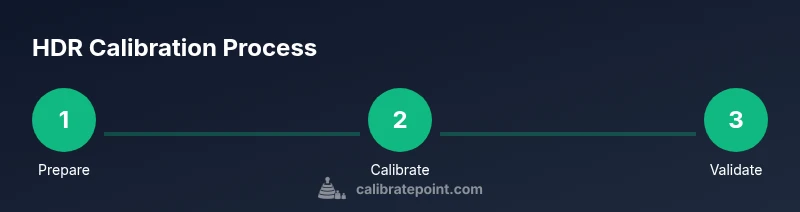
Prepare the environment
Dim the room, power on all equipment, and confirm cables are secure. This baseline reduces measurement noise and ensures consistent results across tests.
Tip: Close nearby windows and disable any automatic display adjustments during calibration. - 2
Install and update calibration software
Install the calibration software and verify drivers for the colorimeter. Update GPU drivers to the latest version to ensure accurate HDR data collection.
Tip: Restart the system after installation to ensure all components initialize properly. - 3
Enable HDR in Windows 11 and configure the display
Turn on HDR in Windows 11 settings and set the display mode to HDR if available. Confirm the display is in its native HDR mode and not a forced SDR preset.
Tip: If Auto HDR exists, disable it for the HDR calibration pass to prevent conflicting signals. - 4
Run initial measurements with colorimeter
Connect the colorimeter, initiate a warm-up, and capture baseline brightness, color primaries, and grayscale data. Use target color spaces (e.g., DCI-P3) supported by your display.
Tip: Record ambient lighting readings to understand their impact on measurements. - 5
Create and apply the correction curve
Generate a correction curve from the collected data and export an ICC profile. Apply the profile as the default color management profile for the monitor.
Tip: Keep a copy of the raw measurement data for future recalibration. - 6
Validate results with test patterns
Re-run measurements to confirm improvements in brightness, color accuracy, and grayscale ramps. Adjust if necessary and re-export the profile.
Tip: Use a mix of test patterns to verify both calibration accuracy and realism of HDR content.
Questions & Answers
Do I need a colorimeter to calibrate HDR on Windows 11?
A colorimeter or spectrophotometer is highly recommended for accurate HDR calibration. It provides objective measurements of luminance, white point, and color accuracy that are not possible with eyes alone.
Yes. A colorimeter is highly recommended for accurate HDR calibration because it gives objective measurements that your eyes can't reliably judge.
Can HDR calibration be done without specialized hardware?
Software-only adjustments can improve appearance but won’t achieve precise HDR accuracy. Hardware measurements with a colorimeter yield reliable, repeatable results and allow proper ICC profiling.
You can adjust settings, but hardware measurements with a colorimeter give reliable, repeatable HDR accuracy.
What is the difference between HDR10 and other HDR formats in Windows 11?
Windows 11 primarily leverages HDR metadata for HDR10-capable displays. Dolby Vision support varies by hardware and software; verify your GPU and monitor compatibility before calibration.
Windows 11 HDR calibration typically targets HDR10 capabilities; check your hardware for Dolby Vision support.
How long does HDR calibration take?
Plan for about 60 to 120 minutes depending on hardware, software, and how many targets you measure. More complex setups may extend this time.
Calibration usually takes about an hour to two hours, depending on your hardware and workflow.
How can I verify that my HDR calibration stuck?
Use test patterns and re-measure after applying the ICC profile. Compare before/after data and ensure grayscale ramps and gamma align with targets.
Re-measure after applying the profile to verify grayscale accuracy and gamma alignment.
Watch Video
Key Takeaways
- Define a repeatable HDR calibration workflow
- Use a colorimeter for objective measurements
- Apply a calibrated ICC profile as the default monitor profile
- Validate results with test patterns and logs