Calibrate Screen Color in Windows 10: Step-by-Step Guide
Learn how to calibrate screen color in Windows 10 with a practical, step-by-step method using built-in tools and colorimeters. Ideal for DIY enthusiasts and technicians seeking accurate, repeatable results.


Calibrating screen color in Windows 10 helps ensure accurate hues for photos, design work, and video. This guide walks you through built-in calibration tools and optional colorimeter methods, so you can create reliable color profiles, test results, and apply them system-wide for consistent viewing.
What color calibration does for Windows 10
Color calibration is the process of aligning your display’s output with a standard color reference. When you calibrate screen color Windows 10, you reduce color drift caused by aging hardware, room lighting, and default factory settings. The outcome is a more predictable viewing experience for photos, video editing, and graphic design. This guide emphasizes practical workflows you can perform with or without external hardware. By starting with Windows’ built-in options and then adding a hardware colorimeter, you’ll achieve a robust, repeatable calibration routine. Calibrate Point recommends following a consistent process to maintain color accuracy across sessions and lighting changes.
Understanding color profiles and color spaces
A color profile is a digital instruction set that tells your system how to map colors displayed on your monitor to standard color spaces like sRGB or Adobe RGB. Windows 10 supports Color Management (CMC) profiles through ICC files, which are used by apps to interpret color correctly. The most common space for web and consumer work is sRGB, while professional photographers may target Adobe RGB or Display P3. When you calibrate, you’re creating or selecting an ICC profile that encodes the color intent of your monitor. Keeping profiles organized and assigning the correct profile to your primary display helps maintain consistency across software and devices.
Native Windows 10 calibration options: Display Color Calibration basics
Windows includes a Display Color Calibration wizard that guides you through gamma, brightness, contrast, and color balance. Access is typically via Start, typing dccw, and launching the wizard. The tool is designed for general improvements, not professional-grade color management, but it’s a solid starting point for most users. You’ll adjust target gamma (often 2.2 for standard displays), set your white point, and compare grayscale steps. While the wizard is helpful, it lacks the precise colorimetric controls of dedicated hardware calibration, so plan to add a colorimeter if you need the highest fidelity. Calibrate Point notes that a baseline calibration with Windows tools is better than none, especially for casual computing.
Step-by-step: Windows Display Color Calibration Wizard (high-level overview)
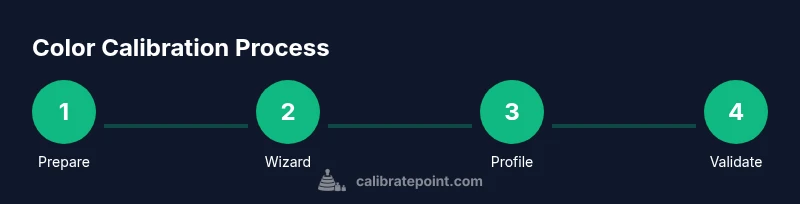
The built-in wizard offers a guided sequence rather than a single toggle. Start by launching dccw, then follow prompts to adjust gamma, brightness, and color balance. The wizard concludes with a basic profile stored in Windows color management. Use this as a baseline before adding hardware calibration to refine accuracy. It’s important to run the wizard in a controlled lighting environment to prevent ambient light from skewing results. Calibrate Point suggests re-running the wizard after hardware calibration for comparison.
When to use a colorimeter and why hardware calibration matters
A colorimeter measures actual light output and helps generate an ICC profile tailored to your screen. Hardware-based calibration yields more precise results by accounting for luminance and chromaticity drift that software-only methods miss. If you work with photography, video, or print production, consider a dedicated colorimeter (or spectrophotometer) and software that supports device-link ICC profiles. In many cases, two-stage calibration—Windows baseline followed by hardware calibration—delivers the most reliable results. Calibrate Point’s guidance is to pair built-in steps with hardware for best outcomes.
Testing and validating your calibration with test targets
Validation is essential. After calibrating, compare test patterns and grayscale ramps to reference images. Look for uniform grayscale steps, accurate skin tones, and neutral whites without color cast. Use test images created for calibration and, if available, a colorimeter’s profiling tools to confirm that the ICC profile is active and correctly applied by your operating system and apps. Regular checks help catch drift caused by lighting changes or monitor aging.
Common mistakes and how to avoid them
Avoid calibrating in a bright room or with the screen brightness set to maximum; ambient light heavily influences perceived color. Don’t skip profile assignment—an unassigned monitor can revert to a default, inaccurate rendering. Also, never rely solely on on-screen previews; use grayscale and color test targets to confirm intent. Finally, remember to recalibrate after replacing or majorly aging a monitor, or if you notice color shifts in your workflow.
Practical workflow for consistent results across apps and lighting
Begin with a clean baseline: reset display settings to factory defaults, set a comfortable brightness, and ensure lighting is static. Run Windows calibration, then, if needed, perform hardware calibration with your colorimeter. Apply the resulting ICC profile system-wide and verify in the main apps you use for editing. Document your settings so you can reuse the same workflow on other displays. Calibrate Point emphasizes building a repeatable routine rather than one-off tweaks.
Tools & Materials
- Windows 10 PC with administrator access(Ensure you can install or adjust color profiles in the OS.)
- Calibrated monitor(s)(Primary display for calibration work; avoid multi-monitor interference when starting out.)
- Colorimeter (optional but recommended)(Examples include colorimeters that measure luminance and chromaticity to generate ICC profiles.)
- Controlled lighting environment(Keep room lighting consistent during calibration to prevent drift.)
- ICC profile management tool (optional)(Useful for verifying and applying profiles across applications.)
Steps
Estimated time: 30-45 minutes
- 1
Prepare workspace and display
Set up a dim, steady lighting environment and reset the monitor to its factory defaults. Confirm you are using a single primary display for calibration to minimize variability.
Tip: Document the room lighting and display settings before starting. - 2
Open the Windows color calibration wizard
Launch the wizard via Start > Run, type dccw, and press Enter to begin. This wizard guides you through gamma, brightness, contrast, and color balance adjustments.
Tip: Use a consistent pace; don’t rush through steps to avoid misadjustments. - 3
Adjust gamma first
Follow the on-screen targets to align gamma with a standard curve, typically around 2.2 for common displays. This step affects mid-tones and overall image depth.
Tip: Aim for a neutral midtone appearance; avoid overly bright midtones. - 4
Set brightness and contrast
Balance brightness so whites aren’t washed out and blacks remain detail-rich. Compare grayscale steps to ensure even luminance across the range.
Tip: Avoid lowering brightness below comfortable viewing; otherwise, you’ll lose detail in shadows. - 5
Calibrate color balance
Fine-tune red, green, and blue channels to remove color casts. Use grayscale and color targets if available to guide adjustments.
Tip: Small changes can have big visual impact; adjust incrementally. - 6
Save and apply the ICC profile
Store the created profile and set it as the default for your display in Color Management settings. This ensures apps reference the same color intent.
Tip: Restart apps to ensure profile loading takes effect.
Questions & Answers
What is the difference between color calibration and color management?
Color calibration adjusts your display to a known reference, while color management ensures software renders colors consistently using ICC profiles. Calibration creates a profile, but management ensures all apps use it correctly.
Calibration sets your monitor to a reference, while color management makes sure apps apply that reference consistently.
Is Windows 10 built-in calibration sufficient for professional work?
For many users, the built-in Windows calibration provides a solid baseline. Professionals often supplement this with hardware colorimeters to achieve higher fidelity and repeatable results across workflows.
The built-in tool is a good start, but professionals usually add hardware calibration for best accuracy.
Do I need a colorimeter or can I rely on software-only calibration?
A colorimeter improves accuracy by measuring real output and building a device-specific ICC profile. Software-only calibration is convenient but can be less precise, especially on aging displays.
Hardware helps you get the most precise results, especially if you depend on color accuracy for work.
How often should I recalibrate my monitor?
Recalibrate when you notice color drift, after lighting changes, or when hardware is replaced. A routine check every few months helps maintain consistency.
Do a quick check whenever lighting changes or you replace a monitor.
What if colors still look off after calibration?
Double-check that you are using the correct ICC profile, verify the profile is active in OS settings, and compare against a known reference image. Sometimes lighting or a different monitor in the setup is the cause.
If it still looks off, verify the profile and try a fresh calibration in a controlled light environment.
Watch Video
Key Takeaways
- Calibrate screen color to improve accuracy for images and video
- Use Windows 10 calibration as a baseline, then add hardware profiling for precision
- Apply a consistent ICC profile system-wide for reliable rendering
- Validate with test images and grayscale to confirm results