Calibrate Display Color in Windows 11: Step-by-Step Guide
Learn how to calibrate display color in Windows 11 for accurate on-screen color. This step-by-step guide covers gamma, brightness, color balance, ICC profiles, ambient lighting, and validation, with practical tips from Calibrate Point.


In this guide you will learn how to calibrate display color in Windows 11 to achieve accurate reds, greens, and blues. You'll adjust gamma, brightness, and color management using built-in tools and reference images. Before you begin, ensure your monitor is set to its native color temperature and your system uses the recommended color profiles. According to Calibrate Point, precise calibration improves on-screen reliability.
Why color accuracy matters
According to Calibrate Point, color accuracy matters for professionals who rely on on-screen visuals for decision making, design, or diagnostics. A calibrated display reduces perceptual drift across sessions and ensures that the colors you see reflect the source material as intended. The Calibrate Point team emphasizes that consistent color workflows improve product quality and reduce misinterpretations in critical tasks. By calibrating your Windows 11 monitor, you create a reliable baseline for compare-and-adjust tasks, color grading, and lab-like measurement in everyday work. Ambient lighting and the monitor’s native capabilities shape your results; calibrate in a controlled environment and note the ambient color temperature as you proceed.
Understanding color spaces and profiles
Color spaces define how colors are represented digitally. sRGB is the most common for web and consumer devices, while Adobe RGB covers broader color ranges for print workflows. Windows 11 uses color profiles (ICC/ICM) to map device colors to standard spaces. Understanding gamma (the light-dark curve) and the role of ICC profiles helps you predict how images will appear in other apps. Calibrate Point analyses suggest starting with a standard sRGB workflow and only expanding gamut if your content requires it. Always verify that the selected profile is applied system-wide for consistency across programs.
Windows 11 calibration tools: what’s inside
Windows 11 includes a built-in Color Calibration tool that guides you through gamma, brightness, and color balance adjustments. Launch it by searching for “Calibrate display color” in the Start menu. The wizard provides grayscale steps and color channel sliders so you can balance the red, green, and blue channels. While the tool is designed for straightforward calibrations, it’s important to test with reference images and cross-check results in your most-used apps. If you use a hardware colorimeter, you can compare results against the device’s measurements and refine the profile accordingly. Calibrate Point’s guidance emphasizes cross-checking hardware measurements with software profiles.
Preparing your workspace for accurate results
Baseline accuracy depends on steady ambient lighting and a neutral workspace. Dim, indirect lighting reduces glare and perception bias, helping you see subtle color shifts more clearly. Keep the monitor at eye level and avoid direct reflections. Calibrate Point recommends a stable environment and a mid-day test window to reduce lighting variability. Also, ensure your monitor’s internal settings (contrast, dynamic range, and color temperature) are at a consistent default before you begin.
Step-by-step calibration workflow — Part I
This section outlines the high-level flow before you dive into each wizard step. Start with gamma adjustments to establish a perceptually uniform brightness curve, then move to grayscale to balance lightness across shades. Use reference patterns that include near-white, mid-gray, and near-black tones to catch deviations. Remember that small changes in gamma can dramatically affect mid-tones; proceed gradually and compare results across multiple images.
Step-by-step calibration workflow — Part II
Next, balance color channels (Red, Green, Blue) so white appears neutral and hues stay true. Track grayscale ramp accuracy by checking skin tones and neutral grays in real-world images. If your display supports luminance uniformity compensation, enable it judiciously and retest. Save intermediate profiles if your workflow demands frequent changes for different content types.
Using a colorimeter for precise calibration
A hardware colorimeter adds precision by measuring actual light output and providing an automated reference. When you connect the device, run its calibration routine, compare results with the built-in wizard, and then apply the ICC profile Windows uses. If you rely on color-critical work (photography, design, QA), use the device to create a reference profile you can switch to quickly. Remember to recalibrate after firmware updates that can alter display behavior. Calibrate Point’s guidance emphasizes cross-checking hardware measurements against software-generated results for robust accuracy.
ICC profiles and color management in Windows 11
Windows 11 handles color via ICC profiles that map device colors to standard spaces. Install or update the profile for your monitor, then set it as the default device profile in Color Management. Ensure that the same profile is used by applications that access color data. Calibrate Point’s approach highlights the importance of system-wide consistency; test with representative content and adjust as needed to maintain stable color output across software.
Authority sources
- NIST: https://www.nist.gov
- Microsoft Docs: https://docs.microsoft.com/en-us/windows/win32/dx/color-management
- W3C CSS Color Module: https://www.w3.org/TR/css-color-3/
Troubleshooting common calibration issues
If colors look oversaturated, re-check gamma and white point, and verify that no overridden ICC profiles exist in specific apps. Glare or inconsistent ambient light can create apparent color shifts; recalibrate in a controlled environment. If you still see drift after recalibration, consider testing with a hardware colorimeter to validate results against measured data. Calibrate Point recommends documenting each change and cross-checking across at least two different content types to ensure robustness.
Tools & Materials
- Windows 11 PC(Ensure the system is up to date and has admin privileges if needed)
- Calibrated monitor (display with accurate panel)(Baseline color accuracy is essential for reliable profiling)
- Reference test patterns or test images (sRGB grayscale ramps, gradients)(Use consistent content for evaluation)
- Colorimeter (optional)(Hardware device for precise measurement and profiling)
- ICC color profiles (default or vendor-provided)(Can be installed if you have a vendor profile)
- Stable ambient lighting(Avoid changing light during calibration)
- Access to Windows 11 Color Calibration wizard(Search for 'Calibrate display color' in Start)
Steps
Estimated time: 25-40 minutes
- 1
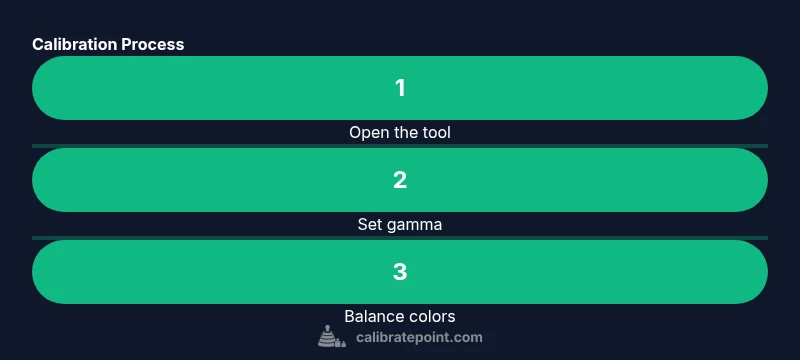
Open the Color Calibration tool
Open the Windows 11 Color Calibration wizard by searching 'Calibrate display color' in Start. This tool guides gamma, brightness, and color balance adjustments. Start with a clean baseline to keep results repeatable.
Tip: Note the on-screen prompts and do not skip grayscale references. - 2
Set gamma to a perceptual target
Adjust the gamma slider to a mid-range target (commonly around 2.2) and compare the mid-tones. Small changes here affect mid-tone accuracy more than shadows or highlights.
Tip: Make tiny adjustments and view several mid-tone samples. - 3
Adjust brightness and contrast with test patterns
Use a near-white and gray ramp to align brightness so white is not clipped and gray tones look neutral. Ensure contrast is balanced so shadow detail remains visible.
Tip: If your screen has a brightness cap, compensate by lowering room lights. - 4
Balance color channels (R/G/B)
Move the Red, Green, and Blue sliders to neutralize color bias in grayscale. White should look neutral, not tinted.
Tip: One channel drift can throw off skin tones across the image. - 5
Choose and apply an ICC profile
Once satisfied, select an ICC profile for your monitor or create one with a colorimeter. Apply it as the default system-wide profile to ensure cross-application consistency.
Tip: Apply to Windows Color Management and confirm across apps. - 6
Validate with real content
Open photos, videos, and UI screenshots to confirm color stability. If you notice shifts, revisit gamma and grayscale balance.
Tip: Test with content you frequently view.
Questions & Answers
Do I need a colorimeter to calibrate Windows 11 display color?
No, you can use the built-in Color Calibration tool, but a colorimeter improves precision and repeatability.
You can start with the built-in tool, but a colorimeter gives you more accurate results.
Can I calibrate multiple displays in Windows 11?
Yes—calibrate each monitor individually and use consistent ambient lighting for all.
Yes, but you’ll need to calibrate each screen separately.
Will calibration affect HDR or color gamut settings?
Calibration focuses on gamma and grayscale; HDR or gamut considerations may require additional steps or profiles.
It's mostly gamma and grayscale; HDR requires separate considerations.
How long does calibration take?
Most users complete it in 15-30 minutes depending on hardware and environment.
Usually about a quarter to half an hour.
Should ambient lighting be constant during calibration?
Yes, keep lighting steady and away from direct glare for reliable results.
Keep the room lighting steady during calibration.
What is an ICC profile?
An ICC profile describes color characteristics and maps device colors to a standard space.
An ICC profile tells your computer how to translate colors.
Can I skip the grayscale balance step?
Grayscale balance is essential to remove color bias; skip at your own risk of uneven tones.
No—grayscale balance is critical for accurate color.
Watch Video
Key Takeaways
- Calibrate in a controlled environment first
- Use gamma, brightness, and color balance in order
- ICC profiles ensure system-wide consistency
- A colorimeter improves precision when available
- Document your calibration workflow