Calibrate Monitor Color Online: A Step-by-Step Guide
Learn how to calibrate monitor color online using browser-based targets, proper lighting, and verification steps. This guide from Calibrate Point covers workspace setup, gamma and white point alignment, ICC profiles, and cross-device consistency.


You will learn how to calibrate monitor color online using browser-based targets and your existing display workflow. This quick guide covers preparing your workspace, selecting neutral targets, adjusting brightness and gamma, saving an ICC profile, and validating color accuracy for common tasks like photo editing and design.
Why color calibration matters
According to Calibrate Point, color accuracy directly impacts how professionals edit photos, compare prints, and design user interfaces. When your monitor's colors drift, skin tones look off, shadows lose detail, and your proofs may no longer align with what you see in print or on mobile devices. Online calibration offers a practical starting point for achieving consistent results across sessions without specialized hardware. By aligning brightness, gamma, white point, and color-managed workflow, you create a dependable baseline that reduces guesswork and helps you communicate color intent clearly to clients and teammates. This chapter also lays the groundwork for repeatable processes you can perform in minutes, not hours, each time you set up your workstation.
Understanding color spaces, gamma, white point, and online targets
Color calibration hinges on several interdependent concepts: color spaces define a device's color gamut; gamma describes midtone brightness; white point specifies the reference color temperature (often 6500K for sRGB/rec.709 workflows); and ICC profiles carry the calibrated settings for software and operating systems. Online calibration targets provide a controlled set of gray ramps, color patches, and gamma curves that you view directly in your browser. While browser-based methods are convenient and inexpensive, they rely on consistent lighting and a color-managed pipeline in your apps. Calibrate Point recommends using neutral gray backgrounds, avoiding high-contrast room elements, and validating results with test images to confirm that adjustments translate accurately across your design tools.
The challenges of online calibration compared to hardware devices
Hardware colorimeters and spectrophotometers measure display output with precision and produce device-specific ICC profiles. Online calibration can establish a solid baseline, but it is susceptible to ambient light shifts, display aging, and browser rendering quirks. For this reason, treat online calibration as a practical starting point: calibrate routinely, verify with multiple test images, and adjust expectations for print workflows that involve proofs beyond the screen. The Calibrate Point team emphasizes documenting your target settings, keeping software up to date, and resisting the urge to chase perfect numbers in environments with unpredictable lighting.
Getting ready: workspace, lighting, and reference materials
A stable workspace is critical for reliable results. Choose a room with consistent daylight or artificial lighting, ideally around 500–1000 lux, and avoid direct sun on the screen. Set your monitor to its default factory brightness before calibration, disable auto-brightness, and prepare a neutral reference set (gray cards, white patches, and a color test image). Gather a browser-friendly calibration target, a color-managed image editor, and a method to save or export ICC profiles. Having printed reference materials can help you cross-check calibration against real-world prints, though this guide focuses on digital verification.
Step-by-step: calibrate monitor color online using browser-based targets (overall workflow)
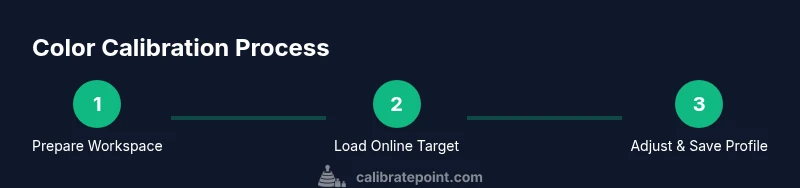
This section outlines a practical online workflow that uses browser-based targets. In later sections, you’ll find a dedicated STEP-BY-STEP with precise actions. The general approach is: establish a neutral baseline, run a gamma/white-point target in your browser, adjust on-screen results to match target references, and save an ICC profile you can reuse across software. While online targets simplify access, you should still test with real images to confirm color accuracy under typical viewing conditions. Remember to document your settings so you can reproduce them later.
Quick verification and validation for online calibration
After applying initial online adjustments, validate your results with a set of color-critical images (skin tones, gray cards, and saturated blues). Compare viewer-side previews in your photo editor, web browser, and video player. If discrepancies appear, revisit brightness, white point, and gamma values, re-run the online target, and re-save the ICC profile. Cross-check with a second device when possible to ensure that the baseline remains consistent. Calibrate Point's methodology encourages iterative validation until color remains stable across primary tools in your workflow.
Tips for consistent results across sessions and displays
Consistency comes from discipline: calibrate under the same lighting, use the same browser and software versions, and keep a single reference workflow. Save and label ICC profiles clearly, and avoid project-by-project ad-hoc changes. If you use multiple monitors, calibrate each display individually and then set a uniform brightness ceiling that matches your typical working zone. A practical habit is to re-calibrate whenever you notice color drift, after hardware changes, or when you upgrade your OS or graphics drivers.
Common mistakes and how to fix them
Common mistakes include calibrating in a bright, changing light, relying on auto-brightness, and neglecting software color management in editing tools. To fix these issues, standardize lighting, ensure color management is enabled in your apps, and periodically re-check white point against the baseline. Avoid overcompensating for ambient lighting shifts; instead, revisit your gamma and white point with the targets and adjust incrementally. If a target patch looks out of range, reset to a known good baseline and repeat the process.
When to recalibrate and how often
Color drift is gradual, so many professionals recalibrate every few weeks or after significant hardware changes. Establish a routine calendar reminder to reassess color targets, update ICC profiles, and confirm consistency across critical apps. For creatives who rely on printed proofs, run spot checks before major projects and after color management updates. Calibrate Point suggests documenting your recalibration cadence and baselining any software-specific color interpretations to minimize drift between revisions.
How to document and store calibration profiles
Documenting calibration results helps you reproduce outcomes later. Record the date, device model, lighting conditions, target version, gamma and white-point values, and the ICC profile file name. Store profiles in a centralized folder, ideally with versioned backups, and ensure your workflows reference the correct profile in each software suite. If you use color-managed printing, keep a parallel profile for each printer and paper combination. This discipline keeps color consistent no matter who performs the project.
Tools & Materials
- Computer with internet access(Windows, macOS, or Linux; ensure latest browser version)
- Web browser(Chrome, Edge, Firefox, or Safari; disable experimental flags)
- Browser-based calibration targets(Open-source or vendor-neutral targets for gamma/white point tests)
- ICC profile storage(Folder on disk or cloud sync for profiles; label by date)
- Printed or digital reference images(Use for cross-checking skin tones and gray scales)
- Consistent ambient lighting(Avoid direct glare; use neutral room lighting)
Steps
Estimated time: 30-60 minutes total
- 1
Prepare your workspace
Clear the desk, configure ambient lighting to a neutral level, and set your monitor to its default brightness. Ensure auto-brightness is off and avoid moving light sources during calibration.
Tip: Use a neutral gray wall or screen saver to minimize reflections. - 2
Open browser-based calibration target
Launch your preferred browser and load the online calibration target. Ensure no other heavy browser tabs are running that could affect rendering performance.
Tip: Close background apps that might change color output, like color-correcting extensions. - 3
Set baseline display settings
Reset brightness, contrast, and color temperature to factory defaults. If your monitor has a dedicated color temperature setting, select 6500K for standard sRGB workflows.
Tip: Note the current settings in case you want to revert later. - 4
Adjust white point and gamma using online targets
Follow the target prompts to align the white point to 6500K and balance midtones to correct gamma (commonly 2.2 for standard displays).
Tip: Make small, iterative changes and re-measure after each adjustment. - 5
Fine-tune brightness and contrast per content type
For photo editing, aim for comfortable midtones; for video, ensure highlights retain detail. A single monitor rarely satisfies all tasks, so prioritize your primary workflow.
Tip: Use test images with varied luminance to test highlights and shadows. - 6
Save and install ICC profile
Export the calibrated profile from your OS or software and apply it system-wide or per-application as needed. Label the file with date and target version.
Tip: Keep backups of previous profiles in case you need to revert. - 7
Validate with test images
Open a neutral image and a skin-tone reference; compare against printed or expected results. Check consistency across at least two software tools.
Tip: If colors look off in one app, check its color management settings and the active profile. - 8
Create a routine calibration schedule
Decide how often you recalibrate (e.g., monthly or quarterly) and set calendar reminders. Recalibration may be triggered by hardware changes or lighting shifts.
Tip: Document outcomes to track drift over time.
Questions & Answers
What is online color calibration and can it replace hardware devices?
Online color calibration uses browser-based targets to establish a baseline for gamma, white point, and brightness. It is a practical starting point but may not replace hardware devices for professional-level color accuracy, especially in print workflows. Use it to achieve consistency and as a stepping stone toward hardware-based verification if you require peak precision.
Online calibration gives a solid baseline and is a great starting point, but for peak accuracy in critical work, consider hardware verification later.
Do browser-based targets work for all monitors?
Most modern displays respond to browser-based targets, but results can vary with monitor age, panel type, and existing calibration. Treat these targets as a baseline tool and validate with real images across your main apps to confirm reliability.
They work broadly, but always validate with actual images to confirm reliability.
What is an ICC profile and why do I need it?
An ICC profile communicates your monitor's calibrated color characteristics to software. Saving and applying this profile ensures consistent color across editing, viewing, and printing workflows.
An ICC profile tells software how your display should render colors, keeping it consistent.
Should I calibrate my laptop and external monitor separately?
Yes. Different displays can have distinct color characteristics. Calibrate each display individually, then choose a workflow that aligns them under a common profile when possible.
Calibrate each screen on its own for best results.
How often should I recalibrate?
Calibrate on a schedule that suits your work demands and changes in lighting or hardware. Monthly or quarterly checks are common for color-critical work.
Set a regular schedule, such as monthly or quarterly.
What are the signs of color drift?
Look for skin tones looking unnatural, gray patches appearing tinted, or a mismatch between what you edit and what prints show. If you notice drift, revisit brightness, gamma, and white point using the calibration targets.
Unnatural skin tones or prints not matching edits signal drift.
Watch Video
Key Takeaways
- Establish a stable workspace and baseline settings.
- Use browser-based targets as a practical starting point.
- Save and verify an ICC profile across tools.
- Document calibration steps for repeatability.
- Schedule regular recalibration to maintain color accuracy.