How to Calibrate Pixel 6 Screen for Accurate Colors
Learn how to calibrate the Pixel 6 screen for accurate colors and comfortable viewing. A step-by-step, expert-backed guide from Calibrate Point with safe, software-based methods.


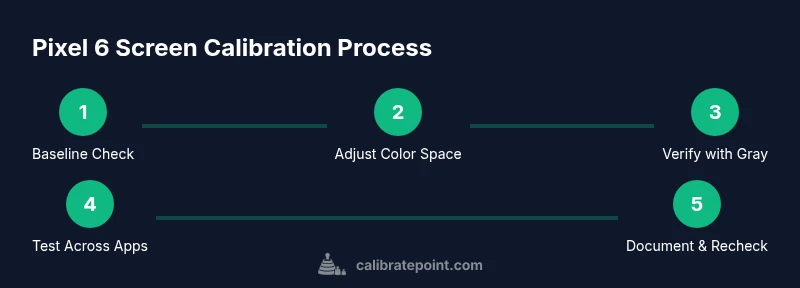
This guide shows how to calibrate the Pixel 6 screen for color accuracy and comfortable brightness. You will adjust display color space, enable color correction if needed, and verify results with neutral gray references. The steps are safe and device-friendly, not requiring specialized hardware; optional calibration apps can help for more precise targets. By following these steps, you’ll improve color fidelity, readability, and viewing comfort on Pixel 6.
Why Calibrating Pixel 6 Screen Matters
Color accuracy on a phone isn’t cosmetic; it affects how you edit photos, read color-critical content, and how comfortable your eyes are during long sessions. The Pixel 6 screen, like many modern displays, relies on color space, gamma, and brightness settings to render faithfully. According to Calibrate Point, mobile display accuracy depends on aligning system color space with the device’s panel and ensuring grayscale remains neutral under typical lighting. By calibrating, you reduce color bias, improve skin tones in photos, and keep UI colors consistent across apps. This guide focuses on practical, safe steps you can perform without specialized lab equipment.
What Color Calibration Means on Android Phones
On Android, color calibration is more about aligning the display pipeline with your viewing conditions than chasing a perfect lab standard. You’ll encounter terms like color space (sRGB, Display P3), gamma, and white point. Most devices offer software controls for color space and grayscale under accessibility or developer options. Remember that apps may render colors differently; calibration helps unify your experience across photos, documents, and UI. Calibrate Point’s guidance emphasizes testing with neutral references and comparing across lighting scenarios to verify fidelity.
Baseline: How to Prepare Before You Calibrate
Before you start, establish a comfortable environment: avoid direct sunlight on the screen, set ambient light to a moderate level, and ensure the Pixel 6 battery is charged. Note your starting values so you can measure changes later. It’s also wise to back up any display-related preferences you adjust and be prepared to revert settings if something looks off in a game or video. This preparation ensures your calibration results reflect typical usage rather than a one-off snapshot.
Accessing Developer Options and Simulating Color Space
To access advanced color controls, enable Developer options: go to Settings > About phone > Build number and tap it seven times. Return to Settings and open System > Developer options (locations may vary by Android version). Use Simulate color space to test how grayscale and color vision deficiency simulations affect the display. Try Monochromacy first to check grayscale neutrality, then experiment with protanopia/deuteranopia simulations to understand how color shifts feel. Why this matters: it reveals biases in your current setup and helps you choose a baseline that matches your typical tasks. Pro tip: document the selected option before switching to a new one so you can compare results later.
Fine-Tuning Brightness and White Point via Accessibility
Brightness and white point influence perceived color balance. In Settings > Accessibility > Color correction, you can enable color correction and select a mode that reflects common color vision profiles or standard color spaces. Use a mid-level brightness as a baseline, then verify that white areas (like paper or clouds) read as near neutral gray rather than tinted. The goal is to minimize color cast without compromising legibility in dim conditions. Pro tip: test at both daytime and low-light settings to ensure consistent results.
Verifying Results with Reference Images and Gray Scales
Verification is the key to successful calibration. Open a neutral gray image or a white image against a standard gray card reference in a well-lit area. Check that grays appear neutral and free of color tints. Switch between color modes and re-check. If your references look biased, adjust the color space or color correction settings and re-check. Consistency across apps (photos, videos, web content) is the mark of a good calibration.
Optional: External Tools and Apps for Pixel 6 Calibration
Some users opt for third-party tools that provide guided references or color-accuracy simulators. While many apps rely on the device’s built-in display pipeline, external tools (like colorimeters or software-based references) can offer more objective targets. If you choose to use them, follow manufacturer instructions and keep expectations reasonable; on a smartphone, on-device calibration can be enough for daily use. Always revert to a safe baseline if something seems off in critical work like photo editing.
Long-Term Maintenance and Recalibration Triggers
Display hardware can drift slowly over time and OS updates can alter color rendering. Revisit calibration after major OS updates, display replacements, or changes to ambient lighting in your workspace. Maintain a simple log of the baseline settings so you can compare after software changes. Periodic checks help ensure ongoing consistency for pixel-perfect viewing in professional tasks or detailed calibration work.
Tools & Materials
- Pixel 6 smartphone(With official charger; ensure device is updated)
- Access to Android settings (Developer options)(Enable by tapping Build number 7 times)
- Color reference images or neutral gray card on screen(For on-screen comparison; use gray scale images)
- Accessibility color-correction feature (built-in)(Optional for testing different profiles)
- External colorimeter or calibration app (optional)(If available, for objective references)
Steps
Estimated time: 30-45 minutes
- 1
Enable Developer options and locate color space controls
Enable Developer options by tapping Build number seven times. Open System > Developer options and locate the Simulate color space control so you can test grayscale and color simulations.
Tip: Document the current setting before changing to compare results later. - 2
Test grayscale baseline with Monochromacy
Select Monochromacy to evaluate grayscale neutrality. Observe whether whites look neutral and colors avoid tint under your typical lighting.
Tip: Use a neutral gray reference image for comparison. - 3
Experiment with color simulations
Switch to related simulations (e.g., protanopia, deuteranopia) to understand how color bias affects your perception. Take notes on which setting feels most natural for your workflow.
Tip: Avoid long-term use of non-default simulations until you confirm suitability. - 4
Enable Accessibility color correction
In Settings > Accessibility > Color correction, enable a mode aligned with your tasks. Test on light and dark backgrounds to verify legibility and color balance.
Tip: Test on app UIs with white surfaces to reveal any tint. - 5
Adjust brightness and white point for neutrality
Set brightness to a comfortable mid-range and adjust any white-point or contrast options if available. Confirm that bright areas remain crisp without introducing color cast.
Tip: Re-check after switching between daylight and dim environments. - 6
Verify results with references and document
Open neutral or gray content again and confirm consistent color rendering across apps. Save the configuration and note any apps that require separate tweaks.
Tip: Keep a small calibration log for OS updates and apps.
Questions & Answers
Do I need to calibrate Pixel 6 screen on every OS update?
Not every update, but major OS changes can affect color rendering. After significant updates, re-check your calibration and adjust if you notice color shifts.
Color changes after big updates can occur, so it's smart to re-check your calibration afterward.
Can I calibrate Pixel 6 screen without third-party apps?
Yes. Use built-in Android features like Developer options and Accessibility color correction to perform baseline calibrations without external software.
You can use the built-in Android features to calibrate without any extra apps.
Will calibrating affect battery life?
Color space and correction settings typically have minimal impact on battery life, but enabling additional processing may cause small increases in power use during active changes.
In most cases, calibration changes don’t noticeably affect battery life.
Should I revert changes for color-critical work?
Yes. If you rely on color-accurate profiles for professional work, switch back to your standard color space or create a dedicated profile for that workflow.
If color accuracy matters for a project, use a dedicated profile and revert afterward.
What color options are safe to start with?
Start with a standard color space like sRGB and test variations in grayscale, then expand to display P3 if your tasks benefit from richer colors.
Begin with sRGB and grayscale, then consider broader color spaces if needed.
Watch Video
Key Takeaways
- Identify a repeatable baseline color space and grayscale balance.
- Use accessibility color correction to assess different viewing conditions.
- Verify results with neutral gray references across apps for consistency.
- Document settings and revert if necessary after OS updates or app-critical tasks.