Calibrate Pixel 7 Pro Screen: Step-by-Step Display Guide
Learn to calibrate the Pixel 7 Pro screen with practical, step-by-step methods. This Calibrate Point guide covers tools, safety, and validation for color accuracy and consistent brightness.


This guide shows you how to calibrate the Pixel 7 Pro screen for accurate color and brightness using a colorimeter and neutral test patterns. You’ll need a colorimeter/spectrophotometer, calibration software, a stable lighting environment, and a reference color profile. Follow the steps for best results. This approach helps ensure repeatable results for color-critical tasks.
Why Pixel 7 Pro screen calibration matters
According to Calibrate Point, display accuracy is the foundation of reliable color work on mobile devices. The Pixel 7 Pro uses an OLED panel capable of deep blacks and high color saturation, but factors such as ambient light, automatic brightness, and panel aging can shift white point and gamma over time. If you rely on the phone for photo editing, graphic design, or quality control in the field, you want a baseline you can trust. Calibration establishes a known reference: it helps ensure that skin tones, sky blues, and grass greens appear consistently across apps and environments. This section explains the rationale behind calibration and what you measure, and how to build a repeatable workflow that fits into real-world conditions. While the goal is consistency rather than perfection, a well-tuned display reduces the guesswork when viewing color-critical content on the go. Throughout this article, you’ll see practical steps, recommended tools, and checks that fit a DIY lab or a professional workshop.
Baseline concepts: color space, gamma, and white point
Color science for displays centers on three pillars: color space, gamma, and white point. The Pixel 7 Pro can display colors in wide-gamut spaces like DCI-P3, which means there is more color information to manage than standard sRGB. Calibration begins by agreeing on a target color space and a gamma curve that your workflows expect. Gamma describes how brightness responds to input light; a common target is a 2.2 gamma for comfortable viewing. The white point defines what is considered pure white; many devices are tuned toward D65 or 6500 Kelvin. If the white point shifts due to aging or temperature, images can look too warm or too cool. In practice, you’ll measure a color reference with a colorimeter, compare it to the target under controlled lighting, and compute a correction that your smartphone applies to its internal color profile. Keep in mind that calibration is a balancing act: advancing color accuracy without sacrificing contrast or vibrancy. This section translates theory into actions you can perform with your hardware and your chosen calibration workflow.
Tools and conditions
Calibration starts with a controlled setup. A colorimeter or spectrophotometer provides the essential measurements, while calibration software translates those readings into a profile you can apply on the Pixel 7 Pro. Use a neutral test pattern library or a simple set of reference swatches to cover primary colors, grayscale, and skin tones. Lighting matters: aim for a stable, indirect light level to minimize bias in measurements. A quiet, clutter-free workspace helps avoid glare on the screen. For the best results, calibrate with the device in typical usage postures—held in hand, angled on a desk, and with white background content visible. Keep records of the target color space, gamma, white point, and resulting profile for future recalibrations.
Step-by-step overview
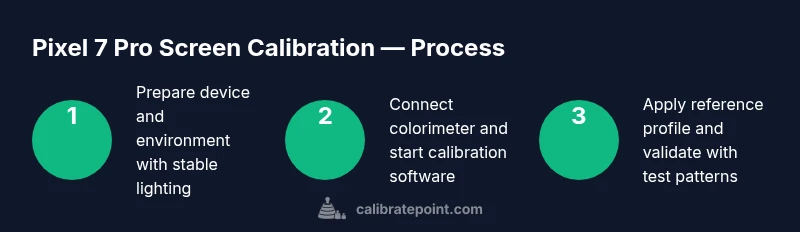
While the full step-by-step instructions are in the dedicated steps, this overview gives you the flow: prepare the device and environment, install the calibration software, connect and use the colorimeter to read a reference, apply a target profile, and validate results with test patterns. Repeatability is key, so you should run a quick retest after any lighting changes or OS updates. The Pixel 7 Pro’s display architecture benefits from careful handling of gamma and white point to avoid color shifts in warm or cool lighting. In practice, you’ll build a routine that you can repeat monthly or after major device changes.
Validation and test patterns
Validation means more than seeing a single measurement. Use test patterns that cover grayscale ramps, color patches, and saturation sweeps. Compare the on-screen results to your reference values in a controlled environment. If discrepancies appear, revisit the calibration steps and adjust the target color space or gamma curve as needed. Document the before and after readings, including luminance levels (cd/m2) and color differences (Delta E) where available. Even small improvements in Delta E can translate to noticeable gains in real-world viewing, especially for photo and video work.
Advanced considerations for mobile OLED displays
OLED panels react to aging and heat differently than LCDs. PWM flicker or brightness stepping may influence perceived contrast after calibration, so consider verifying results at multiple brightness levels. For content producers, maintaining a standard viewer profile across devices helps ensure a consistent look across screens and platforms. Some users find it helpful to re-check calibration after software updates or whenever lighting conditions in their workspace change dramatically. These practices keep your Pixel 7 Pro display reliable for professional tasks and daily usage alike.
Troubleshooting common issues
If you see persistent color drift after calibration, check lighting consistency and re-run the target profile generation. Ensure the colorimeter is properly calibrated and the software isn’t applying conflicting profiles. Refrain from using aggressively warm or cool auto-brightness settings during measurement. If the display still looks off, verify that you’re not viewing content with embedded color profiles that override device settings. Finally, confirm that you are applying the correct profile to the system-wide display settings.
Calibration maintenance and record-keeping
Create a simple log of every calibration session including date, lighting conditions, target color space, gamma, white point, and the profile file name. Label profiles clearly so you can reproduce or revert changes later. Schedule periodic recalibration to accommodate lighting changes, OS updates, or hardware aging. Regular maintenance reduces drift over time and ensures long-term reliability for color-critical tasks on the Pixel 7 Pro.
Tools & Materials
- Colorimeter or spectrophotometer(Device to measure display color accuracy and luminance)
- Calibration software(Vendor-neutral tools are fine; ensure compatibility with Android and Pixel devices)
- USB-C cable(For data transfer and hardware connection when necessary)
- Reference color profiles / test patterns(Use standard color targets and grayscale ramps)
- Stable lighting environment(Avoid direct glare; aim for about 450 lux as a baseline)
- Smartphone or PC with calibration workflow(Host device to run software and apply the calibration profile)
- Soft microfiber cloth(For screen cleaning before measurements)
Steps
Estimated time: 30-60 minutes
- 1
Prepare device and environment
Power on the Pixel 7 Pro and disable auto brightness. Set a consistent display brightness level and ensure lighting in the room is steady. This creates reliable measurement conditions for the colorimeter to read the panel accurately.
Tip: Use a neutral, non-reflective background behind the screen to avoid glare. - 2
Install calibration software
Install and update your calibration tool on the host device. Ensure the software supports display profiling and that you can export a portable profile file.
Tip: Restart the phone and software after installation to refresh drivers. - 3
Connect colorimeter and start measurement
Connect the colorimeter and launch the calibration workflow. Begin with a simple grayscale calibration before tackling color patches to verify baseline measurement accuracy.
Tip: Calibrate the colorimeter with its own reference software if it provides one. - 4
Choose target color space and gamma
Select a standard color space such as sRGB or DCI-P3 based on your workflow, and set gamma around 2.2 for typical viewing. Document your choice for future reference.
Tip: If your work involves print, consider converting to a printer-friendly space in preflight checks. - 5
Generate a calibration profile
Run the profiling routine to compute corrections for white point, gamma, and color primaries. Save the generated profile with a clear, timestamped filename.
Tip: Keep a copy of the default factory profile in case you need to revert. - 6
Apply the profile system-wide
Install or apply the profile so the Pixel 7 Pro uses the calibrated color data for on-screen content, including photos and videos.
Tip: Test across a few apps (gallery, video player, and browser) to ensure uniform results. - 7
Validate with test patterns
Display test patterns and compare them against the reference. Check grayscale ramps, color patches, and skin tones for fidelity and uniformity.
Tip: Look for subtle color casts on the grayscale without bloated saturation in mid-tones. - 8
Document results and store the profile
Record the target space, gamma, white point, luminance, and Delta E values. Store the profile in a well-organized folder for quick access.
Tip: Label files with device model, date, and profile type to avoid confusion later. - 9
Retest after changes
Recalibrate after OS updates, lighting changes, or noticeable drift. This maintains accuracy as the device environment evolves.
Tip: Set a reminder to review calibration quarterly for long-term reliability.
Questions & Answers
Is calibrating a Pixel 7 Pro screen necessary for most users?
For casual use, visible improvements may be subtle, but professionals and color-sensitive tasks benefit from calibration. A baseline helps ensure consistency across apps and lighting.
Calibration is especially valuable for professionals who need color reliability across apps and lighting.
What tools do I need to calibrate a phone screen?
A colorimeter or spectrophotometer, calibration software, reference profiles or test patterns, and a stable lighting setup are essential for mobile display calibration.
You need a colorimeter, calibration software, and a stable lighting setup to calibrate a phone screen.
Can I calibrate Pixel 7 Pro using built-in settings?
Built-in brightness and color temperature adjustments provide crude tuning, but true calibration requires external hardware and software to set a verified profile.
Phone settings alone won't give you verified calibration results; hardware and software are needed.
How often should I recalibrate my phone screen?
Recalibrate after OS updates, major lighting changes, or if you notice color shifts in common content.
Recalibrate after OS updates or noticeable color changes.
Does OLED burn-in affect calibration results?
Burn-in can alter perceived uniformity, which may influence calibration accuracy. Calibrate on a stable, evenly lit screen to minimize this effect.
Burn-in can skew perceived color uniformity, so calibrate on a stable screen.
Are there safety concerns with calibrating a phone screen?
Calibration involves low-risk hardware and software; avoid modifying battery or internal components, and handle devices gently.
Calibrating a phone is safe when you use proper software and don’t tamper with hardware.
Watch Video
Key Takeaways
- Use a colorimeter and stable lighting for repeatable results
- Follow a defined workflow to minimize drift
- Validate with test patterns before finalizing
- Save and label the calibration profile for future use
- Recalibrate after lighting changes or OS updates