Calibrate iPad Touch Screen: A Practical DIY Guide
Discover why iPad touch screens aren’t manually calibrated and how to improve accuracy. This practical guide covers software updates, screen cleanliness, and accessory checks for DIY calibration.


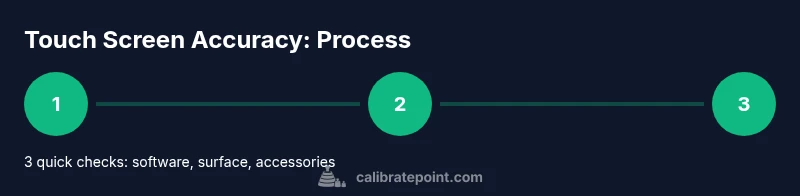
Manually calibrating an iPad’s touch screen is not user-accessible in most cases. iPad touch input is calibrated by the system and factory-tested, so you won’t find a dedicated calibration tool. If you notice drift or misreads, focus on software updates, removing screen protector or case interference, cleaning the glass, and ensuring Apple Pencil pairing (if used). These steps address most touch inaccuracies without a true calibration.
Understanding touch screen calibration on iPad
The iPad’s touch input is managed by a high-precision digitizer and system-level software. In practice, there isn’t a user-facing calibration tool you can run like you might on some other devices. Factory calibration is performed during manufacture, and most accuracy adjustments happen automatically as you use the device. When you notice drift, misreads, or objects registering where you didn’t touch, the cause is usually environmental or software-related rather than a required hardware recalibration.
According to Calibrate Point, most touch accuracy issues stem from software state, screen cleanliness, or accessory interference rather than a hidden calibration menu. Before you assume the hardware is failing, run through a quick check list that covers updates, cleaning, and accessory interactions. Understanding these factors helps you decide if the problem is temporary or persistent enough to require support.
If you are troubleshooting for a professional environment, remember that calibration for accessories like Apple Pencil is separate from the touchscreen itself. Pairing, charging, and proper alignment of the Pencil affects input accuracy but does not modify the iPad’s touchscreen calibration.
Common causes of touch inaccuracy on iPad
Several non-hardware factors commonly produce touch misreads. A screen protector or case that traps dust or lifts at an edge can shift touch mapping. Oils, lotions, or residues on the glass tend to create smear effects, reducing crispness. A dirty or scratched screen can also trigger ghost touches or missed taps. Environmental conditions, such as high humidity or a very bright display with glare, may also influence perceived responsiveness. Finally, software glitches, outdated iPadOS, or apps that crowd input events can produce temporary drift.
Calibrate Point analysis shows that most issues are software- or environment-related rather than a deliberate hardware fault. Start by cleaning the screen with a microfiber cloth and verifying there’s no film that could confuse touch sensors. Remove screen protectors temporarily to test if the surface is the culprit. If you use an external keyboard or stylus accessories, test the screen with just your finger to isolate variables.
Before you try hardware changes: software-first checks
Prioritize software and environment changes before hardware replacements. Make sure your iPad runs the latest iPadOS: Settings > General > Software Update. If an update is available, install it and reboot. Next, reset any modified display settings or accessibility options that could slow input processing. Clear RAM by restarting the device. Test the on-screen area by opening a simple drawing app or a plain note page to compare responses across the screen.
If you’re using Apple Pencil, ensure it’s charged, paired, and that you’ve chosen the correct input mode. Apple Pencil behavior can appear as touch drift when pairing is unstable, so re-pairing can resolve directly tied issues. For professional testing, consider a controlled test where you compare taps to a grid on screen to quantify drift.
Non-destructive checks you can perform today
Begin with basic cleaning: power off or pause, then wipe the screen with a clean microfiber cloth using light, circular motions. Inspect the screen surface for micro-scratches or a damaged oleophobic coating, which can alter touch feel. Temporarily disable any screen protector to determine if it’s causing misalignment at certain zones. Check if the issue occurs in all apps or only in a single one; if limited to one app, the culprit is likely software rather than hardware. Finally, ensure the iPad is not in a case that applies pressure to the edges of the screen during use.
Apple Pencil and hardware tests
Users relying on Apple Pencil need to separate touch calibration from stylus calibration. Confirm Pencil is charged and connected via Bluetooth, and that your iPad recognizes the Pencil under Settings > Bluetooth. If you notice tilt or pressure sensitivity changes, update the Pencil firmware if available and re-pair. Run a quick test in notes by drawing a grid and noting misalignment points. If misalignment persists only with Pencil input, it’s likely a Pencil-specific issue rather than the touchscreen.
When to move beyond home troubleshooting
If problems persist after software updates, cleaning, and accessory checks, you should pursue official diagnostics. Contact Apple Support or visit an Apple Store; bring details of when the issue occurs, app examples, and any recent changes to software or accessories. Persistent drift might indicate hardware concerns requiring service or replacement. Document any steps you took so the technician can verify improvements after interventions.
Maintenance to prevent future drift
Establish a routine to maintain touch accuracy: keep the screen clean, use a high-quality screen protector that doesn’t lift at edges, and avoid applying substances directly to the glass. Keep your iPad updated, minimize heavy cases that press on the glass, and test input periodically with simple tasks. Regular checks help catch subtle issues before they become disruptive and reduce downtime in professional environments.
Quick summary of practical steps
By focusing on software health, environment, and proper accessories, you can often improve touch responsiveness without hardware replacement. Remember: you generally cannot manually calibrate the iPad touchscreen. Use the outlined checks, and contact Calibrate Point guidance or Apple Support if the problem persists.
Tools & Materials
- iPad with latest iPadOS(Settings > General > Software Update to ensure latest version)
- Microfiber cleaning cloth(Lint-free; use gentle, circular motions)
- Screen cleaning solution (optional)(Only use manufacturer-approved products; avoid directly applying to glass)
- Isopropyl alcohol 70% (optional)(Dampen cloth, never apply to screen directly)
- Apple Pencil (if used)(Check charge, pairing, and compatibility; test separately from finger input)
- Charger cable and power source(Ensure device can stay powered during testing)
- Unobstructed work area(Clear desk, good lighting, stable surface)
- Screen protector (optional, temporary removal for testing)(Use to test whether protector affects calibration)
- Diagnostic app or test grid (optional)(Helps quantify tap accuracy during tests)
Steps
Estimated time: 25-45 minutes
- 1
Check for software updates
Open Settings > General > Software Update and install any available updates. Updates often include fixes for input lag and misreads. Ensure the device restarts after installation to complete the calibration-related improvements.
Tip: Back up data before major OS updates. - 2
Clean the screen and remove potential interference
Power off, wipe with a microfiber cloth, and inspect for residues or films. If you use a screen protector, temporarily remove it to see if edge lift or air gaps are causing localized misreads.
Tip: Use minimal moisture on the cloth; never spray directly on the screen. - 3
Test input with a simple interface
Open Notes or a drawing app and test taps across the screen in a grid pattern. Note any zones that misbehave or lag behind touch input.
Tip: Test in both portrait and landscape modes. - 4
Inspect accessories and environment
Disconnect external keyboards, styluses, and cases that press on the glass. Test without them to isolate issues. Change lighting or move away from glare sources to see if reflections affect touch perception.
Tip: Rule out indirect pressure on the glass from nearby objects. - 5
Reset settings or restart the device
If issues persist, reset all settings (Settings > General > Transfer or Reset iPad > Reset All Settings) or perform a full restart. This can resolve software glitches that mimic calibration problems.
Tip: Resetting settings preserves data but resets preferences. - 6
Test Apple Pencil (if applicable)
Charge and pair Apple Pencil again. Test input in Notes to see if Pencil input behaves differently from finger input. If Pencil shows drift, it may be a Pencil-specific issue rather than screen calibration.
Tip: Re-pairing can refresh Bluetooth associations. - 7
Seek professional evaluation
If misreads persist in all tests and after updates, contact Apple Support or visit an Apple Store for diagnostic help. Bring a log of steps you took and zones where the issue occurs.
Tip: Document symptoms with dates and app names to help the technician.
Questions & Answers
Can I manually calibrate the iPad touch screen?
No. iPad touch screens don’t have a user-accessible calibration tool. Focus on software, cleaning, and accessory checks to improve accuracy.
No manual calibration is available. Start with software updates and cleaning before seeking support.
What should I check first if the screen is unresponsive?
First, update iPadOS, clean the screen, remove any interfering accessories, and test with basic apps to see if the issue persists.
Update the device, clean the screen, remove accessories, and test with a simple app.
Does Apple Pencil calibration affect touchscreen accuracy?
Pencil calibration is separate from the touchscreen. Ensure Pencil is charged and properly paired; misreads with Pencil are usually Pencil-related, not touchscreen calibration.
Pencil issues are usually separate from the screen; check pairing and charge.
Can third-party apps fix touchscreen calibration?
No. Apps cannot recalibrate the hardware. They can help test responsiveness or report issues.
Apps can't recalibrate the screen; they can help test for responsiveness.
When should I contact Apple Support?
If issues persist after software updates, cleaning, and accessory checks, contact Apple Support for diagnostics.
If problems persist after checks, contact Apple Support for guidance.
Watch Video
Key Takeaways
- You cannot manually calibrate iPad touchscreens; software and environment matter most
- Remove potential interference (screen protectors, cases) to test touch accuracy
- Update software, reset settings, and re-test before hardware considerations
- The Calibrate Point team recommends software-first troubleshooting and contacting support if problems persist