How to fix calibration on iPad: a practical guide
A practical, step-by-step guide to fix iPad calibration. Adjust display color settings, True Tone, Night Shift, accessibility options, and resets; then test with real-world references for consistent color accuracy.


To fix calibration on an iPad, start with display settings and accessibility options: enable or disable True Tone, adjust Night Shift, and test with color reference images. Also verify brightness auto-adjustment and reset settings if needed after software updates. This approach improves color accuracy and touch response across common iPad models.
Understanding iPad Calibration: What It Means
Calibration on an iPad refers to aligning the device's display output with perceived colors and brightness under varying lighting conditions. True Tone automatically adapts white balance to ambient light, while Night Shift shifts colors toward warmer tones after sundown. Color accuracy matters for photo editing, design work, and any task where precise colors are essential. According to Calibrate Point, many calibration issues stem from automatic color adjustments like True Tone becoming inconsistent in mixed lighting. This guide explains practical, in-bounds steps you can perform without specialized hardware to improve consistency across apps and media.
Common Calibration Issues on iPad
Many users report screens that look too warm, too cool, or biased toward a hue (often green or pink). Some apps display colors differently than others, or photos appear desaturated on the home screen compared with their originals. Touch response is usually unaffected by color calibration, but a poorly tuned display can make reading text uncomfortable and cause eye strain. Calibrate Point analysis shows these issues frequently occur when settings are left in their default auto-adjust mode in bright rooms or when recent software updates change color handling. Understanding the core features helps you decide which toggles to test first.
Quick Checks Before You Begin
Before making changes, ensure your iPad runs the latest iPadOS, then back up your preferences. Check that Auto-Brightness is enabled so the system can adjust brightness automatically for ambient light. Open Settings > Display & Brightness and note the state of True Tone. If True Tone produces a warmer or cooler result than desired, test with it both on and off to observe differences. Also review Settings > Accessibility > Display & Text Size for Color Filters, Invert, and Reduce White Point options that can influence color perception. Finally, test outdoors and indoors to compare how colors shift with lighting.
Calibrating Color and Display: Practical Adjustments
Start with True Tone and Night Shift as the primary levers of color balance. Turn True Tone on, then compare skin tones, whites, and grayscale in photos and UI—if colors seem unnatural, switch True Tone off and re-evaluate. Next, test Night Shift by toggling it on and off or by adjusting its schedule to align with your typical usage times. For more control, temporarily disable Color Filters if they are active and note any color shifts. Use neutral reference images (sRGB or Display P3) to gauge whether whites remain visually neutral and whether color saturation aligns with your expectations. This section emphasizes observable, repeatable tests you can perform daily.
Night Shift and True Tone Interplay: When to Use Each
True Tone is most helpful in mixed lighting, as it adjusts white balance automatically. Night Shift is best for evening use, reducing blue light for comfort. If your work depends on color-critical tasks, you may prefer leaving True Tone off and relying on a fixed color temperature in conjunction with a well-lit environment. The Calibrate Point team recommends a simple routine: compare a standard image with True Tone on, True Tone off, and Night Shift on/off at two different times of day. Document which setting most closely matches your expectation for color accuracy.
Accessibility Options for Calibrating Color Perception
Accessibility features provide alternatives for users who need different color representations. Color Filters can simulate color vision deficiencies or alter overall hue, saturation, and contrast to ease readability. If you don’t rely on Color Filters, disable them to preserve natural colors. Reducing White Point slightly can reduce bright whites that bias perception and reduce eye strain. When you test accessibility options, compare several on-screen images—icons, text, and photos—to ensure you can still distinguish critical details.
Resetting and Recalibrating from Scratch
If calibration seems inconsistent across apps, you can reset all settings without erasing data. This restores system defaults for brightness, display, and accessibility options. Go to Settings > General > Transfer or Reset iPad > Reset All Settings. You’ll be prompted to re-enter Wi-Fi passwords and other preferences, but your photos and apps remain intact. After resetting, re-run the Quick Checks and compare the before/after results to confirm improvements. For severe or persistent issues, updating iPadOS or contacting Apple Support may be necessary.
Real-World Testing: Color Accuracy in Daily Tasks
To validate calibration, perform typical tasks: edit a photo, view a product image, and read UI elements that depend on color (red alerts, blue links, green statuses). Compare what you see on the iPad to a reliable color reference in print or a calibrated monitor if available. Look for consistent whites, natural skin tones, and stable color across apps. If discrepancies persist, document them and use them as a guide for subsequent adjustments.
Troubleshooting Common Pitfalls
Ambience matters: a bright room or window glare can skew perceived color. Always perform checks in a neutral lighting environment. Firmware issues or a recent app update can reset or override display choices. If True Tone behavior changes after an update, revisit the toggles and re-test. If hardware sensors are dirty or damaged, a service may be necessary. Remember that not all iPads support ICC color profiles or professional-grade calibration without external hardware.
Final Checklist and Best Practices
- Update iPadOS to the latest version.
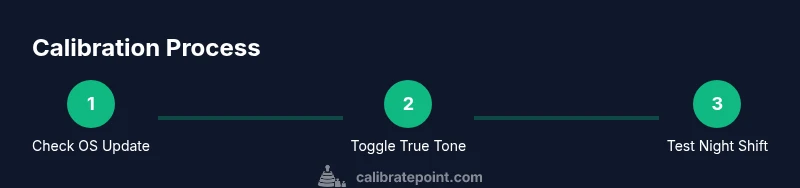
- Test both True Tone on and off; compare results.
- Test Night Shift with various schedules.
- Review Color Filters and Reduce White Point; disable unless needed.
- Reset all settings if calibration remains inconsistent.
- Test in real-world tasks and document findings for future reference.
Tools & Materials
- iPad with latest iPadOS(Ensure device is updated to the latest iPadOS for calibration features.)
- Color reference images or swatches(Optional: use high-quality references to validate color accuracy.)
- Access to Settings app(Preps you to adjust True Tone, Night Shift, and accessibility options.)
Steps
Estimated time: 30-60 minutes
- 1
Check for the latest iPadOS update
Open Settings > General > Software Update and install any available updates. Updates can include fixes and improvements to how display and color are processed, which directly affects calibration results.
Tip: Updating first ensures you’re testing on the latest framework and avoids chasing issues that already have fixes. - 2
Test True Tone with a controlled scene
Go to Settings > Display & Brightness > True Tone. Leave True Tone on for 5–10 minutes, then compare a neutral image or skin tones to how they look with True Tone off. Note which setting yields colors that match your expectations in your environment.
Tip: Test in both bright and dim lighting to capture environmental effects. - 3
Test Night Shift and color temperature
Navigate to Settings > Display & Brightness > Night Shift. Toggle on/off or adjust the schedule. Compare colors in photos and UI to see which setting aligns with your comfort and perception.
Tip: Night Shift mainly affects blue light; use it for long sessions in the evening if color accuracy is not your priority. - 4
Review Accessibility color options
Open Settings > Accessibility > Display & Text Size. Disable Color Filters if active and compare the results. If color filters are needed, choose a mode that improves clarity without distorting essential color cues.
Tip: If you depend on color alerts (red/green indicators), ensure filters don’t obscure them. - 5
Calibrate by testing with reference content
Use a color-accurate photo or reference image and compare how it renders on the iPad versus a calibrated monitor or printed reference. Look for skin tones and neutral grays that appear natural.
Tip: Document which combination (True Tone on/off, Night Shift on/off) matches reference best. - 6
Reset settings if issues persist
If problems persist after testing, reset all settings to return to factory display defaults. This won’t erase data, but you’ll need to re-enter passwords and preferences.
Tip: Back up important preferences or note passwords before resetting. - 7
Re-test after reset
Repeat checks for True Tone, Night Shift, and Color Filters after the reset to confirm improvements and ensure nothing reverts unexpectedly.
Tip: Give the system a few minutes to re-adjust after reset. - 8
Check for hardware-related issues
If calibration still seems off after software steps, assess potential hardware causes like screen damage or sensor contamination. Consider service if you notice persistent color bias or touch issues.
Tip: Hardware issues usually require professional service. - 9
Long-term calibration habit
Create a simple routine to re-check calibration every few weeks, especially after major lighting changes, software updates, or changing work environments.
Tip: A quick monthly check keeps perception consistent.
Questions & Answers
Can I calibrate iPad display exactly like a reference monitor?
iPadOS does not support ICC profiles or professional hardware calibration like a monitor. Use built-in features (True Tone, Night Shift, and accessibility options) to improve color perception. For precise color workflows, compare against a calibrated reference display.
iPad doesn’t support external ICC profiles; use True Tone and related settings to improve color as needed.
Will resetting settings erase data?
Resetting all settings does not erase your apps or data, but it will remove saved Wi‑Fi networks, passwords, and preferences. You will need to reconfigure those afterward.
Resetting settings won’t delete your apps or data, but you’ll need to reconnect Wi‑Fi and re-enter preferences.
Does Apple Pencil calibration affect color accuracy?
No. Apple Pencil calibration relates to input precision and latency, not display color. For color issues, adjust display settings rather than pencil calibration.
Pencil calibration is about input, not colors; use display settings for color accuracy.
What’s the best way to test calibration quality?
Use neutral reference images, compare colors to a known standard, and test across apps. Document which settings yield the most consistent results for your tasks.
Compare a reference image across settings to see which looks most accurate.
I updated my iPad and color looks off again; what now?
Re-test True Tone and Night Shift, verify brightness settings, and consider a reset if bias persists. Sometimes updates reintroduce color handling changes that require re-adjustment.
If color shifts after update, re-check the display settings and consider a reset if needed.
Are third‑party calibration apps reliable for iPad?
Some apps offer reference images and tests, but they cannot reprofile the built‑in display like hardware calibrators. Use them as supplementary tools, not as replacements for system settings.
Third-party apps can help with testing, but don’t rely on them to reprofile the display.
Watch Video
Key Takeaways
- Test True Tone and Night Shift in various lighting.
- Use Color Filters only when necessary and reset if color perception is off.
- Resetting settings can resolve persistent calibration problems without data loss.
- Test with real-world content to verify color accuracy across tasks.
- Regular checks help maintain consistent calibration over time.