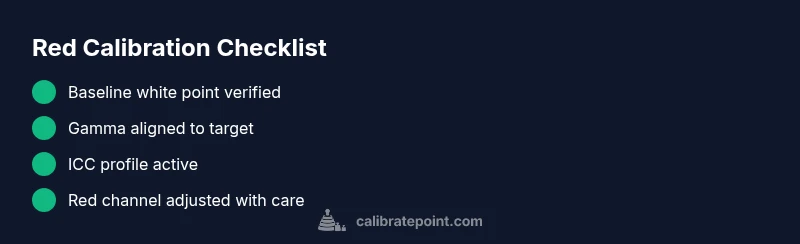
Does Calibrate Reds Work? A Practical Display Guide
Does calibrate reds work? Learn how to test red-channel accuracy on displays with a practical, step-by-step workflow from Calibrate Point. Tools, safety, and proven methods included.


Does calibrate reds work? Learn how to test red-channel accuracy on displays with a practical, step-by-step workflow from Calibrate Point. Tools, safety notes, and proven methods included for reliable results.
Does calibrate reds work in practice? What this guide covers
Does calibrate reds work? In practice, it can improve color fidelity when combined with a proper workflow that includes gamma testing, white-point verification, and ICC profile alignment. This guide from Calibrate Point outlines practical methods, common pitfalls, and a safe, repeatable process. You’ll learn how to diagnose red-channel discrepancies, select the right tools, and validate results with neutral references. By following the steps below, DIY enthusiasts and professionals can achieve consistent red accuracy across displays and imaging devices. The goal is reliable, documented calibration that stands up to real-world viewing conditions and content, without over-tuning or introducing new color biases.
Red channel calibration in context: color science essentials
Color calibration hinges on aligning the display’s output with perceptual goals and established color spaces. The red channel is one piece of the puzzle, but its calibration is most effective when considered alongside gamma curves, white point targets, luminance, and color management workflow. An overemphasis on reds can skew overall balance, while under-adjusting can leave reds dull or washed out. Understanding these trade-offs helps you decide when and how to adjust the red channel for the best overall image fidelity.
Practical baseline checks you should run first
Before touching red levels, establish a solid baseline. Verify the white point matches your target (often around D65 or D65-equivalent for many workflows), confirm luminance is appropriate for your viewing environment, and ensure the color-managed content is displayed using the correct ICC profile. Even small deviations in lighting, display brightness, or ambient reflections can masquerade as red-channel issues. Document these baselines so you can measure improvement accurately after adjustments.
At-home testing methods you can implement today
Start with simple tests that don’t require expensive gear. Use grayscale ramps and color test images to observe any red bias across midtones and highlights. Compare the before-and-after images on a neutral gray background, and check skin tones and red objects for natural appearance. If available, run a basic calibration target with known colorimetric values to quantify deviations. Consistency across software previews and print proofs is a strong indicator of true red accuracy.
Tools and methods that help you calibrate reds reliably
A reliable red calibration regimen combines hardware and software tools. Colorimeters and spectrophotometers paired with calibration software provide objective data. ICC profiles and color-management pipelines ensure consistent red rendering across devices. When selecting tools, consider the device’s spectral sensitivity relative to the red primaries, and choose software that supports the color spaces you use (sRGB, Adobe RGB, DCI-P3). Documentation of tool settings is essential for reproducibility.
Safety, room setup, and common mistakes to avoid
Calibrating reds safely means following general lab-like best practices: keep lights steady, avoid direct glare on the display, and unplug power if you need to open device panels. Do not over-adjust based on a single image; multiple references improve reliability. A frequent mistake is adjusting red in isolation without updating the gamma or white point, leading to inconsistent results when viewing diverse content. Maintain consistent workflow and environmental conditions to minimize errors.
The path forward: when to seek professional help and how Calibrate Point can assist
If you encounter persistent red-channel instability, hardware anomalies, or color-shift across different content, professional calibration may be warranted. Calibrate Point recommends a documented workflow and periodic re-calibration to accommodate aging displays or changing viewing conditions. For complex setups—like color-critical photography, film post-production, or medical imaging—consulting a calibration professional can save time and ensure compliance with standards.
Steps
Estimated time: 45-60 minutes
- 1
Prepare baseline conditions
Set up a stable, consistent lighting environment and ensure the display is at the target operating temperature. Reset any prior profiles to a neutral state and confirm the target color space you will use. This establishes a clean starting point for red-channel adjustments.
Tip: Use a neutral gray wall behind the display to avoid color color casts. - 2
Verify white point and gamma
Measure or verify that the display’s white point aligns with your target (e.g., D65). Confirm the gamma curve matches the intended standard, typically around 2.2 for many general workflows. Correct deviations before adjusting reds.
Tip: If you cannot measure gamma directly, use a calibration target image that reveals gamma behavior clearly. - 3
Update or apply ICC profile
Ensure the system and application color management uses the proper ICC profile for your target space. If needed, reprofile the display with your calibrator and reattach the profile to the operating system.
Tip: Cross-check that color-managed apps respect the profile and don’t bypass it with device-wide rendering intents. - 4
Adjust red channel within safe bounds
Incrementally adjust the red channel while observing the effect on midtones and skin tones. Avoid aggressive shifts that create artificial reds or halo artifacts. Iterate until neutral gray and fleshtones look natural.
Tip: Make only small, repeatable tweaks; larger changes obscure traceable effects. - 5
Revalidate with test images
Re-run test images and grayscale ramps to confirm improvements. Compare before/after results and ensure the red bias remains consistent across content types and brightness levels.
Tip: Document settings for future re-calibration sessions. - 6
Lock in the workflow and monitor changes
Save the final profile, apply it system-wide, and note environmental conditions for future recalibration. Periodically recheck the reds as displays age or room lighting changes.
Tip: Schedule a quarterly check to maintain color consistency.
Diagnosis: Red channel appears oversaturated, undersaturated, or biased relative to greens/blues across standard test images.
Possible Causes
- highICC profile misalignment or outdated color management
- mediumIncorrect gamma or white point settings
- lowPanel hardware limitations or aging affecting red response
Fixes
- easyUpdate or rebuild the ICC profile and ensure the correct profile is active in your OS and apps
- mediumRecheck gamma targets and white point with a calibrated tool, then re-run a baseline calibration
- hardInspect display hardware for color degradation; consider professional hardware checks if symptoms persist
Questions & Answers
Does calibrate reds work evenly on all display technologies (OLED, LCD, LED)?
Reds can improve on most displays, but each technology has unique spectral responses. Calibration should be tailored to the device, and some panels may resist exact color matches across the full gamut.
Reds can improve on most displays, but different panel types behave differently. Tailor calibration to the device and expect some limits.
Should I calibrate red channel separately or along with green and blue?
Calibrating reds in the context of the full RGB workflow is generally best. Isolated red tweaks can create imbalances in other channels, so calibrate as part of an overall color-management process.
Calibrate red as part of the full RGB workflow; isolated tweaks can upset balance.
What if my reds still look off after calibration?
Revisit white point and gamma, confirm ICC profiles, and re-test with multiple references. If issues persist, hardware aging or panel faults may be involved.
If reds remain off, recheck white point, gamma, and the profile; persistent issues may indicate hardware aging.
Do I need professional calibration equipment to verify results?
Basic at-home tools can reveal most common issues, but for critical color workflows, professional calibration tools and services provide higher accuracy and traceability.
Basic tools cover common issues; for critical work, consider professional calibration.
Watch Video
Key Takeaways
- Follow a documented workflow for red calibration
- Balance gamma, white point, and ICC profiles
- Test with neutral references and multiple images
- Document settings for repeatability
- Seek professional help for hardware-related issues