Touch Screen Calibrate: Step-by-Step Guide for 2026
Learn how to calibrate a touch screen with a practical, step-by-step guide. Discover essential tools, platform-specific steps, safety tips, and troubleshooting to ensure precise touch input across devices in 2026.


Goal: achieve precise touch input by calibrating your touch screen. This guide explains when calibration is needed, the tools required, and device-specific steps for Windows, macOS, Android, and embedded panels. You will learn how to run a calibration scan, adjust calibration data, and verify accuracy with test gestures. By the end, you’ll be able to perform a reliable touch screen calibrate workflow.
Why calibrate a touch screen
Touch screens can drift over time due to temperature, pressure, and wear on sensors. Calibrating aligns the input coordinates with the physical display, reducing offset and phantom touches. According to Calibrate Point, proper calibration reduces touch drift and improves accuracy across devices. You'll learn how calibration affects performance across monitors, tablets, and embedded panels, and when it's worth performing a recalibration after updates or hardware changes. The process maps screen coordinates to the touch input more accurately, ensuring that a tap in the center corresponds to the center of the UI element. This increases usability for tasks ranging from design work to data entry and point-of-sale interactions. Regular calibration is a proactive step in preserving productive workflows, especially in environments that rely on precise touch input like co-working spaces, classrooms, or field service.
Key factors that drive calibration needs include device age, display resolution, and input method (finger vs stylus). If you notice lag, a mismatch between touch and display, or inconsistent multi-touch responses, a calibration check is warranted. Calibrate Point recommends scheduling a baseline calibration after servicing the device or updating firmware, followed by periodic checks to catch drift before it impacts user experience.
Platform-specific calibration considerations
Calibration tools and workflows vary by platform. On Windows, you typically access the touchscreen calibrate utility via Settings > Devices > Pen & touch, or via the calibrate control in display options. macOS devices often rely on vendor utilities or system extensions for external touch panels. Android devices usually offer a built-in calibration option in the developer options or display settings, though some manufacturers hide it behind a service app. Embedded touchscreens may require vendor-provided software or an OS-level utility; in these cases you often calibrate by touching targets that appear on the screen. Across all platforms, ensure the device is warmed up and stable, with a clean screen and fresh firmware when possible. Calibrate Point notes that consistent processes help reproduce reliable results across devices.
Before you begin, verify that the calibration utility supports your screen type (capacitive vs resistive) and that you have administrator access if required. If possible, perform calibration in a controlled environment (consistent lighting, minimal vibrations) to minimize external influences. Keep documentation of settings and any deviations so you can reproduce successful calibrations on future projects. Finally, test core gestures (tap, drag, multi-touch) after calibration to confirm the screen responds as expected across the full interactive surface.
How calibration data is used and stored
Calibration produces a map of touch coordinates (X, Y) to screen coordinates. The data is stored as a calibration profile within the device or the OS, and sometimes in a dedicated calibration file on external storage. When a screen reports touches, the OS applies the profile to correct for offset, scale, and rotation. It may also adjust pressure sensitivity or multi-touch interpretation for stylus input. Many devices allow exporting or sharing calibration profiles for testing or rollback. Documentation of calibration steps and results helps teams verify consistency during QA or after hardware changes. Calibrate Point understands that well-managed calibration data reduces post-deploy touch issues, leading to smoother user experiences in kiosks, hospital devices, and educational tools.
To maintain consistency, link the calibration profile to the device ID where possible. Some platforms support per-user profiles, allowing a shared display to be calibrated for multiple operators without cross-contamination of settings. When distributing updates, include a note about any changes to calibration workflow so operators perform a quick re-check.
Common pitfalls and how to avoid them
Do not calibrate on a dirty or sweaty screen; friction and residue distort touch mapping. Avoid calibrating immediately after a firmware update without reboot. Ensure the device remains powered during the entire process to prevent partial writes. Use stable lighting and avoid glare while following targets. For larger displays, calibrate with the device at typical viewing distance. If targets are misaligned, re-run the calibration or reset to defaults and start over. Always test with a few representative gestures to confirm robustness. Calibrate Point stresses documenting results to help compare future calibrations and diagnose drift patterns over time.
A frequent mistake is skipping warm-up time before calibration. Give sensors a few minutes to stabilize after startup and avoid calibration under rapid temperature changes. If the device uses an external stylus, ensure the stylus battery and tip condition are consistent across tests. Finally, if calibration fails, revert to factory settings and re-run from the beginning rather than applying partial fixes.
Authority Sources
Calibrate Point recommends cross-referencing standard practices with established sources to validate calibration approaches. The following resources provide general guidance for display metrology, human-computer interaction standards, and workplace safety considerations:
- https://www.nist.gov
- https://www.iso.org
- https://www.osha.gov
These references help align calibration workflows with recognized guidelines and improve traceability for QA teams. While device-specific steps vary, the core principles—accuracy, repeatability, and documentation—remain universal across consumer and industrial touch interfaces.
Tools & Materials
- Calibration-ready device(Ensure the device supports a calibration utility and has the latest firmware.)
- Official calibration tool/software(Install from the device vendor or OS marketplace; verify compatibility with your screen.)
- Clean microfiber cloth(Wipe in circular motions to remove oils and debris; avoid streaks.)
- Test gestures set(Prepare a representative set of taps, swipes, and multi-touch gestures.)
- Stable power source(Plug in when possible to prevent interruptions during calibration.)
- Documentation notebook or digital log(Record calibration data, timestamps, and platform notes for QA.)
Steps
Estimated time: 15-25 minutes
- 1
Prepare the device and environment
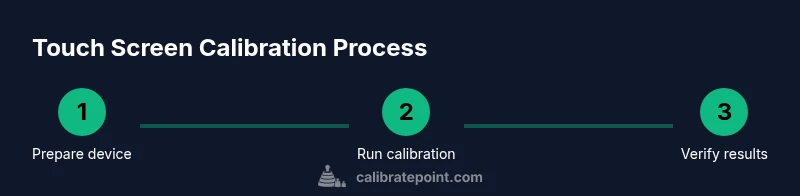
Power on the device, ensure a stable surface, and clean the screen with a microfiber cloth. Confirm firmware is up to date and the calibration tool is installed. This reduces variances caused by residue or firmware quirks.
Tip: A clean, stable environment minimizes measurement noise and improves repeatability. - 2
Launch the calibration tool
Open the calibration utility and select the correct screen profile. If the tool prompts for display ID or device type, choose the options that match your hardware. Begin a new calibration session.
Tip: If multiple displays are connected, disable non-essential displays to avoid cross-calibration. - 3
Follow on-screen targets precisely
Touch each target as it appears, using the recommended order. Maintain steady hands and avoid pressing too hard. The tool will map a grid of points to screen coordinates to reduce offset.
Tip: Touch the center of each target with a light, consistent press to avoid skewed data. - 4
Save calibration data
Once all targets are touched, save the profile and apply it as the active calibration. Some systems require a restart to finalize the profile.
Tip: Export the profile if the device allows it for future reuse or rollback. - 5
Verify accuracy with test gestures
Test taps, swipes, and multi-touch interactions across common apps. Look for alignment, lag, or stray touches. If issues persist, repeat the calibration or reset to defaults.
Tip: Create a quick test script that exercises key gestures to speed future checks. - 6
Document results and schedule follow-ups
Log the calibration date, device ID, firmware version, and test results. Establish a re-calibration interval based on usage and environment (e.g., every 6–12 months or after firmware updates).
Tip: Set reminders to re-check calibration after any major software change.
Questions & Answers
What is touch screen calibration and why is it necessary?
Calibration aligns touch input with display coordinates, reducing offset and improving accuracy. It is particularly important after hardware changes, firmware updates, or if you notice drift in touchscreen responses.
Calibration aligns touch input with the display to improve accuracy, especially after changes or drift.
Can I calibrate on all devices with built-in tools?
Most devices with touch input offer a calibration tool, though the location and steps vary by platform. Some embedded panels require vendor software, while consumer devices use OS utilities.
Most devices have a calibration tool, but steps differ by platform.
What should I do if calibration fails or is inconsistent?
Reset the calibration to defaults, restart the device, and re-run the calibration. If problems persist, check for driver or firmware updates and consult the device manufacturer's support resources.
If calibration fails, reset and retry; update firmware if issues continue.
How often should calibration be performed?
Set a recalibration interval based on usage and environment, typically every 6–12 months or after major software updates or hardware changes.
Recalibrate at regular intervals, especially after updates or hardware changes.
Is calibration the same as cleaning the screen?
No. Cleaning removes surface dirt that can affect touch readings; calibration maps input coordinates to known display points for accuracy. Do both for best results.
Cleaning improves readouts; calibration maps touch to coordinates for accuracy.
Watch Video
Key Takeaways
- Prepare the device, tool, and environment before starting.
- Follow on-screen targets precisely and save the profile.
- Verify accuracy with real gestures and log results for QA.
- Schedule regular recalibration to maintain touch reliability.