Android Touch Screen Calibration: A Practical Guide
Learn how to calibrate an Android touchscreen with OEM tools or trusted apps. This educational guide covers when to calibrate, how to test accuracy, and practical tips for technicians and DIY enthusiasts.


Learn how to improve touch accuracy on Android by calibrating the screen. This quick guide covers when to calibrate, available OEM tools, and reliable calibration apps, plus what to test and how to verify results. According to Calibrate Point, consistent results depend on device type, proper diagnostics, and safe procedures. You can often achieve precise input with either built-in settings or trusted calibration apps, saving time and frustration.
Why Android touchscreen calibration matters
Touchscreen accuracy is central to how you interact with your device. Small drifts between your finger position and where the system registers input can make apps feel laggy, keys misregistered, or drawing imprecise. For professional technicians and DIY enthusiasts, maintaining reliable input helps reduce frustration and errors in field work, while improving the reliability of tests and measurements performed with Android devices. According to Calibrate Point, consistent input quality comes from a deliberate calibration strategy that accounts for device type, usage, and environmental factors. In practice, calibration should start with a clean screen, a stable power state, and a clear plan for what you want to achieve—whether correcting drift at the edges, ensuring uniform response across the display, or aligning touch with stylus input for precision tasks. This section explains why calibration matters, what typically causes drift, and how to approach calibration methodically so you can decide whether you need OEM tools, third‑party apps, or service support.
How touch input degrades over time and with wear
Over months and years, screens accumulate oils, micro-scratches, and pressure changes from cases or protective films. Temperature swings and humidity can alter touch sensor responsiveness. Even software updates and font scaling can influence the mapping between touch coordinates and on-screen actions. In many phones, the digitizer or controller is calibrated at the factory and remains stable until a significant change occurs; small local drift can still develop, sometimes appearing as a slight offset on one side or a mismatch in multi-touch detection. The Calibrate Point team notes that environmental factors, such as glare or a case pressing the screen, can bias the calibration. Before you attempt a full recalibration, verify there is no physical obstruction, and rule out simple fixes such as cleaning the screen or disabling a large display magnifier. If you notice persistent drift after basic checks, a targeted calibration approach is warranted to restore reliable accuracy.
Calibration methods: OEM tools and settings
Many Android manufacturers provide built-in calibration utilities embedded in Settings or in dedicated OEM apps. The exact path varies, but common patterns include Settings, Display, or Accessibility sections, sometimes labeled 'Calibration' or 'Touchscreen.' If you find the option, follow the guided points, typically centered targets across all four corners. OEM tools offer a quick, device- and driver-specific calibration, often with safeguards against mis-taps. Using these tools minimizes the risk that you’ll introduce new misalignment during calibration. If your device lacks an official calibration path, you can still start with a trusted calibration app from the Play Store that provides a standardized cross-device workflow. Always ensure your device is charged and that you back up essential data before making firmware-related changes.
Calibration methods: third‑party apps and approaches
Third‑party calibration apps provide a platform-agnostic route to test and adjust touch mapping. Look for apps with multi-point touch tests, calibration routines, and visual guides that prompt you to tap at predefined locations. When selecting an app, choose one with recent updates, good reviews, and clear data handling policies. Follow the in-app prompts to touch four or more points across the screen; the app will compute an updated mapping and store it in the system. After calibration, perform broader tests in common tasks—typing, drawing, game controls—to confirm uniform response. If you use a stylus, repeat the process with the stylus to ensure accuracy in precision tasks such as note-taking or diagramming. Remember that third‑party apps may not modify hardware-level calibration in all devices, so results can vary depending on your phone model and OS version.
Post‑calibration testing and verification
With calibration applied, verify accuracy through multiple tests across different regions of the display. Use a simple test screen to tap at multiple points, check for offset, and validate consistency in bright and dark areas. Do a practical check by typing a paragraph, drawing a short shape, and performing pinch-zoom to ensure multi‑touch accuracy remains stable. If you notice residual drift, you can re-run the calibration sequence using the same steps, and compare results with a fresh test cycle. Document the before and after measurements, noting device model, software version, and environmental conditions. Regular checks after major updates or after altering a protective cover can help maintain reliability over time.
Maintenance and troubleshooting tips
Keep the screen clean and free of oils, dust, and moisture that can interfere with capacitive sensing. Remove or adjust any screen protectors or cases that press on the edge of the display, then retry calibration if necessary. If calibration still fails to correct drift after several attempts, there may be a hardware fault with the digitizer or controller; contact the device manufacturer or a qualified service center. For field technicians, maintain a small calibration kit with a portable power bank, a microfiber cloth, and a compatible calibration app to keep devices ready for on-site testing. Calibrate Point recommends documenting all calibration events and reviewing results periodically to catch gradual drift early.
Tools & Materials
- Android device with responsive touchscreen(Ensure device is charged and screen is clean before starting)
- Calibration app (OEM tool or trusted third-party)(Install from Google Play and verify recent updates)
- Backup method(Back up essential data before calibration changes)
- Microfiber cloth(Use to clean the screen thoroughly prior to calibration)
- Screen protector (optional, temporary removal)(Remove if it covers edge taps during calibration)
- USB-C/USB-A charging cable(Keep device charged or plugged in to prevent interruptions)
- Stylus (optional)(Helpful for precision tasks on some devices)
Steps
Estimated time: Total time: 25-40 minutes
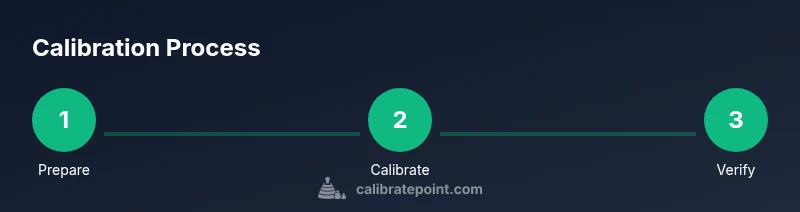
- 1
Prepare the device and environment
Power the device to at least 50% and place it on a flat, stable surface. Clean the screen with a microfiber cloth to remove oils that could affect touch sensing. Close distracting apps and disable unnecessary utilities to minimize background taps during calibration.
Tip: Pro tip: Charge to 80% to avoid power interruptions; a stable surface prevents accidental taps. - 2
Open calibration option
Navigate to Settings and look for calibration under Display, Accessibility, or a vendor-specific sub-menu. If the option isn’t present, skip to a reputable calibration app. This step ensures you’re using the device’s intended calibration pathway.
Tip: Pro tip: If you can’t find an in-built tool, a trusted third-party app with a clear change log is a good alternative. - 3
Launch calibration sequence
Start the calibration flow and follow the on-screen prompts. You will be asked to tap at several predefined points across the screen. Keep a steady hand and avoid dragging between taps.
Tip: Pro tip: Use a light touch and tap quickly; long presses can skew the mapping. - 4
Touch the targets accurately
Tap each target precisely as it appears. Do not aim off-target or press too hard. Complete all points to allow the system to compute a fresh touch map.
Tip: Pro tip: If you miss several points, repeat the calibration sequence from the start. - 5
Test multi-region and stylus input
After calibration, test in multiple screen regions and, if applicable, with a stylus. Confirm that center and edge taps align with on-screen actions and that multi-touch responds consistently.
Tip: Pro tip: Re-test after a short walk-away; small drift can appear after a moment of use. - 6
Finalize and monitor performance
Save the calibration results and reboot the device to lock in changes. Observe typical tasks for 10–15 minutes to ensure stability. If necessary, re-run calibration or consult service if drift returns.
Tip: Pro tip: Document the OS version and device model for future reference.
Questions & Answers
Do all Android devices support calibration and why should you bother?
Not all devices expose a calibration tool. Some rely on OEM apps or software updates. Calibration matters when you notice drift, mis-taps, or inconsistent responses across the screen.
Not every Android device has a built-in calibration tool, but calibration is useful whenever you notice drift or inconsistent touch response.
Is calibration safe for the screen?
Yes, when you use trusted tools and follow on-screen prompts. Avoid forcing taps and ensure the device is stable and fully charged.
Calibration is generally safe if you use reputable tools and follow the prompts without forcing taps.
What if calibration doesn't fix touch drift?
Persistent drift may indicate a hardware issue with the digitizer or controller. Re-run calibration as a test, then consider professional service if drift remains.
If drift sticks around after calibration, it could be a hardware fault requiring a service center.
How often should I calibrate?
Calibrate only when you notice inaccuracy or after major software updates or hardware changes. Routine checks can catch gradual drift early.
Calibrate when you notice problems or after big software updates; otherwise, just monitor.
Will calibrating affect battery life?
Calibration itself uses minimal resources, but running calibration apps temporarily increases power consumption. Plan accordingly.
Calibration uses a little extra power while running, but it’s usually brief.
Can I calibrate using a stylus?
Yes, if the device supports stylus input. Calibrate with the stylus to ensure precision in note-taking and drawing tasks.
You can calibrate with a stylus on devices that support it.
Watch Video
Key Takeaways
- Verify device-specific calibration options first.
- Use OEM tools before third‑party apps.
- Test thoroughly across regions and inputs.
- Document results for ongoing quality control.