How to Calibrate a Touch Screen Monitor: Step-by-Step
Learn how to calibrate a touch screen monitor with built-in tools or software. This comprehensive guide covers setup, steps, testing, troubleshooting, and maintenance for accurate touch and color.


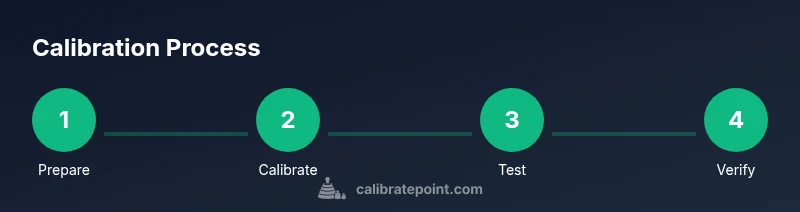
This guide shows you how to calibrate a touch screen monitor to improve accuracy, touch response, and color alignment. You'll prepare the display, ensure drivers are up to date, run calibration software or built-in tools, and verify results using a test pattern. Follow the step-by-step process for reliable results, with careful verification after each stage.
Why calibration matters for touch screens
Accurate touch input and predictable behavior are essential for productivity, design work, and gaming. When a display is misaligned, taps hit the wrong UI elements, scrolls drift, and handwriting input becomes frustrating. According to Calibrate Point, precise calibration reduces touch offset and aligns the touch coordinate with screen coordinates, improving accuracy and repeatability across apps. In professional settings, consistent calibration is part of the workflow, not a one-off task.
Beyond pointing accuracy, calibration helps with multi-touch gestures, palm rejection, and edge-case interactions. If your workflow relies on precise tapping locations—such as CAD software, medical tablets, or kiosk interfaces—a reliable calibration routine becomes part of routine device maintenance. Regular checks also account for mechanical changes or screen aging that can shift touch alignment.
Hardware and software prerequisites
Before you start, confirm that the monitor supports touch input and that the computer can run calibration software. Ensure the latest display driver and graphics driver are installed, and that the operating system recognizes every touch point. Have a clean, glare-free workspace and a microfiber cloth handy to remove fingerprints. If your monitor uses a USB connection for touch, verify the port is stable and not loose. Make sure you have administrative access on the computer to install or run calibration utilities.
Compatibility matters: check the monitor’s vendor page for any recommended calibration tools or firmware updates. If you work across Windows, macOS, or Linux, verify that the calibration tool you choose supports your OS and the monitor brand. Finally, create a safe baseline: note the current touch offset, color profile, and any baseline test results before making changes.
Calibration methods: built-in OS tools vs device-specific utilities
There are two broad paths to calibration: built-in operating system tools and vendor-specific utilities included with the monitor. OS-level calibrations often focus on touch alignment and basic color consistency, while vendor tools offer more granular control over touch offset, pressure sensitivity, palm rejection, and multi-touch mapping. If your monitor came with a calibration CD or app, start there, because it is likely optimized for your device. If not, explore OS options like Windows Ink calibration, macOS accessibility calibration, or third-party software with calibration profiles.
When choosing a method, balance accuracy needs with ease of use. For everyday tasks, OS calibration plus a test pattern may suffice. For professional applications requiring strict color and gesture fidelity, a vendor-specific tool paired with a hardware color reference can provide the most repeatable results. Always save and name calibration profiles explicitly so you can switch back if something goes off.
Understanding target alignment and hit zones
Touch calibration hinges on aligning the physical touch surface with screen coordinates across the entire display area. The goal is to have a 1:1 mapping, so a tap near a corner lands precisely at the corresponding on-screen point. Calibration programs typically guide you through multiple touchpoints (often at the corners and center) to minimize distortion. If you notice skew or warping near the edges, revisit the calibration steps with a larger distribution of touch points and scrutinize any screen curvature or mounting that could introduce parallax.
Practical note: ensure your testing region covers the entire active display rather than just the central area. This helps catch hotspots where the misalignment is more pronounced and ensures consistent performance across the full surface.
Testing patterns and validation techniques
After calibration, validation is essential. Use multi-point test patterns that display coordinates or high-contrast targets at the corners, center, and mid-edges. Tap each target and verify that the on-screen response aligns with the touch point. For color accuracy, run a simple grayscale or color-check pattern to confirm there’s no unintended color shift introduced during calibration. If possible, compare results across several applications and under different lighting conditions to ensure robustness.
In addition to on-screen tests, perform a practical appraisal by tracing a simple shape with your finger and confirming it matches the expected trajectory. This helps identify issues that aren’t obvious in static test patterns.
Color accuracy and touch offset interplay
Calibration can influence color rendering if the display profile is re-tuned during the process. Maintain a consistent color management workflow by updating your color profile after calibration and testing with a calibrated color checker or reference image. Be mindful that aggressive touch offset corrections can subtly affect perceived brightness or gamma if the display’s color pipeline is being driven differently. A balanced approach preserves both touch precision and color fidelity, which is especially important for design work, photo editing, and medical interfaces.
According to Calibrate Point analysis, aligning touch and color profiles concurrently yields the most reliable overall results, particularly on displays with wide color gamuts or multiple color modes.
Maintenance, re-calibration frequency, and future-proofing
Calibration is not a one-time task. Regular recalibration helps counteract drift from wear, heat, and changes in ambient conditions. Establish a routine: perform calibration after firmware updates, after repositioning or re-mounting the monitor, and at least every few months for high-usage devices. If you introduce a new input method or switch to a different ambient lighting setup, re-validate touch alignment and color accuracy. Keep a log of calibration versions and test results so you can track improvements or regressions over time.
The Calibrate Point team recommends documenting the baseline offset and corresponding test results, then updating profiles whenever you notice a discrepancy in touch behavior or UI alignment.
Accessibility considerations and ergonomics
Touch screen calibration should consider users with accessibility needs. Ensure the calibration workflow provides clear audio or visual guidance, adjustable target sizes, and predictable response across various touch pressures. Ergonomic concerns, such as screen height and reach, can influence how users interact with a calibrated surface. Offer alternate input methods where possible and provide fallbacks when touch accuracy is compromised by protective screen overlays or screen protectors. Regular checks help guarantee a dependable experience for all users.
Tools & Materials
- Computer or device with admin rights(Windows/macOS/Linux with up-to-date drivers)
- Calibration software or built-in tool(Use official vendor tool if available)
- Clean microfiber cloth(Remove fingerprints before calibration)
- Test pattern image or reference card(Optional for color validation)
- Stable USB cable or USB-C connection(Ensure a consistent data path for touch data)
Steps
Estimated time: 15-30 minutes
- 1
Prepare the system and clean the screen
Power on the computer and the monitor, close other applications, and wipe the screen with a microfiber cloth to remove dust and fingerprints. A clean surface prevents misreads caused by smudges during calibration.
Tip: Use a soft microfiber cloth; avoid abrasive cleaners that can scratch the coating. - 2
Update drivers and confirm OS recognition
Check for the latest display and graphics drivers from the manufacturer’s site. Confirm the OS recognizes touch input across the entire screen by performing a quick test with a finger or stylus.
Tip: Restart after driver updates to ensure the new drivers load properly. - 3
Open the calibration tool
Launch the built-in calibration tool or the vendor-supplied calibration software. Select the monitor from the device list if prompted, and choose calibration mode appropriate for your use case.
Tip: If a wizard appears, follow the on-screen prompts and do not skip steps. - 4
Run the multi-point calibration
Follow the prompts to touch target points in the designated order (usually corners and center). Ensure each touch is deliberate and registers cleanly before proceeding.
Tip: Touch points with a steady press; avoid sliding between points. - 5
Save and apply the calibration profile
Name the profile clearly and apply it. Some tools allow multiple profiles for different tasks; keep a descriptive name like “Workstation-CAD” or “Color-Accurate.”
Tip: If offered, export the profile for backup. - 6
Reboot and re-test
Restart the computer and test the touch response across common apps. Verify no drift occurs when moving between different UI elements or when using gestures.
Tip: Test both light and firm touches to ensure consistency. - 7
Validate with diverse content
Tap at edges, centers, and diagonals, then compare against patterns or on-screen targets. If misalignment is observed, redo the calibration with more emphasis on problematic areas.
Tip: Document any persistent offsets for future reference.
Questions & Answers
What is calibration for touch screen monitors?
Calibration creates a precise mapping between touch input and screen coordinates. This reduces offset, improves accuracy, and ensures consistent interaction across apps and tasks.
Calibration maps touch input to the screen so taps hit the right spots every time.
Do I need to recalibrate after driver updates?
Driver updates can affect how touch input is read by the system. Recalibrate if you notice drift or changes in responsiveness after an update.
Yes, recalibrate if touch behavior changes after updates.
Can calibrating affect color accuracy?
Calibration can influence color profiles if the display profile is adjusted. Revisit color settings after calibration to keep color consistency.
Color consistency may shift; re-check color profiles after calibration.
What if touch is still offset after calibration?
If offset persists, verify mounting stability, check for glare or protective overlays, and consider repeating the calibration with adjusted touch points.
Persistent offset may require re-checking hardware alignment and repeating the calibration.
Is built-in calibration enough for professional work?
For professional work with strict accuracy, combine OS tools with vendor-specific utilities and color references. Regular testing with reference patterns ensures reliability.
OS tools plus vendor utilities plus reference tests yield the best results.
How long does calibration typically take?
Most calibrations take 15 to 30 minutes, depending on hardware, software, and the level of validation you perform.
Most calibrations finish in about 15 to 30 minutes.
Watch Video
Key Takeaways
- Calibrate to align touch with on-screen coordinates.
- Choose the right tools: OS vs vendor utilities.
- Validate with multi-point tests and patterns.
- Regular maintenance prevents drift.
- Document calibration for consistency.