How to Calibrate Screen for Accurate Color and Brightness
Learn a practical, step-by-step method to calibrate screen displays for true color and consistent brightness across devices, using a colorimeter and reference targets. This guide is designed for DIY enthusiasts and professionals seeking reliable calibration guidance.


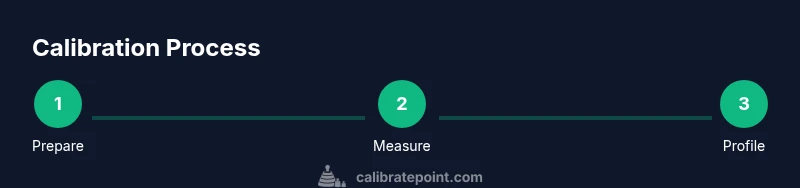
Goal: you will calibrate screen to achieve consistent color and brightness across your displays, with a minimal, repeatable workflow. You’ll need a colorimeter or validated reference pattern, calibrated software, and a controlled viewing environment. This guide walks you through hardware setup, target selection, and step-by-step adjustments to achieve reliable results.
Why screen calibration matters
Calibrating screen is a foundational step for anyone who relies on color accuracy, whether you’re editing photos, reviewing graphics for print, or diagnosing devices in a tech workshop. When displays drift over time due to aging backlights, temperature, or firmware, colors can shift away from target spaces like sRGB or Display P3. The Calibrate Point team emphasizes that reliable calibration starts with understanding color spaces and the role of gamma in mid-tones. A properly calibrated screen provides a consistent reference for comparing image previews, test patterns, and printed outputs. In practice, even small luminance changes can alter perceived color, especially in dark scenes or skin tones. By calibrating screen, you’ll reduce guesswork, improve repeatability, and shorten cycles of tweaking across workflows.
This guide is designed for DIYers and professionals who want a practical, repeatable workflow that yields trustworthy results in real-world lighting. You’ll learn how to set up your environment, select targets, run measurements, and save an ICC profile that travels with your devices. The outcome is not only better color but a more efficient process for color-critical tasks.
Note: This block uses markdown and aims to be actionable while avoiding vendor-specific claims.
Tools & Materials
- Colorimeter or spectrophotometer(Hardware device used to measure color and luminance against reference targets.)
- Calibration software(Generates ICC/ICM profiles, analyzes measurements, and guides adjustments.)
- Reference test patterns or color targets(Predefined color patches and grayscale targets for accurate measurements.)
- Calibrated display or reference monitor(Use a known-good panel to generate a reliable baseline reference.)
- Controlled lighting (lux meter recommended)(Stable ambient lighting minimizes measurement variability.)
- Display cables and a computer/laptop(Ensure fast connections and a stable work surface for the calibration session.)
- Test desk setup or viewing stand(Maintain a consistent viewing distance and angle during measurements.)
Steps
Estimated time: 30-60 minutes
- 1
Prepare the environment
Set up in a quiet, dim room with minimal glare on the screen. Warm up the display for 15 minutes to stabilize luminance and color before measuring. Ensure the colorimeter is clean and ready for contact with the screen surface.
Tip: Close windows or turn off overhead lights that create reflections on the display surface. - 2
Install and configure software
Install your calibration software and verify the colorimeter driver is up to date. Create a dedicated calibration project and select the target color space (e.g., sRGB, Display P3) and gamma curve (commonly 2.2 or 2.4).
Tip: Backup any existing profiles before starting in case you need to revert. - 3
Position hardware and targets
Mount the colorimeter securely centered on the screen surface at normal viewing distance. Load the first test pattern and ensure the device remains stable during measurement.
Tip: Keep your head and eyes still; small movements affect measurement accuracy. - 4
Set target space and gamma
Choose the intended working space (e.g., sRGB) and gamma curve. These settings drive how luminance and chroma are mapped during calibration and should reflect the primary use of the display.
Tip: If you frequently switch between spaces, consider calibrating for the space you use most. - 5
Run measurements and generate profile
Execute the measurement sequence. The software will compare captured values to targets and compute adjustment curves. A new ICC profile is generated and ready to install.
Tip: Double-check that the device remains aligned during the entire measurement run. - 6
Validate and fine-tune
Apply the generated profile and re-measure key patches to confirm accuracy. If deviations appear, tweak the target parameters or one-step adjustments, then re-measure until satisfied.
Tip: Validating with grayscale patches helps catch midtone biases quickly. - 7
Apply, save, and maintain
Install the profile system-wide or per-application as needed. Document the calibration date and settings for future reference and schedule rechecks after hardware changes or software updates.
Tip: Create a quick-change checklist to remind yourself of the steps before critical work.
Questions & Answers
Why should I calibrate my screen at all?
Calibration corrects color and luminance so what you see matches intended output. This is crucial for photo editing, video work, and any decision that relies on true color.
Calibration makes colors on your screen accurate, which is essential for editing and review tasks.
Do I need a hardware colorimeter or will software alone work?
Software can help, but hardware colorimeters provide objective measurements, reducing drift and improving consistency across sessions.
Hardware devices give you precise feedback that software alone often can’t match.
How often should I recalibrate?
Recalibrate after major changes like software updates, graphics driver updates, or hardware changes, and periodically to account for aging.
recalibrate whenever you notice color shifts or after updates that could affect display behavior.
Can calibration be consistent across different displays?
You can achieve closer consistency by calibrating each display to the same target space and using uniform lighting, but individual panels have limits.
Calibration helps align displays to a common target, but perfect uniformity is challenging across all panels.
What’s the difference between sRGB and Adobe RGB in calibration?
sRGB is the standard for most web and consumer devices; Adobe RGB is wider and used in professional print workflows. Calibrate for your primary workflow and color space requirements.
Choose the color space that matches your usual output to ensure color fidelity in that context.
Watch Video
Key Takeaways
- Calibrate screen to establish reliable color and brightness baselines.
- Hardware colorimeters paired with proper targets improve accuracy.
- Control ambient lighting to reduce measurement variability.
- Save and document ICC profiles for future consistency.
- Validate results across patches and re-check after changes.