Calibrate Monitor Brightness: Practical Calibration Guide
Learn how to calibrate monitor brightness for accurate colors and comfortable viewing. This guide covers baseline targets, ambient-light setup, a repeatable workflow, and verification steps for consistent results.


Goal: you will calibrate monitor brightness to achieve accurate blacks and preserved detail while ensuring comfortable viewing. You’ll need the monitor’s brightness controls, a neutral grayscale test image, and a reference workspace with ambient lighting. This quick guide outlines a practical, repeatable method you can perform in 15–30 minutes to set a reliable baseline.
Why calibrate monitor brightness
To calibrate monitor brightness is to take control of how images and text appear on screen. Brightness levels influence contrast perception, detail in shadows, and color fidelity. If a display is set too high, whites flatten and highlights blow out; if too low, blacks drown and subtle tones vanish. A consistent brightness baseline reduces perceptual differences across devices and environments, making color workflows more predictable. For professionals, small brightness shifts can skew judgments in photography, design, or technical work. According to Calibrate Point, establishing a reliable brightness baseline improves accuracy across monitors and time, enabling repeatable results for DIY enthusiasts, technicians, and contractors.
Establishing a baseline: what you’re aiming for
Brightness calibration starts with a baseline that matches how you typically work. The environment, the content you view, and even the time of day all influence how bright a screen should be. Start by noting the ambient light level in your workspace, then pick a brightness target on your monitor that preserves detail in both bright and dark regions. If you work in a brightly lit room, you may lean toward higher brightness; in a dim office, lower brightness helps reduce eye strain. Calibrate Point analysis emphasizes creating a practical target rather than chasing an ideal value, because perceptual brightness varies by person and content type. Use a neutral grayscale and a pure white test patch to verify that whites appear clean and not clipped, and that blacks retain true depth. Document your chosen target and when you plan to recheck it, so you can maintain consistency as devices or lighting change.
Environment and viewing conditions
Ambient lighting hugely influences perceived brightness. A bright room makes everything look dimmer, while a dark room can exaggerate glare and cause fatigue. For repeatable calibration, standardize your environment: measure luminance in lux, keep doors closed to minimize stray light, and avoid direct reflections from windows or lamps. If you can't control the lighting, adjust your workflow by calibrating during at similar times of day. The goal is to create a stable reference frame so that your monitor brightness remains aligned with your content as you edit, review, or compare across devices. In practice, many technicians favor a neutral viewing angle and distance (for example, 50–70 cm) so perceptual brightness remains consistent across tasks. In some studios, professionals use blackout curtains and a calibrated reference display to cross-check results, a method endorsed by many calibration guides and supported by industry practice. The Calibrate Point team notes that documenting ambient lighting alongside brightness settings helps reproduce results later.
Test patterns and measurement tools
A reliable brightness calibration uses both test images and measured luminance. Start with a neutral grayscale ramp and a pure white patch to check light and highlight handling. If you have access to a lux meter, record ambient illuminance and compare it to your screen luminance; the ratio informs whether your brightness target is realistic for your space. Many DIY setups rely on on-screen patterns, but for more precision, use a colorimeter or spectrophotometer to validate gamma and color response. When possible, verify grayscale steps are evenly spaced and that near-black details remain visible without crushing shadows. Keep a log of the test images you used and the resulting brightness setting, so you can reproduce the process on future monitors or after major software updates. This approach mirrors professional calibration workflows discussed in industry literature and echoed by the Calibrate Point team.
A repeatable workflow for brightness calibration
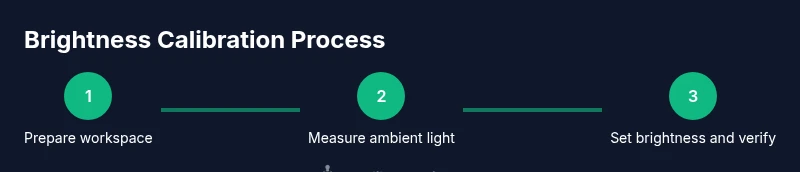
A practical workflow breaks calibration into phases: measurement, adjustment, and verification. In the measurement phase, capture current luminance and contrast using your test patterns and ambient-light readings. During adjustment, tweak the brightness control while watching for clipping in the whites and loss of detail in the shadows. In the verification phase, re-run the test patterns, confirm that grayscale steps are smooth, and ensure white patches read as intended against a calibrated reference. Repeatability is key: use the same test images, the same ambient conditions, and the same viewing settings every time you recalibrate. If your monitor supports a local dimming feature or dynamic brightness, disable it during calibration to prevent automatic changes that skew results. Document your starting point, your target, and the final adjustment so you can build a calibration history for a given model or environment. In practice, some technicians record target luminance values in cd/m2 and track how long a calibration holds under typical workloads, though avoid claiming universally applicable numbers; uses ranges instead when communicating with teams. The methodology emphasizes reproducibility and consistent testing.
Verifying accuracy across content types
Brightness calibration should translate across the content you view most: photos, videos, documents, and UI. After setting brightness, test with diverse content that includes bright skies, dark shadows, skin tones, and saturated colors. Look for blown-out highlights, crushed blacks, or color shifts, and adjust as needed. If your workflow includes color-critical tasks, run a quick color check to confirm that gamma and gamma curve are reasonable. Cross-check with reference images when available, and compare against a calibrated secondary display if possible. For color-sensitive work, calibrating brightness alone is not enough; incorporate gamma, contrast, and color management in a full display calibration. Guidance emphasizes pairing brightness calibration with a basic color profile to minimize drift across sessions and devices. Document any deviations you observe between content types to help future recalibration decisions.
Common mistakes and how to avoid them
Avoid relying on memory or temporary lighting changes to set brightness. Always use test patterns and, ideally, a measurement tool. Don’t disable your monitor’s factory defaults unless you have a reason to; start from a known baseline. Be wary of screen glare, reflections, and sudden ambient light changes during calibration; those factors skew results. If you notice inconsistent results across different content, revisit the ambient-light measurement and ensure the same display profile is active. Another frequent issue is chasing a perfect value rather than a stable, repeatable workflow. Instead, focus on a safe target and consistent testing conditions. Industry guidance emphasizes establishing a documented routine so any team member can reproduce the process reliably.
Maintaining calibration and documentation
Keeping a calibration log helps you reproduce results across devices and over time. Record the date, monitor model, ambient light level, target luminance, brightness value, gamma, and any notes about the content used for verification. Revisit calibration when hardware changes, such as a new display or GPU update, or when the room lighting shifts with the seasons. If you replace or update your display, run the full brightness calibration again and adjust your target accordingly. Periodic checks every few months or after major software updates help catch drift early. When sharing workflows with team members, include a short rationale for chosen targets and the test images used. The guidance suggests building a living document—an evolving reference that you can consult before starting any future calibration. You’ll save time, maintain consistency, and reduce the risk of biased viewing when brightness controls drift.
Advanced considerations for professionals
In more demanding environments—print studios, video post-production, or medical imaging—brightness calibration becomes part of a broader color-management strategy. Combine brightness calibration with gamma calibration, color-temperature adjustments, and a validated color profile (ICC). When possible, calibrate against a known reference display and document all device-specific quirks (beta panels, aging backlights, etc.). If you manage a team, create standard operating procedures that describe when recalibration should occur and how to communicate changes. For ongoing reliability, schedule routine checks and train staff to follow the same testing protocol. Guidance emphasizes practical, repeatable practices: use consistent test targets, rigorous documentation, and a clear handoff process so everyone can reproduce results with confidence.
Tools & Materials
- Calibrated monitor(Monitor with adjustable brightness and stable color profile)
- Ambient light meter (lux meter)(Measures room illumination; use to track ambient conditions during calibration)
- Neutral grayscale test image(On-screen grayscale ramp and pure white patch for validation)
- Colorimeter or spectrophotometer (optional)(For precise gamma/color validation beyond basic brightness)
- Calibration software (optional)(Useful for logging and profiling across devices)
- Reference ICC profile or viewing material (optional)( Helps validate color consistency across workflows)
Steps
Estimated time: 25-40 minutes
- 1
Prepare your workspace
Clear the desk, close blinds, and set fixed ambient lighting. Ensure the room won’t change brightness during calibration. This stage reduces variability so your measurements reflect the display, not the environment.
Tip: Document the room lighting baseline before you begin. - 2
Position reference patterns
Open a neutral grayscale ramp and a pure white patch on the monitor. Keep a consistent viewing distance and angle to ensure measurements reflect the screen, not your eye. If you use a colorimeter, ensure it’s ready for placement on the screen surface.
Tip: Use a clean screen surface; wipe fingerprints that could affect readings. - 3
Set ambient light baseline
Measure the room lux with your meter and note the level. If you can’t control lighting, pick a time when lighting is most stable and use that as your calibration window.
Tip: Record lux readings to anchor future recalibration. - 4
Adjust brightness to target
Using the monitor’s brightness control, bring whites to a non-clipping level and keep blacks dark but detail-preserving. Avoid extreme brightness that washes out shadows.
Tip: Make small adjustments and re-check the grayscale ramp after each change. - 5
Verify with test patterns
Re-run the grayscale and white patches, confirming even steps and preserved detail. If available, verify with a colorimeter to check gamma and color response.
Tip: Cross-check against a reference image if possible. - 6
Document and save settings
Record final brightness level, ambient lux, and any gamma or color adjustments. Save a calibration profile or screenshot for future reference.
Tip: Create a living document you revisit during next monitor replacement or lighting changes.
Questions & Answers
What is the best ambient light level for monitor brightness calibration?
Ambience should be steady and moderate; aim for consistent lighting that minimizes glare and reflections. Baseline measurements help ensure your brightness target reflects real-world viewing.
Keep the room lighting steady and not too bright; use consistent light to avoid glare during calibration.
Do I need specialized software to calibrate brightness?
No heavy software is required for basic brightness calibration; built-in monitor controls and grayscale test images usually suffice. Optional tools can help for precise gamma checks.
You can do it with your monitor and test images, or add a colorimeter for precision.
Can I calibrate brightness by eye alone?
Eye-based calibration is subjective and varies between people. Use test patterns and ambient-light measurements for repeatable results.
It's better to use test targets rather than relying on eye alone.
How often should I recalibrate brightness?
Recalibrate when lighting changes, after hardware updates, or if you notice drift in images. Regular checks help, but balance effort with need.
Recalibrate whenever your environment or devices change.
What if I still can’t see details in shadows after calibration?
Check gamma and contrast in addition to brightness, and ensure you use a calibrated test image. Adjust the black level carefully without crushing shadows.
You may need to adjust gamma or try a different test image.
Watch Video
Key Takeaways
- Establish a stable ambient baseline before adjusting brightness
- Use neutral grayscale patterns to verify target levels
- Document settings and environment for reproducibility
- Recalibrate after hardware or lighting changes to maintain accuracy