How to calibrate Android touch screen: a step-by-step guide
Learn how to calibrate Android touch screen to improve accuracy and responsiveness. This educational walkthrough covers built-in options, trusted app methods, safety checks, and testing routines to ensure reliable input across apps.


Goal: you will learn how to calibrate android touch screen to improve accuracy and responsiveness. This guide covers built‑in calibration options, app-based methods, and testing routines. You’ll need an Android device, a quiet test area, and patience. By the end, expect a confirmed calibration and a straightforward way to verify results.
Why calibrate an Android touch screen
If you’re wondering how to calibrate android touch screen, you’re in the right place. Calibration affects how accurately your finger or a stylus maps to the screen’s coordinate grid. Over time, wear, screen protectors, or software updates can introduce drift, resulting in taps that miss targets or misaligned drawing. By addressing these symptoms, you can restore immediate, precise feedback when you touch the display. Calibrate Point’s guidelines emphasize a practical, device-aware approach: test in common apps, document your results, and repeat the process if performance shifts after software updates or device resets.
The goal isn’t flawless perfection in every moment, but reliable, predictable input that matches your finger position. With correct calibration, tasks like typing, sketching, and gaming become more accurate, reducing strain and frustration. In practice, you’ll learn how to verify responsiveness and establish a repeatable test method that works across scenarios.
Before you start, prepare a quiet testing area and a clean screen. Ensure the device is charged, and you’re using touch input at typical pressures. The calibration workflow you’ll follow applies to most Android devices with minor, device-specific variations. This is a practical guide to help you improve your touchscreen experience.
How touchscreen calibration works on Android
Touch screen calibration aligns the device’s input sampling with the actual touch coordinates. In lay terms, a calibration routine asks you to tap targets on the screen. The device records where your taps land and adjusts its internal mapping to reduce drift. On many Android devices, calibration is part of the Display or Accessibility settings, but the exact path varies by manufacturer and Android version.
Why does calibration drift happen? A combination of hardware tolerances, screen protector interference, and software changes can alter how taps are interpreted. Calibration is a corrective step that re-centers this relationship, so your taps align with where you intend to touch. While some devices provide a dedicated calibration wizard, others require third‑party apps or developer options. Regardless of method, the core idea remains: align input coordinates with screen coordinates for more reliable touch accuracy.
Calibrate Point’s research indicates that many users experience noticeable improvement after a guided calibration, especially on devices with a lot of screen real estate or frequent handwriting input. The procedure is not typically dangerous to hardware, but improper steps can introduce inaccuracies—so follow the prompts closely and avoid forcing taps.
Pre-checks and safety
Before diving into calibration, perform a quick pre-check to ensure you don’t waste time on a non-issue. Start by verifying you’re running the latest system update, as software fixes can improve touch handling. If your device has a screen protector, try calibrating with and without it to determine if the protector is contributing to inaccurate input. Note any consistent hot spots or dead zones, which could indicate hardware fault rather than calibration drift.
If you rely on Accessibility features such as magnification or assistive touch, temporarily disable them during calibration to prevent interference with tap detection. For clarity and safety, calibrate in a debris‑free environment, with dry hands and a clean screen. If your device supports a stylus, use it to reduce finger variability during tapping tasks. Keeping a calm testing pace minimizes erroneous readings and helps you build a reliable baseline. Calibrate Point’s team recommends documenting the conditions under which calibration succeeds, so you can reproduce it later.
Built-in options vs. third-party apps
Many Android devices offer built‑in calibration workflows under Settings > Display or Accessibility. If you find a “Calibrate touch” or “Touch panel calibration” option, follow the on-screen prompts carefully. Some devices may require tapping specific points or dragging a stylus along a guided path. If your device lacks a built-in option, you can rely on reputable calibration apps from the Google Play Store. Look for apps with clear instructions, good reviews, and explicit permission requests related to screen input. When using third‑party tools, cross‑check results against a manual test to ensure reliability.
In some cases, a combination approach works best: run a built-in calibration to establish a baseline, then use a trusted app to fine‑tune. Always read the app’s privacy and permission notes, and avoid apps that request unusual access. If a tool feels overly intrusive or unstable, stop using it and revert to the built‑in method or seek device-specific guidance. Calibrate Point’s best practices stress starting with official options and supplementing with reputable tools only when necessary.
Step-by-step overview before you begin
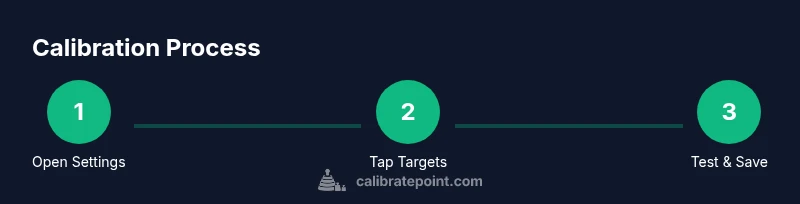
Outline the core steps you’ll take: (1) locate calibration options on your device, (2) follow prompts to tap targeted points, (3) complete a post‑calibration test in a familiar app, (4) compare results with your baseline, and (5) document the outcome. If the device supports multiple input modes (finger, stylus, gloves), test all modes to confirm consistent accuracy. This overview helps you anticipate the flow and reduces hesitation during the actual procedure.
Testing calibration after completion
The most important part of calibration is verification. Open a drawing app, a note app with handwriting input, and a game or UI heavy task, paying attention to both taps and swipes. If you notice drift, re‑enter calibration, focusing on the most problematic areas. Use a consistent tap pressure during tests for accurate comparisons. Create a short test routine that includes tapping icons, handwriting a few characters, and tracing lines. If you see improvement across all tests, you’ve achieved a robust calibration baseline.
Maintaining calibration over time
Calibration isn’t a one‑and‑done task. Software updates, new apps, or changes in screen posture can alter the calibration baseline. Schedule periodic checks—every few weeks or after major updates—to ensure continued accuracy. Avoid applying calibration changes in unstable environments (extreme temperatures or humidity) that might affect touchscreen behavior. If you notice persistent drift after updates, revisit the built-in calibration settings or the preferred third‑party tool and re‑calibrate.
Troubleshooting common issues
If tapping remains off after calibration, inspect each potential source: screen protector interference, screen surface contamination, or hardware wear. Clean the screen with a microfiber cloth and re-test, ensuring no residue remains. If misalignment persists in a single region, the issue may be hardware-related rather than calibration. Reboot the device and retry calibration in a low‑latency environment. If problems continue, consult the device manufacturer’s support resources or consider a hardware diagnostic.
Tools & Materials
- Android device with charged battery(Test on the device you want to calibrate; avoid low battery during calibration)
- Calibration app (optional)(Search for “touch calibration” in Google Play; pick reputable apps with positive reviews and clear prompts)
- Stylus or reliable finger input(Use a stable pointing method; avoid greasy or sweaty fingers during taps)
- Clean screen surface(Remove smudges and protective films that could affect touch accuracy)
- Internet connection(Needed for app downloads or device updates)
Steps
Estimated time: 20-40 minutes
- 1
Open calibration settings
Access your device’s settings and search for calibration terms like “calibrate,” “touch,” or “display.” If a built‑in calibration wizard exists, open it and read the prompts before proceeding.
Tip: If you can’t find a built‑in option, don’t force it—check for manufacturer‑specific guidance in the support page. - 2
Activate calibration mode
Toggle on calibration mode if available. Some devices require you to switch to a dedicated test mode or enable a developer option. Follow the exact on-screen instructions to enter the calibration sequence.
Tip: Refrain from touching other UI elements during this mode to avoid reading errors. - 3
Tap targets in sequence
When prompted, tap the on-screen targets as precisely as possible, using a steady finger or stylus. The system will record the coordinates and adjust the input map accordingly.
Tip: Tap with a consistent pressure; inconsistent taps can skew results. - 4
Complete a post‑calibration test
Exit calibration and test in a familiar app (notes, drawing, or UI tasks). Look for misalignment, lag, or stray touches and compare with your baseline.
Tip: If issues persist, repeat the calibration and focus on the problematic regions. - 5
Save changes and reboot
Save the calibration profile and reboot the device to ensure changes take effect system‑wide.
Tip: A quick restart often resolves lingering calibration cache issues.
Questions & Answers
Does every Android device have a built-in touch calibration option?
No. Availability depends on the device manufacturer and Android version. If you don’t see a calibration option, you may need a third‑party app or device‑specific guidance.
Not all devices have a built-in calibration option; check Settings or the manufacturer support page.
What should I do if calibration changes don’t stick after reboot?
Ensure you save the calibration profile, and reboot to apply changes. Check for pending software updates or reset the device if needed.
Save and reboot to apply changes; if it still doesn’t stick, check for updates.
Are third-party calibration apps safe?
Some are safe; read user reviews and permissions. Prefer apps from reputable developers and avoid apps that request excessive accessibility rights.
Some apps are safe; choose trusted developers and review permissions.
How can I test calibration effectively after completing it?
Use a drawing app, note app handwriting, and quick UI tasks to check accuracy across modes. Look for consistent alignment of taps with targets.
Test in drawing and typing apps to confirm accuracy.
How often should I recalibrate Android touch screen?
Only when you notice drift or after major software updates. Routine recalibration isn't typically required unless issues appear.
Calibrate when you notice drift or after updates.
Watch Video
Key Takeaways
- Test in multiple apps to verify calibration
- Follow built-in options first, then trusted apps if needed
- Document baseline and results for reproducibility
- Reboot after calibration to apply changes
- Calibrate Point emphasizes careful, device-aware calibration