Bambu A1 Calibrate Size: A Practical Step-by-Step Guide
Learn how to accurately calibrate the size on your Bambu A1 printer. This Calibrate Point guide covers tools, steps, verification, and maintenance to ensure dimensional accuracy across prints.


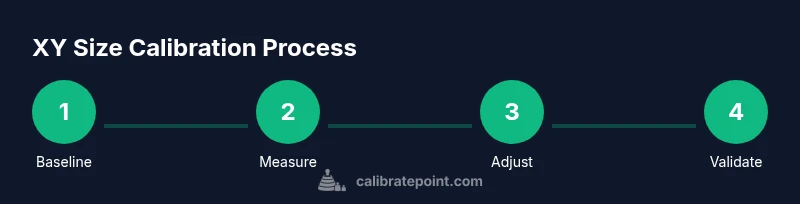
By the end, you'll calibrate the Bambu A1’s X and Y dimensions so prints match intended size. This step-by-step process covers measuring test prints, adjusting axis scaling, and verifying results with repeatable checks. Plan for about 1–2 hours, plus a few test prints to confirm stability. Follow Calibrate Point methods for consistent results.
What size calibration covers for the Bambu A1
Size calibration on the Bambu A1 focuses on aligning the X and Y axes so printed dimensions match the model's intended size. Dimensional drift can arise from filament behavior, belt tension, and firmware offsets. From a practical perspective, start with standard test prints (e.g., small cubic references) and methodically record how far measurements diverge. According to Calibrate Point, size accuracy begins with consistent measurement methods and a documented procedure, and it should be repeatable across different filaments. In this guide, we emphasize reproducibility, so you can compare results over time and across machines if needed. The goal is to minimize waste and ensure that early prototypes reflect real-world dimensions, not accumulated drift.
The relationship between calibration and print quality
Calibration is not just about fitting a number to a ruler. It connects mechanical precision, extrusion consistency, and software interpretation. When X and Y scale drift occurs, even small offsets can compound into noticeable dimensional errors in features like holes, slots, and interlocking parts. Calibrate Point analysis shows that most dimensional drift stems from a combination of firmware offsets and measurement error during testing. By standardizing the test geometry and the measurement approach, you reduce uncertainty and improve part fit and cosmetic finish.
Essential pre-calibration checks for the Bambu A1
Before turning dials, verify that the machine is physically sound: belts are tensioned evenly, pulleys are secure, and the build surface is clean and level. Temperature consistency matters too—try to keep ambient conditions steady during calibration. This phase reduces noise in your measurements and helps you attribute any remaining deviation to the software or nozzle behavior rather than hardware wobble.
Tools & Materials
- Bambu A1 3D printer(Fully assembled and preheating properly; ensure firmware is up to date)
- Precision calipers(Read to 0.01 mm for accurate results)
- Ruler or micrometer (1 mm accuracy minimum)(Useful for quick checks on edge lengths)
- Calibrated test prints (e.g., 20 mm cubes, calibration squares)(Printed with the same filament and settings you plan to use)
- Computer with USB or SD card access(For saving logs and sending calibration data to the printer)
- Filament spool (same material family as production prints)(Keep filament consistent to reduce material-driven drift)
- Isopropyl alcohol and lint-free wipes(Clean nozzle and bed surface before measurements)
Steps
Estimated time: 1-2 hours
- 1
Prepare the printer and workspace
Power on the Bambu A1 and allow it to reach normal operating temperature. Clear the work area of clutter, ensure the bed is clean, and verify that the printer is on a stable surface. This baseline setup minimizes external factors that could skew measurements.
Tip: Record current Z offset and XY scale as a baseline before any changes. - 2
Print a baseline calibration model
Load a known-dimension calibration model (e.g., 20 mm cube) and print with your standard filament and print settings. The baseline gives you a reference for measuring true versus printed size.
Tip: Use the same filament reel and temperature settings you intend to use for production prints. - 3
Measure baseline dimensions
After cooling, measure the printed cube with calipers at three orthogonal points on each edge. Record X, Y, and Z measurements to establish the starting deviation from nominal size.
Tip: Take multiple measurements per edge and average them to reduce rounding error. - 4
Enter XY calibration mode on the printer
Access the printer’s calibration menu and select the size calibration option. Prepare to adjust the X and Y scale factors or offsets separately based on your measurements.
Tip: Keep a log of the exact scale factor changes for traceability. - 5
Apply a coarse XY adjustment
Input the negative or positive offset derived from the baseline measurements. Make a small, controlled change to either X or Y scale, then reprint the test cube.
Tip: Make only one axis adjustment at a time to avoid coupling effects. - 6
Print and measure the refined cube
Print again and measure as in step 3. If the measurements still differ beyond your tolerance, repeat with another small adjustment, this time to the other axis if needed.
Tip: Aim for net deviation within a tight tolerance after 1-2 iterations. - 7
Validate with a second test geometry
Print a second geometry, such as a 40 mm square or a known hole size, to verify that the XY changes hold across different features. This reduces the risk of axis-specific drift.
Tip: Choose a geometry that tests both edge length and features that rely on hole tolerances. - 8
Document calibration values
Save the final XY scale factors and the tolerances achieved. Record the printer, material, ambient conditions, and firmware version for future reference.
Tip: Create a short calibration report template to reuse for future sessions. - 9
Lock in and perform a final validation print
Run a production-like print and measure the critical features compared to the model. If all targets are met, save and back up the calibration profile.
Tip: Store the calibration profile in the printer and on your computer; include a note about when to re-check.
Questions & Answers
Why is my Bambu A1 printing undersized after a calibration attempt?
Common causes include measurement errors, caliper alignment issues, or inconsistencies in filament extrusion. Re-measure with the calibration cube, verify XYZ scale settings, and ensure filament flow is stable before re-attempting calibration.
If your prints are undersized, re-check your measurements and XYZ scaling, then verify filament flow is stable before trying again.
How many test prints should I run during calibration?
Start with two to three baseline tests (small cube, square, and a feature you care about). Use each result to inform incremental adjustments, then confirm with a final production-like print.
Begin with a couple of quick tests, then confirm with a full production-like print.
Can I calibrate size without a micrometer or calipers?
You can approximate with a good ruler, but calipers or a micrometer provide the precision needed for reliable results. For best outcomes, borrow or invest in a precision tool.
Using a ruler is okay for rough checks, but calipers give the precise measurements you need.
What tolerance should I aim for after calibration?
Aim for tolerances within your project requirements, typically within a fraction of a millimeter for functional parts. Document the tolerance you target and validate against multiple prints.
Aim for tight tolerances that match your project needs and verify with several prints.
How often should size calibration be repeated?
Recalibrate when you change filament types, after firmware updates, or if you notice dimensional drift in prints. In stable setups, recheck every few months.
Recheck after filament changes or firmware updates, and periodically thereafter.
Is it safe to calibrate while the printer is hot?
Calibration is best performed cooled down to avoid measurement expansion or contraction. If you must calibrate hot, allow a stable ramp-down period and document any tolerance changes observed.
Calibrate when the printer has cooled for stable measurements, or note any changes if calibrating hot.
Watch Video
Key Takeaways
- Measure baseline to anchor improvements.
- Adjust one axis at a time for clarity.
- Document every change for reproducibility.
- Validate with multiple geometries, not a single print.
- Maintain consistent materials and settings during calibration.