How to Calibrate a Sensi Thermostat
Learn how to calibrate your Sensi thermostat with a safe, step-by-step method. Verify accuracy, improve comfort, and save energy using practical tips, tools, and troubleshooting.


Learn how to calibrate sensi thermostat to ensure accurate readings, steady comfort, and energy savings. This quick guide outlines when calibration is needed, the tools you’ll use, and the step-by-step actions to verify your results with a reference thermometer. You’ll gain practical tips for minimizing overshoot, confirming consistency across rooms, and documenting any adjustments for future maintenance.
Why calibration matters for Sensi thermostat
According to Calibrate Point, calibration matters because even a small misreading can lead to noticeable temperature swings, uncomfortable rooms, and wasted energy. For the task of how to calibrate sensi thermostat, accuracy affects daily comfort, HVAC load perception, and long-term operating costs. The Sensi thermostat is designed to respond to ambient temperatures, but its built-in sensors can drift over time due to installation height, drafts, or aging components. This section explains why calibration isn't merely a one-off adjustment but a continual process of verification and adjustment. By establishing a reliable baseline, you create a reference against which all future readings can be checked. DIY calibration, when done properly, reduces overshoot and ensures your thermostat's setpoint matches room temperature within a small margin. This makes it easier to maintain a consistent home environment and avoid unnecessary heating or cooling cycles. In practice, you’ll learn to measure, compare, and adjust with repeatable methods that you can repeat seasonally.
Safety and upfront checks
Before you begin calibrating your Sensi thermostat, ensure you have power off when connecting or removing any components exposed to wiring. Do not attempt calibration while the HVAC system is actively circulating air if you are uncomfortable with electrical work. If you see any damaged wiring, unusual smells, or sparks, stop and call a professional. The goal is to work safely, verify you are operating within the device’s documented capabilities, and avoid voiding warranties by making unauthorized changes. According to best practices described by Calibrate Point, a calm, well-lit workspace reduces mistakes and helps you log consistent readings. Always verify voltage and ensure you’re using the correct model instructions for your region. This foundation helps prevent misreads that could skew calibration results.
Tools and prep: what you need
Gather a calibrated reference thermometer (or two for cross-checking), a smartphone or computer with the Sensi app, a notebook for logging data, and a quiet room with minimal drafts. Optional but helpful tools include an infrared thermometer for quick spot checks and a timer to record stabilization periods. Place the reference thermometer away from direct sunlight, heat sources, or drafts. Calibrate Point’s guidance emphasizes having at least two independent temperature readings to compare against the thermostat, which strengthens confidence in the offset you apply.
Step 1: Establish your reference temperature
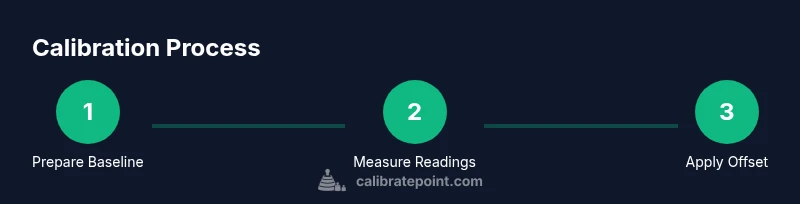
Begin by locating a stable, central room where you spend the most time. Install your reference thermometer at breathing height (about 4 feet) away from direct sunlight, vents, or radiant heaters. Allow the room to stabilize for at least 10 minutes before taking a reading. Record the ambient temperature shown by the reference thermometer and prepare to compare it with the Sensi display. This step creates the baseline used for subsequent offset calculations and helps you separate sensor drift from environmental variance. A solid baseline reduces uncertainty when you translate readings into an offset value.
Step 2: Measure room temperature with a reference thermometer
With the room stabilized, document the thermostat’s current setpoint and the actual room temperature from your reference device. Note any discrepancy between the two readings. If the Sensi display shows a higher temperature than the room reading, you likely have a positive offset; if it shows lower, you have a negative offset. Repeat the measurements in two additional quick checks to confirm consistency. Consistency across measurements strengthens your confidence that any offset you apply reflects sensor drift rather than momentary fluctuations.
Step 3: Compare readings and determine offset
Calculate the average discrepancy between the thermostat’s displayed temperature and the reference reading. This offset will guide how you adjust the thermostat. For example, if the thermostat reads 2°C higher than your reference, plan a −2°C adjustment (or the app-equivalent offset). Keep a running log of readings, the calculated offset, and the rooms where tests occurred. Calibrate Point’s approach stresses documenting assumptions, so future maintenance can reproduce or adjust these values as needed. Remember: small offsets are meaningful, but large, inconsistent drifts warrant a re-check of placement or sensor health.
Step 4: Apply calibration in the Sensi app
Open the Sensi app and navigate to the thermostat’s settings, looking for a temperature offset option if available. Enter the offset value derived from your measurements and save the changes. If your model doesn’t expose an offset control in the app, note the offset and adjust the target setpoint conservatively in 0.5°C increments, then re-test. After applying the offset, give the system time to stabilize and re-check the room temperature against the new display. Consistency after adjustment confirms the calibration takes effect.
Step 5: Validate calibration across the home
After applying the offset, test temperatures in other frequently used rooms to ensure your calibration didn’t overcorrect for a single space. Use the same measurement procedure (breathing-height placement, stabilization time, and multiple readings) to verify that the thermostat’s readings align with room conditions across spaces. If substantial differences appear, you may need to apply different offsets per zone (if your system supports it) or limit calibration to the primary living area where you spend most time. This validation step confirms a robust calibration policy rather than a single-room adjustment.
Troubleshooting common issues
If readings drift again after calibration, re-check sensor placement, drafts, or intermittent HVAC cycling that can skew apparent temperatures. Recalibrate with fresh baseline measurements after weather changes or seasonal shifts, as external conditions can influence readings. If the Sensi app fails to save an offset or the display continues to diverge from reference measurements, consult manufacturer support or a qualified technician. Calibrate Point emphasizes a conservative approach: avoid large offsets and verify changes with multiple measurements before finalizing.
Maintenance and long-term checks
Set a reminder to re-check calibration every few months, or after major weather events, renovations, or relocation of the thermostat. Environmental changes, such as new insulation or window drafts, can alter true temperatures and require a re-baselining. Maintain a log of offsets and room-by-room readings to track drift over time and assist future maintenance. Regular reviews ensure the system remains aligned with actual temperatures and continues delivering comfort and energy savings.
Tools & Materials
- Calibrated reference thermometer(Use a thermometer with verified accuracy ±0.5°C; place away from heat sources.)
- Smartphone or computer with Sensi app(Install and sign in to access calibration controls.)
- Notebook for logging data(Record readings, offsets, and room locations.)
- Digital timer(Track stabilization periods (e.g., 10 minutes).)
- Infrared thermometer (optional)(Cross-check surface readings in a pinch.)
Steps
Estimated time: 40-75 minutes
- 1
Open calibration settings in the Sensi app
Access the thermostat’s settings in the Sensi app and locate any available temperature offset or calibration option. If offset control is not present, plan to adjust the target setpoint gradually and monitor results.
Tip: Backing up current settings before changing values helps you revert if needed. - 2
Position reference thermometer correctly
Place the reference thermometer at breathing height in a central room away from drafts, vents, or direct sunlight. Allow stabilization for at least 10 minutes before recording.
Tip: Avoid placing the reference near radiators or air vents to prevent skewed readings. - 3
Record baseline readings
Document the thermostat display and the reference thermometer readings. Take at least two measurements to confirm stability and record them.
Tip: Use a timer to ensure you wait a consistent interval between readings. - 4
Calculate the offset
Compute the average difference between the thermostat and reference readings. This determines the offset you’ll apply in the app or as a target setpoint.
Tip: Keep your calculations simple; round to the nearest 0.5°C if allowed by your device. - 5
Apply the offset
Enter the offset value in the Sensi app or adjust the target setpoint in small increments. Save changes and allow time to stabilize.
Tip: Only adjust by 0.5°C increments to avoid overshoot. - 6
Re-measure to confirm
Re-check the reference temperature and thermostat display after stabilization. Confirm readings align within an acceptable margin.
Tip: If readings diverge, revisit steps 3–5 and re-calculate. - 7
Document and monitor
Log the final offset, the dates of calibration, and notes about room conditions. Plan follow-up checks every few months.
Tip: Maintaining a clear log makes future maintenance easier and faster.
Questions & Answers
Do I really need to calibrate a Sensi thermostat?
Calibration helps ensure the displayed temperature matches the actual room temperature, which improves comfort and can save energy. If you notice consistent temperature mismatch or odd HVAC cycles, calibration is worth trying.
Calibration helps your thermostat match real room temperature, improving comfort and efficiency.
What tools do I need to calibrate?
A calibrated reference thermometer, a smartphone or computer with the Sensi app, and a notebook for logging data are the core tools. Optional items include an infrared thermometer and a timer.
You mostly need a reference thermometer and the Sensi app to start calibrating.
How long does calibration take?
Expect about 40 to 75 minutes to complete the full process, including stabilization and verification measurements.
Calibrating typically takes around 40 to 75 minutes, depending on rooms tested and setup.
Will calibrating affect my warranty?
Calibrating with approved methods and manufacturer-recommended settings typically does not void your warranty. If in doubt, check your device documentation or contact support.
In general, using standard calibration methods should not void the warranty, but confirm with the manual.
What if readings are still off after calibration?
Re-check thermometer placement, ensure rooms are stabilized, and consider repeating the baseline with fresh measurements. If issues persist, there may be sensor drift or installation problems.
If readings stay off, re-check setup and measurements or seek professional help.
Can I calibrate without the Sensi app?
Some models support offset adjustments in the app only. If your model lacks app-based offsets, adjust the target setpoint gradually and monitor results.
Many models require the app for offsets; if not, adjust setpoints gradually.
Watch Video
Key Takeaways
- Record a reliable baseline before adjustments
- Use a reference thermometer for accuracy
- Apply offsets conservatively and verify results
- Document results for future maintenance