Nest Thermostat Temperature Calibration: A Practical Step-by-Step Guide
Learn how to calibrate your Nest thermostat's temperature readings for accurate comfort and energy savings. Step-by-step guidance, safety tips, and troubleshooting to keep your home consistent.


Learn how to calibrate your Nest thermostat's temperature readings for better comfort and energy savings. This guide shows how to verify Nest readings against a reference thermometer, choose the right adjustment method, and test results safely. No special tools beyond a reference thermometer and your Nest app are required.
Why calibrate the Nest thermostat temperature matters
Calibration improves comfort and energy savings by aligning the thermostat's displayed temperature with actual room temperature. When readings drift, rooms can feel too warm or too cool, causing overcooling or overheating and wasted energy. For DIY enthusiasts and technicians, a practical calibration routine helps verify accuracy using simple reference checks and safe adjustments. According to Calibrate Point, a consistent calibration process reduces HVAC runtime by ensuring setpoints reflect real conditions, improving daytime comfort and nighttime consistency. The Calibrate Point team found that even small measurement errors can compound over a week, making routine checks valuable for any home or small shop. In this guide, you'll learn how to verify Nest readings, compare against a trusted reference, and make precise adjustments without voiding warranties or compromising safety. By the end, you'll be able to trust your Nest thermostat's temperature readings and feel confident about energy use and comfort.
How Nest determines the displayed temperature
Nest uses a combination of the main thermostat sensor, remote sensors, and learned comfort models to display estimated room temperature. The algorithm weighs different sensor inputs and usage patterns to set a representative temperature in the app and on the device. In practice, you may notice a discrepancy between the actual room temperature and what the Nest shows, particularly in rooms with inconsistent air flow or radiant heat sources. Understanding this dynamic helps you decide when calibration is necessary and what kind of adjustment makes the most sense. We will separate hardware readings from software estimates and show how to cross-check each with reliable references. The goal is not to “hack” the thermostat but to align what you feel with what the device reports, so your home stays comfortable while your energy bill stays reasonable. A transparent calibration routine also helps you communicate expectations to other household members or facility managers.
Preparing to calibrate: safety, prerequisites, and environment
Before touching the Nest, make sure you meet a few prerequisites and create the right environment. Start by ensuring your Nest is updated to the latest firmware through the official app, and verify your mobile device has a stable connection. Gather a calibrated reference thermometer, a clean, quiet room where you can observe thermostat behavior for at least 15 minutes, and a notepad or digital log to record readings. Position the reference thermometer at chest height away from direct sunlight, vents, or heat sources. Do not place it near drafts or near the thermostat's own sensors, as location bias will skew results. Clear the area to avoid accidental bumps, and pause any rapid HVAC changes for the duration of the check to minimize transient readings. When ready, note the initial Nest reading and the ambient temperature from your reference thermometer.
Reference measurements: using a reliable thermometer to cross-check
Accuracy starts with a trustworthy reference. Use a calibrated, fast-responding digital thermometer with a stable probe. Take multiple readings over 10–15 minutes to average out short-term fluctuations. Record the Nest display temperature and the external reference readings side by side and look for systematic differences. If you see that Nest consistently reads warmer or cooler than your reference by more than a degree or two, you likely have drift to correct. This block explains how to analyze the data: compute the average of your reference readings, compare against Nest’s average, and decide whether an adjustment is warranted.
Adjusting your Nest thermostat to align with measurements
Calibration here means aligning setpoints with measured room temperature without compromising comfort. If your model supports a sensor offset in the app, apply a small adjustment to compensate for the observed drift. If there is no offset option, adjust the target temperature in routine schedules to align with the reference readings. For example, if Nest reads 1.5°C cooler than reality and you want 22°C, set a target of 23°C in the Nest for the times when you are home. Keep changes incremental and test for 24–48 hours to confirm stability. Document the adjusted setpoints and note any environmental changes that could affect readings.
Testing and validating the calibration over time
After applying adjustments, re-check the readings under similar environmental conditions to confirm the drift has reduced. Reuse your reference thermometer for a 15–30 minute interval and compare again to the Nest. If the drift persists, you may need to repeat the adjustment in smaller increments or reconsider sensor placement. It's important to avoid large temperature swings during tests to prevent discomfort or HVAC cycling that wastes energy. Schedule a follow-up check on a different day and time to confirm consistency across typical daily variations. Calibrate Point suggests quarterly checks for devices in frequently used spaces.
When to seek professional calibration or consider hardware upgrades
Some situations require professional calibration or even hardware upgrades. If you notice persistent drift despite careful checks, or if your Nest is older and uses disparate sensors, a professional HVAC technician can help verify sensor placement and airflow balance in your space. In some cases, replacing older sensors or upgrading to a newer model with improved sensor technology may yield better long-term accuracy. Modern thermostats also rely on accurate calibration for energy savings, so investing in a model with better sensor accuracy is worthwhile. Finally, review that the Nest is installed in a location free from heat sources, direct sunlight, or drafts that can bias readings. Calibrate Point's verdict is to start with precise reference checking and incremental adjustments before considering replacement.
Tools & Materials
- Nest thermostat (supported model)(Ensure firmware is up to date via the official app)
- Calibrated reference thermometer(Digital with stable probe; place at chest height)
- Smartphone or tablet with Nest app(Maintain Wi‑Fi connection during calibration)
- Notepad or digital log(Record readings and adjustments for future checks)
- Stable indoor environment(Avoid drafts or HVAC changes during the test window)
Steps
Estimated time: 60-90 minutes
- 1
Gather tools and prep space
Collect the Nest thermostat, calibrated reference thermometer, and a logging method. Clear the area around the thermostat and set the space to typical living conditions. Confirm devices are powered and connected before starting.
Tip: Place the reference thermometer away from vents and direct sunlight to prevent biased readings. - 2
Record baseline readings
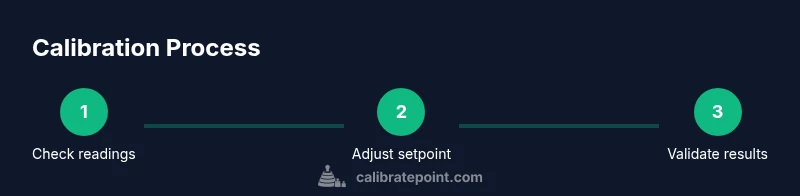
Power on the Nest and note its current temperature display. Take 3–5 quick readings from the reference thermometer over 10–15 minutes and compute an average. Compare the Nest display to this average to assess drift.
Tip: Use a timer and log each reading to avoid forgetting the sequence. - 3
Decide adjustment method
Choose between a sensor offset (if available) or strategic schedule/setpoint changes. Prefer smaller, incremental changes to avoid sudden comfort shifts. Document which method you plan to use before applying it.
Tip: Offsets are less disruptive but not all Nest models expose this option. - 4
Apply the adjustment
In the Nest app, implement the chosen adjustment (offset or setpoint) in small increments. Do not exceed 0.5°C (1°F) per iteration to maintain comfort and avoid rapid HVAC cycling.
Tip: After applying, wait at least 15 minutes before rechecking the readings. - 5
Run a test period
Maintain the adjusted settings and monitor performance for 24–48 hours. Capture additional reference readings at similar times of day to confirm stability. Look for consistent alignment between Nest and reference across typical usage.
Tip: Avoid changing occupancy or using space conditions drastically during this window. - 6
Document results and plan follow-up
Record the post-calibration comparison, note any environmental changes, and schedule a follow-up check if drift recurs. Keep a simple log for future reference and warranty awareness.
Tip: Set a reminder to re-check every quarter or after seasonal changes. - 7
Evaluate next steps
If drift persists despite careful adjustment, consider sensor placement review or hardware upgrade. In some cases, professional calibration or a newer model may offer superior accuracy and energy savings.
Tip: Consult the HVAC technician if you notice persistent, unexplainable drift.
Questions & Answers
Why might my Nest thermostat show a different temperature than the room?
Thermostat readings can drift due to sensor placement, airflow, heat sources, or software estimates. Cross-check with a reference thermometer and adjust gradually to align displayed temperature with actual room conditions.
If your Nest reads differently, use a reference thermometer and adjust gradually to align the readings with the room.
Can I adjust temperature offset in Nest?
Some Nest models support a sensor offset in the app. If available, apply a small offset to compensate for drift. If offset isn’t available, adjust the target temperature in schedules instead.
Yes, some models allow a small offset; otherwise, tweak the schedule temperature.
How often should I calibrate my Nest thermostat?
Calibrate when you notice consistent drift between Nest readings and the room temperature, or with seasonal environmental changes. A quarterly sanity check is reasonable for most spaces.
Calibrate when you notice drift, and consider a quarterly check to stay on track.
Is calibrating my Nest temperature safe for warranty?
Calibrating readings by using official app features and safe reference checks is generally safe and does not affect warranty. Do not open the thermostat or modify hardware.
Yes, using official features and safe checks is typically safe for warranty terms.
What should I do if drift persists after calibration?
If drift continues, re-check sensor placement, confirm HVAC airflow, and consider upgrading to a newer model with improved sensors. A professional HVAC tech can diagnose airflow imbalances that sensors alone can miss.
If drift persists, re-check placement and consider a tech check or upgrade.
Watch Video
Key Takeaways
- Verify Nest readings with a trusted reference thermometer.
- Make small, incremental adjustments and re-check.
- Document changes for future calibrations.
- Schedule periodic re-checks to maintain accuracy.
- Consider professional help or hardware upgrades if drift persists.