Calibrate and Save Garmin: A Step-by-Step Guide Today
Learn how to calibrate Garmin devices for accurate GPS, compass, and sensor readings, and save calibration data for repeatable results. This expert guide from Calibrate Point covers step-by-step workflows, best practices, and common pitfalls.


This guide will show you how to calibrate Garmin devices for improved GPS accuracy, compass alignment, and sensor reliability, with practical steps you can follow today. You’ll learn where to access calibration menus, how to run compass and GPS calibrations, and how to save and back up your calibration data so results stay consistent across sessions.
Understanding Garmin calibration and why it matters
Calibration is the process of aligning your Garmin device's readings with real-world measurements. When GPS, compass, barometer, and other sensors are in sync, you get more accurate routes, better navigation, and reliable activity tracking. According to Calibrate Point, reliable calibration starts with understanding device sensors and how calibration affects accuracy. The goal is to minimize drift, correct for magnetic interference, and ensure your saved routes reflect actual geography. In practice, this means addressing four key areas: GPS position accuracy, compass pointing, barometric readings for elevation, and the overall sensor fusion that Garmin devices perform in real time. Even small misalignments can compound across a long hike or a multi-day trip, causing you to miss waypoint corrections or diverge from your planned path. Before you begin, make sure your device is charged, firmware is up to date, and you have a quiet environment free from metal objects. With this foundation, you can approach calibration methodically rather than guessing at results.
This section sets the stage for practical steps you’ll perform in subsequent sections. Remember: calibrating once is good; calibrating regularly—especially after firmware updates or hardware changes—delivers repeatable gains in accuracy and reliability. Calibrate Point’s guidance emphasizes consistency, documented steps, and verifying results after each calibration cycle.
Garmins rely on multiple sensors that must be aligned
Modern Garmin devices fuse data from GPS satellites, the digital compass, barometer, and inertial measurement units (IMUs) to provide real-time location, altitude, and navigation cues. If any sensor is off, the entire reading can drift. Regular calibration helps ensure the fusion algorithm uses correct inputs. GPS calibration improves positional lock and reduces stray drift when you’re moving in harsh terrain or urban canyons. Compass calibration aligns magnetic north with the device’s internal reference so you can navigate confidently without pausing to reorient. Barometric calibration stabilizes altitude readings, which is especially important for hikers, climbers, and pilots who rely on elevation data for performance metrics and safety. By developing a routine, you create a reliable baseline for route tracking, activity logs, and waypoint accuracy. The key is to treat calibration as a practical habit rather than a one-off maintenance task.
How to prepare for successful calibration
Preparation matters. Start with a full device charge and ensure the firmware is current. Perform calibrations in an environment free from magnetic interference (avoid strong magnets, metal surfaces, or electronic devices that emit interference). If you wear gloves or are in cold weather, ensure the device surface is clean and dry for best contact. Keep a stable posture during compass calibration and move the device slowly through complete circles to give sensors enough angular data. For GPS, ensure you have an open sky view, ideally away from large buildings or trees that block satellites. Finally, back up any existing data before recalibration so you can compare performance before and after.
By following these preparation steps, you lay a solid groundwork for accurate, repeatable calibrations that translate into real-world benefits on trails, roads, and daily activities.
Calibrating GPS, compass, and sensors on Garmin devices
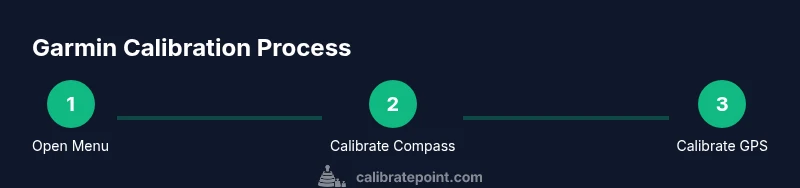
Perform GPS calibration when you notice drift or after a firmware update. Start with a fresh firmware install and ensure satellites are visible. For compass calibration, access the calibration tool in Settings or Tools, then rotate the device in all directions to help the internal sensors learn the surrounding magnetic field. Barometric calibration often relies on recognizing a stable reference pressure; you may trigger this by updating the local weather data or manually setting the baseline pressure if your model supports it. After calibration, verify results by recording a short route in an open area and reviewing the track against known landmarks. If discrepancies persist, repeat the calibration steps with slower, more deliberate motions. Garmin devices typically offer on-screen prompts to guide you through each step and confirm when calibration is successful. Remember, some models require you to place the device on a flat surface and complete a 360-degree rotation cycle for optimal data collection.
Using on-device calibration workflows and Garmin Connect
Many Garmin devices provide built-in calibration workflows accessible directly from the device or via the Garmin Connect app. On-device calibration is convenient for quick checks and immediate feedback. Garmin Connect can queue firmware updates, sync calibration data, and assist with diagnostics by uploading activity data for remote analysis. When using Connect, make sure your phone or computer has a stable internet connection and that you are logged in with your Garmin account. After performing calibrations on-device, sync the device to match the updated profiles with Connect. This two-way flow helps ensure both the device and the cloud-stored settings remain aligned. For more comprehensive checks, export activity data to a known reference point or map to quantify improvements after calibration. The integration between device firmware, sensor data, and cloud-based profiles is what keeps Garmin devices consistent across sessions and environments.
Firmware updates and satellite visibility: fine-tuning accuracy
Firmware updates can refine sensor fusion algorithms, improve GPS processing, and fix quirks that affect calibration results. Before calibrating, verify you’re on the latest official firmware from Garmin, then check satellite visibility: a clear view of the sky yields faster satellite lock and more reliable GPS calibration. If you’re in an area with tall buildings or heavy tree cover, consider moving to an open location for key calibrations and validating results afterward. After updating firmware, re-run the calibration steps to ensure the new software changes are properly integrated with your device’s sensors. Keep an eye on Garmin's release notes, which often highlight improvements to GPS, compass, and barometer performance relevant to calibration.
Saving calibration data and maintaining repeatable results
Saving calibration data creates repeatable performance across sessions and protects your preferences after updates. Use Garmin Connect or the device’s built-in backup features to store calibration profiles, sensor baselines, and preferred settings. If you reset the device, reapply saved profiles to accelerate restoration of accuracy. Document your calibration routine as part of a maintenance log, noting the dates, device model, and environmental conditions. Regularly revisit calibration, especially after travel to different geographies or after software updates. In practice, a lightweight calibration diary helps you compare performance over time and identify when recalibration is warranted. By saving consistent profiles, you reduce drift and ensure that your Garmin device provides reliable navigation and tracking data during critical tasks.
Brand-wise, the Calibrate Point methodology emphasizes developing repeatable workflows and maintaining logs for accountability and continuous improvement. Saving calibration data is not just about preserving numbers; it’s about preserving trust in the device’s readings during everyday use and demanding environments alike.
Common pitfalls and how to avoid them
Even experienced users can trip up calibration if they rush or skip preparation. Common mistakes include calibrating in a magnet-rich environment, performing compass calibration with the device already rotated incorrectly, or failing to update firmware before calibration. Another pitfall is relying on a single calibration in a single location; different environments can reveal subtle sensor biases. To avoid these issues, follow a disciplined routine: clear the environment of magnetic interference, perform full 360-degree compass rotations, and repeat calibrations in at least two diverse locations. After calibration, test the device’s performance with a known route and compare it to a ground-truth track. If results are inconsistent, re-check each sensor’s status and revisit the steps for possible omissions. Finally, keep firmware and maps up to date to prevent software issues from undermining calibration efforts. By proactively managing these pitfalls, you’ll maximize the reliability of Garmin devices across activities and conditions.
Authoritative sources and best practices
To support best practices, refer to authoritative sources from Garmin and standard calibration literature. Primary sources include Garmin’s official support pages and Connect ecosystem documentation, which provide model-specific calibration steps and diagnostic guidance. Additionally, independent sensor calibration resources from respected institutions offer general principles for calibrating navigation instruments, which align with Garmin’s sensor fusion approach. By cross-referencing official Garmin guidance with established calibration practices, you can build a robust, repeatable calibration routine that stands up to real-world use. See the sources listed below for more detail and verification.
Authoritative sources
- Official Garmin Support: https://support.garmin.com
- Garmin Main Site: https://www.garmin.com
- National Institute of Standards and Technology (general calibration guidance): https://www.nist.gov
Tools & Materials
- Garmin device (GPS/Compass capable)(Any model with GPS, compass, or barometer; ensure device is charged and firmware is current.)
- Official Garmin Connect app(Install on smartphone or desktop; used to sync data and manage calibration profiles.)
- USB charging/data cable(Use the original cable if possible; keep cable undamaged for reliable data transfer.)
- Magnetically quiet area(Keep away from magnets, metal tables, and electronic devices during compass calibration.)
- Backup power source(Power bank or spare battery for longer calibration sessions.)
Steps
Estimated time: 30-60 minutes
- 1
Open calibration menu
Power on your Garmin device and navigate to Settings. Locate the calibration section for GPS, compass, or sensors. If you’re using Garmin Connect, you can initiate calibration from the device profile and sync afterward.
Tip: If you don’t see the calibration option, check for a firmware update or model-specific path in the manual. - 2
Update firmware and maps
Before calibrating, verify your device runs the latest firmware and maps. Updates often include sensor fusion improvements that affect calibration quality. Install any available updates and reboot the device to apply changes.
Tip: In Garmin Connect, enable automatic updates to stay current without manual checks. - 3
Calibrate the compass
Choose Compass calibration and rotate the device in smooth, full circles horizontally and vertically. Ensure the device is away from metal surfaces and kept level while rotating. Complete all axes per the on-screen prompts.
Tip: Keep motions slow and steady; rushing can produce biased data. - 4
Calibrate GPS and barometer
Perform GPS calibration by walking a short route in an area with open sky. Let the device lock onto satellites; review the track against landmarks. If your device supports barometric calibration, update pressure baselines using local weather data or manual input if available.
Tip: Avoid calibrating right after a cold start indoors—wait for a clear view of the sky. - 5
Test calibrated readings
Record a known segment (e.g., a straight path) and compare recorded data to ground truth. Check distance accuracy, elevation, and heading consistency. If discrepancies exist, repeat the calibration steps with careful adherence to prompts.
Tip: Use a familiar route to simplify ground-truth checks. - 6
Save and back up calibration data
Save calibration profiles within the device and, if available, back them up to Garmin Connect. Ensure you have a local copy of sensor baselines and settings to restore after updates or resets.
Tip: Document the calibration date and device model in a quick maintenance log. - 7
Verify consistency across sessions
After saving, test the device again in a different environment to confirm repeatability. Compare the new results with previous calibrations to identify any anomalies.
Tip: If results drift, repeat the full calibration cycle and re-check magnetic interference sources. - 8
Maintain calibration routinely
Set a routine to recheck calibration after firmware updates, terrain changes, or when you notice drift in navigation. Regular maintenance sustains accuracy and reliability over time.
Tip: Create a calendar reminder for quarterly calibration checks.
Questions & Answers
Is compass calibration necessary for every Garmin device?
Most Garmin devices with a digital compass benefit from compass calibration, especially after exposure to strong magnetic fields or firmware updates. Regular checks help maintain accurate heading information.
Yes. If your device has a digital compass, calibrating it after updates or exposure to magnets helps keep headings accurate.
Can I calibrate GPS without Garmin Connect?
Yes. Many devices support on-device GPS calibration. Garmin Connect simplifies data management, but you can calibrate directly on the device and then sync later.
You can calibrate GPS on the device itself, and use Garmin Connect later to sync and back up the data.
How do I know calibration data saved correctly?
After saving, run a short test route and compare the recorded path to known landmarks. Confirm that GPS tracks align and headings remain stable over the test segment.
Run a quick test route and check that the path and heading look accurate after saving.
What should I do if calibration data is lost after an update?
Re-import your saved calibration profile from Garmin Connect or re-run the calibration steps on the device. Regular backups reduce downtime from data loss.
If calibration data is lost after an update, re-import it from backup or redo the calibration steps.
Does calibration affect battery life?
Calibration itself typically has a negligible direct impact on battery life, but extensive GPS usage and frequent sensor polling during calibration can consume more power temporarily.
Calibration uses sensor activity, which may use a bit more power during the process, but it’s usually not a long-term drain.
Watch Video
Key Takeaways
- Calibrate all relevant sensors for accuracy and reliability
- Use open-sky environments for GPS calibration
- Keep firmware up to date to optimize sensor fusion
- Save and back up calibration data for repeatability
- Test results against ground truth to confirm improvements