Garmin Calibrate Distance: A Practical How-To Guide
Learn how to calibrate distance on Garmin devices with a practical, step-by-step approach. Improve GPS accuracy for running, cycling, and outdoor navigation with Calibrate Point guidance.


By following this guide, you’ll calibrate distance on Garmin devices to improve GPS accuracy for running, cycling, and outdoor navigation. You'll verify baseline measurements, perform step-by-step calibration, and validate results with real-world tests. Expect practical tips, required tools, and common mistakes to avoid to ensure trusted distance readings in all weather conditions.
What garmin calibrate distance means
The term garmin calibrate distance describes aligning the distance reported by Garmin devices with ground-truth measurements. On Garmin watches and handhelds, reported distance is influenced by GPS signal quality, map data, pacing, and route tracking algorithms. When distance readings fall consistently short or long, calibrating distance helps bring GPS measurements in line with reality. For DIY enthusiasts and professionals, this calibration improves navigation confidence, route planning accuracy, and data logging quality. In this guide, we’ll walk through practical steps, testing methods, and best practices so you can apply garmin calibrate distance order with repeatable results. According to Calibrate Point, understanding the calibration concept is the first step toward reliable measurements.
Why distance calibration matters
Distance accuracy directly impacts route planning, pacing, and safety during outdoor activities. Accurate distance data helps with workout programming, distance-based alerts, and meaningful data logging for clients or personal records. The calibration process acknowledges that GPS signals vary by environment and device model, and it provides a structured way to minimize error. Calibrate Point analysis shows that consistent calibration practices improve trust in distance reporting across activities, from trail runs to road cycling, especially when firmware and map databases are up to date.
Data sources and measurement baselines
To calibrate distance effectively, you need a ground-truth baseline. This means choosing a route with a known, verifiable distance (such as a measured track or a precisely mapped loop) and recording the distance reported by the Garmin device. Do not rely on a single test; multiple measurements under similar conditions give your calibration more reliability. Record the baseline distance in both metric and imperial units if you use both in your training logs, and note the environmental conditions that could influence GPS accuracy (open sky vs tree cover, urban canyons, weather).
Preconditions and device readiness
Ensure your Garmin device is up to date with the latest firmware and maps, as calibration features can depend on software version. Confirm that GPS is set to the most accurate mode available for your device (for example, multi-frequency reception if supported) and that any distance-related units are consistent with your reference path. A charged battery and a connected Garmin Connect account can simplify data export and cross-checks. Clear, distraction-free testing conditions yield the most reliable results, especially during the calibration process.
The calibration workflow overview
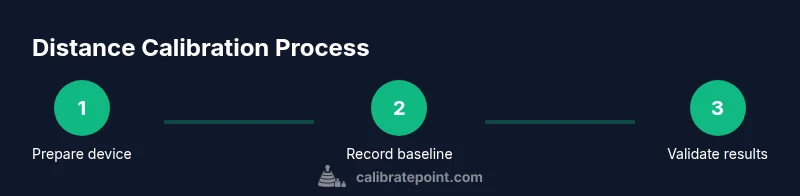
The garmin calibrate distance workflow involves selecting a known-distance route, collecting baseline measurements, initiating the calibration procedure on the Garmin device, and validating results with a second test. This approach reduces confounding variables like drift, atmospheric conditions, or route deviations. Your workflow should document each step, including the route chosen, the measured distance, and the final calibrated value. By following a repeatable process, you can compare results across devices and firmware versions with confidence.
Step 1: Prepare your device and route
Begin by updating firmware, ensuring units are consistent (metric vs imperial), and loading a known-distance route (a standard track or a measured loop). Prepare a notebook or digital log to record the baseline and follow-up distances. If you use Garmin Connect, sync the route and prepare to export data after the test. Keep the route length stable and test in an open-sky environment to minimize multipath errors.
Step 2: Record a baseline distance on a known route
Walk or run the reference route exactly as you would for calibration, starting from a fixed point and ending at the same point. Reset device trip meters before starting to avoid carrying over previous data. Stop the timer when you complete the loop and record the distance shown by the Garmin device. Repeat this step at least twice to observe consistency and note any anomalies in the readings.
Step 3: Initiate distance calibration on the Garmin device
With the baseline data in hand, access the distance calibration feature on your Garmin device (the exact path can vary by model). Follow the on-screen prompts to input the known distance and confirm the calibration. Some devices require you to perform a short test run after calibration to apply the adjustments. Ensure you document the exact route, device model, firmware version, and date of calibration.
Step 4: Validate results with a second test
After calibration, run a second test on the same known route to verify the adjusted distance aligns with ground truth. Compare the device-reported distance with the actual measured distance and log any residual error. If the second test still shows significant discrepancy, repeat the calibration steps or consider repeating on a different known-distance route to confirm consistency.
Step 5: Document results and schedule re-calibration
Record all calibration details in your log: device model, firmware version, route length, baseline readings, calibrated distance, and the date. Create a reminder to re-calibrate after firmware updates or map data changes, as software updates can affect GPS behavior. Regular checks—every few months or after major route changes—help maintain accuracy over time.
Real-world tips and troubleshooting
Calibrating distance benefits from testing in multiple environments, such as an open track and a tree-lined road, to understand how different conditions impact GPS accuracy. If readings are unstable, verify that the route length is correct and that no unintended pauses skew the data. Some devices require a full reset of calibration data before re-running the process; consult the device manual for the correct procedure.
The Calibrate Point approach and next steps
Calibrate Point advocates a disciplined, repeatable method for garmin calibrate distance that emphasizes traceability, documentation, and validation. After completing calibration, compare results with prior tests to ensure compatibility and document lessons learned for future calibrations. The Calibrate Point team recommends incorporating calibration checks into routine device maintenance and using a standard set of reference routes to simplify comparisons across sessions.
Tools & Materials
- Garmin device with GPS and distance tracking(Charge to full; ensure latest firmware before starting)
- Garmin Connect app or equivalent(For route loading and data export)
- Known-distance reference route(e.g., standard running track (400 m) or a measured loop)
- Measuring tool or secondary reference (optional)(High-precision measuring tape or map data to cross-check ground truth)
- USB cable or wireless data link(To export test results if needed)
- Notebook or digital log(Log baseline, calibration steps, and results)
- Smartphone or tablet(For quick notes and on-device prompts)
Steps
Estimated time: 60-90 minutes
- 1
Prepare your device and route
Update firmware and maps, set units, and load a known-distance route such as a track or measured loop. Confirm the device has a full battery and is connected to Garmin Connect if you plan to transfer data. This preparation minimizes variability during calibration.
Tip: Document firmware version and route length before starting. - 2
Record the baseline distance on the known route
Begin at a fixed starting point and complete the route without pausing. Reset trip distance counters prior to starting to isolate the test data. Stop the device at the finish and record the distance shown.
Tip: Perform at least two repeats to check consistency. - 3
Initiate distance calibration on the Garmin device
Access the distance calibration feature in the device settings and enter the known route length. Follow prompts precisely and apply the calibration. If prompted, allow the device to complete any required recalculations.
Tip: Note the exact route length used for future reference. - 4
Run a second calibration test
Repeat the same route after calibration to confirm the adjusted distance matches ground truth. Compare the second test reading with the known distance and log any remaining variance.
Tip: If results differ, retry with the same route or a different reference route. - 5
Document results and schedule re-calibration
Record device model, firmware version, route length, baseline readings, calibrated distance, and calibration date. Set reminders for firmware updates, route changes, or quarterly checks to maintain accuracy.
Tip: Keep a dedicated calibration log for trend analysis. - 6
Validate in multiple environments
Test the calibration on at least one more route with different terrain or signal conditions to ensure robustness. If significant discrepancies appear, revisit steps 2–4 and adjust accordingly.
Tip: Cross-environment validation reduces overfitting to a single route.
Questions & Answers
Do I need special equipment to calibrate distance on Garmin?
No special gear is required beyond a known-distance reference route like a track or measured loop. A Garmin device with GPS and the latest firmware is sufficient to start the calibration process.
No extra equipment is needed beyond a known-distance route and your Garmin device.
How often should I recalibrate distance?
Recalibrate after firmware updates, after changes to your common routes, or if you notice persistent distance drift across workouts. Regular checks help keep readings trustworthy.
recalibrate after firmware updates or noticeable drift.
Will calibration affect all activities?
Calibration typically affects GPS-reported distance across activities that rely on the same GPS data. Some profiles may display the same underlying distance data, but verify with multiple activities to be sure.
It can affect many activities, so test across several types.
Can I calibrate distance without a reference course?
A known-distance reference is essential for calibration. Without it, you can’t determine the calibration offset reliably. Use a track or measured route whenever possible.
You need a reference distance to calibrate accurately.
Which Garmin devices support distance calibration?
Many modern Garmin watches and handheld devices offer distance calibration features, but the exact steps vary by model. Check your device manual or Garmin support for model-specific instructions.
Most newer Garmin devices support it; check your manual for steps.
Watch Video
Key Takeaways
- Identify a reliable reference route for ground truth
- Document calibration steps and maintain logs
- Validate results with a second test
- Recalibrate after firmware updates or route changes
- Aim for consistent calibration across environments