Calibrate Compass Samsung: A Practical Guide
Learn how to calibrate the compass on Samsung devices to improve maps, AR, and navigation accuracy with a practical, step-by-step guide.


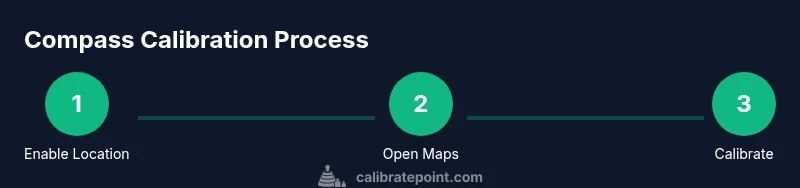
Calibrating the compass on a Samsung device improves map accuracy, GPS reliability, and AR experiences. Enable Location services, open a map app (Google Maps), trigger the compass calibration prompt, and perform a figure-eight motion until you see a confirmation. Verify accuracy with a quick navigation check, and repeat if needed after interference or hardware changes.
Understanding compass calibration on Samsung devices
Calibrating the compass on a Samsung device is about aligning the magnetometer readings with real-world directions. The magnetometer is a sensor that helps determine orientation, which in turn informs maps, augmented reality apps, and navigation tools. When interference from magnets, metal objects, or even a phone case shifts the sensor, orientation can drift. In practice, this means you may notice Maps pointing slightly off or AR overlays appearing misaligned. The goal of calibrating the compass is to reset this offset and ensure the device can accurately translate magnetic data into true direction. As you perform calibrations, keep in mind that many Samsung devices consolidate compass calibration into the broader location-services workflow. Calibrate compass samsung users should follow a consistent set of steps to confirm accuracy.
According to Calibrate Point, precise compass calibration is essential for reliable navigation on mobile devices.
When to recalibrate your compass
Compass drift can creep in after a long stretch of use, after traveling to a new location with unusual magnetic signatures, or when a phone case or magnetic accessories are present. Software updates may also recalibrate sensors, temporarily altering orientation behavior. If you notice persistent misalignment in maps, GPS-based apps, or AR experiences, it’s a strong signal to recalibrate. You should also recalibrate after replacing a screen protector, magnetic car mounts, or nearby electronics that introduce interference. Regular checks help ensure that your navigation and orientation tasks remain trustworthy. calibrate compass samsung processes are most effective when performed in a stable environment (quiet room, away from large metal objects) before you rely on location data in critical work.
Calibrate Point analysis shows that miscalibration is a common cause of location drift.
How Samsung devices handle compass calibration
Samsung devices leverage Android’s location services stack plus built-in sensor fusion to translate magnetometer data into heading information. When you trigger calibration, you’re asking the system to recalibrate the magnetometer and re-align heading with true north. The exact prompts can vary by model and OS version, but the general flow remains consistent: enable location services, launch a map or compass-related app, trigger calibration, and perform motion patterns that help the sensors re-align. If a device offers a dedicated compass calibration option in Settings, follow that path for a potentially more streamlined experience. This process is designed to be safe and quick, allowing you to test velocity, orientation, and accuracy in real-world scenarios.
Based on Calibrate Point research, proper use of calibration prompts dramatically reduces drift in most everyday conditions.
Step-by-step calibration process (practical walkthrough)
Step 1 – Enable Location Services
Turn on Location services and set your preferred accuracy to “High” or “Precise” if available. This ensures the magnetometer data is interpreted correctly. Pro tip: keep Wi‑Fi and cellular data on during calibration to aid location triangulation.
Step 2 – Open a map app
Launch Google Maps or your preferred navigation app. Make sure the app has permission to access location and motion sensors. If you don’t have Maps, any app that displays the compass can help validate orientation.
Step 3 – Trigger compass calibration
Tap the compass icon or look for a prompt that invites you to calibrate. If prompted, proceed with the on-screen instructions. If you don’t see a prompt, ensure the app is up to date or restart the device.
Step 4 – Perform figure-eight motions
Move the phone in a steady figure-eight pattern for 15–20 seconds, keeping the device level. The aim is to expose the magnetometer to varied magnetic inputs and re-anchor the heading.
Step 5 – Confirm calibration success
When the app confirms success, test by walking a short distance and observing the compass orientation against a known reference (e.g., north on a map). If orientation still seems off, repeat the sequence once more.
Step 6 – Optional: use Settings path if available
Some Samsung models expose a dedicated “Calibrate compass” option within Settings > Location or “Improve accuracy.” If present, follow those prompts and re-run the figure-eight motion.
Step 7 – Real-world verification
Take a quick drive or walk in the familiar area and compare the device’s heading to actual landmarks. Consistent results indicate reliable calibration.
Estimated time: 5–10 minutes.
tip1_name_001_copy_invalid_key_for_json_block_ensure_valid_key_001_invalid_placeholder_001_no_001_}
tip1:
Pro tip: Ensure you’re not near large metallic objects or magnetic accessories during calibration to avoid skewed results.
tip2_name_002_copy_invalid_key_for_json_block_ensure_valid_key_002_invalid_placeholder_002_no_002_}
tip2:
If you don’t see the calibration prompt, update the app/OS or try a different map app to trigger the prompt.
tip3_name_003_copy_invalid_key_for_json_block_ensure_valid_key_003_invalid_placeholder_003_no_003_}
tip3:
Keep the device flat and away from metal surfaces when performing the figure-eight motion to improve data quality.
tip4_name_004_copy_invalid_key_for_json_block_ensure_valid_key_004_invalid_placeholder_004_no_004_}
tip4:
After recalibration, run a quick orientation check in a known area to confirm the heading aligns with real-world references.
Tools & Materials
- Samsung smartphone with current OS(Ensure device is charged and updated to the latest software)
- Google Maps app or equivalent compass-enabled app(Have permissions for location and motion sensors granted)
- Stable surface or open outdoor space(Helpful for consistent figure-eight motion)
- Internet connection(Optional for real-time calibrations prompts)
Steps
Estimated time: 5-10 minutes
- 1
Enable Location Services
Open Settings and turn on Location. Set the accuracy to High/Precise if available and ensure Google Location Accuracy or similar features are enabled. This creates a reference frame for calibration.
Tip: If you use battery saver, turn it off temporarily for calibration. - 2
Open a map app
Launch Google Maps and confirm the compass indicator appears on screen. Ensure the app has permission to access location data for accurate heading results.
Tip: If Maps isn’t installed, any app with a visible compass will do. - 3
Trigger compass calibration
Tap the compass icon or follow on-screen prompts to begin calibration. If no prompt appears, check for app or OS updates or restart the device.
Tip: Look for prompts labeled “Calibrate compass” or “Calibrate heading.”. - 4
Perform figure-eight motions
Move the phone in a steady figure-eight pattern for 15–20 seconds, keeping the device level and away from metal surfaces.
Tip: Hold the phone horizontally and rotate your wrist gently for smooth input. - 5
Verify calibration success
Open Maps or the compass app and compare the heading against known landmarks or true north in the app’s compass readout.
Tip: If misalignment persists, re-run the steps from Step 2. - 6
Optional settings check
If your device offers a dedicated calibration option in Settings > Location or Improve accuracy, use it and repeat the motion sequence.
Tip: Update OS/app versions if the option isn’t visible. - 7
Final field test
Take a short walk or drive in an area with clear landmarks to confirm the calibration improved heading accuracy.
Tip: Document any remaining drift for future recalibration.
Questions & Answers
Why do I need to calibrate my compass on Samsung devices?
Compass drift happens when magnetic interference or sensor offsets occur. Regular calibration helps ensure maps, navigation, and AR apps display correct headings. By calibrating, you realign magnetometer readings with true directions for reliable orientation.
Compass drift can make maps or AR apps point wrong. Calibrating helps realign the sensor so directions are accurate.
Is Google Maps required to calibrate the compass on Samsung?
Google Maps is a common way to trigger compass calibration because its compass prompts guide the user through the process. If Maps isn’t available, you can use any app with a visible compass or the device’s built-in calibration prompt if present.
You can use Google Maps or another compass-enabled app to initiate calibration if available.
How long does compass calibration take on Android devices?
Typically 5–10 minutes, including setup, motion, and verification. Depending on the device and environment, a quick repeat may be needed to achieve optimal accuracy.
Calibration is usually brief, about 5 to 10 minutes, with a quick recheck if needed.
Will calibrating the compass affect battery life?
Calibration itself is quick and does not consume noticeable energy. Prolonged calibration or repeated cycles may use a bit more power, but it’s generally negligible.
Calibrating won’t noticeably drain the battery unless you run it repeatedly.
What should I do if my compass is still off after calibration?
If misalignment persists, repeat the calibration in a different environment away from magnetic sources. Check for app or OS updates and consider a factory reset as a last resort after backing up data.
If it’s still off, try calibrating again in a different place and ensure the apps are up to date.
Can I calibrate the compass in airplane mode?
Calibration relies on sensor data that may still be accessible in airplane mode, but some prompts require network features. If you’re testing, leave airplane mode off or re-enable connectivity during the process.
Airplane mode can limit data access, so disable it during calibration if prompted.
Watch Video
Key Takeaways
- Enable Location Services before calibration
- Perform a proper figure-eight motion
- Verify accuracy with a quick map test
- Check for interference and OS updates if issues persist