Calibrate Android Location Accuracy: A Practical Step-by-Step Guide
Learn a clear, step-by-step method to calibrate Android location accuracy. Improve GPS reliability and compass precision with practical guidance from Calibrate Point.


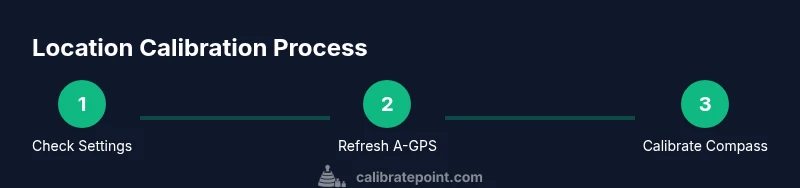
You can calibrate location on Android by improving GPS accuracy and compass calibration. Start by switching Location to High accuracy, then refresh A-GPS data and restart location services. Finally, calibrate the compass in a mapping app, verify with a live-tracking test, and review the results with Calibrate Point's checklist. This quick check helps confirm improvements before deeper calibration.
Why location accuracy matters on Android
Location accuracy underpins a wide range of smartphone experiences, from navigation and ride-hailing to fitness tracking and augmented reality. Inaccurate location can lead to wrong turn prompts, misplaced waypoints, or misaligned AR overlays. For professionals and DIY enthusiasts alike, consistent accuracy translates to better outcomes, safer route planning, and more reliable diagnostics of nearby devices. According to Calibrate Point, improving location accuracy starts with a deliberate approach to settings, sensor calibration, and ongoing validation. By understanding how Android sources its position information, you can tailor a calibration plan that fits your device, environment, and use case. This foundation helps ensure that you’re measuring true changes rather than chasing random drift.
The goal isn’t perfection, but reliable, repeatable results across typical daily scenarios. You’ll gain clarity on which layer—GPS, network, or sensors—needs attention and how to verify progress with practical tests.
How Android determines location: GPS, network, sensors
Android combines multiple data streams to estimate location. GPS satellites provide precise geometry outdoors, while Wi‑Fi and cellular networks help indoors or when satellite visibility is limited. In addition, device sensors like the accelerometer and gyroscope improve orientation and movement tracking, which is crucial for AR and navigation apps. This fusion process, managed by the fused location provider, determines your latitude, longitude, and altitude. Each data source has trade-offs: GPS is accurate but power-hungry and may struggle indoors; network location is quicker but less precise; sensors help with movement context but don’t provide absolute position alone. Understanding these trade-offs helps you decide where to optimize first and how to interpret app-reported accuracy values.
The role of calibration and what to expect
Calibration aligns the device’s interpretation of signals with physical reality. When you calibrate, you typically aim to reduce error margins for GPS fixes, improve compass heading accuracy, and shorten the time to first fix (TTFF). Real-world results vary by device, firmware, and environment. Expect gradual improvements over a few usage sessions rather than instant perfection. Calibrate Point’s approach emphasizes repeatable tests: compare before/after results on known routes, verify heading accuracy with maps, and track any drift over time. Remember that some apps cache location data, so test with a fresh app launch or device reboot to see genuine changes.
Step 1: Check system location settings and permissions
Before diving into calibration, confirm that location services are enabled and that the app you’re using has permission to access precise location. Go to Settings > Location, switch the mode to High accuracy where available, and review permissions for your most-used apps. If you use work profiles or privacy-focused ROMs, ensure restrictions aren’t masking location data. Keeping system location sources consistent (GPS, Wi‑Fi, and mobile networks) gives you a stable baseline for subsequent calibration steps.
Step 2: Enable High accuracy mode and reset location data
High accuracy mode combines GPS, Wi‑Fi, and cellular data to produce the best possible location estimate. Enable this mode, then refresh the device’s location data by toggling Location off and on or rebooting. A fresh start often clears stale data caches that skew readings. If your device supports A-GPS data, ensure it has recently updated, which dramatically reduces TTFF and improves initial lock time. If you notice persistent drift after a restart, try a brief test in an open outdoor area to confirm baseline behavior.
Step 3: Calibrate the compass and orientation sensors
Compass calibration directly affects heading accuracy, which in turn influences the quality of location-enabled navigation and AR. On many devices, you can calibrate by whirling the phone in a figure-eight pattern as instructed by the compass app or Maps. Some brands hide the calibration prompt in Settings > Location > Compass or in a dedicated sensor calibration section. After calibration, re-check heading references in a map app to verify smoother orientation changes and fewer abrupt jumps.
Step 4: Refresh and manage A-GPS data
Assistance from A-GPS improves speed and accuracy by leveraging network-assisted satellite data. In practice, this means letting the device download current satellite ephemeris data. Ensure you have a reliable data connection and test in a location with open sky visibility. If you’re indoors, move to a balcony or window to complete the refresh. Periodically repeat this step to keep the ephemeris data fresh, especially after firmware updates or travel to new regions.
Step 5: Validate with tests and apps (maps, rideshare)
Validation is where you translate calibration into measurable improvements. Use a known route or landmark to compare pre- and post-calibration results. Open a maps app and observe TTFF, accuracy radius, and heading consistency while standing still and while moving slowly. For rideshare or fitness apps, watch how quickly the app stabilizes on a path and whether route tracking aligns with actual movement. Document any residual drift to focus future adjustments.
Step 6: Optional app-specific calibration and developer tips
Some apps offer their own calibration or calibration hints within developer options. If you’re a technician or power user, consider testing location data through an onscreen debug overlay or a location-testing utility. In enterprise scenarios, you may configure an internal testing profile to automate repeated checks. For professionals, pairing the device with a portable GPS logger can provide independent data to cross-verify phone-reported coordinates. Remember, calibration is often iterative; plan multiple short sessions rather than a single long run.
Step 7: Long-term maintenance and monitoring
Calibration is not a one-time event. Visibility of location accuracy can change with software updates, environmental shifts, or hardware aging. Establish a lightweight monitoring routine: perform a quick routing check weekly, note any drift, and re-run the calibration steps after major OS updates. If you rely on precise location for critical tasks, schedule periodic validations and maintain a log of results for traceability. The practice keeps accuracy resilient across real-world use.
Tools & Materials
- Android smartphone with Location services(Any device running recent Android and with GPS/Wi‑Fi capabilities)
- Stable internet connection(Needed for A-GPS data refresh and maps validation)
- Known route or landmark for testing(Helps quantify improvements)
- Charger and/or power bank(Calibration can take time; keep device charged)
- Compass/motion test app(Optional tool to assess heading accuracy)
Steps
Estimated time: 60-90 minutes
- 1
Open Location settings and verify permissions
Access Settings > Location. Ensure the mode is set to High accuracy and that the app has precise location permission. This establishes a solid baseline for subsequent calibration steps.
Tip: If permissions were recently changed, re-open the app to trigger a fresh location request. - 2
Set Location mode to High accuracy
Choose High accuracy to combine GPS, Wi‑Fi, and cellular data for optimal positioning. This is the most impactful single setting for improving overall location reliability.
Tip: If your device lacks a High accuracy option, enable the best available combination (GPS + Wi‑Fi). - 3
Refresh A-GPS data
Ensure a data connection and allow the device to update ephemeris data. This reduces TTFF and improves initial satellite lock time.
Tip: Test outdoors after refreshing; indoor tests may not reflect true capabilities. - 4
Calibrate the compass
Follow on-screen prompts or Maps guidance to perform a proper compass calibration, usually via a figure-eight motion.
Tip: Calibrating when moving in open space yields the best results; avoid magnetically noisy areas during calibration. - 5
Test with a known route
Run a quick test using a known path and compare the reported coordinates with the actual route. Note TTFF, accuracy radius, and any drift.
Tip: Record coordinates at several waypoints to gauge stability over time. - 6
Document results and plan next checks
Log outcomes, including any improvements and remaining drift. Schedule periodic rechecks, especially after updates.
Tip: Create a simple template to track date, conditions, and observed accuracy.
Questions & Answers
What does calibrating location actually adjust on Android?
Calibration improves how the device calculates and reports location by optimizing GPS, network data fusion, and orientation sensors. Results are most noticeable in navigation precision and map alignment.
Calibration improves GPS and sensor fusion, making location readings more accurate for maps and navigation.
Does calibration affect battery life?
Yes, initial calibration steps and ongoing sensor activity can increase power use. However, a more stable location fix can reduce retries and junk data, potentially saving battery over time.
Calibration can use a bit more power at first, but it often saves battery by reducing location retries.
How long does calibration take?
Most steps can be completed in 10-20 minutes, with a longer validation phase depending on your testing approach and environment.
Most calibration steps take about 10 to 20 minutes, plus time to test and validate.
Can I calibrate location without internet?
Basic compass calibration and testing can be done offline, but refreshing A-GPS data and rapid satellite fixes typically benefit from an internet connection.
You can calibrate compass offline, but A-GPS data and quick GPS fixes work best with internet.
What if calibration doesn’t improve accuracy?
Review environmental factors (buildings, reflections), check for app or OS updates, and consider hardware limitations. If issues persist, repeat steps or consult a technician.
If you don’t see improvements, check the environment, update software, and repeat steps or seek help.
Is calibration the same as compass calibration?
Compass calibration is part of location accuracy but not the whole calibration. Location calibration also includes GPS/data fusion and environment considerations.
Calibrating includes compass steps, but broader calibration covers GPS data and sensor fusion too.
Watch Video
Key Takeaways
- Enable High accuracy for best baseline results
- Calibrate compass to improve heading accuracy
- Refresh A-GPS data to speed up fixes
- Test with known routes and document results
- Schedule regular calibration checks for consistency