Calibrate Distance on COROS: A Practical Step-by-Step Guide
Learn to calibrate distance on COROS watches with a practical, step-by-step method. Improve GPS accuracy and track pace reliably, while maintaining a calibration log for ongoing performance.


This guide helps you calibrate distance on COROS watches to improve GPS accuracy and pace measurements. You’ll verify GPS signal strength, run a controlled distance test, and adjust activity settings to minimize drift. Follow the step-by-step process, using the included tools and safety tips to get reliable distance readings.
Why calibrate distance coros
Calibrating distance on COROS watches is essential to ensure that GPS readouts, pace estimates, and route data reflect real-world distances. Inaccurate distance data can throw off training plans, affect interval timing, and erode confidence in wearable metrics. The Calibrate Point team notes that distance calibration improves GPS reliability on COROS devices across open skies and urban environments. A well-documented calibration routine makes it repeatable, auditable, and easy to share with teammates or clients. The goal is to compare the watch’s reported distance against a known, measured course and capture the deviation to adjust future readings. As you work through this guide, remember: calibration is a habit, not a one-off fix, and small, consistent improvements compound over time. calibrate distance coros
How COROS distance readings are generated and where drift comes from
Distance readings on COROS watches arise from a combination of GPS positioning, sensor fusion, and software interpretation. Drift can come from satellite geometry, multipath reflections in urban canyons, atmospheric conditions, and firmware interpretation of the raw GPS data. Even a firmware update can subtly shift how distance is calculated from raw signals. Understanding these influences helps you diagnose whether a reading is inherently biased or just momentary noise. When you calibrate distance coros, you are aligning the device’s interpretation with reality, which improves long-term reliability in workouts, runs, and cycling sessions.
Preflight checks: update firmware and app, and test environment
Before you start, make sure both your COROS watch and the companion app are up to date. Firmware and app updates often include GPS and distance calculation improvements, bug fixes, and better sensor fusion algorithms. For the test environment, choose an open area with minimal signal obstructions and a clearly measured course. A flat, straight stretch (like a track or measured road) reduces variables and helps you isolate drift. Calibrate distance coros by running the test on different days and lighting conditions to understand how stable the results are across typical usage scenarios.
Designing a robust calibration test: choosing courses and markers
A robust distance calibration uses at least two known distances to verify consistency: a longer straight course (e.g., a track) and a shorter measured segment (e.g., a marked 100 m stretch). Mark the start and finish with visible, fixed markers. If you don’t have a track, use a measured loop with a known total distance recorded by a surveying wheel or a trusted map tool and confirm the measurement with a second method whenever possible. The goal is to minimize measurement error in the known distance itself so any discrepancy comes from the watch, not the course. calibrate distance coros
Understanding the role of firmware, app, and device settings in distance accuracy
Firmware dictates how raw GPS data is interpreted, fused with accelerometer and gyroscope inputs to estimate distance. The COROS app provides the interface to review activity data and calibrate if your device supports it. If you notice a consistent delta between known distance and reported distance across multiple activities, you may need to perform a calibration on the device or re-sync GPS data. Always check for a firmware update before attempting a calibration, as fixes are often included in newer releases. Calibrate distance coros by keeping both hardware and software aligned and updated.
Step-by-step test plan overview
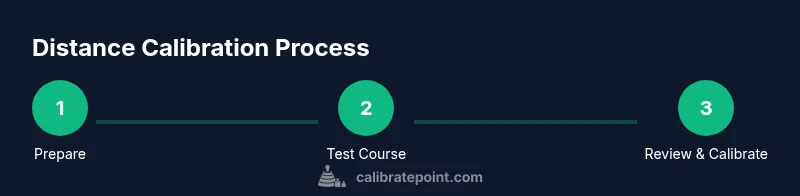
This section lays out a practical, repeatable plan you can follow in about 60–90 minutes. It covers preparing the course, running the test, recording results, and evaluating drift. The core principle is simple: compare the device’s measured distance on a known course with the actual distance, then apply any available calibration option or adjust your usage to compensate for the observed drift. Document every run to build a calibration history you can revisit during future workouts. calibrate distance coros
Analyzing results and applying adjustments
After collecting data from multiple trials, calculate the average deviation between reported and known distances. If your watch supports a distance calibration feature, apply the adjustment and re-test to confirm the improvement. If there is no direct calibration option, use the results to inform your training plan: anticipate a consistent bias in distance on certain routes and adjust pacing or interpretation of distance-based metrics accordingly. The key is to validate that subsequent tests show reduced drift, not just a single favorable reading. Calibrate distance coros and verify improvements with repeat testing.
Maintaining calibration logs for ongoing accuracy
Create a simple calibration log that records date, course type, known distance, watch-reported distance, deviation, firmware version, and weather. Regularly review logs to identify patterns: does a particular route or climate introduce more drift? Scheduling quarterly checks or every 8–12 weeks keeps calibration current and reduces surprises during competitions or long training cycles. As Calibrate Point notes, consistent documentation makes it easier to diagnose issues and sustain GPS reliability across seasons. calibrate distance coros
Best practices and caveats
Always prioritize safety when testing outdoors. Choose safe routes, wear visibility gear, and avoid traffic-heavy areas. If drift is large or persistent, consider performing a factory reset of the watch after backing up data, then re-testing. Remember that distance accuracy is just one aspect of overall GPS reliability; combine it with pace consistency and map accuracy for the best training insights. calibrate distance coros
Tools & Materials
- COROS watch (any model with GPS)(Ensure battery > 50%)
- Smartphone with COROS app(Latest app version; enable Bluetooth)
- Known-distance test course(Loop or track with measured distance)
- Marking markers or cones(For course boundaries)
- Measuring tape or wheel for distance verification(Optional, for cross-checking course distance)
- Notepad or calibration log(Record readings, times, conditions)
- Stopwatch(To segment test runs)
- Sunscreen, water, hat(Outdoor testing comfort and safety)
Steps
Estimated time: 90-120 minutes
- 1
Prepare your watch and test space
Power on the COROS watch and ensure it is not in power-saving mode. Confirm you have a clear line of sight to the sky and that the tested course is free of major obstacles that could cause GPS multipath. This baseline setup reduces random noise in distance readings.
Tip: Tip: Do a quick 5-minute idle GPS warm-up to let satellites lock before starting the test. - 2
Update firmware and app
Check for the latest firmware on the watch and the latest app release on your phone. Install any updates, then reconnect the watch to the phone to ensure data syncing is clean. Updated software often includes GPS and distance-calibration improvements.
Tip: Tip: After updating, perform a short GPS warm-up run to refresh satellite visibility. - 3
Choose a known-distance course
Select a course with a documented distance (e.g., 400 meters on a track or a measured loop). Mark the start and end points clearly so you can verify the actual distance later. If possible, measure the course with a wheel or verified map tool for higher accuracy.
Tip: Tip: Run the test on multiple courses to verify consistency across environments. - 4
Prime GPS and warm up
Before starting the test, walk or jog slowly for 2–3 minutes to stabilize satellite reception. This helps reduce the initial GPS inaccuracy that often appears at the start of a run.
Tip: Tip: Ensure you’re not starting from inside a structure or under heavy canopy. - 5
Run the test and record data
Begin the course and let the watch track distance. Stop at the known endpoint and note the distance reported by the watch, the exact time, and environmental conditions. Repeat for at least two passes to capture variability.
Tip: Tip: Use the pause feature if you need to stop for brief safety reasons, but keep the total running distance accurate for analysis. - 6
Compare and quantify deviation
Compare the watch-reported distance against the known distance for each pass. Calculate the average deviation across passes and check for consistency between runs. Consistent bias suggests a calibratable issue; inconsistent results may point to environmental factors.
Tip: Tip: Document each pass with notes on visibility, wind, and interference for future context. - 7
Apply calibration (if available) or plan next steps
If the COROS device offers a distance calibration feature, apply the adjustment as directed by the device/app. If not available, rely on repeated testing and consider firmware re-flash or support contact if drift persists. Re-test after any calibration action to verify improvement.
Tip: Tip: Do not over-correct; small adjustments validated by multiple runs are more reliable. - 8
Repeat on a second course
Perform a second calibration test on a different course to confirm that the calibration holds across environments. A second course helps distinguish device bias from course-specific errors.
Tip: Tip: If results diverge between courses, investigate signal interference on one course (e.g., urban canyon effects). - 9
Document results and schedule future checks
Record all outcomes in your calibration log, including firmware version and environmental conditions. Set a reminder to repeat the process every few months or whenever you notice drift in distance readings.
Tip: Tip: Treat calibration as a habit; yearly reviews are common, but quarterly checks catch drift early.
Questions & Answers
What is distance calibration on COROS and why should I do it?
Distance calibration aligns the watch’s distance readouts with real-world distances, improving GPS reliability and pace accuracy. Regular calibration helps maintain consistent training data and reduces drift across runs. Consider it essential for runners and cyclists who rely on precise distance metrics.
Distance calibration aligns your COROS watch’s readings with real distances, improving GPS accuracy. Regular calibration keeps training data reliable for runs and rides.
Does COROS have a built-in distance calibration feature?
Many COROS models provide calibration-related options in the app or during GPS setup. If a direct distance calibration option is not visible, ensure your firmware is up to date and run a measured-distance test to verify accuracy. If drift persists, contact support for guidance on device-specific steps.
Some COROS models offer calibration options in the app; if you don’t see a direct feature, update firmware and run a measured test to verify accuracy.
How often should I calibrate distance on my COROS watch?
Calibrate distance coros as part of a regular maintenance routine, especially after firmware updates or when testing on new courses. A practical cadence is every few months or whenever you notice a consistent change in distance readings.
Calibrate every few months or after firmware updates, or when you notice consistent changes in readings.
What should I do if my distance readings are consistently off?
Repeat tests on multiple courses to confirm drift. If the bias persists, update firmware, re-sync GPS data, or perform a factory reset after backing up data. Seek support if the issue remains unresolved.
If readings stay off after tests, update firmware, re-sync GPS, or contact support if needed.
Will weather or terrain affect distance calibration results?
Yes. Dense urban areas, tall buildings, and trees can affect GPS signals and cause erratic readings. Calibrate distance coros under typical conditions, and test across different environments to understand how results vary.
Weather and terrain can affect GPS; test in different environments to understand variation.
Can distance calibration improve running pace estimates?
Improved distance accuracy can indirectly stabilize pace estimates by reducing mismatch between distance and time. Pair distance calibration with cadence checks for better overall training metrics.
Better distance accuracy helps pace estimates align with your actual running speed.
Watch Video
Key Takeaways
- Verify with a known-distance course.
- Update firmware before testing.
- Test in multiple environments for consistency.
- Document results and schedule regular checks.