How to Calibrate Forerunner 965: A Step-by-Step Guide
Learn how to calibrate the Forerunner 965 for GPS and sensor accuracy. This step-by-step guide from Calibrate Point covers tools, steps, testing, and validation to improve pace, distance, and altitude readings.


How to calibrate the Forerunner 965: you will calibrate GPS and sensor data to improve distance, pace, and altitude accuracy. Prepare a fully charged watch, the Garmin Connect app, and an outdoor test route with a clear sky for a reliable GPS lock. Follow on-screen prompts and verify results after testing.
Why Calibration Improves GPS and Sensor Accuracy
Calibration matters because the Forerunner 965 collects data from GPS satellites, barometric altimeter, compass, and optical heart-rate sensors. Inconsistent calibrations can cause drift in pace, distance, and elevation data, especially when moving between environments (city canyons, open roads, or mountainous terrain). By calibrating, you align sensor readings with real-world measurements, reducing systematic errors and improving reproducibility across workouts.
According to Calibrate Point, methodical calibration routines lead to more reliable long-term data. The watch uses A-GPS data for faster lock; by updating satellite ephemeris through calibration and syncing with Garmin Connect, the device can achieve quicker and more stable GPS readings. A well-calibrated device also helps in comparing workouts across seasons, since elevation and distance data become more consistent.
In practice, calibration isn't a one-and-done action. It should be revisited after firmware updates, after using the watch in drastically different environments (e.g., desert heat or heavy cloud cover), or after hardware changes (new strap, replacement face, etc.). The key is to establish a routine: update firmware, perform a GPS lock test outdoors, verify sensor readings, and log results for future reference. This approach aligns with Calibrate Point's guidance for practitioners who rely on precise measurement in fieldwork and training.
What Your Forerunner 965 Logs When Calibrating
The Forerunner 965 records several data streams during calibration: GPS positions and velocity, barometric altitude data, compass heading, and wrist-based heart-rate signals. When you calibrate, the device updates its internal references so subsequent GPS tracks reflect real movement. Elevation data relies on the barometer; if altitude readings are off, you may notice discrepancies in elevation gain during climbs.
During a calibration run, the watch collects satellite information (number of satellites, signal quality) and uses it to refine its ephemeris data. The calibration process should be performed in an open area with a clear view of the sky for the best satellite lock. Garmin Connect will reflect the updated data and provide a visual check of your route on a map, allowing you to verify consistency with your known path. Calibrate Point emphasizes that calibration is a data hygiene task: it ensures your base readings are coherent before you analyze workouts.
Step-By-Step Overview of the Calibration Process
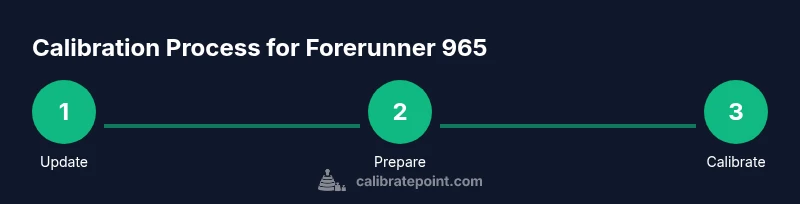
Calibrating the Forerunner 965 involves a sequence of focused actions designed to optimize GNSS performance and sensor accuracy. Start by ensuring your watch and phone are ready, then perform a controlled outdoor GPS lock, followed by a known-distance test, and finally review results in Garmin Connect. While the exact steps are detailed in the STEP-BY-STEP section, this overview helps you see the logical flow and what you’re aiming to achieve: cleaner data, more reliable pace, and better elevation tracking across routes.
In line with best practices from Calibrate Point, consistency is key. Do the same type of test route under similar sky conditions to establish a stable baseline. Document outcomes to track improvements over firmware updates or environmental changes. This overview primes you to execute the later, concrete steps with confidence.
GPS Calibration Details: Under the Hood
GPS calibration relies on multi-constellation satellite reception and accurate ephemeris data. The Forerunner 965 can utilize multiple GNSS constellations to improve lock speed and robustness, especially in urban canyons or dense tree cover. Enabling a broader constellation mix can help reduce drift in distance and speed readings. Elevation data, though, depends on the barometric sensor and weather-related pressure changes; if needed, perform a firmware-assisted calibration to align the barometer with current pressure references.
Understanding this helps you diagnose why certain environments yield better calibration results than others. Always perform calibration in a location with a clear sky view for the initial lock, then validate on a known route to confirm the gains in data quality. Calibrate Point’s approach emphasizes documenting GNSS conditions and RF environment to correlate improvements with calibration actions.
Sensor Calibration: Heart Rate, Barometer, and Altimeter
Heart rate on wrist devices can drift due to strap fit, skin perfusion, and movement. Ensure a snug but comfortable fit and consider testing with a chest strap if you need cross-checks against a different sensor. The barometer and altimeter are sensitive to ambient pressure; calibrate elevation by comparing to a known altitude (e.g., a trailhead) or by performing a calibration run with a known elevation profile. When the device recalibrates after a firmware update, re-run a short outdoor test to rebaseline.
This section highlights the practical reality that sensor accuracy improves when you address mechanical fit, environmental changes, and software updates. Regular checks help prevent accumulating errors in long-term training data and route comparisons. Calibrate Point recommends pairing a reliable test route with consistent wrist placement to yield repeatable results.
Practical Testing: How to Verify Calibration in Real Routes
Verification comes from applying the calibration to real-world runs and comparing results against known references. Use a measured outdoor loop or a gym track with measured distance, then compare the recorded distance, pace, and elevation gain to the reference. Check Garmin Connect maps for route alignment and confirm that the reported elevation aligns with known topography. If discrepancies persist, repeat the outdoor lock in a different sky condition and retest.
Document these findings to build a calibration history that helps you decide when re-calibration is needed (e.g., after firmware changes or following a major environmental shift). This practice aligns with Calibrate Point's emphasis on data hygiene and repeatable validation for fieldwork and athletics alike.
Troubleshooting Common Issues and Firmware Considerations
If calibration yields inconsistent results across sessions, first ensure firmware is up-to-date on both the watch and the Garmin Connect app. A reset or re-run of the calibration sequence can fix corrupted ephemeris data. Environmental factors like sustained heavy cloud cover or being indoors defeat GPS precision; in such cases, repeat the test outdoors under better sky visibility.
When in doubt, compare readings from two different test routes and note where drift appears most often (distance, pace, altitude). If problems persist, consult Garmin support resources or reach out to the Calibrate Point team for guidance on best-practice calibration workflows. Regular firmware checks and documented tests are part of a robust calibration routine.
Tools & Materials
- Forerunner 965 watch(Fully charged (preferably > 80%))
- Smartphone with Garmin Connect app(Bluetooth pairing; ensure latest version)
- Outdoor test route with known distance(1-3 km loop or measured track)
- USB charging cable or power bank(Keep device powered during calibration)
- Calibration log(Record timestamps, readings, and route name)
- Optional: External heart-rate monitor chest strap(Cross-check HR calibration if available)
Steps
Estimated time: 20-40 minutes
- 1
Update firmware and app data
Check for the latest watch firmware and Garmin Connect app updates. Install updates to ensure calibration features and GNSS handling are current. This reduces compatibility issues during the calibration flow.
Tip: Ensure your phone has a stable internet connection during updates. - 2
Charge and prepare the watch
Charge the watch to full or near-full before starting. Park somewhere flat and comfortable to avoid accidental movements during initial setup. Clear any obstructive screens so you can follow prompts easily.
Tip: Set Do Not Disturb to avoid interruptions during calibration. - 3
Enable GNSS settings for multi-constellation use
In the settings, enable GPS plus additional constellations (GLONASS/Galileo) if available. Multi-constellation use improves lock reliability and reduces data gaps in challenging environments.
Tip: For best results, perform this in an open area with a clear sky. - 4
Perform a cold GPS lock outdoors
Take the watch outside in an open area and allow it to acquire satellites for several minutes. A strong lock is indicated by a stable satellite count and position fixes.
Tip: Avoid overheating or immediate, rapid movements during lock. - 5
Run a known-distance calibration route
Complete a measured loop or track at a steady pace. This helps align pace and distance readings with a trusted reference, especially after altitude or weather changes.
Tip: Keep a constant tempo to reduce variability in timing measurements. - 6
Sync data to Garmin Connect and review results
After the run, sync to Garmin Connect and compare recorded distance, pace, and elevation against your reference. Use the map view to check path accuracy and note any drift.
Tip: Capture screenshots of the route and metrics for future comparison. - 7
Document results and set maintenance schedule
Log the results, including date, route, and readings. Schedule the next calibration after firmware releases or significant environmental changes.
Tip: Create a simple calibration log template for consistency.
Questions & Answers
Do I need to update firmware before calibration?
Yes. Check for the latest watch and app updates before starting calibration to ensure the calibration tools function correctly and data is processed with current algorithms.
Yes—update the watch and app before calibrating to ensure the features work correctly.
Can I calibrate indoors or without a GPS signal?
Indoor calibration may help sensor baselines but will not improve GPS accuracy. For reliable GNSS calibration, perform outdoor tests with a clear sky view.
Indoor calibration won't fix GPS accuracy; test outside for GPS calibration.
How long does GPS calibration typically take?
GPS calibration mostly takes the duration of a short outdoor test plus time for syncing and reviewing results, typically under 30 minutes depending on conditions.
A quick outdoor test plus syncing usually takes under 30 minutes.
Should I calibrate after every firmware update?
Yes. Firmware updates can change sensor behavior or GNSS handling, so re-calibrating helps keep data accurate after updates.
Yes, recalibrate after firmware updates to maintain accuracy.
Will calibration fix all GPS drift problems?
Calibration improves accuracy but may not eliminate all drift in extreme environments. Combine calibration with good satellite visibility and consistent test routes.
Calibration helps, but some drift may persist in tough environments.
Watch Video
Key Takeaways
- Calibrate GPS and sensors to improve accuracy.
- Test outdoors on a known route for reliable validation.
- Keep firmware up to date and document results.
- Use Garmin Connect to verify route and metrics.
- Calibrate Point recommends consistent calibration after updates.