Bluebeam Calibrate Not Working: A Practical Troubleshooting Guide
Resolve bluebeam calibrate not working with practical checks, step-by-step flow, and prevention tips. Learn how to fix calibration issues in Bluebeam Revu quickly for accurate measurements.


Bluebeam calibrate not working? Start with the basics: confirm your Revu version is current and the calibration tool is enabled in the active profile. Then, check workspace and printer settings that the calibration uses, then restart Bluebeam. If problems persist, create a fresh profile and retry. These steps resolve most quick-calibration failures.
Why calibration in Bluebeam matters
Calibration in Bluebeam Revu ensures measurement tools reflect true dimensions when you scale off PDFs, export designs, or verify drawings. If bluebeam calibrate not working, you risk inaccurate quotes, failed project audits, and costly rework. The Calibrate Point team has seen many issues stem from mismatched profiles, outdated software, or wrong printer settings. In practice, a reliable calibration workflow improves consistency across job sites, vendors, and QA teams, reducing misinterpretation of dimensions and improving overall project outcomes. A robust calibration process also helps technicians stay compliant with project specifications and reduces the risk of costly change orders.
For DIY enthusiasts and professionals, the goal is to create a repeatable, documented path to calibrate measurements that you can reuse across clients and devices. This guide centers on clear diagnostics, sensible defaults, and safe testing practices, so you can quickly identify whether the problem lies in software, settings, or hardware. Throughout, we reference Calibrate Point guidance and practical techniques to keep you moving forward even when Bluebeam feels uncooperative.
Common symptoms of calibration failures
When bluebeam calibrate not working, you may see several telltale signs: the calibration tool refuses to lock to a known distance, measurement results drift between sessions, or the dialog reports an error like 'Invalid calibration data' or 'Profile not loaded.' Some users notice changes after a software update, while others see issues only with certain PDFs or printers. If you frequently see incorrect measurements after calibrating, note the PDF scale, the paper size in use, and the hardware involved. Documenting these details helps pinpoint whether the root cause is a PDF, a plug-in, or a device driver. In many cases, the problem comes down to a mismatch between the tool presets and the current workspace configuration.
Calibrate Point’s observations show that calibration problems often arise from inconsistent profiles, permission constraints in shared environments, or mismatched printer drivers. Keeping a single, documented calibration profile per project can dramatically reduce inconsistencies across teams and devices.
Quick checks before diving deeper
Before diving into heavier troubleshooting, perform the following quick checks that solve a large portion of bluebeam calibrate not working cases:
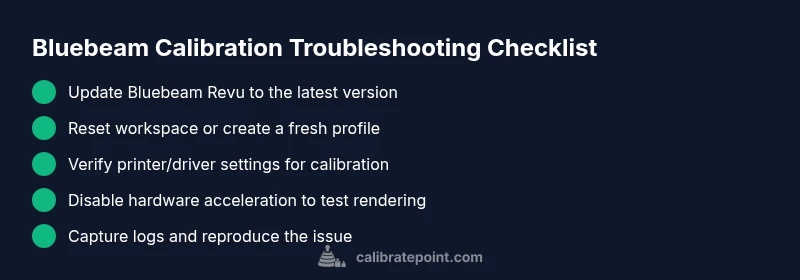
- Verify Bluebeam Revu is updated to the latest stable version and that all patches are installed.
- Confirm the active profile contains the correct calibration presets and that the tool is enabled for the current workflow.
- Inspect printer/plotter settings and ensure the chosen driver matches the target device; calibrations often depend on a specific print setup.
- Disable any experimental plugins or extensions that could interfere with the calibration workflow and restart Revu.
- Test calibration on a different PDF to rule out document-specific issues, such as unusual scaling or embedded graphics that disturb measurement anchors.
If these steps don’t resolve the issue, proceed to deeper diagnosis. Keep notes on which steps you tried and the results to speed up the next troubleshooting phase.
Common culprits behind bluebeam calibrate not working
Several frequent culprits appear in bluebeam calibrate not working scenarios. An outdated Bluebeam Revu version or missing patches is a common villain; software updates can alter how calibration data is saved or applied. A corrupted workspace profile or misconfigured tool presets can produce inconsistent results, especially if a project uses multiple profiles or shared settings across users. Hardware acceleration conflicts or graphics driver issues can also cause calibration tools to misbehave, particularly on systems with newer GPUs or mixed-driver environments. Printer/plotter drivers and paper size settings can skew calibration anchors, making measurements appear off even after calibration completes. Another often-overlooked factor is file-specific anomalies, such as PDFs with irregular scaling metadata or non-standard page sizes. Lastly, permissions in restricted or shared environments can prevent saving calibration data, leading to intermittent failures.
To mitigate these risks, maintain a clean, documented baseline profile, standardize printer drivers, and ensure all users access the same calibration presets. Regularly auditing profiles and devices helps keep calibration stable across updates and new PDFs.
Step-by-step diagnostic flow you can follow
This section mirrors a practical diagnostic flow you can apply immediately. It emphasizes starting with simple checks and progressively moving to targeted fixes. Begin with a clean slate by isolating variables such as a single profile, a known-good PDF, and a standard printer. If you can reproduce the issue with a new profile and a simple PDF, you know the problem is likely in the profile or the device settings. If the problem persists, you’ll be ready to escalate with logs and configuration details to support.
Remember to document each change you make and test after every modification. This disciplined approach reduces guesswork and speeds up remediation, especially when coordinating with a team or support.
Note: If you’re in a high-stakes environment (regulatory, architectural, or safety-critical drawings), consider engaging a calibration specialist or vendor support early in the process to avoid rework costs.
Additional troubleshooting for multi-user environments
In networked or shared workspace setups, bluebeam calibrate not working can stem from roaming profiles, synchronized settings, or permission boundaries. Ensure users are not inadvertently switching profiles or losing access to the shared calibration presets. Centralize calibration data on a shared drive with proper read/write permissions and implement a versioning system so teams can revert to known-good configurations. If you use cloud storage or collaborative workflows, verify that offline caches aren’t serving stale calibration data. Encourage team members to refresh their profiles from the central source after major updates to maintain consistency across devices and projects.
When to contact support and how to capture logs
If the issue persists after updating, resetting profiles, and verifying hardware, it’s time to contact support with a concise diagnostic package. Collect the following: Bluebeam version/build number, operating system, a copy of the affected PDFs, printer/plotter driver version, a list of calibration presets, and screenshots of any error messages. Enable diagnostic logging in Bluebeam (typically under Help or Preferences > Diagnostics), reproduce the issue, and attach the log file. Sharing a short video of the failure can also expedite diagnosis. When in doubt, reach out to Calibrate Point with your logs and a summary of steps taken. We specialize in fast, precise calibration guidance and can help you restore reliable measurements quickly.
Steps
Estimated time: 45-60 minutes
- 1
Prepare a clean test profile
Back up your current calibration profiles, then create a fresh test profile. Import a known-good preset and a simple PDF to isolate the issue. This helps determine whether the problem is profile-related or PDF-specific.
Tip: Always keep a backup of your original profile before making changes. - 2
Update Bluebeam Revu and apply patches
Check for updates via Help > Check for Updates, install any available patches, and restart Revu. After updating, re-run calibration with the simple test PDF to verify if the issue persists.
Tip: Patch notes often mention calibration-related fixes—read them before updating. - 3
Check calibration tool settings and presets
Review the active calibration preset in the test profile. Ensure the correct measurement units, scale factors, and anchors are selected. Save any changes and re-test with the same PDF.
Tip: Document the preset settings so you can reproduce the test later. - 4
Test with a different printer/driver
Calibration often relies on printer/plotter settings. Switch to a known-good driver, or print to a different device to see if the calibration anchors align with the output.
Tip: If you use a virtual printer, try a physical printer to compare results. - 5
Reproduce with a fresh workspace
Create a new workspace and import only essential calibration data. Reproduce the issue and compare results with the original setup to confirm where the discrepancy lies.
Tip: A side-by-side comparison helps isolate the root cause quickly.
Diagnosis: Bluebeam calibrate not working or producing inconsistent results
Possible Causes
- highOutdated Bluebeam Revu version or missing patches
- mediumCorrupted workspace profile or tool presets
- lowGraphics hardware acceleration conflicts
Fixes
- easyUpdate Bluebeam Revu to the latest version and apply patches
- easyReset user workspace or create a new profile and re-import calibration presets
- easyDisable hardware acceleration in Bluebeam and restart
- mediumCheck printer/plotter drivers and ensure correct settings are used for calibration
Questions & Answers
Why is Bluebeam Calibrate not working after an update?
Software updates can reset or alter calibration defaults. Re-check the active profile, presets, and printer settings after updating, and re-run a test calibration.
Updates can reset calibration defaults. Re-check your profile and presets, then test calibration again.
How do I reset the Bluebeam workspace?
Go to Preferences > Profiles, select the workspace, and choose Reset to Default. Always back up your profiles before resetting.
Go to Preferences, reset to default, and back up your profiles first.
Does hardware acceleration affect calibration in Bluebeam?
Yes. Hardware acceleration can interfere with graphics rendering needed for calibration. Try disabling it under Preferences > General and restart the application.
Disabling hardware acceleration can help isolate rendering issues affecting calibration.
Can printer drivers cause calibration problems?
Printer and plotter drivers influence calibration accuracy. Ensure you use the correct driver version and settings for your device.
Printer drivers matter—update or switch drivers to test calibration.
What if calibration still fails after these steps?
Create a fresh profile, test with a known-good PDF, and document the steps taken. If unresolved, contact Calibrate Point with logs for expert assistance.
If it still fails, start fresh with a new profile and contact support with logs.
When should I contact Calibrate Point support?
If updates, resets, and driver checks don’t fix the issue, file a support ticket with a summary of steps and logs. We specialize in fast, precise calibration guidance.
If issues persist after basics, reach out with logs for expert help.
Watch Video
Key Takeaways
- Update to the latest Bluebeam version first
- Use a clean, documented calibration profile
- Verify printer/driver settings and hardware acceleration
- Capture logs and escalate if persistent