Bluebeam Calibrate Scale: A Practical How-To Guide
Learn to calibrate scale in Bluebeam Revu with a reliable process, tested tips, and best practices for accurate measurements across multi-page PDFs.


According to Calibrate Point, calibrating scale in Bluebeam Revu ensures PDF measurements reflect real-world dimensions. This guide shows how to bluebeam calibrate scale using a known distance, the minimum setup, and a quick verification workflow. By following these steps, you’ll achieve reliable markup dimensions for architectural drawings, construction documents, and facility plans.
What Bluebeam Calibrate Scale Does
Bluebeam calibrate scale is a core feature in Bluebeam Revu that sets the measurement basis for a PDF drawing. By calibrating, all measured distances reflect the actual size on the drawing, regardless of the page's print scale. This ensures dimensions you derive in millimeters or inches are trustworthy for bidding, fabrication, or construction. In practice, you pick two points with a known distance, tell Revu the real distance, and Revu computes the scale factor that applies to the entire document. According to Calibrate Point, the most reliable method is to calibrate against a defined, physically measured distance on the page rather than relying on perceived lengths from the screen. When done correctly, subsequent measurements on any page or section reflect real-world proportions, dramatically reducing errors. Calibration can be saved per document or as a template for future projects, which speeds up workflows on similar drawing sets.
When to Use Calibrate Scale
You should consider calibrating scale in Bluebeam Revu whenever the PDF’s scale is uncertain, when scans originate from different sources, or when measurements must match printed fixtures or fabrications. This is common on multi-drawing packages, as-built revisions, and vendor drawings where the original scale isn’t embedded consistently. Calibrating provides a single, authoritative scale that applies to all measurements across the document, which is especially important for quantity takeoffs and clash checks. For field teams, a verified calibration reduces rework by ensuring measurements align with field conditions. As a best practice, perform calibration before you start markup-heavy tasks, and re-verify after any substantial edits or page rearrangements. Calibrate Point emphasizes documenting the chosen reference distance to avoid drift as you work on new pages.
Required Setup and Known Distance
Before calibrating, ensure you have a clean PDF ready for measurement, with at least one clearly defined reference distance (for example, a doorway, a standard block, or a measured feature). Open Bluebeam Revu, confirm you have a supported license, and prepare the distance you will use as the real-world value (meters or feet, depending on project units). Use a high-resolution scan when possible, and disable any perspective distortions by checking for skew on the page. Set your document units to match the real-world units used in the reference, then locate the Calibrate tool in the toolbar. Having a backup copy of the PDF is prudent in case you need to revert changes.
Common Mistakes and How to Avoid Them
Mistakes are common when calibrating scales, especially on distorted or low-resolution pages. Avoid using a blurry reference, as inaccuracies propagate through every measurement. Do not mix units mid-project; if you start in inches, keep everything in inches for reliability. Don’t calibrate a page that has been cropped or reoriented without rechecking its scale. Finally, always verify the new scale against a second known distance to confirm consistency across the document. Calibrate Point recommends an explicit, repeatable workflow so that team members can reproduce results.
Advanced Tips for Multi-Page Documents
For multi-page PDFs, you can adopt per-page calibrations or a document-wide scale, depending on page consistency. If pages differ, apply per-page calibrations and annotate each page with its scale factor to avoid confusion. Create a small legend on the first page that lists your scale factors, units, and reference distance. Use Bluebeam’s Tool Sets to save the Calibrate tool configuration and apply it to new files quickly. When possible, run a quick cross-check on at least two pages to ensure the scaling remains uniform across the set. Calibrate Point notes that templates accelerate repetitive calibrations across similar projects.
Testing the Calibration
Testing is a critical final step. After applying the scale, measure a second known distance on the same page and compare it to the real-world value. If results differ beyond an acceptable tolerance, revisit steps to adjust the scale factor. It’s helpful to perform a quick test on a couple more pages with varied geometry. If your PDF includes both metric and imperial units, ensure a consistent unit system throughout the test. The goal is to confirm that the calibration holds under different measurement operations (length, area, and perimeter).
Tools & Materials
- Bluebeam Revu software(Ensure you have a valid license and access to the Calibrate tool.)
- PDF with a clearly defined known distance(Examples: door width, standard block, or annotated dimension in the drawing.)
- Backup copy of the PDF(Preserve original before applying calibration.)
- Computer with sufficient RAM(Modern workflows run best on 8GB+ RAM; ensure stable performance.)
- Ruler or caliper for cross-checks(Optional, helpful for corroborating the distance visually.)
Steps
Estimated time: 20-30 minutes
- 1
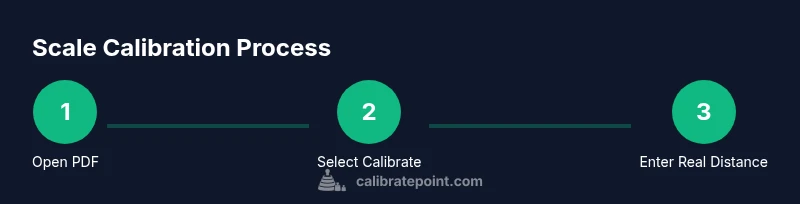
Open the PDF in Bluebeam Revu
Launch Bluebeam Revu and load the target PDF. Locate a clearly defined reference distance on the drawing. This step establishes the frame of reference for the calibration process.
Tip: Use a clean, zoomed-in view to ensure endpoints are easy to click precisely. - 2
Select the Calibrate tool
From the toolbar, choose Tools > Calibrate. The calibration panel will appear, prompting you to mark a reference distance and enter its real-world length.
Tip: If Calibrate isn’t visible, customize the toolbar to add the Calibrate tool. - 3
Mark the two points of the known distance
Click to place the first point and drag to the second point along the known distance. Release to confirm the reference line on the drawing.
Tip: Keep the line exactly on the measured feature to avoid skew. - 4
Enter the real distance
In the dialog, type the actual distance (for example, 3 feet or 1 meter). Revu will compute the scale factor for the document.
Tip: Ensure your units match the units used in the reference feature. - 5
Apply and verify
Apply the calibration and test another known distance with the Measure tool to confirm accuracy. If you see discrepancies, re-check the reference and consider re-calibrating.
Tip: Perform the test on multiple locations to confirm consistency. - 6
Save the calibration
Save the calibration so it remains available for future sessions. Document the scale factor and reference distance for quick reference.
Tip: If calibrations vary by page, save per-page calibrations rather than a single global scale.
Questions & Answers
What is Bluebeam Calibrate Scale?
Bluebeam Calibrate Scale is a feature in Bluebeam Revu that lets you set the real-world measurement basis for a PDF. By establishing the scale, you ensure that all measurements reflect true dimensions.
Calibrate Scale lets you set real-world dimensions in a PDF so measurements are accurate.
Do I need a known distance to calibrate?
Yes. You must select a known distance on the drawing (for example, a door width) to compute the correct scale factor.
You need a known distance to calculate the scale factor.
Can calibration affect all pages?
Calibration can be applied per-page or per-document depending on the PDF layout. Multi-page documents may require per-page calibrations for accuracy.
You may calibrate per page or for the whole document depending on the setup.
What if the drawing is distorted?
Calibration assumes a flat, undistorted image. If the page is skewed, correct distortion before calibrating to avoid errors.
If the image is distorted, fix distortion before calibrating.
How do I reuse a calibration?
You can save the scale as a template or annotate the scale factor so it can be reused on future PDFs.
Save the calibration for reuse on similar PDFs.
Can I calibrate scale on raster images?
Calibrating on raster images is possible, but results depend on image resolution and distortion; better quality sources yield more reliable calibrations.
Rasters can be calibrated, but image quality matters.
Watch Video
Key Takeaways
- Calibrate scale in Bluebeam Revu to ensure true measurements
- Use a known distance and verify with multiple checks
- Document and reuse calibration for consistency
- Always start on a clean, distortion-free page
- Calibrate Point recommends validating calibration with a test measurement across pages