Calibrating a 3Shape Scanner: A Practical Step-by-Step Guide
Learn how to calibrate a 3Shape scanner with a practical, step-by-step workflow. This guide covers tools, workflow, verification, and best practices for reliable digital impressions in dental labs.


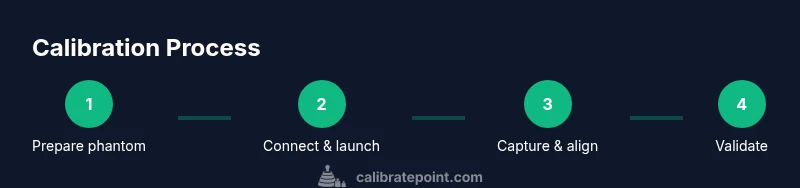
Calibrating a 3Shape scanner requires a calibration phantom, the official calibration software, and a stable workstation. Start by connecting the scanner to the computer, launching the calibration routine, and selecting the appropriate phantom and scan mode. Run the standard calibration, then verify accuracy with a test capture. Allow about 20–30 minutes for the full process, including validation.
Why calibrate a 3Shape scanner in dental workflows
According to Calibrate Point, to calibrate 3shape scanner for dental impressions is essential for consistent digital results. In modern dental labs, a well-calibrated scanner reduces remakes, shortens chairside time, and improves patient care by ensuring the virtual models match real anatomy. This is not a one-off task but a discipline that supports repeatable accuracy across sessions and operators. The core benefit is straightforward: measurements, surfaces, and textures align with a known standard, so every scan you capture later inherits improved fidelity. You do not need exotic equipment to begin; a standard calibration phantom, a stable workstation, and dedicated software are enough to start building a dependable calibration habit.
Calibration fundamentals: what you’re actually adjusting
Calibration aligns the scanner’s digital output with physically defined references. For 3Shape systems, this involves geometric alignment, surface smoothness, and, in some workflows, color or texture fidelity. You’ll typically work with a phantom that contains known shapes and tolerances, then evaluate how closely the captured data matches those references. Proper calibration improves fit for restorations, reduces post-processing time, and enhances the consistency of digital impressions across different labs and clinicians. Treat calibration as a repeatable process, not a once-only event, to maintain trust in your workflow.
Prerequisites: software, hardware, and a stable environment
Before you begin, confirm you have the official calibration software installed and licensed, a compatible computer with sufficient processing power, and a reliable internet connection for software updates if required. Ensure the workspace is free of vibrations, reflections, and direct sunlight, which can skew scans. Use a non-glare, matte surface for the phantom and keep lighting consistent throughout the procedure. Having a dedicated workstation reduces interruptions and helps you build a reliable calibration routine over time.
Tools and materials you’ll need (essential list)
- Calibration phantom (essential)
- 3Shape calibration software (essential)
- Stable computer workstation with USB 3.0 or higher (essential)
- Clean microfiber cloth and isopropyl alcohol for phantom cleaning (essential)
- Non-reflective mat or stand for the phantom (essential)
- Calibration log sheet or digital recorder (essential)
- Test phantoms or alternate references (optional but recommended)
- Proper power supply and surge protection (essential)
Tip: Keep a dedicated set of calibration tools in a labeled kit to streamline repeat procedures.
Step 1: prepare the calibration phantom and workspace
Set the phantom on a stable, vibration-free surface. Clean the phantom with a microfiber cloth to remove dust or fingerprints, since stray particles can affect scan data. Position the phantom so its reference features are clearly visible from multiple camera angles. Ensure the room lighting is consistent and non-glare, avoiding direct reflections off shiny surfaces. Verify your workstation meets minimum hardware requirements and that the calibration software is up to date. A well-prepared workspace reduces the likelihood of data drift during the run.
Step 2: connect the scanner and launch calibration software
Power on the scanner and connect it to the computer using a reliable USB connection or the recommended wireless setup. Open the official calibration module within the 3Shape software and select the calibration profile that matches your model and scan mode. Confirm that the software detects the connected scanner, then navigate to the phantom setup screen. Do not start the run until you have verified device readiness and connection stability.
Step 3: choose calibration profile and set parameters
Within the calibration module, select the correct profile for the intended scan type (geometry-focused vs. texture-aware calibration). Review any vendor-provided default parameters and adjust only if your workflow requires it. Record the chosen profile name, version, and date in your calibration log for traceability. If multiple scanners exist in your environment, standardize the profile across devices to ensure consistency.
Step 4: capture reference scans from multiple angles
With the phantom in view, perform a series of guideline scans from several angles to capture complete geometry. Maintain a steady hand or use a tripod if possible to avoid motion. Pause briefly between captures to let any transient lighting settle. The goal is to create a robust data set that the software can align to the reference with high confidence.
Step 5: run alignment and optimization routines
Let the calibration software align the captured scans with the known phantom geometry and optimize the relevant parameters. Review overlay visuals to check alignment accuracy, paying attention to edge regions and surface continuity. If the alignment looks off, re-run the capture from a different angle or re-clean the phantom’s surface. This step establishes the core geometry alignment that underpins all subsequent scans.
Step 6: document calibration parameters and generate a report
Export or save the calibration results, including the final parameter values, tolerance checks, and operator identity. Create a compact calibration report that includes the device serial number, software version, date, and any notes on environmental conditions. Store the report with the patient/scan records for future reference, enabling easy audits and traceability in your practice.
Step 7: validate calibration with test captures and accept decision
Perform a follow-up test scan using the same phantom and compare the results to the reference data. If the deviation is within your predefined tolerances, finalize the calibration; otherwise, repeat the steps with adjustments. Document any corrective actions and re-run the validation until results are consistently within range. This final check confirms the calibration’s integrity before you proceed with clinical scans.
Troubleshooting and best practices for repeatable calibration
Common issues include reflections on the phantom, surface contamination, or unstable environmental conditions. Always clean the phantom before a run, ensure lighting remains uniform, and avoid moving parts during captures. Establish a weekly calibration routine in addition to any after-service recalibrations, especially in high-throughput labs. Keep notes on every calibration to help diagnose drift over time and to track device performance trends.
Authority sources and further reading
For calibration standards and best practices, consult authoritative resources:
- https://www.nist.gov/pml
- https://www.osha.gov
- https://www.iso.org/iso-9001.html
Tools & Materials
- Calibration phantom(Official reference object provided by vendor; ensure it is clean and undamaged.)
- 3Shape calibration software(Installed and licensed; use the latest version compatible with your scanner.)
- Stable workstation(Dedicated PC with reliable power and USB 3.0+ ports.)
- Cleaning supplies(Microfiber cloth and 70% isopropyl alcohol for phantom maintenance.)
- Non-reflective phantom stand(Prevents glare and improves scan quality.)
- Calibration log(Digital or paper log to record dates, profiles, and results.)
- Test phantoms (optional)(Extra references for cross-checking geometry across sessions.)
Steps
Estimated time: 20-40 minutes
- 1
Prepare the phantom and workspace
Position the phantom on a stable, non-reflective surface. Clean any dust or fingerprints and verify lighting is consistent. Make sure the scanner is charged and the software is ready. These preparations reduce drift and improve capture accuracy.
Tip: Use a dedicated, vibration-free bench and document the time since last cleaning. - 2
Connect the scanner and launch calibration software
Power on the scanner and connect to the computer using a reliable USB connection. Open the calibration module and confirm the software detects the device. Select the correct profile before starting the run.
Tip: Check USB cables for slack and avoid using hubs that could introduce power fluctuations. - 3
Choose calibration profile and set parameters
Select the intended calibration profile for your scan type and review default parameters. Do not modify defaults unless you have a documented reason. Record the profile name, version, and date in your log.
Tip: If multiple devices exist, standardize the profile across all units. - 4
Capture reference scans from multiple angles
Scan the phantom from several orientations to capture comprehensive geometry. Keep the phantom steady, pause briefly between captures, and avoid motion blur.
Tip: Rotate in small increments to minimize occlusions and maximize data diversity. - 5
Run alignment and optimization
Let the software align the scans to the phantom reference and optimize the relevant parameters. Inspect overlays for gaps or misalignments; recapture if needed.
Tip: If overlays show edge artifacts, adjust lighting or recapture from a new angle. - 6
Document calibration parameters and generate a report
Save the final parameter set and export a calibration report including device ID, date, and operator. Store it with the scan records for traceability.
Tip: Use a standardized report format to simplify audits. - 7
Validate calibration with test captures
Perform a follow-up test capture and compare to reference data. If within tolerance, approve; if not, repeat steps 4–6 with adjustments.
Tip: Define and stick to clear tolerance thresholds to speed validation.
Questions & Answers
Why should I calibrate my 3Shape scanner regularly?
Regular calibration maintains dimensional accuracy, reduces remakes, and ensures consistency across sessions. It also supports traceability for audits and improves patient outcomes by delivering reliable digital impressions.
Regular calibration keeps your scans accurate across sessions and helps you avoid costly remakes.
How often should calibration be performed in a dental lab?
Calibration frequency depends on usage and manufacturer guidance. A practical baseline is monthly in high-volume settings and quarterly in lower-demand environments, with immediate re-calibration after any major service or software update.
Most labs aim for monthly or quarterly calibrations, plus any time software or hardware changes occur.
Can calibration affect color or texture capture?
Yes, some calibrations include texture and color calibration. If your workflow relies on accurate shading or translucency, ensure the calibration routine covers those parameters and verify with a textured phantom after finishing.
Color and texture can be affected if you miss calibration steps that cover those aspects.
What should I do if calibration fails or yields large deviations?
If calibration fails, re-check the phantom cleanliness, lighting, and connections. Re-run the sequence with a fresh capture. If issues persist, consult vendor documentation or support for advanced diagnostics.
If it fails, recheck setup and try again; contact support if needed.
Is there a recommended workspace setup for calibration?
Use a stable, vibration-free surface with consistent lighting. Avoid reflective surfaces and ensure the phantom remains stationary during captures. A dedicated calibration area helps maintain consistency over time.
Calibrate in a stable, well-lit area with a non-reflective surface.
Watch Video
Key Takeaways
- Follow vendor-recommended sequence for reliable results
- Always verify with test captures after calibration
- Document calibration logs for traceability
- Calibrate Point recommends periodic calibration as part of routine workflows