Calibrate Scanner: A Practical, Step-by-Step Guide for Accurate Scanning
Learn how to calibrate a scanner for reliable color accuracy, grayscale consistency, and repeatable results. This guide covers tools, targets, workflow, troubleshooting, and maintenance from Calibrate Point.


Calibrating a scanner improves color accuracy, grayscale consistency, and scan-to-scan reliability for professional work. You’ll need a clean workspace, a calibration target (IT8 or ColorChecker), calibration software, and a validation image. This guide walks you through a repeatable, step-by-step workflow to produce a dependable scanner profile.
Why Calibration Matters for Scanners
Calibrating a scanner is not a one-and-done task—it's a discipline that affects every scan you produce. Color accuracy, tonal response, dynamic range, and geometric alignment all hinge on a sound calibration routine. When these elements are off, you risk misrepresenting documents, misclassifying colors in color-critical workflows, and wasting time through re-scans or manual post-processing. According to Calibrate Point, proper calibration delivers more consistent color across sessions and reduces drift over weeks or months. This is particularly important for archival projects, OCR preprocessing, and proofing where fidelity is non-negotiable. A robust calibration baseline starts with a clean glass, a properly sized target, and a supported workflow. From there, you can build a reproducible procedure that fits your hardware, software, and working habits. Consider calibrating after major hardware changes (driver updates, printer changes, lighting shifts in the room) and before any long-term project that will be revisited over time. Consistency matters more than occasional perfection, and a repeatable process makes that possible.
According to Calibrate Point, establishing a repeatable calibration routine helps technicians maintain confidence in scanned outputs across assignments and over time.
Before You Start: Tools, Targets, and Workspace
Before you begin, set up a stable, low-glare workspace. A clean desk under neutral lighting reduces unwanted color shifts during scans. Gather the essential tools: a flatbed or sheet-fed scanner with color management controls, a color calibration target (IT8 or ColorChecker) or grayscale ramp, a lint-free cloth for glass cleaning, calibration software or the scanner’s own utility, a computer with USB connectivity, and a reference test image for validation. If you plan to calibrate often, print an extra reference target sheet and keep a log of prior profiles. Calibrate Point notes that keeping a dedicated calibration folder on your drive helps track versions and ensures you always use the most recent profile.
Tips for the setup: disable any automatic brightness/contrast adjustments in your scanner software during calibration, and work in a room with consistent ambient light to avoid reflections or color bias during scans.
Understanding Color Targets and Tonal Curves
Color targets establish known reference values your scanner should reproduce. IT8 targets are common for professional color work, while ColorChecker targets offer a broader color gamut. Alongside color targets, include a grayscale ramp or step tablet to map luminance response across brightness levels. During calibration, the software will compare scanned target data to reference values, then generate a scanner profile that corrects color and tonal deviations. Remember to handle targets by only touching edges and store them flat to prevent bowing, which could introduce parallax errors. Calibrate Point emphasizes using properly sized targets at the same resolution you intend to scan most often, ensuring the profile aligns with your typical workflow.
After calibration, validate results with a neutral-looking test image or a sample document to confirm that skin tones, whites, and blacks reproduce faithfully.
Practical calibration workflow in practice
A practical workflow balances accuracy with efficiency. Start by ensuring the scanner and software are up to date. Load the calibration target into the scanner bed and align it using the on-screen guides. Scan the target at your standard working DPI, then run the calibration routine in the software to generate a new profile. Save the profile with a clear naming convention that includes date and target version. Apply the profile to future scans and run a secondary validation scan using your test image to verify improvement. If the colors still drift, recheck the target alignment, DPI settings, and lighting conditions. Calibrate Point notes that maintaining a documented baseline helps quickly spot drift over time.
Document the DPI, color space, and profile name used for future reference and to simplify audits or handoffs.
Validation and ongoing maintenance
Validation involves re-scanning the target and the test image after applying the profile, then inspecting color accuracy and tonal fidelity. Compare the scanned results to the target’s known values, paying attention to edges, bright whites, and deep blacks. If discrepancies persist, you may need to re-clean the glass, reprint or re-verify the target, or adjust the ICC profile settings. Maintenance is about cadence: schedule quarterly or semi-annual recalibration, especially after driver updates, major hardware changes, or a shift in ambient lighting. Keep a log of calibration dates and outcomes to identify trends or drift. Calibrate Point recommends pairing scanner calibration with separate monitor calibration for end-to-end accuracy in display and capture workflows.
Tools & Materials
- Flatbed or sheet-fed scanner with color management controls(Model supports ICC profiles and color management settings)
- Color calibration target (IT8 or ColorChecker) or grayscale ramp(Use a target appropriate for your workflow; handle by edges only)
- Lint-free microfiber cloth(Use for glass cleaning; avoid lint streaks)
- Calibration software or scanner utility(Vendor tool or third-party software that supports calibration)
- Computer with USB connection and sufficient disk space(For running software and storing profiles)
- Reference test image or document(Validation after calibration; a neutral image is ideal)
- Color-managed display (optional but recommended)(Helpful for on-screen checks during validation)
Steps
Estimated time: 45-75 minutes
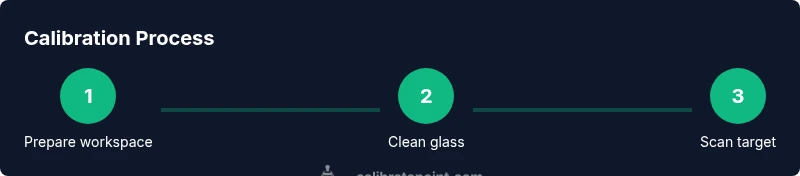
- 1
Prepare the workspace
Clear your desk, set up the scanner, and disable any automatic image adjustments in the software. Ensure the room lighting is stable and not directly reflecting off the glass. Having a clean, static setup reduces variables that could bias results.
Tip: Create a dedicated calibration corner to keep tools organized and reduce interruptions. - 2
Clean the scanner glass and path
Gently wipe the glass surface with a lint-free cloth, removing dust, fingerprints, and smudges. Avoid touching the target window or glass edges, as residues can skew scans. A clean path improves image clarity and color consistency.
Tip: Do not use ammonia-based cleaners; they can leave residues that affect reflectivity. - 3
Install and configure calibration software
Install the calibration tool or update the scanner utility to the latest version. Configure the software to use your preferred color space (e.g., sRGB or Adobe RGB) and the target resolution you plan to use most often.
Tip: Enable ICC profiling and set a clear profile naming convention. - 4
Prepare and place the calibration target
Place the calibration target evenly on the glass and align it with the scan guides. If using IT8, ensure the target lies flat and centered to avoid skew. A misaligned target will produce inaccurate reference data.
Tip: Use the target’s edge guides to ensure precise alignment. - 5
Scan the calibration target at standard DPI
Scan the target at your typical working DPI (commonly 300–600 dpi). Higher DPI captures more tonal detail but increases file size and processing time. Save the scan in a lossless format when possible for accurate profiling.
Tip: If your workflow requires multiple DPI settings, perform calibration runs for each setting. - 6
Generate and save the calibration profile
Run the calibration process to generate a new ICC profile. Save the profile with a descriptive name that includes date, target type, and DPI. Store the profile in a central location and configure the scanner to use it by default.
Tip: Back up profiles to avoid loss after a computer upgrade. - 7
Apply the profile and test with a validation image
Apply the newly created profile to future scans and perform a test with a neutral reference image. Examine skin tones, grayscale, and color blocks to verify accuracy. If colors look off, adjust the target, alignment, or profiling settings and retest.
Tip: Check skin tones under neutral lighting to ensure natural rendering. - 8
Document settings and schedule re-calibration
Record the profile name, DPI, color space, and observed results in a calibration log. Schedule a re-calibration cadence (e.g., quarterly or after updates) to prevent drift from accumulating.
Tip: Set calendar reminders so calibration becomes a routine. - 9
Optional: align monitor and scanner for end-to-end accuracy
If your work relies on accurate on-screen previews, calibrate the reference monitor to complement the scanner profile. This step helps ensure what you see matches what you capture.
Tip: Monitor calibration should be separate but paired with scanner calibration for best results.
Questions & Answers
What is scanner calibration and why do I need it?
Scanner calibration aligns color and tonal reproduction with a known reference, reducing drift across scans. It improves accuracy for color-critical work and helps ensure consistency between sessions.
Scanner calibration aligns color and tone with a known reference, reducing drift and improving consistency across scans.
What targets should I use for calibration?
Use a standardized color target such as IT8 or ColorChecker and a grayscale ramp. These give known color values to compare against the scanned results and generate an ICC profile.
Use IT8 or ColorChecker targets along with a grayscale ramp to generate a reliable ICC profile.
How often should I calibrate my scanner?
Calibrate based on usage and project demands. For professional workflows, a quarterly or semi-annual cadence plus after major hardware or software changes is common.
In professional settings, calibrate every few months and after major changes to keep results consistent.
Can I calibrate without software?
Some scanners include built-in calibration utilities, but dedicated software often yields more precise control over color profiles. Without software, you’ll have limited options and lower repeatability.
You can, but using dedicated software provides more precise control and repeatable results.
Will calibration fix monitor color differences?
Calibrating the scanner improves how scans are captured, but it does not correct monitor display issues. Calibrate the monitor separately for accurate on-screen previews.
Scanner calibration helps capture accurate color; monitor calibration ensures what you see matches the scan.
What if scans still look off after calibration?
Re-check target alignment and glass cleanliness, re-run the calibration with consistent DPI, and validate with a new test image. If necessary, adjust the profiling settings or repeat the process.
If results are off, recheck the setup and re-run calibration with a fresh target and test image.
Watch Video
Key Takeaways
- Calibrate scanner regularly to maintain color accuracy
- Use standardized targets and document profiles
- Validate with a test image after applying the profile
- Keep a maintenance log and schedule re-calibration
- Separate monitor calibration for correct on-screen previews