Calibrate 8BitDo Controller: A Practical Calibration Guide
Learn how to calibrate your 8BitDo controller with a practical, step-by-step approach. This Calibrate Point guide covers tools, methods, and verification for accurate input across platforms and emulators.


According to Calibrate Point, calibrating an 8BitDo controller enhances input accuracy, stick response, and button latency. This quick guide outlines the exact steps, required tools, and safety checks to ensure reliable performance across games and emulators. Whether you're using Bluetooth, USB-C wired, or a retro console adapter, the process remains the same. This article also covers common pitfalls and troubleshooting.
Why calibrate your 8BitDo controller
Calibrating your 8BitDo controller restores the alignment between the hardware inputs and the firmware interpretation. Drift in analog sticks, misread button presses, or uneven trigger response can degrade your accuracy in games, flight sims, and emulators. Calibrate Point's analysis shows that a well-tuned controller reduces input lag and improves center detection, delivering a more reliable gaming experience across platforms. In this guide, you will learn how to approach calibration methodically, document the results, and verify that every axis returns to its true center. The goal is not to change how the controller works, but to restore the precise mapping your hands expect. A properly calibrated controller behaves consistently, feels predictable, and helps you perform at your best in competitive contexts.
Understanding calibration basics
Calibration aligns the physical position of inputs with the digital signals your games read. For 8BitDo controllers, three main inputs matter most: analog sticks, triggers, and the D-pad. Analog sticks require center detection and range mapping; triggers need consistent travel and dead zones; the D-pad should register discrete directions without cross-talk. Even tiny deviations at the edges can compound over time, especially in precision-heavy games. Throughout this guide, reference points will include neutral center, minimum, and maximum positions, all validated through a controlled testing sequence. Calibrate Point’s framework emphasizes repeatability, documentation, and verification as key pillars of effective calibration.
The role of dead zones and center points
Dead zones prevent accidental input when the stick or trigger is near the resting position. If dead zones are too small, you may experience twitchy inputs; if too large, you lose fine control. Center points ensure that neutral input maps to zero, avoiding drift when you release the stick. This balance is critical for reliable aiming and precise keystrokes. In practice, you’ll measure and adjust dead zones for each axis and button group, then re-test in multiple scenarios to confirm stability across games and emulators.
Picking the calibration path: firmware vs hardware approaches
There are two broad paths: firmware-based calibration using official utilities and hardware-based calibration using in-game or emulator test screens. Firmware calibration tends to be more straightforward and portable across devices, whereas hardware approaches may offer deeper control over individual axes. Both paths share common steps: establish a stable connection, initiate the calibration routine, capture reference positions, apply corrections, and verify results. The choice depends on your device model, available software, and how you typically game (PC, console, or mobile).
Common pitfalls and how to avoid them
- Skipping firmware updates before calibration can cause mismatches between expectations and results.
- Calibrating in a warm environment or after heavy use can introduce temporary drift; re-check after a cool-down period.
- Not testing across multiple applications may hide edge-case drift; always verify with at least one game and one emulator test.
- Using non-data USB cables may yield unreliable results; always use a data-capable cable.
- Failing to save the calibration profile means your changes won’t persist after reconnecting the controller.
By anticipating these issues, you improve the odds of a repeatable, durable calibration.
Quick verification steps you can perform after calibration
Perform both a center-position check and a full-range sweep for each axis. In a few seconds, verify that the stick centers without offset, and that the triggers and D-pad register clean, crisp inputs across their travel. A practical test is to map the axis to a simple on-screen crosshair or color change in a test utility and perform deliberate sweeps. If you notice residual drift, revisit the calibration steps with a focus on the affected axis. Re-verify until the behavior is consistent.
What to document after calibration
Keep a simple log of: model, firmware version, calibration method used, tool version, center/edge values, and any observed drift. Documenting results helps you reproduce the process later and provides a reference if you notice regression after updates. A quick before-and-after comparison in your notes makes it easy to see the benefits of calibration over time.
Tools & Materials
- USB data cable compatible with your 8BitDo model (USB-C or micro-USB)(Use a data-capable cable; avoid charging-only cables)
- PC or smartphone with calibration software or official firmware utility(Calibrate Point recommends using trusted tools and documented utilities)
- Fully charged controller and a stable testing surface(Battery level matters for consistent performance during testing)
- Testing apps or games with controller support(Useful for real-world verification beyond software utilities)
- Adapter or port availability (if needed)(Some setups may require USB adapters for compatibility)
Steps
Estimated time: 40-60 minutes
- 1
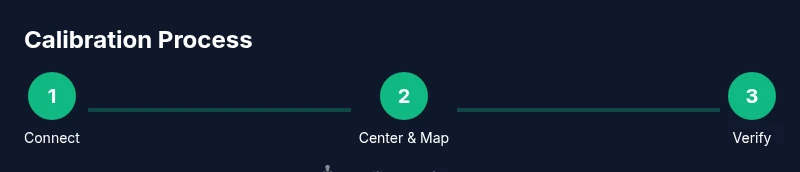
Connect controller and power it on
Attach the controller to your computer or testing device using the correct USB cable and ensure it is recognized by the system. If your model supports wireless, switch to a wired connection for a stable calibration session. Why: a stable connection prevents intermittent signals from contaminating calibration data.
Tip: Verify device detection in your OS before proceeding; this reduces troubleshooting time later. - 2
Open the calibration utility
Launch the calibration software or official firmware tool recommended for your 8BitDo model. Ensure you’re using the latest version available from the manufacturer or Calibrate Point's recommended resources. Why: up-to-date software provides accurate reference values and improved support for hardware revisions.
Tip: If you encounter a missing driver prompt, install any required drivers from the utility’s help section. - 3
Center the analog sticks
With the controller resting naturally, confirm the analog sticks report a zero or near-zero value in the calibration interface. If drift is present, gently re-center by releasing and re-centering. Why: a precise center point ensures consistent input mapping.
Tip: Do this on a flat, stable surface to avoid unintended offsets. - 4
Calibrate the sticks (min, center, max)
Record the minimum, center, and maximum positions for each analog stick. Move the stick to its extremes and release to register. Repeat until the software confirms stable, repeatable values for all axes. Why: full-range calibration ensures accurate tracking across in-game movement.
Tip: Perform multiple sweeps to confirm repeatability before saving. - 5
Calibrate the triggers and D-pad
For triggers, map the travel from rest to full pull to establish consistent dead zones and response curves. For the D-pad, test each direction for binary-on signals and ensure no ghost inputs. Why: inconsistent dead zones and ghost inputs degrade reaction time in games.
Tip: Apply a light, consistent pressure when testing triggers to establish a stable baseline. - 6
Save and apply the calibration profile
Store the calibrated values as a profile within the utility and apply them to the controller. If the tool supports per-game profiles, set the recommended profile for the games you play most. Why: saved profiles ensure changes persist between sessions.
Tip: Name the profile descriptively (e.g., “baseline-2026-03”) for future reference. - 7
Test in a real-world scenario
Launch a game or emulator and test a variety of actions: sprinting, aiming, jumping, and switching weapons. Observe whether inputs respond predictably and linearly with stick movement. Why: real-world testing reveals calibration edge cases not caught in software checks.
Tip: Use a quick sprint test and a precision aim test to catch dead-zone or drift issues early. - 8
Document results and plan a maintenance check
Record the calibration results and the date. Schedule periodic checks after firmware updates or hardware changes. Why: calibration can drift with wear or software updates, so periodic verification keeps performance reliable.
Tip: Set a reminder to re-check calibration every 4–6 weeks during heavy gaming seasons.
Questions & Answers
What does calibration do for an 8BitDo controller?
Calibration aligns the physical input range with digital readings, reducing drift in sticks, triggers, and D-pad. It improves accuracy and consistency across different games and emulators.
Calibration aligns your controller’s physical inputs with digital readings, reducing drift and improving accuracy in games.
Should I update firmware before calibrating?
Yes. Update to the latest firmware or calibration utility version before starting. This ensures compatibility and the most accurate reference data.
Yes—update firmware or software before calibrating to ensure compatibility and accuracy.
Can I calibrate without a PC?
Some models support in-console calibration or mobile apps. Check your 8BitDo model’s capabilities; firmware-based methods may still be possible on consoles or mobile devices.
Yes, some models offer console or mobile calibration options; refer to your model’s manual.
How long does calibration take?
Typically 40 to 60 minutes for a thorough calibration, including testing and verification across apps or games.
Around 40 to 60 minutes, including setup, calibration, and testing.
What if drift persists after calibration?
Revisit center and end-point values, re-run the calibration sequence, and verify with multiple tests. If issues persist, consider hardware inspection or warranty support.
If drift persists, re-check calibration data, redo the steps, and test across multiple apps.
Is calibration permanent or does it revert?
Calibration is stored as a profile in the controller or software. It remains active until you change or delete the profile.
Calibration saves as a profile and remains until you update it.
Do all 8BitDo models calibrate the same way?
Calibration methods vary by model and platform. Always refer to the official manual for your specific device to identify supported workflows.
Calibration procedures differ by model; check your device’s manual for the exact steps.
Watch Video
Key Takeaways
- Calibrate 8BitDo controller to restore accurate input mapping.
- Use a stable setup and up-to-date software for reliable results.
- Verify results with real-world testing and keep a calibration log.