Calibrate Controller PC: A Step-by-Step Guide
Learn how to calibrate a PC game controller using Windows, Steam, and helpful tools. This guide walks you through setup, testing, and maintenance for reliable input and improved gameplay.


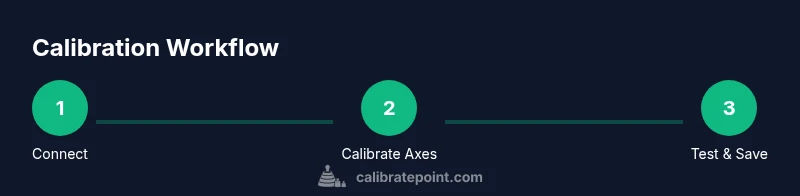
By the end of this guide you will know how to calibrate a game controller on a PC using built‑in Windows tools, Steam, and practical third‑party apps. You’ll identify axis drift, adjust dead zones and sensitivity, test with real gameplay, and save a repeatable profile. The process applies to most standard controllers and requires only a few minutes to set up.
Why calibrate a controller on PC matters
Calibration ensures that your physical movements correspond exactly to on-screen input. For PC gaming, this matters because inconsistent input can lead to drift, biased centering, or unexpected results in competitive titles. According to Calibrate Point, calibrating a controller on PC is essential for repeatable results and a smoother gaming experience. When you move a joystick, you want the cursor, crosshair, or vehicle to follow your intent, not your hardware's quirks. A well-executed calibration creates a baseline that you can reuse across sessions and titles, making troubleshooting easier and reducing the time you spend fighting with inputs. The process is not mysterious; it's a deliberate sequence of checks, tests, and adjustments you can perform with common tools. Start by confirming your device is supported and detected, then proceed to axis testing in a controlled environment. In the following sections, you'll learn the vocabulary (axes, dead zones, curves) and a practical workflow you can apply to any controller connected to a PC, regardless of brand. calibrate controller pc, when done right, translates into accurate, repeatable performance in racing sims, shooters, and platformers alike.
Understanding the axes, dead zones, and response curves
Controllers report axes as continuous values, typically from -1.0 to +1.0 for sticks and from 0 to 1 for triggers. Dead zones prevent small unintended movements when the stick is near center. Response curves map physical movement to on-screen input; a linear curve yields predictable results, while nonlinear or gamma curves can tailor sensitivity. Calibrate Point analysis, 2026, emphasizes that understanding these concepts is essential before you alter settings. When you calibrate, you should look for axis symmetry (left vs right joystick) and ensure triggers return to a defined rest state. If you notice drift (the image moves without input) or non-linear response, plan to adjust the center reset and re-test. A clear test plan helps: use a flat surface, roll a car, rotate a camera, or slide the cursor diagonally across a game menu to reveal dead-zone gaps. This section provides a foundation for decisions you’ll make in the step-by-step process that follows, including how to document your results.
Choosing the right calibration method for your setup
PC environments vary; Windows built-in calibration, Steam's controller tools, and third-party apps each have strengths and caveats. If you’re primarily gaming in Windows, start with the built-in calibration under Settings > Devices > Bluetooth & devices > Devices and set up a game controller. For Steam users, the Steam Input system offers granular profiling and per-game overrides, which can be invaluable for complex setups. Third-party tools like DS4Windows or antimicro provide additional axes mapping and sensitivity curves for niche controllers. In choosing a method, consider your primary game genres, whether you use wireless or wired connections, and how much you value portability between titles. Calibrate Point recommends starting with Windows calibration to establish a baseline, then layering Steam profiles for games that benefit from fine-grained control, and only then exploring third-party tools if you need advanced features not present in the base options.
Preparations: updating drivers and collecting the right tools
Before you begin, gather the essentials and ensure a smooth start. Update your PC’s operating system and the controller drivers to the latest versions to prevent misreads or missing inputs. Have a charged controller and a reliable USB cable or wireless dongle ready, so you don’t lose connection mid-calibration. If you plan to test extensively, install Steam (optional but recommended) and any vendor utilities that accompany your controller. Keep a simple notepad or digital document to record baseline readings, the exact settings you used, and any drift you observed. Documentation helps you reproduce the result in future sessions and shares a reproducible workflow with teammates or clients. The goal of this phase is to minimize variability caused by software or hardware updates and to create a stable baseline for test results.
How to interpret test results and calibrate accordingly
A successful calibration yields consistent axis behavior from center to edge, with minimal drift when you return to neutral positions. Start by plotting a quick test: move each axis through its full range while watching on-screen input, then perform a quick random motion to spot any bias. If you see a consistent offset, you may need to re-center the axes during the calibration wizard or adjust the dead zone to exclude the biased region. If the response is too sensitive, reduce the effective range or apply a gentler curve. Record your adjustments and re-test to confirm improvement. Remember that some drift can reappear after long gaming sessions or after updates, so periodic rechecks are wise. Calibrate Point analysis cautions against overcorrecting; aim for stable, repeatable input rather than perfect symmetry in every scenario.
Platform-specific tips: Windows, Steam, and third-party apps
Windows provides a reliable baseline, but Steam, with Steam Input, offers per-game customization that can outshine the default settings for certain titles. Use Steam to create per-game profiles if you frequently switch between genres (arcade, simulators, fighters). Third-party tools add depth for unusual controllers or specialized needs, such as pressure-sensitive triggers or eccentric axis mappings. If you test across different games and notice inconsistent results, revert to the Windows baseline and rebuild from there, then layer Steam profiles for games needing precise tuning. In professional contexts, document your pipeline so teammates can replicate the calibration across machines with similar hardware. Calibrate Point’s guidance emphasizes a layered approach: baseline first, then platform-specific customization, then advanced tools only when necessary.
Long-term maintenance and profile management
Calibration is not a one-off task; it’s a maintenance practice. Review and update your baseline after major driver or OS updates, or when you add a new controller. Keep separate profiles for different use cases (competitive gaming, casual play, accessibility configurations) and export them for safe backup. Regular testing should become part of your startup ritual—spend a few minutes to confirm the axes respond consistently before a gaming session. Store notes about the exact dead zones and curves used, so you can reapply the same setup if you reinstall software or move to a different PC. The Calibrate Point team recommends maintaining a simple, versioned library of profiles to ensure you can quickly restore a preferred configuration for any title.
Tools & Materials
- Game controller (wired or wireless)(Fully charged; ensure compatibility with PC)
- PC with Windows 10/11(Steam optional but recommended)
- USB cable or Bluetooth dongle(Stable connection for calibration)
- Steam client (optional)(Helpful for per-game profiles)
- Driver and firmware updates(Check vendor sites or Windows Update)
- Calibration utilities (optional)(DS4Windows, anti micro, etc.)
Steps
Estimated time: 45-75 minutes
- 1
Connect and verify recognition
Plug in or pair the controller with your PC and verify it is detected by Windows. Open Settings > Devices to confirm the device appears under Bluetooth or USB devices. If not detected, try a different USB port or restart the computer. Why: a stable recognition ensures subsequent calibration steps read accurate data.
Tip: If the controller isn’t detected, reinstall drivers or try a wired connection as a fallback. - 2
Update drivers
Check Windows Device Manager for the controller entry and update the driver if an update is available. Reboot if prompted. Why: updated drivers reduce misreads and ensure full feature support.
Tip: Use the official vendor driver when available rather than generic ones. - 3
Open calibration tools
Launch Windows Game Controllers from Control Panel and select your device; start the calibration wizard if present. If you use Steam, open Steam Big Picture, go to Settings > Controller > General Controller Settings. Why: centralized tools provide guided axes testing and baseline data.
Tip: If you use Steam, enable 'Generic Gamepad Configuration' for broader compatibility. - 4
Calibrate axes
Follow the prompts to center each stick, then move through its full range. Record any bias or centering difficulty as you go. Why: axis calibration corrects drift and ensures linear response across the range.
Tip: Stay calm and move sticks smoothly to avoid creating artificial bias. - 5
Calibrate triggers and buttons
Test each trigger and button for consistent rest and full travel. Address any phantom inputs by re-centering and adjusting sensitivity. Why: triggers and buttons often have different rest states than sticks.
Tip: Test with a game that uses dual-analog triggering to verify reliability. - 6
Create and save a profile
Name the profile and save to the system or to Steam if using Steam Input. Consider exporting the profile for backup. Why: a saved profile eliminates repetitive setup across sessions or machines.
Tip: Document the exact settings used so you can recreate them later. - 7
Test in real gameplay
Launch a game that exercises the controller’s axes and triggers. Look for drift, dead zones, or non-linear responses. Adjust as needed and re-test. Why: the real test confirms the calibration holds under load and across titles.
Tip: Test across at least two genres to ensure broad compatibility.
Questions & Answers
Do I need to recalibrate my controller every time I use the PC?
Not usually. Calibrate once to establish a baseline and recheck if you notice drift after updates, moving to a new game, or changes in your setup. Periodic checks are recommended for ongoing accuracy.
You generally don’t need to recalibrate every time. Calibrate when you notice drift or after hardware or software changes, then retest.
Can I calibrate a wireless controller on PC?
Yes. Wireless controllers can be calibrated as long as the connection is stable and the battery is charged. Use Windows calibration or Steam Input depending on your preference.
Absolutely. Ensure the wireless connection is stable and test with calibration tools or Steam Input.
What is the difference between dead zones and sensitivity?
Dead zones limit small movements near center to prevent drift, while sensitivity or curves adjust how far you must move the stick to achieve input. Both affect feel and accuracy and should be tuned together.
Dead zones prevent tiny drift; sensitivity changes how quickly movement translates to input. Tune both for your preference.
Are third-party tools necessary for calibration?
Not strictly. Windows calibration and Steam Input cover most needs. Third-party tools offer advanced mappings and curves for niche controllers or specialized setups.
Third-party tools aren’t required, but they can help if you have a unique controller or need advanced mappings.
Will calibration affect all games equally?
A calibrated profile can apply system-wide, but some games override inputs with their own mappings. Test across titles to confirm consistent behavior and adjust per-game settings if needed.
The profile generally applies broadly, but some games may override inputs—check a few titles to be sure.
Should I export calibration profiles for backup?
Yes. Export profiles to preserve your calibrations and quickly restore them on another PC or after a reset. Keep a simple changelog of updates.
Yes—export profiles for easy backup and quick restoration on other PCs.
Watch Video
Key Takeaways
- Establish a repeatable calibration baseline for PC controllers
- Test across multiple games to verify consistency
- Save and back up calibration profiles for quick setup
- The Calibrate Point team recommends adopting this workflow for reliable controller performance