How to calibrate Xbox controller on PC: a complete guide
Learn how to calibrate an Xbox controller on Windows PC using built-in tools or Steam. This step-by-step guide covers verification, the calibration workflow, testing, and troubleshooting for precise, drift-free input.


Calibrate the Xbox controller on PC using Windows settings or Steam's configuration. Start with a quick check that Windows recognizes the controller, then run the calibration prompts or joystick wizard to adjust axes and dead zones. The goal is consistent axis response and reliable button behavior across games.
Why calibrate your Xbox controller on PC?
According to Calibrate Point, calibration reduces drift, improves precision, and ensures consistent input mapping across games. When the sticks have slack or the triggers respond inconsistently, your in-game actions can become unreliable. This is especially noticeable in fast-twitch genres like competitive shooters or racing sims, where millisecond differences shift outcomes. Calibration aligns the physical travel with the software interpretation, establishing a reliable baseline for axis values and dead zones. You’ll avoid unpredictable jumps when the stick passes through center, and you’ll minimize drift caused by minor hardware wear over time. Remember: small drift can accumulate, making long sessions fatiguing as you compensate mentally. A good calibration workflow not only fixes current issues but also serves as a preventive measure for future sessions. If you use Steam, Windows, or both, maintain a single calibration baseline to prevent conflicts between software profiles. In practice, a routine calibration is a quick investment that pays dividends through smoother gameplay and less frustration.
Quick verification: checking drift and dead zones
Before diving into complex settings, perform a quick check to gauge current drift and dead-zone accuracy. Open the Xbox controller tester panel (Windows joy.cpl or the Controllers settings in Windows 10/11) and move sticks through their full range. Note any drift when the sticks return to center or any non-linear response near the edges. In Steam, you can test the controller in Big Picture mode and observe axis behavior under the calibration option. If you notice offset or uneven travel, you’re ready to calibrate. This quick audit helps you decide whether to use Windows calibration, Steam profiling, or both. Keeping a clear baseline makes future recalibrations faster and more reliable.
Windows calibration options: built-in tools vs joy.cpl
Windows offers several paths to calibration. The traditional method uses the joy.cpl (Set up USB Game Controllers) utility accessible via Control Panel, where you select the Xbox controller and run the Calibration Wizard to map axis and dead zones. Alternatively, Windows Settings may reveal controller settings under Devices > Bluetooth & devices, depending on your version. Both paths aim to align the axis readings with the hardware travel, but the joy.cpl approach tends to be more thorough for dead-zone tuning. After calibration, save the profile and test in a game or a calibration tool to confirm improvements. Remember to refresh calibration after major Windows updates or driver changes to keep results consistent.
Steam calibration: when and how
If you primarily play through Steam, Steam's built-in controller configuration can provide a unified experience for games launched from the Steam client. Use Steam > Settings > Controller > General Controller Settings to enable configurations, then apply per-game calibration if available. Steam calibration can supplement Windows calibration, especially if you notice drift or inconsistent mapping across Steam titles. The goal is to ensure both platforms map axes and buttons consistently, avoiding profile conflicts that cause inconsistent input in different games.
Step-by-step Windows calibration workflow
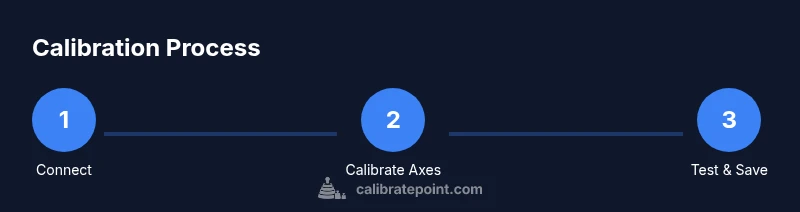
- Connect the Xbox controller to your PC (wired USB or Bluetooth) and ensure it is recognized by Windows.
- Open joy.cpl (Set up USB Game Controllers) from the Control Panel.
- Select the Xbox controller from the list and click Properties to access the Calibration tab.
- Run the Calibration Wizard, following the prompts to adjust X and Y axes, Z rotation, and dead zones.
- Save the calibration profile and perform a live test with a simple game or controller tester to verify smooth centering and accurate input.
- If devices show drift after calibration, repeat steps 3–5 with adjusted dead-zone values and axis ranges. When using Steam, apply corresponding settings to keep profiles aligned.
Estimated time: 45–60 minutes depending on hardware age and driver updates.
Step-by-step Steam calibration workflow
- Launch Steam and open Settings > Controller > General Controller Settings to initialize Steam's controller framework.
- Connect the Xbox controller and select Calibrate under the controller options if available, or use per-game configuration to adjust the axes.
- Test axis behavior in Steam's built-in controller test tool and in at least one Steam game to confirm consistency across titles.
- Save your Steam profile and compare with Windows calibration to ensure uniform input mapping in non-Steam games as well.
- If discrepancies persist, reset Steam’s configuration and redo calibration, ensuring you use the same dead-zone philosophy as Windows calibration.
Estimated time: 25–45 minutes.
Troubleshooting common issues
If calibration doesn’t fix drift or inconsistent response, verify that the controller firmware is up to date and that Windows drivers are current. Try a wired connection if you’re using Bluetooth, as wireless latency can mask calibration results. Check for background software that may override gamepad input with its own profiles. Recalibrate after updates and re-test in multiple games to confirm results. Document your baseline calibration so you can reproduce it if needed.
When to replace or service
If drift remains despite recalibration and the axis inner resistances feel rough or the hardware shows physical wear, it may be time to consider replacement or professional service. Persistent issues after multiple recalibrations typically indicate hardware wear in the sticks or triggers rather than software configuration. In that case, evaluate warranty options and potential replacement parts from reputable retailers.
Tools & Materials
- PC with Windows 10/11(Ensure latest updates and driver support)
- Xbox Wireless Controller(Charge or use a fresh battery before calibration)
- USB-C or micro-USB cable(Essential for wired calibration stability)
- Steam client (optional)(Use if you primarily game through Steam)
- A test game or controller tester(Required to validate calibration results)
Steps
Estimated time: 45-60 minutes
- 1
Connect and prepare
Connect the controller via USB cable or ensure Bluetooth pairing is active. Turn on the controller and verify Windows detects it in Device Manager or the joy.cpl test panel. This establishes a stable baseline before calibration.
Tip: If calibrating wirelessly, keep the battery fresh to prevent power-related input jitter. - 2
Open the calibration tool
Launch the calibration wizard in Windows by opening joy.cpl (Set up USB Game Controllers) and selecting the Xbox controller to access the Properties and Calibration options.
Tip: Use a wired connection if possible for the most stable calibration session. - 3
Run the Axis calibration
Follow the prompts to move each axis through its full range. Set dead zones where the stick center holds steady and adjust any non-linear response observed during the test.
Tip: Calibrate one axis at a time to avoid cross-axis confusion. - 4
Adjust triggers and buttons
Calibrate the trigger and bumper inputs to ensure full travel is recognized and that button presses map consistently in games.
Tip: Test trigger pull depth in a test game to verify linear response. - 5
Save and test
Save the calibration profile and run a quick test in a game or calibration tool to confirm centering and response accuracy.
Tip: Play a few minutes in a practice session to feel for any residual drift. - 6
Compare with Steam (optional)
If you use Steam, replicate the Windows calibration in Steam’s controller settings to maintain consistency across platforms.
Tip: Document the final dead-zone values for future reference.
Questions & Answers
Can I calibrate the Xbox controller on PC without using Steam?
Yes. Windows provides a calibration pathway via joy.cpl (Set up USB Game Controllers) that guides you through axis and dead-zone adjustments. Steam can be used separately or alongside Windows calibration if you play through Steam.
Yes. Use Windows calibration first; Steam is optional depending on your library.
How often should I recalibrate?
Recalibrate when you notice drift, after driver or firmware updates, or after a Windows update that affects peripherals. In many cases calibrating once and rechecking after updates suffices.
Recalibrate when you notice drift or after driver updates.
What should I do if calibration doesn’t fix the issue?
Verify the controller firmware is up to date, try a wired connection for stability, and test with a different USB port. If problems persist, consider hardware wear or replacement.
Update firmware, try wired connection, and test across ports; hardware wear may be the cause if issues persist.
Is calibration different for wireless vs wired connections?
The calibration workflow is the same, but wireless connections can introduce latency and interference. Use a wired connection during calibration to get the clearest results.
Workflow is the same; use wired when calibrating to avoid wireless jitter.
Do I need external software for calibration?
Not strictly. Windows provides calibration tools, and Steam offers its own profiling. External tools can help test results, but are optional for basic axis calibration.
Windows and Steam tools are usually enough; extra software is optional for testing.
Watch Video
Key Takeaways
- Follow a repeatable calibration workflow
- Test with multiple games to confirm consistency
- Document your final axis and dead-zone settings
- Use Windows and Steam calibration to align profiles