How to Calibrate Xbox One Controller
Learn how to calibrate your Xbox One controller to reduce drift, sharpen accuracy, and customize response with official tools and practical checks. Calibrate Point guides you through firmware updates, axis calibration, and validation for reliable game control.


Learn how to calibrate your Xbox One controller to reduce drift, improve accuracy, and customize input response. This guide covers firmware updates, using the Xbox Accessories app or Windows calibration tools, and practical testing. By following these steps, you'll restore consistent control for games and other tasks, with tips to verify results.
How to calibrate Xbox One Controller
Calibrating your Xbox One controller helps ensure that stick movements, triggers, and buttons translate accurately in games and apps. According to Calibrate Point, precise calibration can improve aim stability and input responsiveness, especially in fast-paced titles. In this section we explore the process and provide a repeatable method that works on Windows PCs and Xbox consoles. The goal is to give you reliable steps you can perform with standard hardware and common software, so you can maintain optimal input behavior over time.
Why calibration matters for gaming accuracy
Accurate input calibration directly affects how your controller responds to in-game actions. Small inconsistencies between thumbstick position and on-screen movement can compound in competitive titles, leading to laggy or twitchy control. Regular calibration helps minimize unintended drift, improves precision during aiming, and ensures that button presses map predictably to in-game actions. Calibrate Point’s analyses emphasize that consistent calibration reduces the need for players to compensate with excessive grip or awkward finger movements, which can cause fatigue during long play sessions.
Tools and prerequisites
To perform a thorough calibration, you’ll need a few essentials and a quiet workspace. An Xbox One controller (wired or wireless), a USB cable or a Bluetooth connection, a Windows PC or Xbox console, and the Xbox Accessories app or Windows calibration tools are all you need to begin. A stable testing surface, a clean controller, and a reliable test game or controller tester will make the process smoother. Calibrate Point recommends starting with a clean device and a single connection method to avoid signal interference during calibration.
Understanding axes, dead zones, and drift
Two core concepts influence calibration: axis response and dead zones. The X and Y axes on each thumbstick translate physical movement into digital input, and dead zones define the minimum movement needed to register input. If drift occurs, small, unintended axis offsets can persist even when the stick is centered. A careful calibration procedure aims to minimize drift while preserving sensitivity, so your aim and navigation stay predictable across games and applications. Keep in mind that hardware wear can limit the effectiveness of software calibration, and some controllers may require hardware servicing.
Step-by-step overview
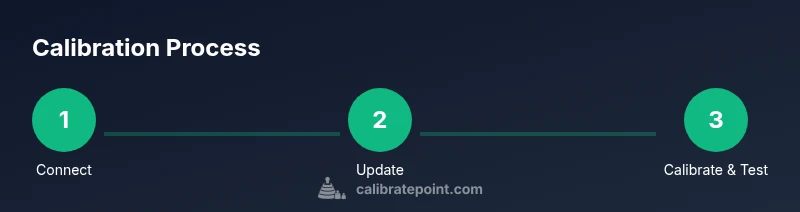
This guide presents a practical, repeatable sequence you can follow to calibrate an Xbox One controller. We’ll cover connection, firmware checks, axis and trigger calibration, and practical testing using a controller tester and in-game scenarios. Each subsection below focuses on a concrete action you can perform, with tips to verify success and avoid common pitfalls. Remember: calibration results are context-dependent and may vary with different titles and grip styles.
Step 1 — Connect and prepare
Connect your Xbox One controller to your PC or Xbox console using a wired USB cable or a stable wireless link. A solid connection ensures the calibration process can access accurate data from all inputs. Make sure the controller is fully powered and that you aren’t multitasking on the device, which could introduce interruptions. This step sets the foundation for reliable calibration by minimizing connection noise and interruptions.
Step 2 — Update firmware via the Xbox Accessories app
Open the Xbox Accessories app on Windows or on your Xbox console and check for a firmware update for your controller. Keeping firmware current helps ensure compatibility with calibration tools and improves input stability. If an update is available, apply it and allow the device to restart if prompted. Firmware alignment is a critical prerequisite for accurate calibration across games and apps.
Step 3 — Run calibration tools (Windows or Xbox)
Access calibration options through the Game Controllers settings on Windows or the Xbox Accessories app. If Windows provides a dedicated Calibration button, follow the prompts to move the sticks to their extremes and return them to center, then complete the sequence for triggers. If your platform lacks a built-in calibration routine, use a trusted controller tester to observe input range and reattempt calibration with the tool’s guidance. This step helps identify residual drift and provides a baseline for adjustments.
Step 4 — Calibrate axes and dead zones
During axis calibration, move each thumbstick from lock to lock in all directions. Observe the recorded input values and ensure there is a centered rest position with minimal drift. Adjust or re-run the calibration if the rest position shows偏 drift. For dead zones, ensure the starter movement is above the minimum threshold to prevent accidental inputs, while keeping precision for precise aiming in games. This step creates a stable center and consistent responsiveness.
Step 5 — Test triggers and buttons
Test trigger pulls and button presses across multiple applications to verify consistent input mapping. If triggers register with unintended resistance or button presses fail to register in some scenarios, re-test and adjust as needed. Clear, repeatable trigger and button responses are essential for smooth gameplay, especially in shooter and racing titles where timing matters. Use a testing app or in-game practice range to validate behavior.
Step 6 — Remap and customize (optional)
If your games benefit from altered input behavior, use the Xbox Accessories app to remap buttons or adjust sensitivity curves for the sticks and triggers. Remapping is particularly helpful if you switch between different genres or play styles. Note that remapping changes are game-specific; you may need to reassign controls per title. Save any changes and re-test in multiple games to confirm improvements.
Step 7 — Test across games for consistency
Run a variety of games or test scenarios to ensure calibration holds across contexts. Some titles may respond differently to input data due to engine differences or anti-drift measures. If drift reappears in certain games, you may need to revisit calibration steps or adjust game-specific settings. Consistent results across multiple titles indicate a robust calibration.
Step 8 — Cleaning and maintenance
Physical cleanliness can reduce busy sensor readings and drift. Wipe down thumbsticks with a lint-free cloth and isopropyl alcohol if necessary, ensuring no liquid enters the internal components. Regular maintenance—especially after long play sessions or travel—can preserve calibration quality and extend the controller’s lifespan. A clean, well-maintained controller tends to perform more reliably.
Step 9 — When to seek hardware help
If drift persists after thorough software calibration and cleanup, the issue may be hardware-related. Seek professional assistance or consider replacement parts for worn sticks or sensors. Hardware degradation is a common cause of persistent drift, and recognizing this early can save time and frustration.
Step 10 — Document results and plan follow-up
Keep a simple record of the calibration steps you performed and the observed results. Note any titles or conditions where input behavior changed. Scheduling a periodic recalibration helps maintain accuracy over time as you use the controller in different environments or after firmware updates.
Tools & Materials
- Xbox One controller(Standard wireless or wired model; ensure no visible damage)
- USB-C / micro-USB cable(Official or high-quality third-party cable for stable connection)
- Windows PC or Xbox console(For firmware updates and calibration tools)
- Xbox Accessories app(Install from Microsoft Store on PC or Xbox)
- Controller tester or test software(Helpful for precise input verification)
- Clean cloth and isopropyl alcohol(Used for sensor and thumbstick maintenance)
Steps
Estimated time: 40-60 minutes
- 1
Connect and prepare the controller
Attach the controller to your PC or Xbox using a wired connection or a stable Bluetooth link. Ensure the device is powered and that no other peripherals are drawing excess power. This establishes a clean baseline for calibration and prevents connection dropouts during the procedure.
Tip: Use a short, certified USB cable to minimize latency and the chance of intermittent disconnects. - 2
Update firmware with Xbox Accessories app
Open the Xbox Accessories app and check for firmware updates for your controller. Install any available updates and allow the device to restart if prompted. Firmware alignment is essential for reliable calibration results.
Tip: Keep the app closed until you finish the update to avoid conflicting background processes. - 3
Access calibration options
Navigate to the calibration or settings area within the app or Windows control panel. If a dedicated calibration tool exists, run it to begin axis and trigger calibration. If no built-in tool is present, prepare to test inputs using a controller tester.
Tip: If you don’t see a calibration option, a third-party tester can still help verify axis range and drift. - 4
Calibrate the thumbstick axes
Move each thumbstick through its full range of motion, returning it to center each time. Confirm that the center position is stable with minimal drift when the stick rests. This step improves precision across all directions.
Tip: Perform this slowly; rapid motions can obscure drift measurements. - 5
Calibrate triggers and buttons
Test each trigger and button, ensuring a consistent on/off response across all intervals. Address any lag or misregistration by re-testing and adjusting as needed. This guarantees predictable input in several game scenarios.
Tip: Don’t force a full press; test at varying pressure points to confirm consistent behavior. - 6
Test dead zones and sensitivity
Verify that small movements near the center do not register unintended input while large movements produce full input. Adjust dead zones if your tests show drift at rest, and verify again with a quick gameplay scenario.
Tip: Use a test app that displays real-time axis values to fine-tune dead zones precisely. - 7
Remap controls if needed (optional)
If certain titles benefit from different control layouts, use the Xbox Accessories app to remap buttons or adjust thumbstick behavior per game. Save changes and test in multiple games to confirm improvements.
Tip: Document your mappings for future sessions and title-specific setups. - 8
Cross-platform testing
Test the controller on both PC and Xbox to ensure consistent performance. Some games or engines may react differently to input data, so verifying across platforms helps reveal edge cases.
Tip: Choose representative games from different genres for broad coverage. - 9
Clean and inspect hardware
Physically inspect the thumbsticks and housing for wear or debris. Clean the surface with a lint-free cloth and minimal moisture. Residual dust can contribute to drift or inconsistent input.
Tip: Avoid liquid cleaners near internal components; a dry wipe is usually sufficient. - 10
Document results and plan follow-up
Record the calibration steps taken and observed outcomes. Schedule periodic recalibration after major firmware updates or long gaming sessions to maintain reliability.
Tip: Keep a simple log—date, steps performed, and any observed drift. - 11
Know when to seek hardware help
If drift persists after software calibration and maintenance, hardware wear may be the cause. Consider professional service or replacement parts for the thumbsticks or sensors.
Tip: Hardware issues sometimes require component replacement to restore full functionality. - 12
Finish with a final test run
Play a few quick practice rounds to confirm that input behavior remains stable under real gameplay conditions. If everything feels smooth, you’re done.
Tip: Trust real-world testing over dry-run readings for final confirmation.
Questions & Answers
Can I calibrate an Xbox One controller on a Windows PC?
Yes. Use the Xbox Accessories app or Windows calibration tools to calibrate inputs. Some controllers can be calibrated directly through the control panel, while others rely on the app for updates and configuration. Always update firmware first for the best results.
Yes. You can calibrate an Xbox One controller on a Windows PC using the official Xbox Accessories app or Windows calibration tools. Start with a firmware update, then follow the on-screen steps to calibrate axes and triggers.
Will calibration fix stick drift permanently?
Calibration can reduce drift and improve accuracy, but persistent drift may indicate hardware wear. If drift persists after calibration and cleaning, consider hardware inspection or replacement parts.
Calibration can reduce drift, but persistent drift may signal hardware wear that calibration alone cannot fix.
Can I remap buttons during calibration?
Yes. The Xbox Accessories app lets you remap buttons and adjust some sensitivity settings. Remapping is useful for different games or play styles, but changes may be game-specific.
You can remap buttons using the Xbox Accessories app, which helps tailor control schemes to different games.
What should I do if calibration doesn't help?
If calibration doesn’t improve behavior, check for debris, worn thumbsticks, or loose internals. Consider hardware service or replacement and verify there’s no interference from other devices.
If calibration fails, inspect the controller for wear or debris and consider hardware replacement if drift persists.
Is recalibration needed after firmware updates?
Firmware updates can reset or alter input behavior. Recheck calibration after updates to ensure stability and consistency.
After firmware updates, re-check and, if needed, recalibrate to maintain stable input.
Watch Video
Key Takeaways
- Calibrate thumbstick axes to reduce drift and improve precision
- Update firmware before calibrating to ensure compatibility
- Test across multiple games for consistency
- Consider hardware wear if drift persists after calibration
- Document results and schedule periodic recalibration