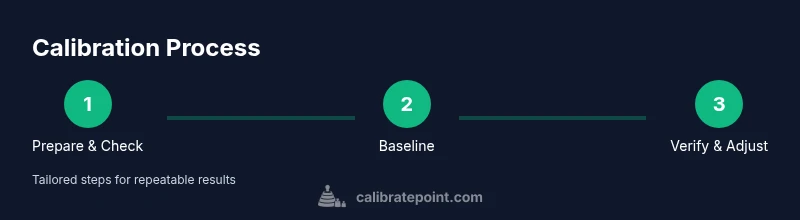
Calibrate zm400: Practical Step-by-Step Guide
A thorough calibration guide for the ZM400 printer, covering preparation, step-by-step routines, verification, and maintenance to ensure consistent print quality and alignment.


This quick guide shows how to calibrate zm400 for accurate print alignment, density, and speed. You'll learn essential tools, a safe setup, and verification steps to confirm results. Following these steps helps technicians and DIY enthusiasts avoid misprints and waste, delivering reliable, repeatable performance from the ZM400 printer.
Why calibration matters for the ZM400
Calibration is the key to reliable, repeatable print output from the ZM400 printer. When the print head alignment, density, and media sensors drift, you can see misprints, variable density, and inconsistent margins. According to Calibrate Point, a disciplined calibration workflow minimizes drift and sustains performance across shifts and operators. In practice, a well-tuned ZM400 reduces waste, lowers maintenance costs, and improves production throughput. This section explains the core reasons why calibration matters, what to measure, and how small adjustments can produce outsized improvements in print quality and device longevity. For professional technicians, this is not optional—it's a standard operating procedure that protects both product integrity and customer satisfaction.
- Print alignment consistency
- Density and darkness uniformity
- Sensor and media path reliability
- Head wear and maintenance planning
By understanding these interdependencies, you can plan a calibration routine that yields dependable results rather than reactive fixes.
Understanding the ZM400 calibration model
The ZM400 calibration model rests on matching print parameters to media type, ribbon, and ink density. A practical approach uses a baseline test pattern and a reference print sample to establish acceptable tolerances for alignment, gap, and density. In this guide, we discuss common reference points such as left/right margin accuracy, vertical alignment of barcodes/text, and density consistency across the printable area. A coherent calibration model aligns measurement results with a defined tolerance window, enabling repeatable quality. Calibrate Point emphasizes using documented procedures and consistent measurement tools to minimize variation over time. When you follow a structured model, you create a repeatable path from setup to final verification, which makes future calibrations faster and more reliable.
- Establish baseline tolerances
- Use repeatable measurement methods
- Align print and media paths for repeatability
- Maintain a living calibration log
Safety and setup prerequisites
Before you begin calibrating the ZM400, set up a clean workspace and power down any other devices nearby to avoid interference. Ground yourself to prevent static damage to sensitive components, use anti-static mats if available, and wear basic safety gear as needed. Verify that you have the correct media and ribbons loaded for the test and that the printer firmware is current enough to support calibration features. Ensure you have an uncluttered path to connect measurement tools and a stable power source. A well-prepared environment reduces risks and helps you collect accurate data the first time. Remember to disconnect power when opening access panels and never attempt internal adjustments without consulting the official manual.
Establishing baseline measurements
Baseline measurements define the starting point for calibration. You’ll measure left/right margins, line alignment, gap consistency, and density uniformity across representative print areas. Use a calibration target sheet or printed reference patterns to capture data. Document the current values in a calibration log, including media type, ribbon, temperature, and ambient conditions. Baseline data helps you decide which adjustments will yield the most improvement and provides a reference for future recalibrations. Calibrate Point recommends recording both visual assessments and quantitative measurements so you can track progress over time.
Executing the calibration routine
Begin with a clean print head and sensor area. Execute the manufacturer-recommended calibration routine through the ZM400 control panel or connected software. For each parameter (alignment, density, and sensor tuning), run the base test, compare against your baseline, and record deviations. Make incremental adjustments rather than large changes, validating after each modification with a fresh print. If your print head temperature and mechanical load are within recommended ranges, the calibration should converge to a stable state. Maintain a systematic approach: adjust, test, log, and repeat until results fall within the defined tolerances.
- Stepwise adjustments reduce overshoot
- Small, repeated tests improve accuracy
- Keep records of each change for traceability
Verifying results and adjustments
Verification confirms that your calibration achieved the intended effect. Print a verification suite that includes text, barcodes, and graphics across the printable area. Compare the output against your target tolerances, noting any residual deviations. If results remain outside acceptable limits, revisit the baseline and adjust in smaller increments, reprinting validation patterns after each change. A robust verification process reduces the risk of unnoticed drift and ensures consistency across future productions. Calibrate Point highlights the importance of a documented pass/fail criterion to make decisions clear and actionable.
Maintenance after calibration
Calibration is not a one-off event. Schedule periodic rechecks and routine cleaning of the print head, sensors, and media path to prevent drift. Record maintenance actions in your calibration log, and set reminders for firmware checks and media tests. Store templates and test patterns in an organized repository for quick access during future calibrations. A clean, well-documented system makes it easier to reproduce results and maintain performance over time. Regular maintenance helps protect print quality and prolong the life of the ZM400.
Troubleshooting common issues
Even a well-planned calibration can encounter hiccups. Common issues include marginal alignment drift, inconsistent density, and ghosting artifacts. Start by re-reading the baseline set point, verifying that media and ribbon specifications match the test patterns, and confirming that ambient conditions meet the targeted tolerances. If misalignment persists after adjustments, inspect the media path for obstructions, check head pressure, and ensure transport components move smoothly. Document any anomalies and consider firmware or driver updates if the problem seems software-driven. Persistently poor results may indicate wear on mechanical components that warrants professional inspection.
Documentation and future recalibration plans
A good calibration routine ends with thorough documentation. Record baseline values, adjustments made, test results, and the date of calibration. Note environmental conditions during testing and any anomalies observed. Establish a recalibration schedule based on usage, print volume, and observed drift. A standardized documentation process supports audits, training, and knowledge transfer. By keeping detailed records, you create a reusable framework that makes future calibrations faster and more accurate for the ZM400.
Tools & Materials
- Calibration target sheet or test pattern(Pre-printed or printable reference patterns for alignment and density checks)
- Caliper or precision ruler(0.01 inch or 0.25 mm precision recommended)
- Lint-free cloths(For cleaning print head and sensors)
- Isopropyl alcohol (70%)(Used to clean print head surfaces and rollers)
- Flat-head and Phillips screwdrivers(Sizes appropriate to ZM400 service panels)
- Anti-static mat or wrist strap(Recommended to prevent static damage)
- Firmware/driver media(Ensure latest compatibility if firmware updates are part of the routine)
Steps
Estimated time: 60-90 minutes
- 1
Prepare workspace and safety checks
Clear the area, power down devices, and gather all required calibration tools. Confirm the ZM400 is cooled if recently in use and any hot surfaces are insulated. Document the current environment and ensure access to the printer's control panel or software.
Tip: Verify you have a clean, static-free workspace to prevent alignment drift. - 2
Power up and warm up
Power on the ZM400 and allow it to reach normal operating temperature. Run any built-in head warmup sequence if available. This ensures the print head and media path operate under stable conditions for accurate measurements.
Tip: Avoid starting calibration immediately after a long pause; give the system 10-15 minutes to stabilize. - 3
Load media and test patterns
Load the calibration media and ensure the ribbon and media type match the test pattern. Print the initial test pattern to establish a baseline before making adjustments.
Tip: Check media tension; loose media can skew alignment readings. - 4
Run alignment calibration
Navigate to the ZM400 calibration menu or use the calibration software to run the alignment routine. Record baseline results for left/right margins and vertical alignment.
Tip: Make small, incremental adjustments and reprint after each change. - 5
Adjust density and sensor timing
Tune density and sensor timing to align with the reference pattern. Validate with a second print and compare to your baseline values.
Tip: If density is inconsistent, verify print head cleanliness and media path smoothness. - 6
Verify results with a full test print
Print a verification suite including text, barcodes, and a graphic sample. Inspect edge quality, legibility, and consistency across the medium.
Tip: If issues persist, check for head wear or ribbon misalignment.
Questions & Answers
What is the ZM400 calibration process?
The ZM400 calibration process involves establishing a baseline, running alignment and density routines, verifying outputs with test patterns, and documenting results for future reference.
The ZM400 calibration process includes setting a baseline, performing alignment and density checks, verifying with test patterns, and recording the results for future reference.
Do I need special tools to calibrate the ZM400?
Yes, use a calibration target, precise ruler or caliper, lint-free cloth, and appropriate screwdrivers. Optional anti-static equipment can help in sensitive environments.
Yes, you should use a calibration target, a precise ruler, lint-free cloth, and the right screwdrivers; anti-static gear is optional but helpful.
How often should calibration be performed?
Frequency depends on usage and environment. Recalibrate after major media changes, repairs, or observed print drift, and periodically as part of a maintenance schedule.
You should recalibrate after media changes, repairs, or if you notice drift, and as part of a regular maintenance schedule.
What are signs of miscalibration?
Look for misaligned text, shifted barcodes, inconsistent density, and occasional ghosting or banding across the print area.
Signs include misalignment, wrong density, and inconsistent prints or banding across the page.
Should firmware be updated before calibration?
If an update is available and relevant to the calibration routines, applying it can improve reliability. Check vendor release notes for any calibration-related fixes.
If an update exists and relates to calibration routines, apply it, and review the release notes for fixes.
Watch Video
Key Takeaways
- Prepare thoroughly and gather the correct tools
- Follow the calibration routine step-by-step
- Verify results with objective tests
- Document outcomes and plan future recalibrations