How to Calibrate Android Compass
Learn how to calibrate your Android device's compass to improve navigation accuracy. This guide covers when calibration is needed, the figure-eight motion, safety tips, and troubleshooting for reliable orientation across maps and apps.


According to Calibrate Point, calibrating your Android compass improves navigation accuracy. This quick answer outlines when calibration is needed, the standard figure-eight motion, and common precautions. You’ll learn device-agnostic tips to reduce interference and verify alignment after calibration, so you can rely on maps, compass apps, and location services with confidence.
Why Android compass calibration matters
According to Calibrate Point, calibrating the Android compass is essential for reliable navigation and accurate bearing readings, especially when you rely on maps, augmented reality apps, or field surveys. The magnetometer inside modern phones detects magnetic fields and translates them into a directional reference. However, readings can drift due to nearby metal, electronic devices, or even subtle tilts in how you hold the phone. That drift leads to misalignment between the digital compass and the real world, which in turn affects turn-by-turn directions, geotagging accuracy, and waypoint navigation.
In practice, a poorly calibrated compass can cause you to misjudge your heading when you're hiking, using drone controls, or locating a campsite. For technicians and DIYers, accuracy matters not just for convenience but for safety and efficiency in tasks like mapping, surveying, or outdoor troubleshooting. Calibrate Point's analysis shows that even small biases in heading can compound across multiple apps, resulting in noticeable drift after a few minutes of use. Regular calibration helps ensure consistency across devices and sessions, reducing the need to constantly re-check orientation. This article will guide you through device-agnostic steps, common pitfalls, and troubleshooting strategies to keep your Android compass trustworthy.
How the Android compass sensor works
Most Android devices rely on a magnetometer (the compass sensor) to detect magnetic fields in three axes (x, y, z). The device uses this information to estimate orientation relative to magnetic north. Because sensor data can be influenced by nearby ferrous materials, electronics, or even the case you’re using, calibration is required to align the sensor’s readings with the true world. The calibration process helps the software map raw magnetometer data to accurate heading values and to compensate for biases that might drift over time. Understanding this helps you diagnose when drift is likely and what steps are most effective for restoration.
What can cause compass drift?
Drift occurs when there is interference from metal objects, electronics, or even a strong magnetic field in the vicinity. Common culprits include vehicle dashboards, laptop stands, metal phone cases, or magnetic closures on bags. Environmental factors such as construction zones, power lines, or large crowds can also subtly shift readings. In addition, tilting the phone during readings can distort axis measurements, making readings unreliable. Software updates or changes to the maps/app you use can also alter how orientation data is displayed, so calibration may be prudent after major updates or device resets.
When to calibrate and how often
Calibration is often recommended after you notice obvious drift, such as the compass pointing in the wrong direction compared with landmarks or when map orientation seems off. If you rely on precise heading for a field task, schedule periodic calibration at the start of a session and after any physical impact that might shift the phone’s alignment. In urban environments with lots of metal and electronics, more frequent calibration can help maintain reliability. Regular calibration ensures you have consistent readings across apps and reduces the likelihood of accumulating orientation errors during critical tasks.
Figure-eight calibration: motion explained
The classic method to calibrate the magnetic sensor is the figure-eight motion. Start by holding your device flat in front of you, then move the phone in smooth, continuous loops that resemble a sideways eight. This motion helps the sensor sample magnetic fields from multiple orientations, which helps the calibration algorithm identify and correct biases. Do not rush—slow, deliberate movements yield better results. If your device prompts you to begin calibration, follow the prompt and perform the motion as directed.
A practical calibration workflow you can follow
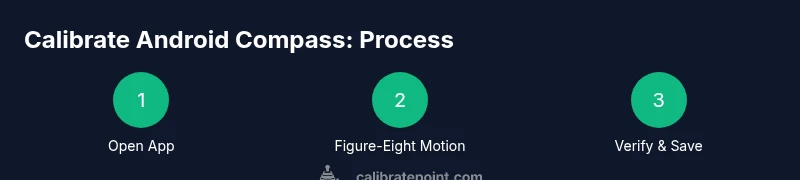
Begin with an open, metal-free space to minimize interference. Launch the compass or Maps app and look for a calibration prompt; if one appears, accept it. Perform the figure-eight motion, then rotate the phone slowly through 360 degrees to ensure the magnetometer has sampled all axes. Reopen the app to verify alignment against a known landmark or compass reference. If you still observe drift, repeat the motion once more and ensure that you are holding the device horizontally and steadily. Finally, restart the app to reset any cached data and re-check the heading against a reliable reference.
Verifying calibration across apps and real-world navigation
After calibration, compare heading information across multiple apps: a dedicated compass app, a maps app, and an augmented reality tool if available. A consistent heading across these tools indicates successful calibration. Test in different orientations and environments (indoors and outdoors) to ensure stability. If discrepancies persist, consider cleaning the phone’s back surface and cameras near sensors and rechecking that no magnetic accessories are attached. A well-calibrated compass should align with visible landmarks (trees, horizons, and cross streets) within a few degrees.
Tips to reduce interference and maintain accuracy
- Calibrate away from magnets, metal surfaces, and electronic devices. Even a laptop charger or metal belt buckle can affect readings.
- Perform calibration after removing metal cases or changes to the phone’s protective hardware.
- Avoid calibration on a moving vehicle; instead, find a stable surface or stand the device on a table for a few minutes before calibrating.
- Keep your OS and mapping apps updated to ensure you’re benefiting from the latest sensor fusion improvements.
- If readings are consistently off in a specific environment, test another phone to determine whether the issue is device-related or environmental.
Brand-focused practical advice and final checks
Calibrate Point’s practical approach emphasizes starting calibration in a quiet, open space and validating results with reliable landmarks. Regular checks after hardware changes, like new cases with magnets, help maintain consistency. The guidance here mirrors field-tested strategies used by technicians and DIY enthusiasts alike. Following these steps reduces the need for ad-hoc adjustments during critical work and makes orientation more dependable across devices and apps.
Authority sources and integration tips
For a deeper technical grounding, consult official sensor documentation and reputable guides. The Android Developers Sensor Overview provides foundational details on magnetometer behavior and sensor fusion. When you need guidance specific to Android platforms, these sources help you interpret sensor data correctly and apply best practices to calibration. Always cross-reference device-specific notes from manufacturers when available.
Authority sources
- https://developer.android.com/guide/topics/sensors/sensors_overview.html
- https://developer.android.com/guide/topics/sensors/sensors_reference.html
- https://support.google.com/maps/answer/144404?hl=en
Tools & Materials
- Android smartphone with magnetometer(Any modern device with a built-in magnetometer)
- Compass app or Maps app(Use latest version from Google Play if available)
- Open space free from metal/interference(Perform calibration away from vehicles, appliances, and metal objects)
- Optional metal-free protective case(If used, calibration may require extra care)
- Flat, stable surface(Helpful for prolonged calibration checks)
Steps
Estimated time: 5-15 minutes
- 1
Open compass or maps app
Launch the app that displays orientation. Ensure the screen is steady and you have a clear view of the horizon. If a calibration prompt appears, prepare to follow it.
Tip: Having the device in landscape can help stabilize readings during the prompt. - 2
Trigger calibration prompt
If the app prompts you to calibrate, accept the prompt to begin. If no prompt appears, proceed to the figure-eight motion anyway for best results.
Tip: Some devices calibrate automatically after several seconds of movement. - 3
Perform the figure-eight motion
Move the phone in smooth figure-eight loops, keeping the motion deliberate and not overly fast. Repeat until the app confirms calibration.
Tip: Keep your wrists relaxed to avoid jitter that can skew readings. - 4
Rotate 360 degrees
Rotate the device slowly through a full circle to sample all axes. Hold the device flat and level during this rotation.
Tip: Avoid tilting the device dramatically; tilt introduces erroneous axis readings. - 5
Verify alignment with landmarks
After calibration, compare heading to a known landmark or street direction in a maps app. If it aligns within a few degrees, calibration is successful.
Tip: Test at multiple locations to confirm stability across environments. - 6
Repeat if drift remains
If you still see drift, repeat the figure-eight motion once more, ensuring a clean, interference-free area.
Tip: Restart the app after recalibration to reset cached sensor data. - 7
Document and schedule
Note the date and time of calibration and plan follow-ups after significant changes (new case, updates).
Tip: Regular calibration is especially important for fieldwork and safety-critical tasks. - 8
Manufacturer-specific checks
Some devices require extra steps or prompts from the OEM app. Check the official support pages for your model if needed.
Tip: If in doubt, reference the manufacturer’s calibration guidance for best results.
Questions & Answers
Do I need to calibrate my Android compass regularly?
Calibration is beneficial when you notice drift or after hardware changes. Regular checks during field work help maintain accuracy, but you don’t need to calibrate constantly.
Calibration helps when you notice drift or after changes to your device; use it as part of your routine when working in the field.
What signs indicate calibration is needed?
If the compass heading disagrees with landmarks or the map orientation, or if readings jump suddenly, calibration is warranted.
If headings don’t line up with landmarks or readings jump, calibrate the compass.
Will calibrating affect other sensors?
Calibrating the magnetometer specifically adjusts orientation data. Other sensors are not typically impacted by this process.
Calibration targets the magnetometer, not the other sensors.
Can I calibrate if there is no prompt?
Yes. Use the figure-eight motion periodically to refresh the magnetometer alignment, especially after updates or changes to accessories.
If there’s no prompt, perform the figure-eight motion to refresh alignment.
Is calibration device-specific?
The general method is similar across Android devices, but some manufacturers add steps or prompts. Refer to OEM guidance for model-specific instructions.
Most Androids share the same method, but always check device-specific instructions.
What should I do if drift persists after calibration?
If drift continues, recheck the environment, remove magnetic accessories, restart the app, and consider a second calibration pass.
If drift sticks around after calibration, try again in a clean space and restart the app.
Will a factory reset fix compass issues?
Factory resets are a last resort for sensor issues. They reset software but rarely address sensor hardware drift; pursue calibration and software checks first.
Only consider a factory reset after other options fail and you’ve backed up data.
Watch Video
Key Takeaways
- Calibrate in a clear, interference-free space
- Use the figure-eight motion for reliable results
- Verify heading against landmarks and multiple apps
- Repeat calibration after hardware changes or updates
- Calibrated readings improve navigation confidence