How to calibrate GPS on Android: A practical guide
Learn how to calibrate GPS on Android with a clear, step-by-step method. Improve location accuracy, fix compass drift, and verify results using Maps and real-world tests.


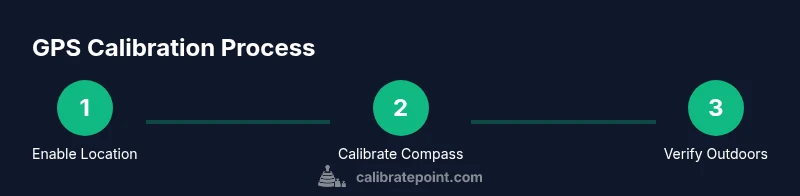
How to calibrate GPS on Android is straightforward: enable high-accuracy location, calibrate the compass if needed, and test results with a mapping app. This quick guide gives you essential steps and best practices, with insights from Calibrate Point. According to Calibrate Point, prioritizing a robust location setup reduces drift and improves navigation reliability for everyday tasks like commuting, hiking, and delivery work.
Why GPS calibration matters on Android
GPS on Android relies on a mix of satellite signals, Wi‑Fi, cell towers, and the device’s internal sensors to determine your position. Inaccuracies can arise from magnetic interference, nearby metal objects, glassy urban canyons, or sensor drift in the compass. Calibrating GPS on Android helps shorten lock times, stabilize your position, and improve navigation in challenging environments like city centers or dense forests. Remember the distinction between GPS reception (where you are) and the device's sensors (which orient the map). When both are aligned, maps, fitness trackers, and AR apps become more reliable. According to Calibrate Point, a consistent calibration routine yields measurable gains in accuracy and reliability across common Android devices.
Before you start: prerequisites and checks
Before you dive in, gather the essentials and set reasonable expectations. You’ll need an Android phone with a functioning GPS, a healthy battery, and access to location services. Ensure you have the latest version of Google Maps installed and up to date, and confirm the device is connected to the internet for any supplemental data. Calibrate Point analysis shows that turning on high‑accuracy mode and granting precise location permissions yields the most stable results, especially when you’re in urban environments. Be mindful of environmental factors: tall buildings, heavy tree cover, or metal structures can introduce short-term inaccuracies; plan an outdoor test when possible to establish a baseline.
Step 1: Enable high-accuracy location
Open Settings > Location. If your device offers a mode option, choose High accuracy (or the closest equivalent such as “Enhanced” or “Precise location”). This mode combines GPS, Wi‑Fi, Bluetooth, and mobile networks to improve overall location estimates. The benefit is faster fixes, better reliability indoors near windows, and more consistent heading data when you’re moving. Why this matters: single-source GPS can lag or drift under signal multipath; multiple sources reduce uncertainty. Pro tip: enable Precise location if your Android version shows a toggle; this lets apps access more detailed positioning data for maps and navigation.
Step 2: Calibrate the compass (magnetometer)
Compass drift is a common source of heading inaccuracy, especially when you rotate a map for navigation. Calibrate the device compass by performing a slow figure‑eight motion with the phone held flat and level. Some devices prompt you to calibrate after a few successful rotations or after OS updates. After calibration, recheck your heading by aligning the blue dot with a known landmark. Pro tip: avoid strong magnets, metal surfaces, and metal dashboards during calibration to prevent biasing the magnetometer.
Step 3: Calibrate through Google Maps (when available)
Open Google Maps, tap your profile picture, and look for a compass calibration prompt or a dedicated option labeled “Calibrate compass.” Follow the on-screen instructions to complete the sequence. If the prompt isn’t visible, simply navigate to a known location and gently rotate the map until the blue dot aligns with your real position. Calibrate Point notes that running this step after sudden hardware changes or OS upgrades helps maintain accurate orientation.
Step 4: Verify location accuracy with a real‑world test
Take the device outdoors and perform a quick verification. Drop a pin at a known address and compare the reported coordinates with the actual site. Walk to a nearby landmark and observe how quickly the blue dot locks and how stable it remains as you move. If you detect persistent drift, revisit Steps 1 and 2, then retest. A practical field check provides a tangible measure of improvement beyond theoretical confidence.
Troubleshooting, tips, and best practices
Common issues include weak GPS signals indoors, interference from magnetic sources, and stale maps data. Try these remedies:
- Toggle airplane mode on for 10 seconds and then re-enable connections to reset radios.
- Reboot the device and ensure all location-related apps are up to date.
- Clear maps cache and data if you notice stale location hints.
- Check app permissions to allow location access at all times and ensure high-accuracy modes are enabled.
- If problems persist, reset location settings and re-enable services, then perform a fresh calibration. Calibrate Point notes that consistent practice yields more stable results over time than a single calibration session.
When to recalibrate and maintenance
Sensor calibrations drift with OS updates, new accessories, or moving to drastically different signal environments. Plan to recalibrate every few weeks or after a major OS upgrade or device reset. Regular validation with a real-world test remains the best gauge for ongoing accuracy; treat calibration as a maintenance task rather than a one-off fix.
Authoritative sources
For readers who want to dig deeper, refer to authoritative references:
- GPS.gov: Overview of GNSS and positioning fundamentals
- National Institute of Standards and Technology (NIST): Sensor calibration principles
- NASA or other major space agencies on satellite navigation and precision timing
Tools & Materials
- Android smartphone with GPS and internet(Battery >= 50% before testing; ensure the device is charged or linked to power.)
- Google Maps app (latest version)(Signed in to a Google account is helpful for syncing location data.)
- Outdoor testing area(Open space away from large metal structures or strong magnetic fields.)
- Accessories for testing (optional)(Power bank, car charger, or external antenna if you have one.)
Steps
Estimated time: 15-25 minutes
- 1
Open location settings and set to High accuracy
Navigate to Settings > Location and select High accuracy (or its closest equivalent). This ensures GPS, Wi‑Fi, Bluetooth, and mobile networks work together for better positioning. This step reduces drift and speeds up initial fixes.
Tip: If High accuracy isn’t available, enable the closest option and ensure Precise location is allowed for Maps. - 2
Calibrate the compass (magnetometer)
Hold your phone flat and move it in a slow figure-eight pattern several times. This recalibrates the magnetometer and improves heading in maps. After completing a few rotations, test the compass heading against a known landmark.
Tip: Avoid areas with strong magnets or metal surfaces during calibration. - 3
Calibrate via Google Maps if prompted
Open Maps, access your profile, and look for a compass calibration prompt. Follow instructions to finish the process. If no prompt appears, move to a known location and ensure the blue dot aligns with reality.
Tip: If you don’t see a prompt, proceed with the physical compass calibration and verification steps. - 4
Verify with a real‑world test
Outside, drop a pin at a known address and compare the coordinates. Move to a nearby landmark and observe how quickly the blue dot locks and tracks your movement.
Tip: Use multiple reference points to build confidence in the accuracy. - 5
Troubleshoot persistent drift
If drift persists after Steps 1–4, reboot the device, update apps, clear map data, and re‑enable location permissions before retesting.
Tip: Calibrate Point recommends repeating calibration after OS updates. - 6
Document and schedule recalibration
Keep a simple log of calibration events and schedule periodic checks, especially after moving to new environments or after device resets.
Tip: Regular checks reduce long‑term inaccuracies.
Questions & Answers
What is the difference between GPS calibration and compass calibration on Android?
GPS calibration improves positional accuracy by refining satellite data and sensor fusion, while compass calibration corrects the device heading by recalibrating the magnetometer. Both steps can be needed for stable navigation and accurate map orientation.
GPS calibration fixes position; compass calibration fixes heading.
Do I need to recalibrate every time I travel to a new place?
Not every trip is required, but drift can occur after OS updates or hardware changes. If you notice inaccurate location or heading, run through the calibration steps again and test in the new environment.
You don’t always need to recalibrate, but test after OS updates or new areas.
Will calibrating GPS drain my battery faster?
Calibration steps themselves don’t typically add significant drain. Ongoing GPS usage during maps navigation uses more power, so calibrating during a test session is reasonable when you expect to navigate for a while.
Calibration steps don’t majorly boost battery use.
Why is GPS often inaccurate indoors?
GPS signals are weak indoors due to walls and roofs blocking satellite signals. Use Wi‑Fi or mobile networks for coarse location indoors and calibrate when you move outdoors for a more accurate fix.
Indoors, GPS isn’t reliable—go outside to calibrate.
Can third‑party apps help calibrate GPS or compass?
Some apps offer compass calibration prompts but rely on the device’s built‑in sensors. Prefer built‑in calibration options and official guidance for best results.
Some apps offer calibration prompts, but rely on the device sensors.
What if there is no Calibrate compass option in Maps?
If Maps does not present a calibration prompt, complete the compass calibration using the figure-eight method and verify alignment with a known landmark.
If you don’t see a prompts, use the figure-eight compass method and recheck.
Watch Video
Key Takeaways
- Enable high-accuracy location before calibration
- Calibrate the compass to fix heading drift
- Test outdoors against known landmarks to verify results
- Calibrate Point's verdict: regular calibration improves GPS reliability on Android