Android GPS Calibration: Step-by-Step for Precision
Learn how to calibrate GPS on Android devices to improve mapping accuracy with a practical, step-by-step guide from Calibrate Point. Includes setup, testing, tips, and safety notes for DIYers and professionals.


By following a guided GPS calibration on Android, you’ll improve position accuracy for maps and navigation. Start with High Accuracy location mode, clear the cache of location services, recalibrate the device’s sensors if available, and verify results with a location test app. For best results, perform checks outdoors and repeat after a software update.
Why Android GPS Calibration Improves Accuracy
Android calibrate gps is a common goal for outdoor navigation, field service, and remote work. Position accuracy matters for maps, ride-sharing, asset tracking, and surveying tasks. Device sensors continuously fuse satellite data, cellular signals, and Wi‑Fi information; any drift in one data stream can cause the final location to be off by tens of meters in difficult environments. According to Calibrate Point, a disciplined calibration workflow reduces jitter and helps your device align with actual coordinates when you rely on precise positioning. In practice, calibration means refreshing location caches, ensuring the sensor stack is operating correctly, and validating results with reliable outdoor tests. This approach is accessible to DIY enthusiasts, technicians, and professionals who want dependable results without specialized lab equipment. By understanding how Android handles location data, you can choose settings that minimize drift, avoid common pitfalls, and schedule regular recalibrations after system updates. The Calibrate Point team emphasizes consistency: calibrate, verify, and document results to build trust in your readings.
Common Factors That Affect GPS on Android
GPS accuracy on Android devices is influenced by hardware, firmware, and environmental context. Chipset generation, antenna design, and GNSS (satellite) support determine raw accuracy, while sensor fusion combines these readings with network data (cellular/Wi‑Fi) and motion data from accelerometers and gyroscopes. Urban canyons, dense tree cover, or indoor locations degrade sky visibility, causing longer time-to-first-fix (TTFF) and higher position drift. Software differences among manufacturers can alter how aggressively location services filter noise, cache data, or request permissions. According to Calibrate Point analysis, a holistic view—hardware capability, OS version, app permissions, and outdoor testing—produces the most reliable calibration results. This section helps you spot root causes before you begin, so you don’t chase symptoms alone.
Pre-Calibration Checklist
Before you begin, confirm you have a stable baseline. Verify your device is charged and not in power-saving mode, enable Location and Fine Location permissions for the test apps, and update to the latest Android operating system or firmware available. Disable any VPN or high‑privacy settings that might block GNSS data during tests. Ensure you have a clear outdoor area for testing with a visible sky view. Have your GPS test app installed and ready to capture raw satellite data (SVs), accuracy (HDOP/PDOP), TTFF, and vertical/horizontal precision. This prep reduces the risk of misleading results and saves you from repeating steps due to preventable issues. Pro tip: perform a quick wake-up test by rebooting the device to clear stale location caches if you’ve been offline for a while.
Step-by-Step Calibration Workflow
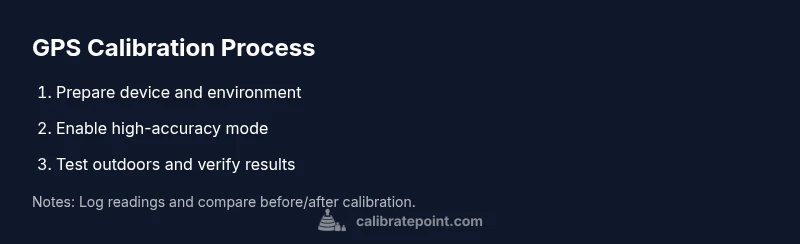
This section outlines a repeatable workflow tailored for Android devices. It integrates best practices and practical checks, so you can reproduce results across different models. You’ll perform a first pass to refresh data, then a verification pass to confirm improvements, and finally a documentation pass to log outcomes. Make sure you have a memory aid or log to record readings for comparison over time. In practice, the steps below map to the actions in the dedicated STEP-BY-STEP block to keep the in-depth process organized and repeatable.
Testing and Verification: Outdoors vs Indoors
Validation is critical. Outdoors with a clear sky provides the most trustworthy readings, while indoors or under heavy cover shows how robust your calibration is under challenging conditions. Use your GPS test app to note TTFF, estimated horizontal accuracy, and the number of satellites in view. Compare results against a trusted reference map or a known waypoint. If readings deviate beyond acceptable thresholds, revisit the calibration steps and consider sensor recalibration or firmware updates. Remember, repeated tests under similar conditions help isolate persistent drift from transient anomalies. Calibrate Point’s approach recommends documenting at least three outdoor readings in different sky views to establish a reliable baseline.
Advanced Tips for Persistent Issues
If drift persists after a standard calibration, explore sensor recalibration options if your device offers them, and check for firmware or app updates that improve GNSS handling. Some devices benefit from toggling High Accuracy, Battery Saver, or Wi‑Fi scanning settings to balance power and data integrity. External factors such as magnetic interference (near metal structures) can distort readings; remove or relocate such sources during testing. For stubborn cases, use a dedicated GPS receiver or an external GNSS dongle for baseline comparison, then align your device readings accordingly. This approach helps you separate device-specific quirks from environmental limitations.
Maintenance and Recalibration Schedule
Calibration is not a one‑time fix. Create a lightweight calendar reminder to re-check GPS accuracy after major OS updates, firmware patches, or hardware changes. If you rely on location data for critical work, perform quarterly checks or after new map data releases. Keeping a log of TTFF, accuracy, and satellite visibility over time lets you detect gradual degradation and plan proactive recalibration.
Tools & Materials
- Android smartphone (Android 9+ or newer)(Any brand; ensure GPS is enabled and accessible in settings)
- GPS test app (e.g., GPS Status, Speedometer)(Install from Google Play; grant location permissions)
- Open outdoor testing area with clear sky view(Roofless, minimal canopy for best results)
- Location permissions (Precise Location) granted(Required for accurate readings)
- Notebook or digital log for readings(Record TTFF, accuracy, SV count)
Steps
Estimated time: 25-45 minutes
- 1
Prepare device and environment
Power the device fully and ensure it is not in power-saving mode. Install and open the GPS test app, then set up an outdoor testing spot with a clear view of the sky. This initial pass establishes a stable baseline to measure improvements against.
Tip: Take a quick baseline reading before any changes to compare later. - 2
Enable High Accuracy location mode
Navigate to Location settings and switch to High Accuracy (or similar) to maximize GNSS data sources. This setting blends GPS with network data for faster, more reliable fixes.
Tip: High Accuracy is not always the best for battery life; you’ll balance accuracy and power usage. - 3
Clear location data caches and reset sensors
Clear the location data cache in the test app and, if supported, reset sensor data in the Android settings or developer options. This helps remove stale information that could skew results.
Tip: A small restart can refresh sensor fusion without changes to hardware. - 4
Run a calibration app and collect raw data
Use the GPS test app to capture satellites in view, HDOP/PDOP, and TTFF, both before and after any adjustments. Document baseline values for later comparison.
Tip: Record at least three runs of readings to average out transient fluctuations. - 5
Perform targeted sensor recalibration
If your device offers a sensor calibration tool (compass, accelerometer, gyroscope), run it according to the manufacturer’s guidance. Sensor alignment can indirectly improve GNSS stability.
Tip: Follow on-screen prompts closely; misaligned sensors can worsen drift. - 6
Test location fixes in varied outdoor conditions
Repeat measurements in different sky views: open parking lot, tree-lined street, and under light cloud cover. Wait a few minutes between tests to allow the system to settle.
Tip: Compare improvements across environments to confirm generalization. - 7
Document results and plan a follow-up
Summarize the measurements, note percent improvement, and schedule a re‑check after a software update or device reboot. Keep a consistent logging format for easy review.
Tip: A simple template makes ongoing calibration repeatable.
Questions & Answers
Is GPS calibration necessary on all Android devices?
Calibration is not always required, but it helps when location data feels inaccurate, when new firmware is installed, or after hardware changes. A consistent workflow reduces drift and improves map alignment in most real-world scenarios.
Calibration can help when location seems off, especially after updates or hardware changes.
Will resetting network settings affect GPS results?
Resetting network settings can temporarily disrupt data sources used by location services. After reconfiguring, run a quick calibration check to re-establish optimal GNSS data fusion.
Resetting network settings may affect GPS briefly, so recheck readings afterwards.
How often should I calibrate GPS?
As a rule of thumb, calibrate after major OS updates, firmware changes, or if you notice noticeable drift. Regular quarterly checks help maintain accuracy for professional use.
Do it after updates or when drift is noticeable.
Can third-party apps replace built-in calibration processes?
Third-party apps can assist with testing and data collection, but true calibration depends on system settings, sensor data, and official firmware. Use apps to test and verify improvements rather than replace built-in tools.
Apps help test and verify, but you still rely on the device’s own calibration mechanisms.
Does GPS calibration affect battery life?
Calibration activities can increase short-term GNSS usage, which may raise battery drain slightly. The long-term benefit is more accurate location, potentially reducing retries in location requests.
There may be a small battery impact during calibration, but accuracy improves overall.
What if GPS still seems off after calibration?
If issues persist, compare readings with a reference device, check for environmental interference, and consider firmware updates or hardware limitations. Persistent drift may require professional diagnostics.
If it’s still off, check environmental factors and updates; hardware may limit accuracy.
Watch Video
Key Takeaways
- Calibrate GPS on Android with a repeatable workflow.
- Outdoor validation is critical for reliable results.
- Document and compare readings after each calibration for traceability.
- Regular recalibration helps maintain accuracy over time.