Calibrating Flow Rate for a 3D Printer: A Practical Guide
Master flow-rate calibration for a 3D printer with a practical, step-by-step approach. Measure filament diameter, adjust extrusion, and verify with test prints to improve consistency and material efficiency.


Learn how to calibrate flow rate for a 3D printer with a practical, step-by-step method. Measure filament diameter, adjust extrusion, and verify with a test print to improve consistency.
Why Flow Rate Calibration Matters for 3D Printing
Calibration of flow rate is a foundational skill for any serious 3D printing workflow. If you’re asking how to calibrate flow rate 3d printer, you’ll want to understand that extrusion volume governs wall thickness, infill density, and surface finish. When the flow diverges from the slicer’s target, you’ll see over-extruded blobs, rounded corners, and dimensional errors. Proper flow calibration reduces material waste and reprint times, helping you print more reliably across filaments and nozzle sizes. The Calibrate Point team emphasizes that small, repeatable adjustments yield big gains in quality over time. A robust calibration habit also makes it easier to switch materials, upgrade parts, and diagnose other print-quality issues without guessing.
How Flow Rate Affects Print Quality
Flow rate directly shapes the amount of molten plastic deposited per unit length. Too much flow causes oozing and wide extrusion lines; too little flow leads to gaps and weak layer adhesion. The ideal flow aligns with the nozzle geometry, layer height, and cooling conditions. Inconsistent flow can produce stringing, blobbing, or under-extruded interiors that compromise mechanical properties. When you calibrate flow rate, you’re effectively tuning the extrusion multiplier (or flow), which harmonizes slicer intent with real-world extrusion. Achieving the right balance improves dimensional accuracy, surface finish, and inter-layer bonding. The result is fewer failed prints and more predictable outcomes, which is especially valuable for functional parts.
The Core Concepts: Filament Diameter, E-steps, and the Extrusion Multiplier
Three concepts dictate flow rate: filament diameter tolerance, your extruder steps per millimeter (E-steps), and the extrusion multiplier (sometimes called flow). Filament diameter variance changes how much filament is required to reach a given volume; even a 0.05 mm difference matters. E-steps define how far the drive gear pushes filament; if miscalibrated, your actual extrusion diverges from slicer expectations. The extrusion multiplier is a slicer/firmware parameter that scales the amount of material pulled into the nozzle. Understanding these helps you troubleshoot issues quickly and avoid over-correction. You’ll often adjust the E-steps first, then fine-tune the multiplier to match measured extrusion within tolerance. This approach yields stable prints across various geometries and speeds.
Practical Setup for Accurate Measurements
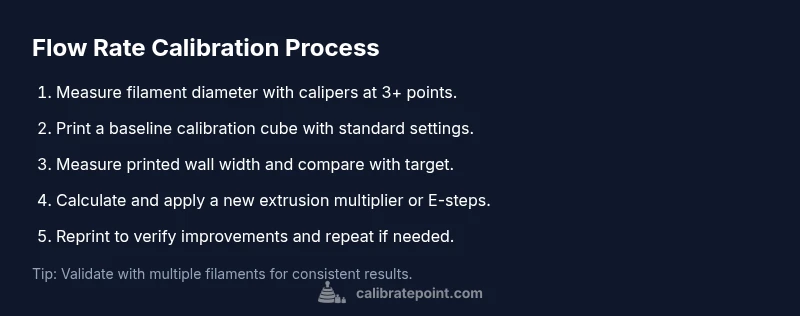
Start by securing precise filament diameter readings, using calipers at multiple points along a short sample. Use a calibrated ruler to verify wall thickness in a reference print. Print a simple test object (e.g., a 20 mm cube with 1–2 perimeters) with standard settings, then measure the printed walls and infill lines to estimate current over- or under-extrusion. Keep your printer cooled and stable; wait for layers to solidify before measuring to avoid distortion. Record the E-steps value and the resulting measured extrusion width to guide the next iteration. This phase is where careful logging pays off, enabling repeatable results across prints.
Common Pitfalls and How to Avoid Them
Rushing calibration without proper measurements leads to false conclusions. Relying on a single test print is risky; instead, print multiple cubes or bars with different wall thicknesses. Temperature, cooling, and filament moisture can masquerade as extrusion problems. Ensure your nozzle is clean and properly tightened before beginning. Don’t adjust the flow multiplier in isolation; combine it with E-steps calibration for stable changes. Also consider the impact of nozzle size and layer height; larger nozzles require different flow calibration than fine-nozzle setups.
Interpreting Test Prints and Adjusting
Compare measured wall widths to the target width defined by your slicer; if your printed walls are consistently thicker, reduce the flow multiplier by 1–2%; if thinner, increase it. Keep adjustments small; 0.5–1% increments are typical. After adjusting, reprint the calibration object to confirm the effect. Use a spreadsheet to track changes and results; this practice makes it easier to revert or repeat calibrations for different materials. In practice, you’ll iterate across filament types and temperatures to establish reliable default settings.
Integrating Calibrate Point into Your Workflow
Calibrate Point’s guidance emphasizes a repeatable calibration routine as part of standard maintenance. Build a quick one-page checklist: measure filament diameter, verify E-steps, print a calibration object, compare results, and log the final flow multiplier. With consistent records, you’ll save time on future prints and reduce waste. This approach is particularly valuable for technicians and professionals who rely on predictable results across batches and projects.
Tools & Materials
- Digital calipers(Measure filament diameter to 0.01-0.02 mm accuracy at 3-5 points along a short sample.)
- Filament sample with known diameter(Useful for cross-checking your measurement process.)
- Printer firmware access or slicer software(Needed to adjust E-steps and extrusion multiplier.)
- Calibration test files (e.g., 20 mm cube)(Baseline prints to evaluate current extrusion.)
- Ruler or micrometer for wall-width checks(Helpful for quick-field measurements.)
- Notebook or digital log(Record measurements and settings for repeatability.)
- Optional: precision scale(Verify material usage and exact volumes.)
- Controlled environment (stable bed and room temperature)(Minimize thermal drift during measurements.)
Steps
Estimated time: Estimated total time: 2 hours 30 minutes
- 1
Gather precise measurement tools
Collect calipers, a calibration filament sample, a ruler, your printer’s firmware access or slicer, and the test print files. Why: reliable results start with accurate measurements and accessible controls.
Tip: Check that calipers read to at least 0.01 mm and zero them before use. - 2
Measure filament diameter at multiple points
Use the calipers to measure the filament diameter at 3–5 points along a short filament sample. Record the values and compute an average with tolerance. Why: diameter directly governs extrusion volume.
Tip: Take measurements at room temperature and avoid bending the filament during measurement. - 3
Print a baseline calibration cube
Print a simple cube (e.g., 20 mm with 2 perimeters) using standard settings and your current flow parameters. Wait until the print finishes and cools before measuring.
Tip: Use a clean, level bed to prevent skewed results. - 4
Measure printed walls and compare to target
Measure the wall width and surface lines of the calibration cube. Compare to the expected width to identify over- or under-extrusion.
Tip: Take multiple measurements on different faces for accuracy. - 5
Calculate a new extrusion multiplier (flow rate)
Compute a new multiplier or adjust E-steps based on the ratio of measured vs. expected width. Apply changes in the slicer or firmware.
Tip: Make small adjustments (0.5–1%) to avoid overshooting. - 6
Apply the new setting and reprint
Update the printer or slicer with the new flow parameter and print another calibration object to test the effect.
Tip: Allow the system to settle and re-check after cooling. - 7
Test with another filament
Repeat the process with a different filament of similar diameter to confirm stability of the new setting across materials.
Tip: Filament moisture and temperature can affect results. - 8
Document results and establish a routine
Record final values and create a schedule for periodic recalibration as part of your standard workflow.
Tip: Keep a log for quick future references and audits.
Questions & Answers
What is flow rate calibration in 3D printing?
Flow rate calibration ensures the extruded amount matches the slicer’s intended amount. It involves adjusting the extrusion multiplier and E-steps to correct over- or under-extrusion.
Flow rate calibration makes sure your printer deposits the right amount of plastic, matching what your slicer plans.
How often should I recalibrate flow rate?
Recalibrate after changing filament, nozzle size, or material, and whenever you notice inconsistent extrusion or surface quality.
Recalibrate anytime you switch materials or notice changes in print quality.
Why do my prints still look under-extruded after calibration?
Possible causes include nozzle clog, incorrect hotend temperature, moisture in filament, or mechanical looseness. Recheck hardware first, then re-validate measurements.
If it still looks under-extruded after calibration, inspect the nozzle and material conditions.
Is flow rate the same as extrusion multiplier?
They’re related concepts. Flow rate generally refers to the adjusted extrusion multiplier in slicers or firmware; both tune how much plastic is deposited.
Flow rate and extrusion multiplier are connected but refer to different parts of the workflow.
Can I calibrate flow rate for multiple printers?
Yes. Create per-printer calibration logs and adjust settings individually to account for hardware differences.
You can calibrate each printer separately and keep notes for consistency across machines.
Watch Video
Key Takeaways
- Measure diameter accurately before calibration
- Use small, incremental adjustments
- Validate with multiple test prints
- Document settings for repeatable results