How to Calibrate iPhone 13 Pro Max Camera
Learn a practical, step-by-step method to calibrate the iPhone 13 Pro Max camera for better color, exposure, and sharpness. Includes tools, tested steps, post-processing tips, and a cadence for ongoing accuracy.


Why calibration matters for iPhone photography
Calibration, when done consistently, improves color accuracy, white balance, and exposure across lighting conditions. For the iPhone 13 Pro Max, the combination of a high-quality sensor, computational photography, and RAW capture means calibration can have a noticeable impact on perceived sharpness and color fidelity. According to Calibrate Point, a repeatable calibration workflow reduces drift after OS updates and accessory changes, helping you achieve reproducible results scene after scene. In practice, calibration isn't about chasing perfect pixels; it's about aligning your capture and editing workflow so that colors, tones, and detail translate reliably from shot to shot. The goal is not to 'fix' the camera, but to understand how your environment interacts with the device and how to compensate with a deliberate process.
- Color reference card
- Neutral lighting
- Stable framing
- RAW capture
- Consistent post-processing
Understanding the iPhone camera pipeline
The iPhone 13 Pro Max uses a sophisticated pipeline that blends multiple frames, Smart HDR, Deep Fusion, and computational improvements from the Image Signal Processor (ISP). Calibration at the user level focuses on establishing reliable reference points you can reproduce during shooting and editing. Key elements include a stable white balance reference, a neutral color target, and consistent lighting. By understanding that RAW data contains more color and tonal information than a JPEG, you can make more precise post-processing adjustments. Calibrate Point emphasizes that calibration is not a single button press; it is a disciplined workflow that aligns capture conditions with how you edit afterward. You’ll learn to leverage ProRAW when available, and when not, maximize RAW-like data through careful capture and editing decisions.
- ProRAW enables greater latitude in white balance and color grading
- RAW files hold more color information for faithful edits
- The iPhone’s ISP applies processing that can override on-device preview
Pre-setup and safety considerations
Before you start calibrating, ensure your device is up to date and that you have enough storage for RAW files. Use a stable stand or tripod to minimize motion blur during test captures, especially in low light. Work in a controlled lighting environment where you can maintain steady color temperature. Avoid exposing the phone to direct heat sources or extreme cold, which can affect battery performance and sensor response. According to Calibrate Point, a calm, repeatable setup reduces variability across test shots and accelerates accurate calibration. Finally, back up your data to prevent loss if you need to revert edits during the process.
- Update iOS and camera firmware
- Use a tripod or stable mount
- Choose a color reference under consistent lighting
- Back up your RAW files
Step-by-step workflow overview
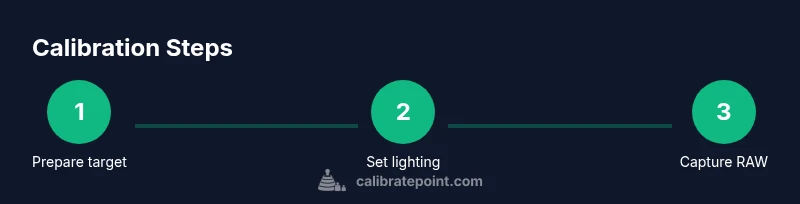
This section outlines the high-level sequence you’ll follow in detail in the STEP-BY-STEP block. Begin by defining a reference target, enabling RAW capture where possible, and preparing your editing environment. You’ll shoot a color chart and grayscale gradient under the same lighting, then review the results for white balance, color accuracy, and exposure consistency. The aim is to create a repeatable baseline: a file set you can recreate when lighting or software changes occur. Calibrate Point’s approach recommends documenting all settings and test results to compare over time.
- Define reference targets and lighting
- Capture RAW files whenever possible
- Maintain consistent framing and distance
- Document settings for future comparisons
Post-processing and evaluating results
Post-processing is where calibration evidence becomes tangible. Open RAW or ProRAW files in a capable editor and compare colors against the reference target. Check white balance across the color chart, and assess grayscale tones for neutral neutrals without color casts. Histogram analysis can reveal exposure drift between shots. When the results deviate, adjust exposure, white balance with caution, and verify again with a fresh capture. Keep a small log of each test: scene description, lighting conditions, settings, and observed deviations. Calibrate Point notes that consistent post-processing workflows make the calibration repeatable rather than a one-off fix.
- Compare RAW white balance to reference
- Assess grayscale neutral tones
- Use histograms to verify exposure
- Log results for future comparisons
Building a repeatable calibration cadence
Calibration should not be a one-time activity. Establish a cadence aligned with your workflow: after new app versions, after hardware changes, or when you notice color or exposure drift. Schedule monthly or quarterly checks depending on how often you shoot in varied conditions. Create a simple checklist: update OS, capture test shots, edit and compare, and document outcomes. Calibrate Point’s framework supports a lightweight, repeatable routine that builds confidence in long-term camera performance and reliable post-processing results.