How to Calibrate Logitech G920: Step-by-Step Guide
Learn how to calibrate the Logitech G920 wheel and pedals for accurate steering and responsive braking on PC and Xbox. This guide covers firmware updates, dead zones, pedal range, and testing across titles.


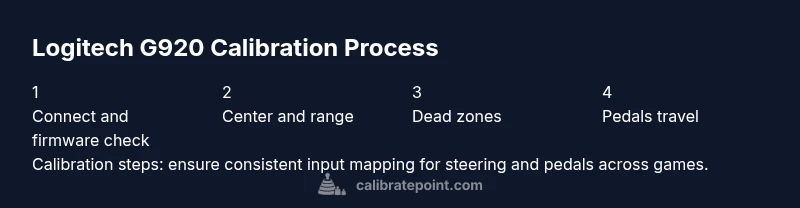
By the end of this guide, you will calibrate the Logitech G920 steering to remove dead zones, set a linear response, and align pedal travel for accurate in-game input. The process includes updating firmware, adjusting wheel alignment, and mapping pedals in Windows or the Logitech Gaming Software. Follow the step-by-step actions and verify with in-game tests.
Why calibrate the Logitech G920
According to Calibrate Point, calibration is essential to align your hardware's physical center with its software input so your car tracks true in every race. The Calibrate Point team found that small inconsistencies—like a slight left bias or uneven pedal travel—can compound during long sessions and compromise lap times. Calibrating the G920 removes dead zones, ensures steering is proportional to wheel motion, and makes pedal response predictable across titles. When you calibrate, you create a repeatable baseline you can trust in different games and on different systems. This consistency is especially important for racing sims that rely on precise steering and throttle/brake control to reproduce real-world handling dynamics.
What you’ll need
Before you begin, gather the essentials and set up a stable workspace. Use a direct USB connection to your PC or Xbox, a flat surface for the wheel, and a comfortable seat with a stable stance. A clean desk helps center the wheel and pedals physically, which makes the software-based calibration more accurate. You’ll also want access to either Logitech G Hub or the older Logitech Gaming Software (LGS) to run firmware updates and calibration routines. Having a timer handy can help you track how long each phase takes and ensure you don’t rush the alignment process.
Firmware and software prerequisites
Calibration accuracy depends on up-to-date firmware and calibration software. Start by launching Logitech G Hub (preferred for modern setups) or LGS if you’re on older hardware. Check for any available G920 firmware updates and install them before proceeding. Updated firmware fixes known drift issues, improves wheel centering, and ensures pedal travel maps correctly to in-game inputs. If you encounter problems during calibration, reconnect the wheel, reboot the software, and recheck that you’re using a direct USB port rather than a hub. These steps create a clean baseline for precise tuning.
Calibrating steering: range and center
The steering calibration defines how far the wheel can turn before the software recognizes end points and how well the wheel centers itself. Start with a clean, centered wheel and rotate fully left then fully right a couple of times to establish end stops. In the software, set the steering range to your hardware’s actual travel and re-center using the wheel’s center mark. If you notice the wheel drifting away from the center after a test, repeat the range calibration and re-center until the wheel’s center aligns with the on-screen pointer. A precise center is critical for predictable handling and consistent steering input across games.
Calibrating pedals: travel, saturation, and response
Pedal calibration ensures your grip on the throttle and brake translates to proportional wheel input. In the calibration tool, observe the pedal travel from rest to full travel and map the maximum range to full input in-game. If you experience pedal dead zones where a light press doesn’t register, adjust the pedal dead zone slider until the wheel responds consistently from the first millimeter of travel. For braking, aim for a linear response: small increments should produce small increases in braking force. Keep pedals on a flat surface to avoid shifts that could affect travel and response. After adjusting, perform a quick test by pressing lightly, mid-range, and fully to confirm a smooth progression of inputs.
Verification: in-game testing and cross-title checks
Calibration isn’t complete until you verify performance in at least one title that supports wheel input. Start a simple driving or test map and look for a neutral wheel center with no drift and consistent steering; check that full lock corresponds to the wheel’s mechanical ends. Move to a different title if possible to ensure the calibration holds across software environments. If you notice discrepancies in certain games, revisit the steering range and pedal travel settings, because some titles apply different sensitivity curves that can highlight minor misalignments. Document your baseline measurements so future recalibrations are quicker and more precise.
Maintenance and troubleshooting
Calibrations aren’t a one-and-done task. Regular checks help maintain reliability, especially after driver updates or hardware changes. If you experience drift after a fresh install, re-run firmware checks, reset to center, and redo the range calibration. Keep the wheel and pedals clean and dry; dust and moisture can subtly affect sensor accuracy. If issues persist, try a different USB port or revert to a previous firmware version as a diagnostic step. Maintaining a consistent workspace height and angle also reduces variability in input readings.
Tools & Materials
- Logitech G920 wheel with pedals(Ensure wheel is clean and firmware up-to-date before calibrating.)
- Windows PC or Xbox console(Used to run calibration software and test inputs.)
- USB cable and spare USB port(Direct connection preferred; avoid USB hubs when calibrating.)
- Logitech G Hub or Logitech Gaming Software (LGS)(Necessary for firmware updates and calibration workflows.)
- Stable desk setup(A solid, non-slip surface reduces movement during calibration.)
- Optional test game or racing sim(Helpful for cross-title verification of calibration.)
Steps
Estimated time: 25-40 minutes
- 1
Connect the G920 and open calibration software
Attach the wheel to a direct USB port, power on the wheel, and launch Logitech G Hub or LGS. This step establishes the active device profile so the software can read wheel and pedal inputs for calibration.
Tip: Use a direct USB port rather than a hub to prevent intermittent input readings. - 2
Check for and apply firmware updates
In the calibration software, check for any firmware updates and install them if prompted. Updated firmware improves centering, input precision, and pedal mapping stability.
Tip: If no update is shown, close and reopen the software or reconnect the wheel to refresh the device state. - 3
Center the wheel and verify physical alignment
Physically center the steering wheel, then use the software’s centering function to align on-screen and real-world centers. This creates a consistent baseline for subsequent range calibration.
Tip: Mark the wheel center with a small, non-damaging indicator to quickly verify alignment during future sessions. - 4
Calibrate steering range
Rotate the wheel fully left and right to locate true end points in the software, then set the range to match your wheel’s physical travel. A precise end-point mapping reduces overshoot and improves precision.
Tip: If the wheel feels biased toward one side, repeat the end-point detection until symmetry is achieved. - 5
Set steering dead zones
Adjust the steering dead zone so that small, unintentional wheel movements don’t generate input. This helps prevent twitchy behavior when your hands rest on the wheel and in menus.
Tip: Start with a small dead zone and reduce gradually until you notice a slight free-play before input registers. - 6
Calibrate pedals travel and response
Map the full pedal travel from rest to full input for both throttle and brake. Ensure zero input at rest and linear response through the travel range for predictable braking and acceleration.
Tip: Test light, medium, and full presses in a test map to confirm consistent scaling across the pedal travel. - 7
Verify in-game performance
Run a quick test in a racing game or test map to confirm centering, range, and pedal response. Look for stable wheel center and consistent input mapping across turns and braking.
Tip: Use a simple straight-line corridor test to spot drift or non-linear pedal behavior quickly. - 8
Document baseline and plan maintenance
Record the calibrated settings as a baseline and schedule re-checks after driver updates or hardware changes. Keeping notes speeds up future recalibrations and ensures consistency across sessions.
Tip: Note the exact firmware version, range values, and dead zone settings for quick future reference.
Questions & Answers
Do I need to update firmware before calibrating the G920?
Yes. Updating firmware helps ensure reliable centering and accurate input translation. Check for updates in G Hub or LGS before starting calibration.
Yes. Update the firmware when prompted to improve centering and input accuracy before calibrating.
What should I do if the wheel drifts after calibration?
Recenter the wheel in the calibration software, redo the steering range detection, and verify the wheel center alignment. If drift persists across games, recheck end-point values and dead zones.
If it drifts, re-center, redo the range, and verify the center alignment. If persists, adjust the end-points and dead zones.
Can I calibrate the G920 on Xbox without a PC?
Yes, you can calibrate via the G920’s onboard prompts or using the Xbox-compatible calibration flow in the console settings, but software-based fine-tuning is often easier on a PC with G Hub or LGS.
Yes, you can calibrate on Xbox, but PC software makes fine-tuning easier.
How often should I recalibrate the G920?
Calibrate whenever you notice drifting, after hardware changes, or after major driver updates. Regular checks every few months help maintain precision.
Calibrate when you notice drift, after changes, or after updates. Regular checks help keep precision.
Is G Hub required for calibration?
G Hub is not strictly required, but it simplifies firmware updates and calibration workflows. LGS can also handle basic calibration tasks on older setups.
G Hub makes calibration easier, but LGS can work if you’re on older hardware.
What if I can’t find a valid calibration profile for multi-title use?
Create a robust baseline using the steps in this guide, then save separate profiles if your games require different sensitivity curves. Re-test after switching titles.
Create a solid baseline and save separate profiles for different games if needed.
Watch Video
Key Takeaways
- Calibrate in a clean setup with up-to-date firmware.
- Center the wheel and map exact end points for accurate steering.
- Set dead zones to eliminate unintended inputs without sacrificing responsiveness.
- Calibrate pedals for a linear, proportional response across travel.
- Test across titles to ensure calibration holds beyond a single game.