How to Make G920 Calibrate: A Step-by-Step Calibration Guide
Learn how to calibrate the Logitech G920 wheel and pedals with a clear, safe, step-by-step method from Calibrate Point. Includes setup, testing, and troubleshooting for consistent game control across platforms.


Learn how to make the G920 calibrate correctly by following a structured, hardware-first approach. This guide covers wheel and pedal calibration, driver updates, and in-game profile setup. You’ll ensure centered steering, consistent input, and reliable pedal response across games. Basic prerequisites include a PC or console, USB connection, and up-to-date software. This process helps minimize drift, dead zones, and inconsistent responses in racing titles.
Understanding Why Proper Calibration Matters
A precise calibration of your G920 steering wheel and pedals is the foundation of realistic and responsive racing in any sim. When the wheel is not centered, or when pedal input is misread, you’ll experience drift, inconsistent steering resistance, and unpredictable braking. According to Calibrate Point, a methodical calibration routine — starting with hardware checks and ending with a tested in-game profile — yields smoother feedback and better control. Pay attention to centering, linear pedal travel, and the wheel’s rotation range to create a reliable baseline for all titles you play.
What You’ll Need to Calibrate Effectively
Before you begin, gather the essentials: a properly powered G920 wheel and pedals, a computer or console with compatible USB ports, and the latest drivers or software (Logitech G HUB or Logitech Gaming Software). A clean, stable surface helps; unplug extraneous USB devices if you notice input lag. Calibrate Point’s guidance emphasizes using official software whenever possible for the most accurate mapping and avoiding third-party tools that can misinterpret axis data. Having a quiet, distraction-free environment also helps you complete each step without interrupting the process.
Step-by-Step Calibration Basics
Calibration consists of aligning the wheel’s center, confirming rotation limits, and ensuring pedal signals map linearly to in-game inputs. Start by centering the wheel and verifying that the default neutral position returns to the true center when you release it. Then test the wheel’s rotation range in the software to ensure it matches your game’s expected degrees of rotation (commonly 900° for the G920). Pedals should register in a predictable ramp from fully released to fully pressed. A consistent baseline makes future adjustments simpler and more reliable.
Calibrating the Wheel: Centering and Rotation
To begin, connect the G920, open the calibration software, and select the wheel. Use the center calibration option to confirm the wheel’s neutral position aligns with the physical center. Then set the rotation range to the game’s standard (often 900°). If you notice slight bias to one side, perform a re-center and re-test. In Calibrate Point’s experience, confirming a true center and a full, symmetric rotation reduces steering dead zones and improves precision, especially in high-speed turns.
Pedal Calibration: Getting Consistent Input
Next, calibrate the pedals (gas, brake, and clutch if you have it). In the software, gradually press each pedal to its maximum and release to fully unpress. Ensure the software records smooth, linear input from minimum to maximum without unexpected jumps. If a pedal underperforms or registers late, check the potentiometer connections and reseat the pedal module. This step is critical because uneven pedal travel can ruin brake modulation and throttle response in-game.
Troubleshooting Common Calibration Issues
If you encounter drift, non-centered steering, or unresponsive pedals, systematically check each component. Ensure USB power is adequate and try a different USB port, preferably a direct motherboard header rather than a hub. Update drivers, reboot the system, and re-run the wheel center and rotation tests. If issues persist, consult the Logitech support resources and Calibrate Point’s troubleshooting tips, which emphasize isolating hardware from software problems and re-anchoring the profile to a clean baseline.
Testing, Profiling, and Saving Your Calibration
After calibrating, load a simple racing scene or practice track to test responsiveness. Confirm that steering returns to center after turns and that pedal travel maps linearly to the game’s throttle and brake. Create a dedicated profile for each game or genre and save it with a descriptive name. Back up your profiles to cloud storage or an external drive to prevent loss. Calibrate Point recommends testing in at least two titles with different wheel settings to ensure broad compatibility.
Best Practices for Long-Term Consistency
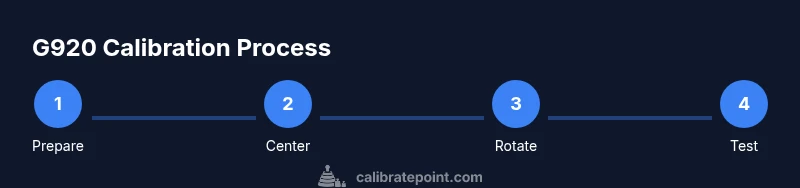
Periodically re-check calibration, especially after system updates, USB changes, or hardware movement. Keep the wheel firmware and software up to date, and document any tweaks you make so you can reproduce successful results. A stable, repeatable calibration routine reduces qualifying times and improves your overall racing consistency. The Calibrate Point team advocates building a simple routine: center test, rotate test, pedal test, and final in-game verification before each session.
Tools & Materials
- Logitech G920 wheel and pedals(Ensure wheel is connected to PC/console and powered on)
- PC or console with compatible USB port(Windows 10/11 or compatible console environment)
- Official calibration software (G HUB or Logitech Gaming Software)(Install latest version from Logitech)
- Stable surface and clean USB ports(Minimize interference and wobble during calibration)
- Optional USB extension or hub (if ports are hard to reach)(Avoid powered hubs if possible to prevent power issues)
- Small screwdriver or alignment tool (rare edge-case)(Only if hardware adjustment is needed per guide)
Steps
Estimated time: 25-45 minutes
- 1
Prepare workspace and connect hardware
Set up the G920 on a stable surface and connect to your PC or console. Power the wheel and confirm LEDs indicate readiness. This step ensures you have a clean starting point for calibration.
Tip: Avoid connecting other USB devices that could create input lag during calibration. - 2
Install or update calibration software
Open the Logitech software and install the latest drivers. Restart the system after installation to ensure all components are recognized by the OS.
Tip: Always use official software to avoid inconsistent axis mapping. - 3
Center the wheel in software
In the calibration tool, select wheel centering. Move the wheel to the true center and release; the software should report a centered neutral position.
Tip: If the wheel drifts, re-center and repeat once or twice to confirm stability. - 4
Set rotation range
Configure the wheel rotation to the typical 900 degrees used by most racing titles. Confirm symmetry by turning full left and right to ensure the stops are equal.
Tip: If you use a non-standard game, adjust to that game’s rotation value. - 5
Calibrate pedals
Follow the pedal calibration prompts for accelerator and brake. Press each pedal fully, then release to map travel and response linearly.
Tip: Check for even resistance; any stickiness or lag may indicate hardware or USB power issues. - 6
Test in a simple sim
Launch a lightweight sim or practice track and verify wheel centering and pedal response in real-time. Look for instant return to center after turns and predictable brake modulation.
Tip: Use a low-risk track to avoid frustration during early testing. - 7
Save and back up profile
Save the calibration as a profile with a descriptive name. Create a backup copy to external storage to prevent loss from software changes or hardware swaps.
Tip: Document key settings (rotation, centers, pedal curves) for future reference. - 8
Routine sanity check
Periodically re-evaluate calibration, especially after system updates or hardware changes. Small adjustments early can prevent larger drift later.
Tip: Set a monthly reminder to re-run a quick center and pedal test.
Questions & Answers
What is the standard rotation for the G920?
The G920 typically uses a 900-degree rotation range. Calibrate to match this range in the software or adjust to a specific game's requirements if needed.
The G920 uses about 900 degrees of rotation; calibrate to that range in software to ensure accurate steering in games.
Do I need to use Logitech software for calibration?
Using Logitech’s official software (G HUB or Gaming Software) provides the most reliable axis mapping and minimizes compatibility issues. Third-party tools are not recommended for baseline calibration.
Yes, use the official Logitech software for reliable calibration. Third-party tools aren’t recommended for the base setup.
My pedals aren’t registering evenly. What now?
Recalibrate each pedal individually in the software, check for smooth travel, and ensure no binding or debris. If issues persist, inspect the pedal connector and power supply.
Recalibrate the pedals, check travel smoothness, and inspect connectors if issues continue.
Can I calibrate on a console, or do I need a PC?
Calibration can be done on both PC and compatible consoles using the official Logitech software or built-in system utilities. Ensure your system supports the wheel and drivers.
Yes, you can calibrate on PC or a supported console with the right software.
How often should I recalibrate?
Calibrate after major hardware changes, system updates, or if you notice drift during gameplay. A quick monthly check helps keep performance consistent.
Calibrate after hardware changes or updates, or if you notice drift; a monthly check helps keep it stable.
What if the wheel still drifts after calibration?
Revisit centering, verify the rotation range, and test with two separate titles. If drift remains, consult support resources or consider a hardware inspection.
If drift persists, re-check centering and rotation, test with multiple games, and seek support if needed.
Watch Video
Key Takeaways
- Center the wheel before testing to improve precision
- Use official software for accurate mapping
- Calibrate wheel and pedals separately for best results
- Save and back up profiles after calibration
- Re-test with at least two games to confirm consistency