How to Calibrate Logitech G29 on PS5
Learn exact steps to calibrate your Logitech G29 wheel on PS5. This educational guide covers setup, rotation settings, dead zones, firmware checks, and in-game testing for precise steering.


This guide shows you how to calibrate a Logitech G29 wheel on PS5. You’ll verify the wheel is connected, check firmware, set rotation range, center the wheel, adjust dead zones, and test steering in-game. Follow the steps in order to ensure precise, responsive handling for racing titles on PS5 right away.
Prerequisites and Setup
In this guide on how to calibrate logitech g29 ps5, you’ll start with a clean, reliable baseline. First, confirm the wheel is fully connected to the PS5 and powered on. Update the G29 firmware if a newer version exists, which Calibrate Point team consistently recommends to minimize drift and improve sensor accuracy. Use a stable surface to prevent wobble during calibration, and ensure your racing game is installed and ready for testing. Keep in mind that a well-prepared setup reduces rework later and delivers a smoother driving experience right from the first lap.
Basic tool discipline matters. A secure mounting on a sturdy desk or wheel stand helps avoid micro-movements that skew readings. If you’re calibrating for the first time, take notes on your settings so you can reproduce them across titles. According to Calibrate Point, documenting initial values creates repeatable results and quick troubleshooting when you switch games or genres.
Understanding Rotation, Centering, and Dead Zones
A core part of calibration is aligning the wheel’s physical rotation with the game’s steering input. Most racing titles work well with a 900-degree rotation, but some games offer or require alternative ranges. If the wheel isn’t centered at rest, you’ll notice a constant drift or a slight push to one side. Calibrate Point analysis shows that consistent rotation values across titles significantly improve predictability and reduce mid-race corrections. Dead zones (the space around the wheel’s center where wheel input isn’t registered) should be minimized to improve responsiveness, but not so small that tiny hand movements cause jitter. Aim for a small, stable dead zone that you can maintain with smooth hand movements.
Document the intended rotation and center alignment for quick reference in future sessions. If you use both PC software and PS5 settings, ensure the same rotation value is selected in both environments to avoid conflicting inputs.
Step-by-Step Calibration Overview
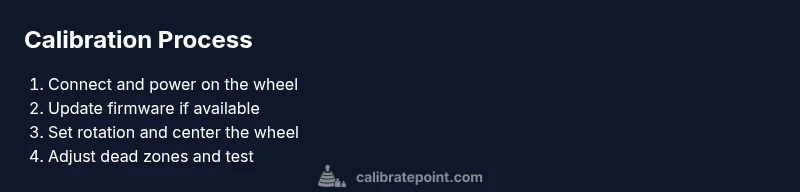
This section provides an overview of the calibration flow before you dive into the detailed steps. The goal is to establish a reliable center, a defined rotation range, and a predictable response curve. Expect to verify physical centering, update firmware, adjust rotation in the wheel settings, and test in a controlled in-game environment before committing to a race. The process is iterative: you may need to repeat steps to fine-tune center and dead zones for different titles. As you proceed, remember that consistency across reboots and game resets is key to maintaining calibration accuracy.
Firmware Checks, PS5 Settings, and Safety Considerations
Firmware updates are a frequent source of calibration drift if ignored. Check for updates via the PS5 or a connected PC, and apply them when available. After updating, reboot the wheel to ensure new firmware is loaded properly. On PS5, ensure the game controls are not mapped to conflicting inputs that could masquerade as wheel drift. Safety-wise, Calibrate Point recommends keeping the wheel and stand on a stable surface and avoiding aggressive force during calibration to prevent sensor damage or mount slippage.
In-Game Testing and Fine-Tuning
With the hardware ready, test the wheel with a practice session in a non-competitive mode. Start with a calm lap to observe centering, steering sensitivity, and response time. If the vehicle tends to pull to one side or the wheel feels off-center, revisit rotation and centering steps, then re-test. Use multiple corners and straightaways to gauge consistency. The goal is a smooth arc in both straight lines and curves, with predictable resistance as the wheel returns to center.
Troubleshooting Common Issues
If you notice persistent drift, first verify the center alignment and rotation value. Check that the USB connection is secure and that the wheel is firmly mounted. If the wheel occasionally returns to center with a slight bias, re-run the calibration cycle and recheck dead zones. For stubborn issues, resetting to factory defaults and re-applying a fresh calibration can resolve misconfigurations. Finally, confirm that in-game settings align with your wheel’s rotation and dead-zone settings.
Maintenance, Cadence, and Cross-Game Consistency
Calibration isn’t a one-and-done task. For ongoing accuracy, schedule a monthly quick check, especially after major game updates or firmware changes. Maintain a simple log of your rotation, centering, and dead-zone values so you can reproduce the same setup across different titles. If you switch to a new wheel stand or desk, re-check mounting stability and re-center before your next session.
Tools & Materials
- Logitech G29 wheel base with pedals and shifter(Complete wheel assembly as shipped)
- PS5 console with a racing game installed(Test environment for calibration validation)
- USB cable to connect the wheel(Use the stock cable supplied with the wheel)
- Stable mounting surface or wheel stand( minimizes drift during calibration)
- Phillips screwdriver (optional)(Only if you need to adjust mounting hardware)
Steps
Estimated time: 25-40 minutes
- 1
Connect the wheel and power it on
Attach the G29 to the PS5 using the standard USB connection and power the wheel. Confirm the PS5 recognizes the device in the system menu before proceeding.
Tip: Use the included USB cable and avoid extensions that could introduce signal loss. - 2
Update firmware if available
Check for firmware updates via the PS5 or a connected PC. Install any available updates and reboot the wheel to apply changes.
Tip: Firmware updates often fix calibration drift and improve sensor accuracy. - 3
Set rotation range to a standard value
In the wheel’s settings or the PS5 game profile, set the rotation to 900 degrees (or the value preferred by your main racing titles).
Tip: 900 degrees is a common baseline for most sims; verify in-game settings too. - 4
Center the wheel physically
Turn the wheel until the top mark aligns with the wheel base center. Correct centering reduces straight-line drift.
Tip: If centering is difficult, re-check the mounting and recalibrate in software. - 5
Adjust dead zones
In-game or wheel settings, reduce dead zones to minimal practical values to improve responsiveness without jitter.
Tip: Too-small dead zones can cause twitchy steering; find a stable balance. - 6
Test with in-game validation
Run a controlled practice session to verify consistent steering response, center stability, and predictable recovery from curves.
Tip: If anything feels off, repeat steps 3–5 and retest.
Questions & Answers
Do I need a PC to calibrate, or can I do it directly on PS5?
You can perform basic calibration on PS5 via in-game and system settings. A PC with Logitech software offers deeper customization, but isn’t strictly required for core calibration.
You can calibrate on PS5, but a PC helps with advanced options.
What rotation should I set for driving sims?
900 degrees works for most driving sims, but some titles may prefer 540 or 1080 degrees. Check in-game settings and adjust accordingly.
Most sims use 900 degrees, but verify per title.
Why isn’t the wheel centering after calibration?
Recheck the center alignment and rotation value, and re-run the calibration cycle. Ensure no software overrides the wheel inputs.
If it isn’t centering, redo the alignment steps.
Can I calibrate while the wheel is attached to a desk?
Yes, but ensure the base is secure and avoid applying force during calibration to prevent drift.
Calibrate with the wheel clamped to a solid surface for stability.
Will calibration affect PS5 performance?
Calibration routines are lightweight and should not impact PS5 performance beyond game play.
No significant impact on PS5 performance.
Watch Video
Key Takeaways
- Verify wheel is recognized before calibrating
- Use 900-degree rotation as baseline
- Center the wheel accurately for straight lines
- Test in multiple games to ensure consistency