How to Calibrate a New Laptop Battery: A Step-by-Step Guide
Learn how to calibrate a new laptop battery with a safe, manufacturer-aligned method. This educational guide covers steps, tools, tips, and troubleshooting to ensure your battery gauge reflects true charging levels and improves runtime estimates.


This guide helps you calibrate a new laptop battery to ensure the battery meter reflects true charge levels. You’ll learn a safe, manufacturer-aligned method using full-charge and discharge cycles, plus practical tips to avoid misreading indicators. Following these steps will help you get accurate runtime estimates and prolong usable battery life for your portable workstation.
Why calibrate a new laptop battery
Calibrating a new laptop battery helps ensure the built-in gauge shows an accuracy aligned with the actual charge left, which means you’ll get more reliable runtime estimates. According to Calibrate Point, performing a controlled calibration helps the system reinterpret how the battery reports its state of charge after weeks of steady, untouched operation. For DIY enthusiasts and professionals alike, this is a practical way to avoid frustration from sudden drops in battery life and unexpected shutdowns. In short, a proper calibration makes your portable workstation more predictable and easier to manage during critical tasks. If you’re wondering how to calibrate new laptop battery, you’ll want a safe, manufacturer-aligned approach that uses full-charge and discharge cycles rather than ad-hoc, partial charging. The goal is to re-synchronize the software gauge with the battery’s actual capacity, so you can rely on the displayed percentage as you work away from a power outlet.
How the calibration process works
Battery gauges are estimates based on sensor data and past usage. When you install a brand-new battery, the gauge may start with a neutral baseline. A complete calibration re-trains the gauge by cycling between a full charge and a deep discharge, allowing the system to map voltage, current, and temperature readings to actual capacity. The process does not physically alter battery chemistry; it refines the software model that reports charge state. Expect the most accurate results after two well-timed cycles, with the device powered through its standard charger during charging phases. Keep in mind that software tools and firmware vary by manufacturer, so consult your laptop’s user manual if you have specific calibration instructions. The emphasis is on consistent, controlled cycles rather than rapid, partial charges that can skew readings. At its core, calibration aligns perceived capacity with real capacity to improve the reliability of remaining-runtime estimates.
Common mistakes and how to avoid them
Several pitfalls can undermine calibration. Avoid starting calibration with a partially charged battery, or during software updates, which can introduce measurement drift. Do not use the laptop during a discharge cycle if you want repeatable results, and always use the original charger to maintain consistent voltage and current. Skipping a full discharge before recharging can leave the gauge with a biased estimate, while abrupt power-offs can corrupt calibration data. If the device has a battery health app, disable aggressive power-saving modes that could alter consumption patterns during the test. By steering clear of these missteps, you maximize the chance that the calibration will produce a trustworthy gauge.
What to expect after calibration
After completing calibration, you should see a more stable relationship between the battery percentage and actual runtime. The gauge may still fluctuate under heavy workloads, but the overall trend should become more predictable. If you notice persistent discrepancies after performing the two recommended cycles, consult the manufacturer’s support resources or run a second calibration round. Document the observed runtime versus percent charge to track improvements and detect any anomalies early. This proactive approach helps preserve your device’s usability across a typical workday and minimizes surprises when you’re far from a power source.
Tools & Materials
- Laptop charger and original cable(Use the charger that shipped with the laptop; ensure cable and adapter are compatible with the device rating.)
- Stable charging surface(Work on a flat, cool surface to avoid heat affecting measurements.)
- Notebook or digital log(Record charge percent and run-time observations during cycles.)
- Manufacturer manual or calibration guide(Refer to model-specific instructions if available.)
Steps
Estimated time: 90-150 minutes
- 1
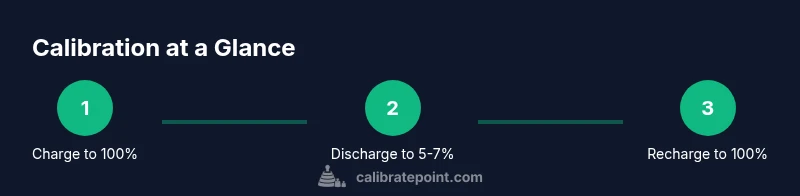
Charge battery to 100%
Connect the charger and allow the battery to reach a full 100% while the device is on and idling. This establishes a clean starting point for the calibration cycles. Do not unplug or interrupt the charging process once it begins until the indicator reaches full capacity.
Tip: Use the original charger to avoid voltage fluctuations that could skew the calibration. - 2
Discharge to around 5-7%
Let the system run on battery power until the charge indicator shows roughly 5-7%. Avoid closing the screen or putting the device to sleep during this phase to prevent partial cycles from affecting results.
Tip: Perform a controlled task that uses a representative workload to ensure a thorough discharge. - 3
Recharge back to 100%
Reconnect the charger and charge uninterrupted back to 100%. This captures the full charging curve and helps finalize the calibration cycle. Observe any rapid changes in gauge as the battery nears full capacity.
Tip: If the charge slows near 100%, remain patient; some batteries taper final charging current as they top off. - 4
Repeat the discharge and recharge
Conduct a second full cycle (100% -> 5-7% -> 100%). A second cycle helps stabilize the gauge by reinforcing the mapping between voltage, current, and actual capacity.
Tip: Keep logs of percent vs. runtime for both cycles to compare results later. - 5
Let the device settle and test runtime
After the second cycle, let the laptop sit for 1-2 hours on battery power with minimal activity to stabilize readings, then note the observed runtime at specific charge levels.
Tip: Run a standardized workload (e.g., a video render or benchmark) to acquire repeatable results. - 6
Document results and verify gauge accuracy
Record the logged data and compare observed runtimes with displayed percentages. If discrepancies persist, consider repeating the two-cycle calibration or checking for firmware updates from the manufacturer.
Tip: Keep a simple table of percentage vs. hours of use for quick reference.
Questions & Answers
What is the purpose of calibrating a new laptop battery?
Calibration helps ensure the battery gauge reflects true charge levels, improving runtime estimates and user trust. It re-trains the software measurement based on actual capacity.
Calibration helps your battery gauge match actual charge, so you get reliable runtime estimates. It aligns the software reading with the battery's true capacity.
How many cycles are needed for calibrating?
Typically, two complete charge-discharge cycles are recommended for new batteries to establish an accurate gauge. Some devices may benefit from a third cycle if readings remain unstable.
Usually two full cycles are enough, but a third may help if readings are still unstable.
Can calibration harm the battery?
Calibration does not damage the battery chemistry. It only affects the software gauge. Always follow factory guidance and avoid aggressive thermal or charging conditions.
No, calibration itself doesn't harm the battery. It adjusts the gauge; follow manufacturer guidelines to stay safe.
Should I calibrate after every firmware update?
Firmware updates can alter power management. If the update changes battery behavior, consider re-running calibration to ensure gauge accuracy.
If a firmware update changes power behavior, re-calibrating can help keep the gauge accurate.
What if calibration readings are still off?
If readings remain inconsistent, check for BIOS/firmware updates, reset battery settings if available, and consider performing a fresh two-cycle calibration. Persistent issues may require vendor support.
If it stays off, update firmware and try a fresh two-cycle calibration; contact support if needed.
Is calibration necessary for every laptop brand?
Calibration principles are similar across brands, but always consult the manufacturer’s guidelines for model-specific steps and tools.
The general idea is similar, but follow your model’s exact instructions for best results.
Watch Video
Key Takeaways
- Begin calibration with a full charge to establish a baseline.
- Use two complete charge-discharge cycles for accuracy.
- Monitor for gauge stability and document results.
- Use the original charger to minimize measurement drift.
- If issues persist, consult manufacturer resources or repeat the process.