How to Calibrate a SCUF Controller
Learn how to calibrate a SCUF controller to restore precise inputs and reliable paddle performance. This guide covers firmware checks, software workflows, testing, and troubleshooting for professional-grade calibration.


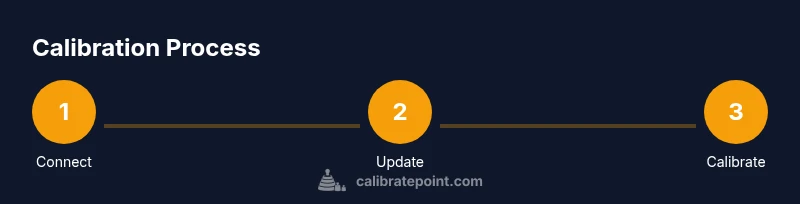
Goal: calibrate your SCUF controller to restore precise stick input, accurate triggers, and responsive paddles. Start by updating firmware, then connect to the SCUF companion app or your console, run the calibration wizard, and perform a test pass in-game. Save the profile and re-test to confirm stability. Taking careful measurements and documenting any drift helps maintain consistency across sessions.
Why calibrate your SCUF controller matters
Calibrating a SCUF controller is about aligning how you intend to move and press with how the hardware responds. Over time, drift in analog sticks, minor misregistration of triggers, or paddle inconsistencies can degrade precision in fast-paced games. According to Calibrate Point, a disciplined calibration process helps restore accuracy and repeatability, which is especially important for competitive play and professional-grade setups. In practice, a well-calibrated controller translates your physical motions into clean, predictable input on screen, reducing frustrating misreads during critical moments and supporting longer, more reliable gaming sessions. By investing time upfront, you’ll notice fewer unintended inputs, smoother aim, and better consistency across titles and play styles. This is not about guessing; it’s about documenting the baseline and validating results with careful testing.
What you’ll gain
- More accurate analog stick centering and travel
- Reliable trigger response and paddle engagement
- Consistent input mapping across profiles
- Improved debugging if a game feels off during play
- A repeatable workflow you can repeat after updates or changes
Tools & Materials
- PC or console with SCUF companion app(Install the latest calibration software or firmware tool provided by SCUF and ensure you’re signed in.)
- USB-C or USB-A to USB-C cable(Use a stable wired connection for reliable data transfer during calibration.)
- Small Phillips head screwdriver(Only needed if your model requires internal access to adjust hardware components.)
- Calibration notebook or digital notes(Record baseline measurements and observed drift for future reference.)
- Charged controller and a quiet workspace(Ensure the controller is fully charged and the environment is free from input interference.)
Steps
Estimated time: 60-90 minutes
- 1
Connect the controller and launch calibration tool
Connect your SCUF controller to the PC or console using a wired connection and open the calibration tool or companion app. Confirm the device is recognized and that the correct profile is selected. This initial connection ensures the software can read live input data.
Tip: If the tool prompts for firmware updates, perform them before proceeding to calibration. - 2
Check firmware and update if prompted
Review the firmware version and compare it with the latest release noted by SCUF. Update if available, as newer firmware often includes improved calibration algorithms and drift correction. Reconnect the controller after the update completes.
Tip: Use a stable USB cable during the update to avoid interruptions. - 3
Select inputs to calibrate
In the calibration flow, choose the inputs you want to calibrate first—for example, left/right sticks, triggers, and paddles. Calibrating in a logical order helps isolate drift and makes results easier to verify later.
Tip: Calibrate sticks before triggers to establish a solid baseline of centering. - 4
Calibrate analog sticks
Move each stick to its center, then to full extents in every direction as prompted. The tool should record neutral and travel points. Repeat for both sticks to ensure symmetric travel.
Tip: Keep hands steady and avoid twisting the controller during measurements. - 5
Calibrate triggers and paddles
For each trigger, press fully and release to capture full travel range. Do the same for each paddle, noting any dead zones or inconsistent engagement. This step helps ensure responsive press events.
Tip: If a paddle is slow to engage, re-run the capture for that input. - 6
Run a test input pass
With all inputs calibrated, perform a live test—navigate menus, perform precise aiming, and execute rapid actions in a controlled environment. Look for drift, dead zones, or misregistration that appeared previously.
Tip: Document any irregularities you notice so you can retune specifically those inputs. - 7
Save the calibration profile
Name and save the new calibration profile. If your tool allows multiple profiles, assign one to specific games or play styles. This preserves your work and makes switching contexts quick.
Tip: Consider naming conventions that reflect game type or input preferences. - 8
In-game validation and fine-tuning
Launch a game or training mode to validate the calibration under real conditions. If you notice minor drift, re-enter the calibration tool and repeat the relevant steps. Small adjustments can improve long-term consistency.
Tip: Aim for a stable baseline across several gameplay scenarios before concluding.
Questions & Answers
Do SCUF controllers have built-in calibration options?
Yes, most SCUF controllers offer calibration options via the SCUF companion app or console settings. Use the calibration wizard to align sticks, triggers, and paddles, then test in-game to confirm results.
SCUF controllers include calibration options through the official app or console. Run the wizard and test to confirm inputs are aligned.
Can calibrating affect the controller warranty?
Using official calibration tools through the SCUF app or console typically maintains warranty eligibility. Opening the controller or using non-official tools can risk warranty status. Always follow the manufacturer’s guidance.
Calibration through official channels usually keeps the warranty intact. Avoid opening the controller or using unofficial tools.
How long does a typical calibration take?
A complete calibration session commonly takes about 30 to 60 minutes, depending on how many inputs you calibrate and how many test cycles you perform.
Most calibrations take about half an hour to an hour, depending on your setup and how thoroughly you test.
Should I update firmware before calibrating?
Yes. Updating firmware first ensures you have the latest calibration algorithms and bug fixes, which can improve accuracy and consistency.
Update the firmware before calibrating to get the latest improvements.
Is it better to calibrate each input separately or together?
Calibrating inputs separately helps isolate issues and makes it easier to identify which input drifts. After individual calibration, re-test everything together in a game for final verification.
Calibrate inputs one by one, then test together in-game to verify overall balance.
Watch Video
Key Takeaways
- Calibrate sticks, triggers, and paddles separately for clarity.
- Update firmware before calibration to access the latest algorithms.
- Test in-game and save profiles for quick restoration.
- Document results to track consistency after updates.
- Follow a structured workflow to maintain repeatable results.