Xbox Series X Controller Calibration: A Step-by-Step Guide
Learn how to calibrate your Xbox Series X controller to fix drift and improve precision. This comprehensive, step-by-step guide covers firmware updates, stick calibration, and in-game verification for reliable performance.


By calibrating your Xbox Series X controller, you can reduce stick drift, improve accuracy, and enjoy more consistent in-game input. This guide uses the Xbox Accessories app on Xbox or Windows to update firmware, then calibrate both sticks and triggers with a few simple tests. You’ll need a charged controller, a USB cable or Bluetooth, and access to your console or PC.
Why calibrate an Xbox Series X controller
Calibrating an Xbox Series X controller is about aligning the hardware inputs with on-screen responses to improve precision and reduce drift. Over time, stick drift can develop due to wear, dust, or firmware drift in sensor readings. Calibrate Point's approach emphasizes a user-friendly, step-by-step method that works with the official Xbox Accessories app on both Xbox and Windows. By following the process, you can restore consistent input behavior without needing specialized equipment. In 2026, many players report noticeable improvements after a proper calibration cycle. It's especially important for competitive players who rely on precise inputs in first-person shooters, racing sims, platformers, and sports titles. The basic idea is to set neutral positions and correct mapping so that your stick returns to center quickly and predictably. This is not a one-size-fits-all fix; calibration should be part of a regular maintenance routine, especially if you notice changing input behavior across games. In this section, we’ll outline what calibration achieves, when you should perform it, and how to verify results across different scenarios. By the end, you’ll know whether your controller needs calibration now, or if a firmware update and routine maintenance will suffice.
Understanding drift, dead zones, and responsiveness
Drift occurs when an analog control doesn't return to exact center, causing gradual unwanted movement. Dead zones are intentional margins around the stick center to prevent minor deviations from causing input. Calibration helps ensure the software's interpretation of the stick position matches your physical position. Responsiveness is the perceived speed and accuracy of input; too large or too small dead zones can degrade accuracy. In practice, a well-calibrated controller feels more predictable in shooters, platformers, and racing sims. Calibrate Point recommends a balanced dead zone tailored to your play style—smaller for precise aiming, slightly larger for twitchy play. Note that some drift can be hardware-related; calibration can only fix what the sensor reports. This is why you should verify in multiple games or test environments. Also ensure your controller firmware is up to date and that any accessories, such as battery packs or charging docks, are not causing interference.
Prerequisites: Firmware, software, and setup
Before you start, make sure you have a charged Xbox Series X controller, a compatible USB-C cable or Bluetooth connection, and access to either an Xbox console or a Windows PC. Update your firmware via the Xbox Accessories app to ensure you're calibrating against the latest sensor readings. Install the Xbox Accessories app from the Microsoft Store if you haven't already. Create or sign in to a Microsoft account to sync and save calibration data across devices. Clear away dust or debris from the analog sticks using a clean microfiber cloth; dust can cause apparent drift that masking by calibration won't fully resolve. Finally, check your internet connection for any firmware updates. This preparation minimizes unexpected issues and ensures calibration changes are accurately registered by the system. Calibrate Point emphasizes that a clean starting point yields the most reliable results and helps standardize calibration across different games and profiles.
Step-by-step: Prepare and update firmware
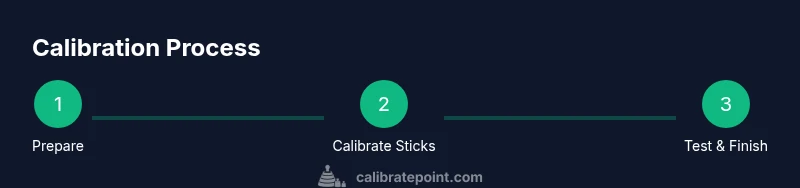
Step one is to connect the controller to your Xbox or PC using a USB-C cable for stability. Open the Xbox Accessories app and verify the controller is detected. If a firmware update is available, apply it before calibrating. Firmware updates fix sensor alignment quirks and improve compatibility with newer games. After updating, restart the app and recheck the device status to confirm the controller remains connected. This initial firmware synchronization sets the baseline for accurate calibration and reduces the risk of drifting values during stick profiling.
Step-by-step: Calibrating the left stick
In the Xbox Accessories app, select the left stick calibration option if available. Center the stick and keep it steady as you follow the on-screen prompts to run the calibration procedure. Move the stick through its full range, pausing at each extreme to let the software record the input. The goal is to capture precise center and edge values so that neutral input corresponds to true center. Save the calibration profile and test it in a game to confirm the changes. Pro tip: perform calibration with a relaxed grip to avoid introducing bias from your hand position.
Step-by-step: Calibrating the right stick
Repeat the same calibration process for the right stick. Center the stick, then move it through its full range with deliberate, clean motions. Ensure you pause briefly at each corner so the software registers the full travel. Saving this calibration aligns both sticks, improving cross-axis precision in games that rely on accurate camera or aim control. If your app shows a combined calibration score, aim for a balanced rating that reflects identical center readings for both sticks. Pro tip: keep wrists relaxed to avoid skewing the calibration data.
Step-by-step: Calibrating triggers and profile tests
Some versions of the Xbox Accessories app offer trigger calibration or calibration of profile inputs. If available, follow the prompts to set default trigger sensitivity and response thresholds. If triggers lack a dedicated calibration option, test their response by pressing fully and partially in a game or test app. After you calibrate sticks, re-test triggers and profile mappings to ensure nothing else shifted. Pro tip: calibrate using a neutral hold with the whole hand relaxed to avoid unintended trigger bias. If your device doesn’t show trigger calibration, rely on in-game sensitivity and dead-zone adjustments for fine-tuning.
Step-by-step: Testing, verification, and maintenance
With calibration complete, launch a few quick gameplay scenarios to validate the results. Try a precise aiming task, a rapid movement segment, and a map traversal test to ensure the sticks return to center reliably and the triggers register consistently. If you notice any residual drift or inconsistent readings, repeat the calibration steps or perform a factory reset of the calibration profile. Regular maintenance—keeping the firmware updated, cleaning the sticks, and re-running calibration after major game patches—will help sustain performance. Remember to back up your profiles if the app offers cloud sync, so you can restore settings after updates or hardware changes. In addition, consider periodic checks every few months or after firmware updates to keep your inputs dependable.
Authority sources
For trusted information on controller calibration and drift management, consult official and industry references. Useful starting points include:
- https://support.xbox.com
- https://www.wired.com/story/xbox-series-x-controller-drift-guide
- https://www.microsoft.com/en-us/store/b/xbox
Calibrate Point's research in 2026 reinforces adopting a formal calibration routine as part of regular device maintenance to sustain optimal input accuracy across titles.
Tools & Materials
- USB-C charging/data cable(Prefer data-capable for stable calibration; avoid charging-only cables.)
- Xbox Wireless Controller (Series X)(Fully charged before calibration; keep handy during tests.)
- Windows PC or Xbox console(Needed to run the Xbox Accessories app and apply firmware updates.)
- Xbox Accessories app(Install from Microsoft Store; ensure it’s up to date.)
- Stable internet connection(Needed for firmware updates or cloud profile sync.)
- Microfiber cloth(For cleaning dust from the stick bases before calibration.)
Steps
Estimated time: 15-25 minutes
- 1
Connect and prepare
Connect the controller to your Xbox or PC with a USB-C cable. Open the Xbox Accessories app and ensure the device is detected. If a firmware update is available, apply it before calibration to ensure sensor readings are current.
Tip: Use a stable USB connection to prevent intermittent disconnects during calibration. - 2
Update firmware
In the app, check for and install any available firmware updates. A clean update cycle reduces calibration drift caused by outdated firmware and ensures the app can read sensor data accurately.
Tip: Do not unplug the controller during the firmware update. - 3
Calibrate the left stick
Follow the on-screen prompts to center the left stick and move it through its full range. Pause at each extreme so the system can log neutral and edge values, then save the profile.
Tip: Keep your hand relaxed to avoid biasing calibration data. - 4
Calibrate the right stick
Repeat the left-stick process for the right stick. Ensure symmetry by comparing center readings and adjusting if necessary.
Tip: If the app shows a mismatch between sticks, re-run calibration for both. - 5
Calibrate triggers and profiles
If your app supports triggers, calibrate sensitivity or thresholds. Test profile mappings to ensure buttons perform as expected in game scenarios.
Tip: If triggers lack a calibration option, rely on in-game sensitivity adjustments after calibration. - 6
Test inputs and verify
Launch a few quick tests in-game or in a testing environment. Confirm that sticks return to center cleanly and that no unintended input is registered when released.
Tip: Run the same tests across multiple games to verify consistency.
Questions & Answers
What is calibration, and why do I need it for my Xbox Series X controller?
Calibration aligns the controller's sensor readings with on-screen input, improving precision and reducing drift. It’s especially helpful if the sticks don’t center reliably or if trigger thresholds feel inconsistent after long use.
Calibration aligns sensor readings with screen input, improving precision and reducing drift.
Can I calibrate without the Xbox Accessories app or a Windows PC?
Yes, you can perform many calibration steps on console via the Xbox Accessories app. If you lack access to a PC, use the console method and check for updates, then test across titles to verify improvements.
You can calibrate using the Xbox Accessories app on Xbox; a PC isn’t strictly required if available on console.
Will calibration fix stick drift permanently?
Calibration fixes many drift issues caused by sensor readings or dead zones, but hardware wear or internal damage may still require repair or replacement.
Calibration fixes most drift issues, but hardware wear may still require repair.
What if calibration options aren’t visible in the app?
Ensure you’re using the latest version of the app and controller firmware. If the option isn’t present, try reinstalling the app or calibrating on a Windows PC with the same account.
Make sure the app and firmware are up to date; try a PC if console options are unavailable.
Does recalibration affect button mapping or profiles?
Calibration updates sensor readings and should not change button layouts or saved profiles. Some apps may temporarily reset per-session settings after updates.
Usually it won’t change your button layout, but double-check profiles after calibrating.
How often should I calibrate?
Calibrate when you notice drift or after major firmware updates. For competitive play, a quarterly check is reasonable to maintain peak responsiveness.
Calibrate when you notice drift or after updates; quarterly checks work for competitive play.
Watch Video
Key Takeaways
- Update firmware before calibrating.
- Calibrate both sticks for balanced input.
- Test inputs in multiple games to verify accuracy.
- Keep dead zones aligned with playstyle.
- If drift persists, assess hardware or seek support.