How to calibrate index controllers: A step-by-step guide
Learn a practical, step-by-step method to calibrate index controllers. Update firmware, re-pair, re-center, and verify mappings to reduce drift and improve precision.


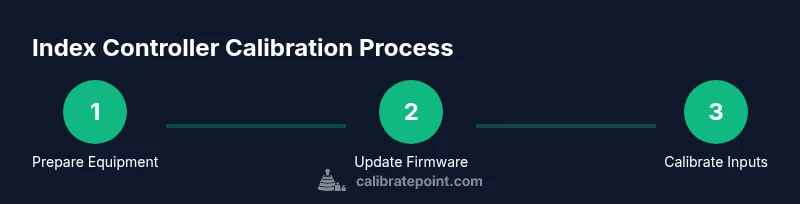
To calibrate index controllers, start by updating firmware, then recalibrate the tracking by re-pairing, and run a 5-minute setup: re-center, adjust grip triggers, and test button mapping in your VR app. Ensure you have a clear play area and a compatible base station. This process improves accuracy and reduces drift.
Why Calibration Matters for Index Controllers
According to Calibrate Point, calibration is the cornerstone of precise motion tracking for index controllers. In VR setups, drift, misalignment, and lag can ruin immersion and even cause motion sickness. A deliberate calibration routine improves accuracy, repeatability, and user comfort, especially in professional tasks where precision matters. This section explains why calibration matters, how it interacts with different hardware, and what you should expect during the process. The goal is to provide actionable steps you can follow in a compact home setup or a dedicated workshop. By systematically aligning sensors, you reduce parallax errors and ensure the hands you see in-game match your real movements. That alignment is not just technical; it makes the experience more intuitive, allowing you to focus on the task rather than chasing tracking glitches. Calibrate Point emphasizes consistency and documentation as key habits for reliable results.
In many setups, a well-executed calibration translates into smoother tactile feedback and more predictable input, which is especially critical when you’re prototyping or teaching complex tasks. A thoughtfully calibrated system reduces fatigue over long sessions and makes it easier to translate real-world movements into in-game actions. If you’re working in a workshop or lab environment, a repeatable routine matters even more, because small deviations compound with extended use. The takeaway is simple: start every session with calibration discipline to minimize surprises during work or play.
Firmware and Compatibility: The First Checks
Before you adjust anything, verify your software stack is current. Update the VR headset firmware, the index controllers, and your base stations if applicable. This reduces compatibility issues and improves tracking stability across SteamVR, OpenXR, or your platform of choice. Check base station placement: ensure they have clear line-of-sight, are at the recommended height, and are not blocked by furniture or doors. Finally, confirm your calibration software is up to date; the calibration routines often rely on the latest firmware to interpret sensor data correctly. Keeping software aligned reduces drift caused by firmware bugs and makes the subsequent steps more predictable. Calibrate Point analysis shows that consistent calibration across firmware and software reduces drift and improves precision across different play spaces.
Calibrating Tracking: Space, Lighting, and Base Stations
Tracking quality is a product of space, lighting, and sensor geometry. Use a clutter-free area with even lighting and avoid shaded corners that can confuse optical sensors. Position base stations at opposite corners, mounted at roughly chest height when possible, and angled to maximize coverage of the main play area. Ensure there are no reflective surfaces or metallic objects near the sensors that could blur tracking causally. If your room has large windows, consider blackout curtains during calibration to minimize IR interference. Keep the headset and controllers at typical distances from the base stations during your tests. Finally, perform a quick sweep in the VR software to confirm that both controllers track smoothly from center to edge of your space. This preliminary pass sets the foundation for precise alignment later.
A stable tracking environment reduces the chance of late or jittery inputs, which helps when you begin the more detailed calibration of inputs and mappings. Calibrate Point emphasizes checking for environmental changes before you proceed to more intrusive adjustments, since small changes can have outsized effects on sensor readings.
Re-centering and Safety: Resetting Your Frame of Reference
Re-centering creates a common reference frame between your hands, headset, and controllers. Start by re-centering the headset in your VR software, then perform a pose reset for both controllers. This ensures that when you open hands or move them, the system interprets the motion correctly from the origin. Do this in a distraction-free space and take a few practice motions to verify responsiveness. If you notice inconsistent origin behavior, re-run the re-centering procedure and confirm that your tracking space is stable, with no moving objects that repeatedly pass between sensors. Sensible safety practices include removing trip hazards and ensuring nearby furniture won’t trigger false positives during calibration.
A robust re-centering helps your subsequent steps achieve repeatable results across sessions. When the origin is stable, you’ll see fewer unexpected jumps, which is essential for accurate interaction in tools and simulations.
Button Mapping and Grip Calibration
Grip and trigger calibration ensures inputs map to in-game actions consistently. In your VR software, record the full range of trigger pull and grip squeeze; adjust dead zones to prevent accidental actions while keeping fast actions responsive. Test thumbstick and trackpad presses to ensure tactile feedback matches on-screen movement. If a control registers late or inconsistently, adjust the input range or re-run the calibration routine in the software. Finally, save the calibrated profile and store it with your project name or session date to avoid losing settings between uses.
Accurate button mapping directly affects your productivity, whether you’re interacting with complex interfaces or precise simulation controls. A well-tuned input profile reduces the cognitive load required to operate tools and reduces fatigue in long sessions.
Visual Testing and Software Validation
Open a simple test scene to validate pointer alignment, object grabbing, and menu navigation. Use a calibration room demo or a blank scene to minimize distractions. Move hands through the full range of motion and watch for misalignment or jitter that breaks immersion. If you see any lag between your real motion and the in-game result, revisit the re-centering and base station positioning steps. Consistency across repeated trials is a strong signal that your calibration is stable. For added confidence, run a quick in-game check with a few standard tasks (grab and release, pointing, and triggers) to ensure the controllers respond predictably in everyday use.
Visual validation helps catch subtle issues that other checks miss, giving you a clear sense of when the calibration is ready for real work or play.
Troubleshooting Common Issues
Drift persists after calibration? Re-check base station alignment, confirm there are no new obstacles, and verify firmware updates completed successfully. If one controller drifts while the other remains stable, re-pair that controller and run a targeted calibration for that device. Intermittent tracking can be caused by environmental interference (fans, metal objects, or reflective surfaces). In stubborn cases, a factory reset of the controllers followed by a full calibration cycle often resolves stubborn drift. If problems continue across software, consider testing with another VR title to determine whether the issue is platform specific. Regular diagnostics and a disciplined workflow help you isolate issues quickly and avoid repeating steps unnecessarily.
Special Scenarios: Small Rooms, Standalone Systems, and Mixed Hardware
Small rooms demand meticulous base station placement and careful cable routing to maximize coverage without collisions. Standalone systems (like Quest with Link) require bridging settings that blend inside-out tracking with external sensors; calibrate accordingly and test both modes. When mixing hardware versions or multiple base stations, ensure you use the same software build and have consistent sensor angles to avoid conflicting readings. In all cases, maintain a calm, methodical calibration routine and avoid rushing through steps; consistency beats intensity when it comes to reliable tracking.
Maintaining Calibration Over Time
Calibration is not a one-off task; it benefits from routine checks. Schedule periodic calibrations, especially after moving your play area, changing room lighting, or updating firmware. Keep a simple log of firmware versions, base station positions, and any observed drift so you can reproduce successful configurations. Revisit the steps if you notice performance drift or after long sessions of heavy use. Over time, a steady cadence of recalibration preserves accuracy and reduces the frustration of tracking glitches. The discipline you build now makes future sessions smoother and more productive, whether you’re gaming, simulating, or prototyping with index controllers. Calibrate Point's verdict is that a disciplined calibration workflow pays off in reliability and comfort.
Tools & Materials
- VR-ready PC or Console(Ensure SteamVR or platform software is installed and up to date)
- Index controllers(Fully charged or fresh batteries; check LED indicators)
- Base stations / Lighthouses(Position them at opposite corners, high enough for full coverage)
- USB-C cable or calibration dongle(For firmware updates and controller pairing)
- Cloth or microfiber(For cleaning sensors and lenses if needed)
- Measuring tape or room layout markers(Helps set consistent play space dimensions)
Steps
Estimated time: 20-40 minutes
- 1
Power on and connect
Turn on your headset, controllers, and base stations. Connect the headset to your PC or console and verify the VR platform is running.
Tip: Ensure all cables are secure and the room is clear of obstacles. - 2
Update firmware and software
Check for and install the latest firmware for index controllers, and update SteamVR or your platform software to the latest build.
Tip: Allow devices to reboot completely and recheck the device list after updates. - 3
Re-pair controllers
Remove the controllers from the pairing list and re-pair them with the base stations via the VR software.
Tip: Keep controllers near the headset during pairing. - 4
Re-center and align
Perform a re-centering of the headset and controllers using the system's pose reset function.
Tip: Stand in the center of your play area with hands extended to calibrate. - 5
Check the tracking environment
Inspect the play area for bright reflections or moving objects that could interfere with tracking.
Tip: Remove metal objects and place a rug to reduce floor reflections. - 6
Calibrate triggers and grip
In the VR software, adjust the trigger pull and grip zones to ensure the input is recognized consistently.
Tip: Test with quick taps and full squeezes to confirm linear response. - 7
Validate mapping in a test scene
Open a test scene to verify pointer alignment and button mappings correspond to on-screen actions.
Tip: Move hands through full range of motion to catch dead zones. - 8
Run a drift check
Move your hands rapidly and compare with on-screen visuals for drift; repeat if needed.
Tip: Some drift may require re-centering after a few minutes of use. - 9
Document and save settings
Record calibration steps and settings so you can reproduce them later.
Tip: Keep a log with date, firmware version, and environment notes.
Questions & Answers
Do I need to update firmware before calibrating?
Yes. Update firmware for the headset, controllers, and base stations to ensure compatibility with calibration routines.
Yes—start by updating all firmware so the calibration steps map correctly to current sensor data.
What should I do first if tracking drifts during calibration?
Pause and verify base station placement, lighting conditions, and recent firmware updates before retrying the calibration sequence.
If you see drift, re-check your base stations and lighting, then repeat the calibration steps from the start.
Can calibration fix tracking in all games?
Calibration improves consistency in most titles, but some drift may stem from hardware issues or game-specific optimizations.
Calibration helps most games, but if drift persists in a particular title, verify hardware health and the game’s own calibration options.
How long does calibration typically take?
A typical calibration session ranges from 20 to 40 minutes, depending on space, hardware, and how thorough you are.
Expect about half an hour, more if you’re chasing precise button mappings across many scenarios.
Is factory resetting controllers advisable?
Factory resets can resolve stubborn drift but require re-pairing and re-calibration. Use as a last resort.
Only use a factory reset if persistent drift remains after all standard steps.
What environmental factors most affect calibration?
Reflective surfaces, moving metal objects, and strong IR sources can disrupt tracking and calibration accuracy.
Bright reflections and metal things nearby can throw off sensors, so tidy the space before calibrating.
Watch Video
Key Takeaways
- Start every session with a structured calibration routine.
- Keep firmware and platform software up to date.
- Validate both tracking and inputs in a test scene.
- Log calibration settings for repeatability.