How to Calibrate a G923 Wheel: Step-by-Step
Learn how to calibrate a G923 wheel and pedals with a detailed, step-by-step guide. Align steering, adjust dead zones, and verify results for consistent performance across games and titles.


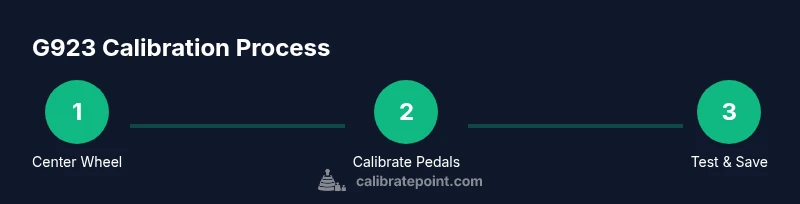
You will learn how to calibrate a G923 wheel and its pedals to ensure accurate steering input. The quick steps cover baseline setup, dead zone adjustment, wheel alignment, and safe testing to prevent drift or miscalibration during races. This snippet sets expectations and references safety considerations for long-term reliability. Follow the steps in detail to ensure repeatable results.
Understanding the G923 input pipeline and calibration goals
The Logitech G923 presents a self-contained input pipeline: wheel position, pedal travel, and force feedback signals are read by the wheel base, mapped by firmware, and ultimately translated into in-game input. Calibration aligns the physical center of the wheel with the software's neutral position, defines acceptable dead zones on the axis, and tunes the force feedback range for your setup. The goal is consistent, repeatable input across different games and scenarios. Before you start, define your targets: a centered wheel with a tiny dead zone, responsive pedals, and reliable FF strength that matches in-game expectations. Keep in mind that different games and titles may interpret inputs slightly differently; calibration should accommodate your preferred titles while preserving realism. As you calibrate, you will collect reference data: wheel center offset, perceived drift, pedal travel endpoints, and FF clipping risk. Document these values so you can reproduce the exact settings later or adjust them for new titles. The Calibrate Point team notes that maintaining a stable seating position and a clean workspace will reduce drift and improve measurement accuracy. This block sets the foundation for a repeatable, evidence-based calibration process.
Tools, drivers, and safety considerations
Before you begin, assemble the basic toolkit and confirm software readiness. Essential items include a stable desk or stand, the G923 wheel base with its pedal unit, a reliable USB connection, and access to the official calibration software (G Hub or Logitech Gaming Software). Ensure your PC or console is up to date with current drivers and firmware. Safety matters: work in a clean, dry area, keep fingers away from moving parts during power up, and unplug hardware before disconnection. Clear a space where you can test without distractions, and avoid driving on high FF settings during initial checks. Updating firmware first ensures that your calibration data maps to the latest behavior of the wheel. If you use a wheel stand, secure mounting reduces wobble that can skew measurements. Optional: calibration profilers or game-specific configs can help map axes consistently across titles, but rely on official tools for the core calibration data.
Checking physical controls: wheel, pedals, shifter
Calibration begins with a tactile health check. Spin the wheel through its full rotation to feel for play, binding, or unusual noises. Wiggle the pedal cores and pedals to confirm smooth travel from min to max, and verify that the shifter (if present) returns cleanly to its center position. Ensure all mounting screws are tight and that cables are routed to prevent kinking. Record baseline behavior: the wheel’s center alignment, the amount of travel to FF engagement, and pedal travel endpoints. These observations identify drift sources such as loose mounts, worn bearings, or uneven pedal travel. If you notice persistent centering bias when you release the wheel, document the offset magnitude and plan centering adjustments before continuing. A solid physical baseline reduces calibration noise and improves repeatability across sessions.
Firmware and software prerequisites
Having the latest software environment makes calibrations reliable. Update the G923 firmware via G Hub or your preferred Logitech tooling, and install the latest drivers for your platform. If you calibrate across multiple titles, check how each game handles input curves and dead zones; some games override wheel input, masking calibration results. Create a dedicated profile for calibration sessions with minimal overlay and background noise. Disable any conflicting input utilities or overlays that could interfere with axis mappings during testing. The aim is pristine, unfiltered data from hardware so calibration reflects true physical behavior. Consistency in software versions across sessions is a key driver of repeatable outcomes.
Baseline tests: current behavior and data collection
With firmware and software ready, perform baseline tests to capture the wheel’s current behavior. Center the wheel physically, gently release, and observe how closely the digital center matches the mechanical center. Record any offset in degrees or axis counts. Map pedal travel to a uniform input scale and log response times, nonlinearity, and dead zones for both throttle and brake. Run a short neutral drive to observe straight-line stability, light steering, and steady pedal application. Note any dead zones or micro-responses where movement does not produce FF or input. These baseline measurements will serve as the yardstick for subsequent calibration adjustments. If FF feels inconsistent or offset, inspect mounting hardware again and consider mounting re-centering before moving on. Thorough data collection guards against overfitting calibration to a single test run and supports repeatable results across sessions.
Baseline tests: data logging and measurement techniques
Tools & Materials
- G923 wheel base(Ensure firmware is current; stable mounting. Includes wheel and base electronics.)
- Pedal unit(Connect to wheel base; verify full travel and return to idle.)
- USB cable(High-quality USB-A to USB-C or USB-C to USB-C, depending on your setup.)
- Power supply / AC adapter(Plug in before calibration starts to avoid power-related input glitches.)
- PC or console with G Hub / Logitech software(Keep software up to date; create a dedicated calibration profile.)
- Optional: calibration profiler software(Can help map axes across multiple titles; rely on official tools for core data.)
- Torque-safe work surface or wheel stand(Prevents movement during calibration; reduces measurement noise.)
Steps
Estimated time: 60-90 minutes
- 1
Connect and power up the G923
Power on the wheel base and connect the wheel to the PC or console using the official USB cable. Verify device recognition in the calibration software and confirm the firmware is up to date. A clean start ensures alignment data maps correctly to hardware behavior.
Tip: If the wheel isn’t detected, try a different USB port and reboot the calibration software. - 2
Reset to factory defaults
Reset wheel and pedal settings to factory defaults to remove any prior adjustments that could bias calibration. This creates a clean baseline for measuring system response.
Tip: Note current custom settings in case you want to revert after calibration. - 3
Center the wheel physically
Rotate the wheel to its true center and ensure it sits perfectly neutral when released. This anchors the calibration references to a consistent mechanical center rather than a biased offset.
Tip: Use the wheel stand or a fixed mounting point to prevent drift during centering. - 4
Calibrate steering axis
In the calibration tool, map the steering axis to a neutral center, then identify the dead zone by rotating slowly left to right and noting the angle at which FF begins. Adjust the dead zone to a minimal, usable value that feels natural for your driving style.
Tip: Aim for a central dead zone that minimizes slight joystick drift without requiring constant corrections. - 5
Calibrate pedal axes
Test throttle and brake travel by pressing fully to the stop and returning to idle. Map each pedal's range to a standardized input scale and note any nonlinearity or lag. If pedal travel is uneven, adjust curves or endpoints to equalize response.
Tip: Ensure both pedals respond linearly across their full travel range for consistent braking and acceleration feel. - 6
Tweak force feedback range
Set the FF gain and overall strength so that wheel resistance matches your preference while staying within safe limits for your hardware. Test at low and high speeds to ensure FF remains stable and does not snap or clip.
Tip: Start with a conservative FF setting; increase gradually while testing at different speeds. - 7
Test in-game and benchmark
Launch a neutral driving scenario and check alignment with in-game camera, wheel position, and FF behavior. Compare to your recorded baseline and adjust dead zones or FF range as needed. Use multiple titles if possible to validate consistency.
Tip: Choose titles with reliable calibration support to avoid game-specific quirks masking true results. - 8
Document results and lock settings
Save the calibrated profile with a date and baseline metrics. Note any residual drift and plan a re-check schedule. Keep a log to compare future calibrations and to support troubleshooting.
Tip: Keep your notes organized so you can reproduce or adjust calibrations efficiently. - 9
Maintenance and re-calibration planning
Set a routine for periodic checks, especially after hardware moves, new titles, or firmware updates. Re-test center alignment and dead zones periodically to maintain accuracy.
Tip: Recalibrate after changes to wheel position, pedal changes, or software updates to preserve data integrity.
Questions & Answers
Do I need to update firmware before calibrating?
Yes. Update the G923 firmware through the official software to ensure calibration data maps correctly to current hardware behavior. A firmware update can fix known issues and improve input stability.
Yes. Update the G923 firmware first to ensure accurate calibration data.
Can calibration settings affect force feedback strength?
Calibration can influence perceived FF strength by redefining endpoints and dead zones. After calibrating, test in multiple games and adjust FF range to keep the feel consistent.
Calibration can change perceived force feedback; test across titles and fine-tune.
What if the wheel doesn’t center properly after calibration?
Check mounting stability and wheel base alignment. A physically biased center will skew calibration data; re-center physically and re-run the process from the start.
If centering is off, verify mounting and re-run the centering step.
Should pedals be calibrated separately or together?
You can calibrate pedals together or separately, depending on your software. Map each axis to a consistent input range and verify linearity for both pedals.
Calibrate pedals together or separately as needed; ensure consistent response.
How often should you recalibrate the G923?
Recalibrate after any hardware changes, firmware updates, or when you notice drift or inconsistent input across games. Regular checks help maintain accuracy over time.
Recalibrate after hardware changes or firmware updates, or if you notice drift.
What tests best validate calibration?
Test across multiple titles with different FF profiles and driving scenarios. Use both straight-line and dynamic driving tests to verify stability and repeatability.
Use multiple titles and driving scenarios to validate calibration.
Watch Video
Key Takeaways
- Define a clear baseline before adjustments.
- Center the wheel physically and verify centering.
- Document offsets and test across multiple titles.
- Maintain firmware and software up to date.