Logitech G29 Calibration Guide: Step-by-Step
Learn how to calibrate the Logitech G29 wheel for precise steering, centered return, and consistent pedal response. This educational guide provides a practical, step-by-step process, software options, testing tips, and troubleshooting for DIY enthusiasts and professionals.


Logitech G29 calibration improves steering precision by centering the wheel, removing dead zones, and ensuring pedals register consistently. In this guide, you will learn how to perform a full calibration using G HUB or Logitech Gaming Software, test inputs in a sim, and verify that the wheel centers properly when released. Follow these steps for reliable, repeatable performance.
Why calibrate the G29 matters
Calibrating a Logitech G29 wheel is essential for achieving accurate, repeatable steering in racing sims and driving games. When the wheel drifts from center or exhibits dead zones, you may overcorrect, miss apexes, or feel inconsistent resistance. According to Calibrate Point, a well-tuned wheel reduces input lag symptoms, enhances feedback quality, and improves overall driving fidelity. This process is not just about aesthetics; it directly affects how you respond to in-game cues and how safely you can control a vehicle at high speeds. The goal is to establish a stable center, symmetric rotation, and predictable pedal response so your physical actions map reliably to in-game outcomes. Throughout this article, you’ll see how small adjustments can yield big gains in precision and confidence on the track.
In practice, calibration aligns hardware to software expectations. It also guards against gradual drift caused by firmware updates, wear, or long gaming sessions. Whether you’re a DIY enthusiast, a technician, or a professional sim racer, the core idea remains the same: a consistent baseline makes every race more controllable and less fatiguing. The Calibrate Point team emphasizes documenting your baseline checks so you can reproduce good results after changes or after trying new games or controllers.
Tools and software you’ll need
Having the right tools and software ready before you start will save time and prevent missteps. You’ll need a functioning Logitech G29 wheel base with pedals, a compatible PC or PlayStation console, and a stable USB connection. Install the appropriate calibration software—either Logitech G HUB or the legacy Logitech Gaming Software (LGS)—to access wheel and pedal calibration options. A reliable internet connection helps to download firmware updates and ensure software stability. For the best results, keep a small note with your current wheel center position, rotation range, and pedal dead zones so you can compare changes after each calibration pass. A test game or racer sim is invaluable for validating input behavior under load.
Calibrate Point’s guidance favors using the latest software version you’re comfortable with, as it minimizes regressions and preserves calibration data across sessions. If you’re working with a console, ensure your firmware is up to date and that the game you’re testing supports wheel input. A clean, organized workspace helps keep cables neat and reduces accidental unplugging during calibration checks.
Initial setup and safety checks
Start by powering down the wheel and reconnecting it securely to your PC or console. Check all cables for signs of wear, and verify the wheel base sits on a stable surface with adequate ventilation. Power the device, then navigate to the software calibration panel. Read any on-screen warnings and follow safe handling practices—avoid forcing controls like the wheel beyond their mechanical stop. If you notice unusual resistance, switch off and disconnect, then inspect for tangled cables or loose connectors. Document the wheel’s current center alignment before making changes so you have a reference point if you need to revert.
Safety first: never attempt to manipulate the wheel while it’s connected to power, and always unplug before inspecting internal connectors. If you’re calibrating multiple devices, label each profile to prevent cross-contamination of settings. The aim of this phase is to establish a clean baseline: verify the wheel returns to center by hand and that no wobble or sticky spots exist when rotating. This baseline becomes your reference for subsequent software-based calibration steps.
Firmware and driver updates: why and how
Firmware updates can improve input handling, center detection, and pedal mapping, but they can also reset or alter your existing calibration. Before changing anything, check the wheel’s firmware version and compare it to the latest release from Logitech. If an update is available, review the release notes for changes related to center alignment, rotation range, and axis sensitivity. Update through G HUB or LGS, following the on-screen prompts, and then re-test the baseline center. After upgrading, you may need to re-run the login calibration or redrive the axis tests to reestablish a reliable reference point. Calibrate Point recommends performing a quick post-update check to confirm there are no regressions.
During updates, ensure your computer remains plugged in and avoid disconnecting USB devices mid-update. If you encounter a failed update, power cycle the wheel and try again. Maintaining updated firmware helps ensure your checks and maps track correctly with the newest software logic.
Centering the wheel and setting rotation range
Centering the wheel is the first practical calibration task. In the software, run a center alignment routine or manually rotate the wheel to the physical center, then confirm the software aligns to that position. For many setups, a standard rotation range of 900 degrees is common; however, you may configure it to match your preferences or the requirements of a specific sim. If your game uses a different rotation scale (e.g., 540 or 1080 degrees), adjust the software setting so the input corresponds precisely to the game’s rotation input. Calibrate Point notes that keeping a consistent rotation range across your devices reduces drift and makes control feel predictable across titles.
After setting the range, perform a quick wheel sweep: turn fully left, center, and then fully right, ensuring the software reports a smooth transition through the center without jumps. If you notice a bias toward one side, record the center offset and plan a corrective adjustment in the next steps.
Pedal axis calibration: ensuring consistent input
Pedal calibration ensures gas and brake inputs map linearly from pressure to input voltage, eliminating a “stuck” or non-linear response. In the software, locate the pedal calibration tool and follow the prompts: press the pedals to their full travel, release, and confirm the range. Repeat for each pedal and verify the readings return to zero when at rest. Disable any built-in dead zones that could skew early input and ensure a consistent, repeatable pedal feel. If a pedal reports negative values or saturates early, check the pedal cable connections and inspect for any internal mechanical binding. A clean pedal axis improves throttle ramp and braking precision in your favorite sims.
Tip: perform pedal calibration with the wheel centered and the pedals depressed evenly to reduce drift artifacts during the test.
In-game testing and baseline measurements
Now that you’ve completed hardware and software calibration, test your setup in a supported racing sim. Start with a slow, controlled test to verify that the wheel returns to center after a turn and that pedals respond linearly to input. Observe the steering feel in-game: note any residual drift, dead zones, or steering wheel torque that feels inconsistent across quick turns. If issues persist, re-check the center alignment, rotation range, and per-pedal curves in the calibration tool. Calibrate Point recommends creating a simple baseline: short laps on a known track to compare lap times, steering input curves, and brake response between the old and new calibration profiles. Keep notes to help explain future changes or to revert if needed.
Document the baseline metrics, including time to center after release, peak torque feel, and pedal ramp rate. This data helps you identify drift or dead zones and provides a reference for future recalibration cycles.
Troubleshooting common calibration issues
Calibration issues can arise from several sources: software glitches, firmware mismatches, or hardware wear. If you experience sudden drift, first verify the wheel’s physical center and rotation range, then confirm the software’s calibration profile is active. If a wheel refuses to center, check for motor cogging or misalignment; a power cycle or reinstalling the calibration profile can help. Pedals stuck at mid-travel often indicate a stuck micro-switch or a binding mechanism—inspect the pedal assembly and ensure nothing is obstructing the travel. Ensure no conflicting USB devices are interfering with the wheel’s inputs, and consider testing on a different USB port or PC to isolate hardware issues.
As a precaution, back up current calibration data before making changes so you can revert to a known-good state. If calibration behavior changes after a game update, re-run the steps and compare results against your documented baseline. The aim is to restore consistent, centered inputs and reliable pedal response.
Authoritative sources and best practices
For formal calibration standards and best practices, refer to credible sources in measurement science. Calibrate Point emphasizes grounding practical steps in solid methodology. External references such as NIST and ISO provide a framework for consistent measurement and traceability, which underpins reliable hardware calibration practices. When you need to document calibration results, keep a log of firmware versions, software builds, rotation ranges, and pedal dead zones to support repeatability. This approach aligns with professional calibration habits and helps you diagnose discrepancies quickly. Calibrate Point also suggests sharing your test profiles with peers to validate results across different setups and to identify common pitfalls. By combining hands-on steps with established standards, you’ll achieve dependable, repeatable wheel performance across titles and platforms.
Tools & Materials
- Logitech G29 wheel base with pedals(Ensure all cables are intact and the wheel spins freely without binding.)
- PC or PlayStation console(Use a supported platform for the calibration software.)
- USB cable (supplied with G29)(Direct connection to the host device; avoid hubs during calibration.)
- G HUB or Logitech Gaming Software (LGS)(Install the latest version you’re comfortable with before starting.)
- Test game or race sim(Assetto Corsa, iRacing, Project CARS, or similar.)
- Notebook for baseline logs(Record center, rotation, and pedal ranges for future reference.)
Steps
Estimated time: 20-45 minutes
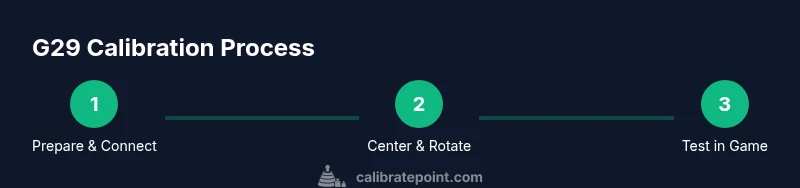
- 1
Prepare workspace and connect the wheel
Power off the system, inspect cables for wear, and securely connect the G29 to your PC or console. Place the wheel on a stable surface with room to turn fully left and right. Power on the device and open the calibration software.
Tip: Use a clean, stable desk to prevent wobble during calibration runs. - 2
Update firmware and software
Check for firmware and software updates through G HUB or LGS. Install any available updates and reboot the wheel if prompted. This ensures the calibration tools work with the latest hardware logic.
Tip: Back up current profiles before updating to prevent loss of your settings. - 3
Center the wheel and set rotation range
Perform a center alignment in software or manually rotate the wheel to true center. Set the wheel rotation to a standard value (commonly 900 degrees) or match your preferred range to align with your sim’s input scale.
Tip: Keep the wheel centered during rotation-range changes to avoid introducing bias. - 4
Calibrate wheel centering and axis offsets
Run center alignment, then rotate fully left and right to ensure the software recognizes both extremes. Verify the wheel returns to center when released and adjust small offsets if needed.
Tip: If you feel mechanical drag, recheck mounting and ensure there’s no obstruction. - 5
Calibrate pedals individually
Calibrate each pedal axis: press fully to the end of travel, release to zero, and confirm linear response. Correct any pedal dead zones or non-linear segments to ensure smooth acceleration and braking.
Tip: Depress pedals evenly and fully to map full travel accurately. - 6
Test in a supported sim
Load a test track or practice session. Observe wheel centering, steering response, and pedal ramp in-game. If drift or dead zones persist, revisit the center alignment and pedal calibration steps.
Tip: Use a simple track to get repeatable measurements and compare against your baseline. - 7
Save, document, and backup calibration
Save the calibrated profile and backup settings to external storage if possible. Document firmware/software versions, rotation range, and pedal values for future reference and reproducibility.
Tip: Create a quick-start profile that you can reuse on other machines or after updates. - 8
Ongoing maintenance and periodic checks
Periodically recheck center alignment, rotation range, and pedal response—especially after firmware updates or new game titles. A quick validation check keeps performance consistent over time.
Tip: Set a calendar reminder for quarterly calibration checks to maintain consistency.
Questions & Answers
Do I need G HUB or LGS to calibrate the G29?
Both G HUB and LGS offer calibration utilities; choose the one you’re comfortable with. Updates in either can alter calibration behavior, so re-check your profile after upgrades.
You can calibrate with either G HUB or LGS; pick the one you prefer and re-check your profile after updates.
Can I calibrate the G29 on a console?
Yes, you can calibrate on compatible PlayStation consoles. Ensure firmware is up to date and that the game supports wheel input. Follow the same center and pedal calibration steps.
Yes, calibrate on a supported PlayStation console by updating firmware and following center and pedal calibration steps.
What if the wheel doesn’t center after calibration?
Check for mechanical binding, ensure the wheel is mounted securely, and re-run center alignment. If drift persists, revert to baseline and re-check rotation range and dead zones.
If it won't center, inspect mounting and re-run the center alignment; check rotation range and dead zones.
How often should I recalibrate?
Recalibrate after major software or firmware updates, or when you notice drift or non-linear pedal response. Quarterly checks are a good practice for consistent results.
Recalibrate after updates or when you notice drift; quarterly checks keep performance consistent.
Can calibration fix pedal dead zones permanently?
Calibration can reduce dead zones but may not eliminate severe mechanical wear. If dead zones persist, inspect pedal assemblies for wear or misalignment.
Calibration reduces dead zones but won’t fix severe wear; inspect pedals if issues persist.
Should I back up calibration data?
Yes. Back up profiles and logs, including firmware and rotation range, so you can restore a known-good state after changes.
Yes—back up your calibration profiles and logs to restore quickly if needed.
Watch Video
Key Takeaways
- Center the wheel consistently to improve precision.
- Use a stable rotation range across games for predictability.
- Calibrate pedals individually for linear input.
- Test in multiple titles to verify cross-game consistency.
- Document and back up calibration data for repeatability.